
By default, data format will follow the end-user's default locale or from their personal setting in Salesforce, You can change the format using throughout the document by editing the Default Data Formatter in the template file.
Select Settings → Salesforce Data
In the Default Data Formatter, click on the modify icon in the Currency, Number or Percentage formatter
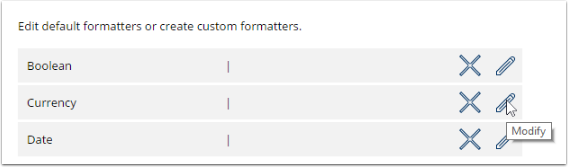
Using available pattern
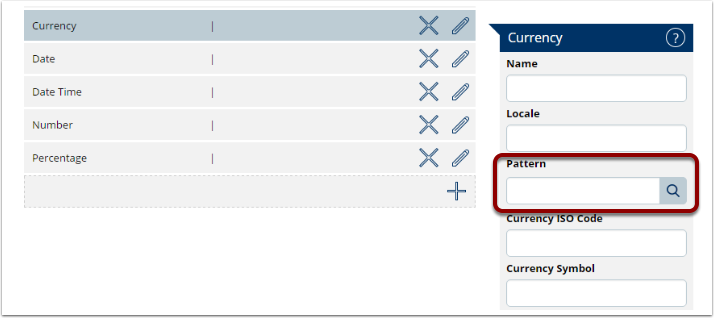
Click the Search icon on Pattern to open the pattern list
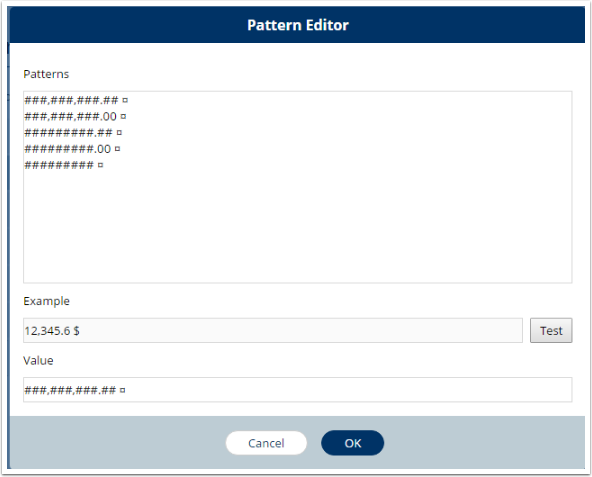
In the Pattern Editor, select the pattern you want to use
Click Test to see the example outcome
Click OK
Create your own pattern
If you want to have a number format different from in the available list, such as having more decimal digits, you can also create your own pattern using the symbols in the following table.
Type a new pattern in the Value and click Test or OK
|
Symbol |
Description |
|---|---|
|
0 |
A digit that is shown even if the value is zero |
|
# |
A digit that is suppressed if the value is zero |
|
. (Dot) |
Placeholder for decimal separator. If no decimal separator is defined, it will take from user's locale |
|
, (Comma) |
Placeholder for grouping separator. If no grouping separator is defined, it will take from user's locale |
|
¤ |
Placeholder for currency symbol. If no currency symbol is defined, it will take from user's locale |
|
% |
Multiply the value by 100 and show with the "%" symbol |
|
' |
Used to quote special characters in prefix or suffix. See below example with '%' |
|
'%' |
Show only the "%" sign without multiplying the value |
Example of patterns for number, currency and percentage values
|
Value |
Locale |
Pattern |
Output |
|---|---|---|---|
|
123456.789 |
en-US |
###,###.### |
123,456.789 |
|
123456.789 |
fr-FR |
###,###.### |
123 456,789 |
|
1234.5 |
en-US |
###,###.###¤ |
123,4.5$ |
|
1234.5 |
en-US |
¤ ###,###.### |
$ 1,234.5 |
|
1234.5 |
fr-FR |
¤ ###,###.### |
€ 1 234,5 |
|
123.4 |
en-US |
###.## |
123.4 |
|
123.4 |
en-US |
###.00 |
123.40 |
|
123.4 |
en-US |
0000.00 |
0123.40 |
|
12.34 |
en-US |
##.## % |
1234 % |
|
12.34 |
en-US |
##.## '%' |
12.34 % |
Customize symbols and separators
You can customize Currency Symbol, Decimal Separator or Grouping Separator to display the data differently than the user's locale.
Example: You want to keep the locale and only change the grouping separator into "space", that the number will be shown as 123 456.70 instead of 123,456.70
-
Click Modify the formatter
-
In Grouping Separator, add a "space"
You will see the final example how data will be formatted by default in the document. If you want to format a specific field differently than the rest of the document, you can create a Custom Data Formatter and apply that into the template.