
Reassigning a Task
If you are not the right person to complete a Task, or you are unable to work on it, you can reassign your Task to someone else.
How to reassign a Task
1. Open your Task.
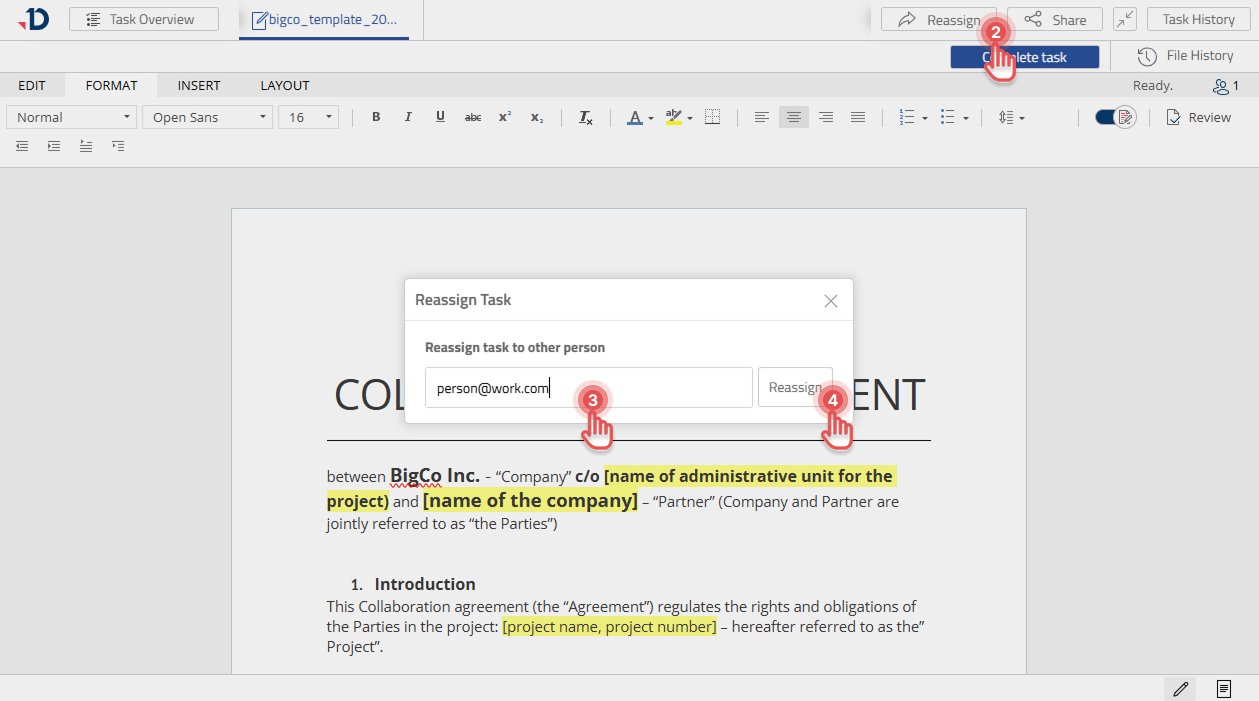
2. Click [Reassign] button in the top-right corner.
3. In the Reassign Task dialog, enter the person’s email address you want to reassign to.
4. Click [Reassign] button.
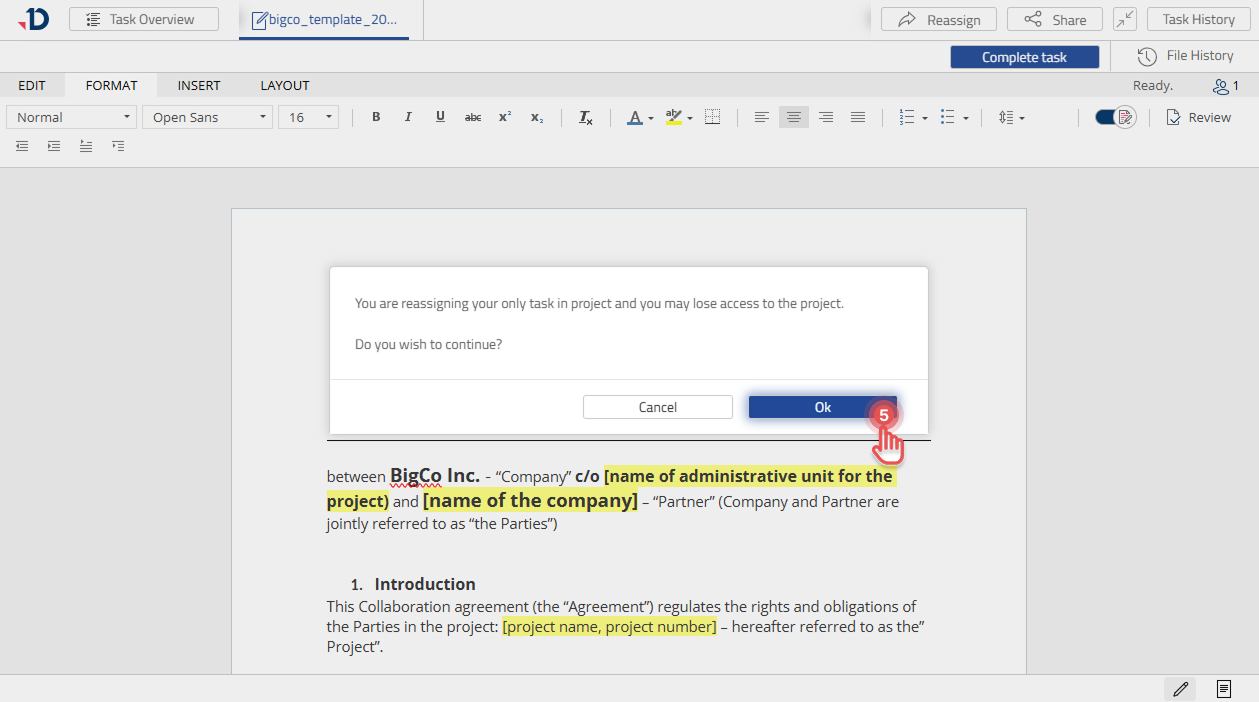
5. If you are reassigning your only Task in the project, a confirmation dialog will appear.
Click [Ok] button to continue reassigning your Task.
Task Responsibility and Access
When you reassign a Task to someone else, the responsibility for completing the Task is transferred to that person. Once reassigned, you will no longer have access to the Task.
If you want someone to assist with your Task while keeping the responsibility for completing it yourself, consider sharing the Task: Sharing a Task