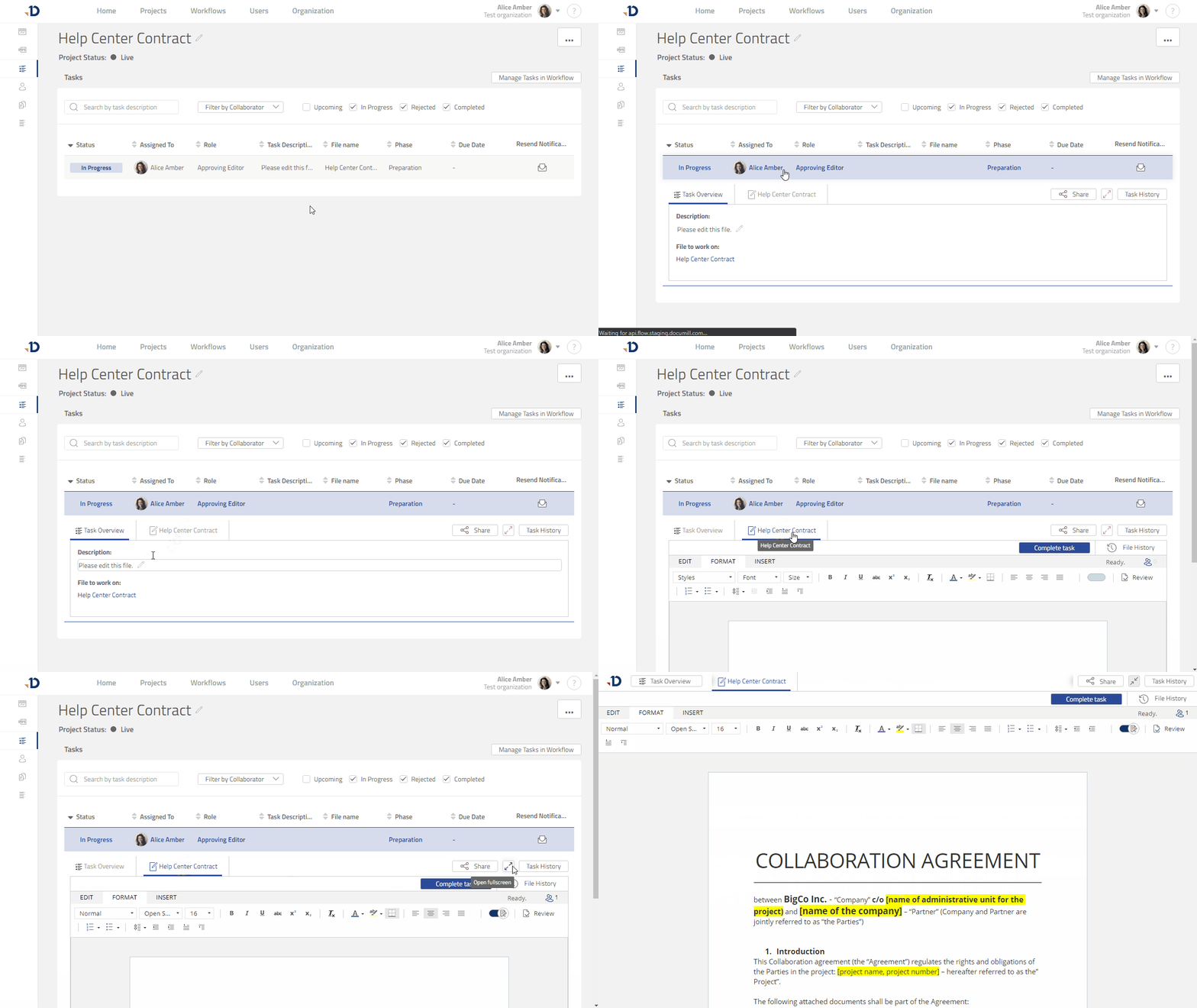
From Notification
-
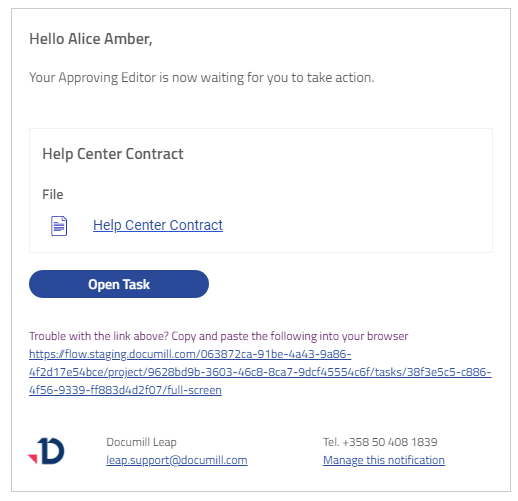
Open the notification you received (could be in form of e-mail, Slack message, or Salesforce Chatter)
-
Click the [Open Task] button
-
You may need to sign in
-
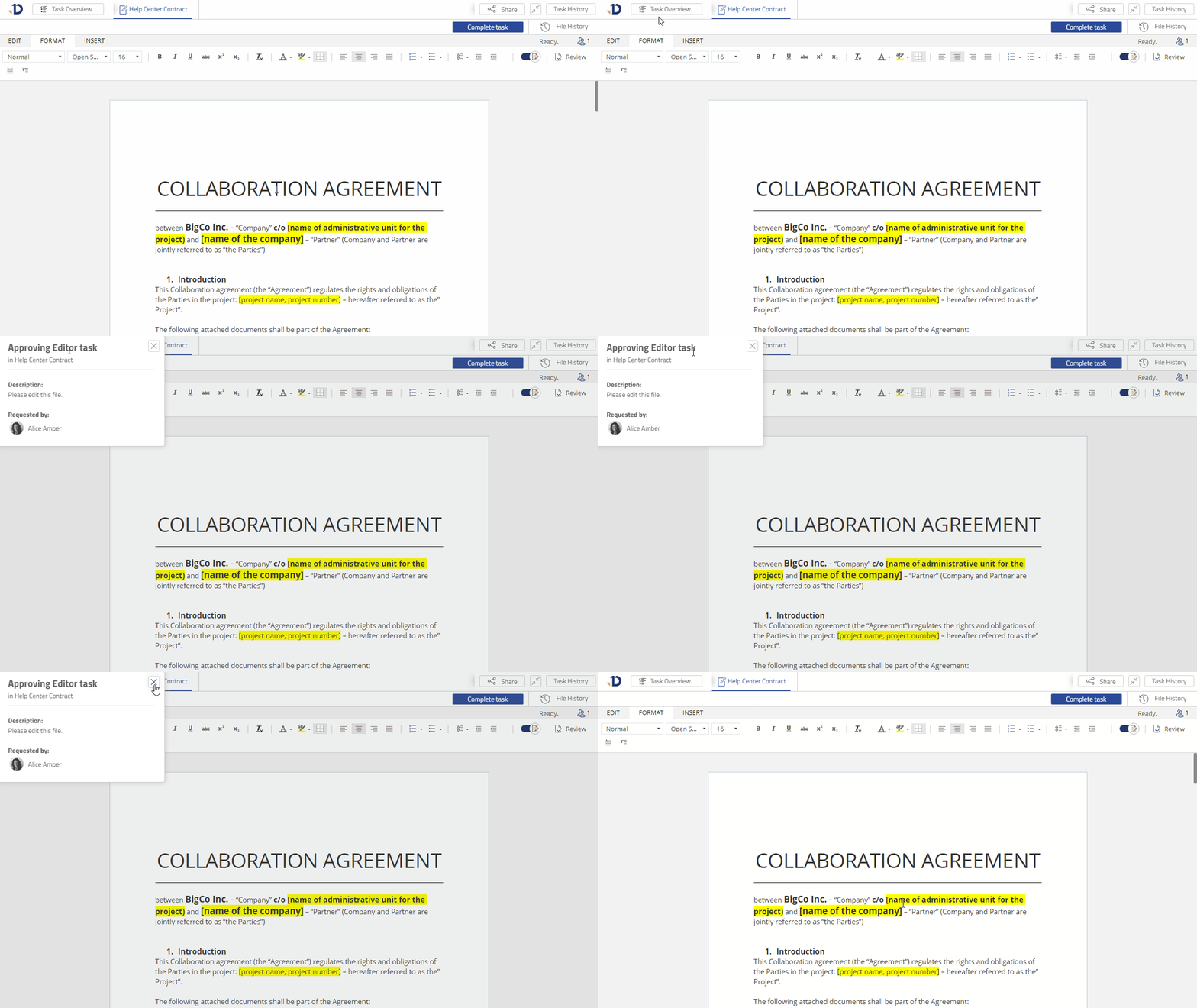
You will then see your Task in full-screen mode
-
Check task description and Task Role in the Task Overview panel
From Home page
-
Sign in to Leap
-
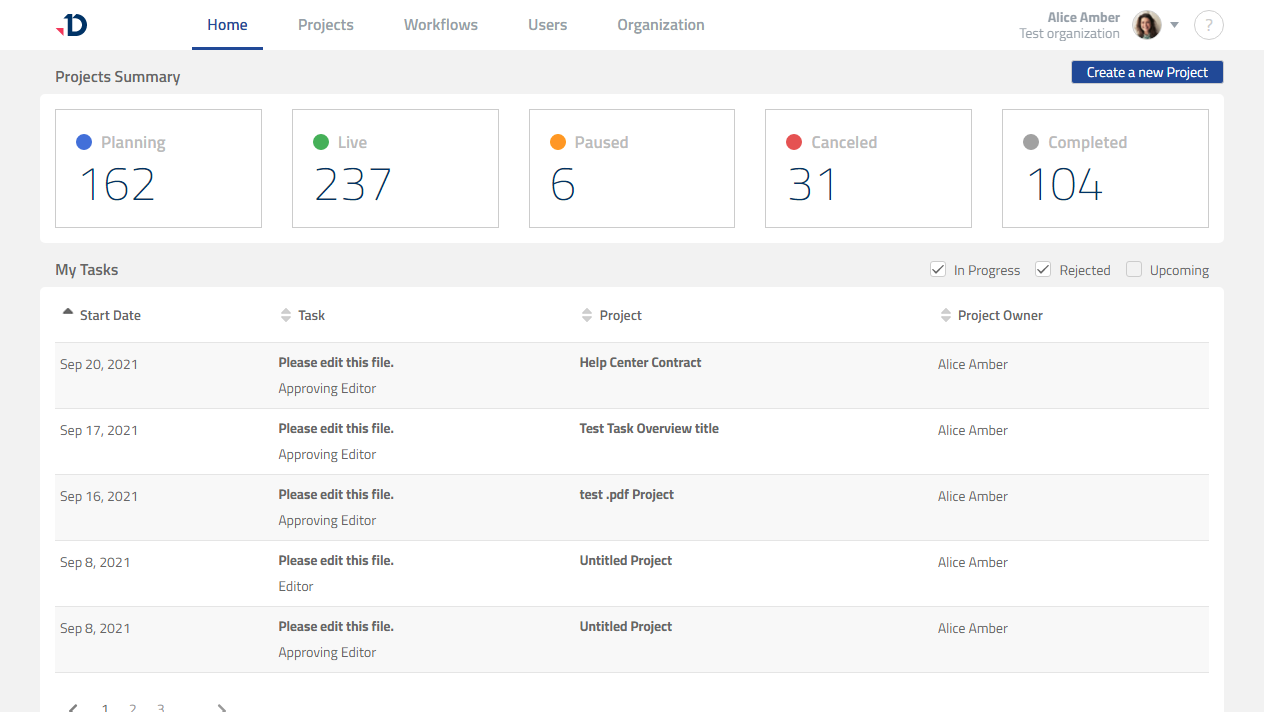
In Home page, look for "My Tasks" section
-
Click the task you want to work on
-
You will then see your Task in full-screen mode
-
Check task description and Task Role in the Task Overview panel
From a Project
-
Sign in to Leap
-
Go to Projects page
-
Open the project where the Task is located
-
Go to Project Tasks page
-
Click your Task to open it and set it as full-screen to have a better view