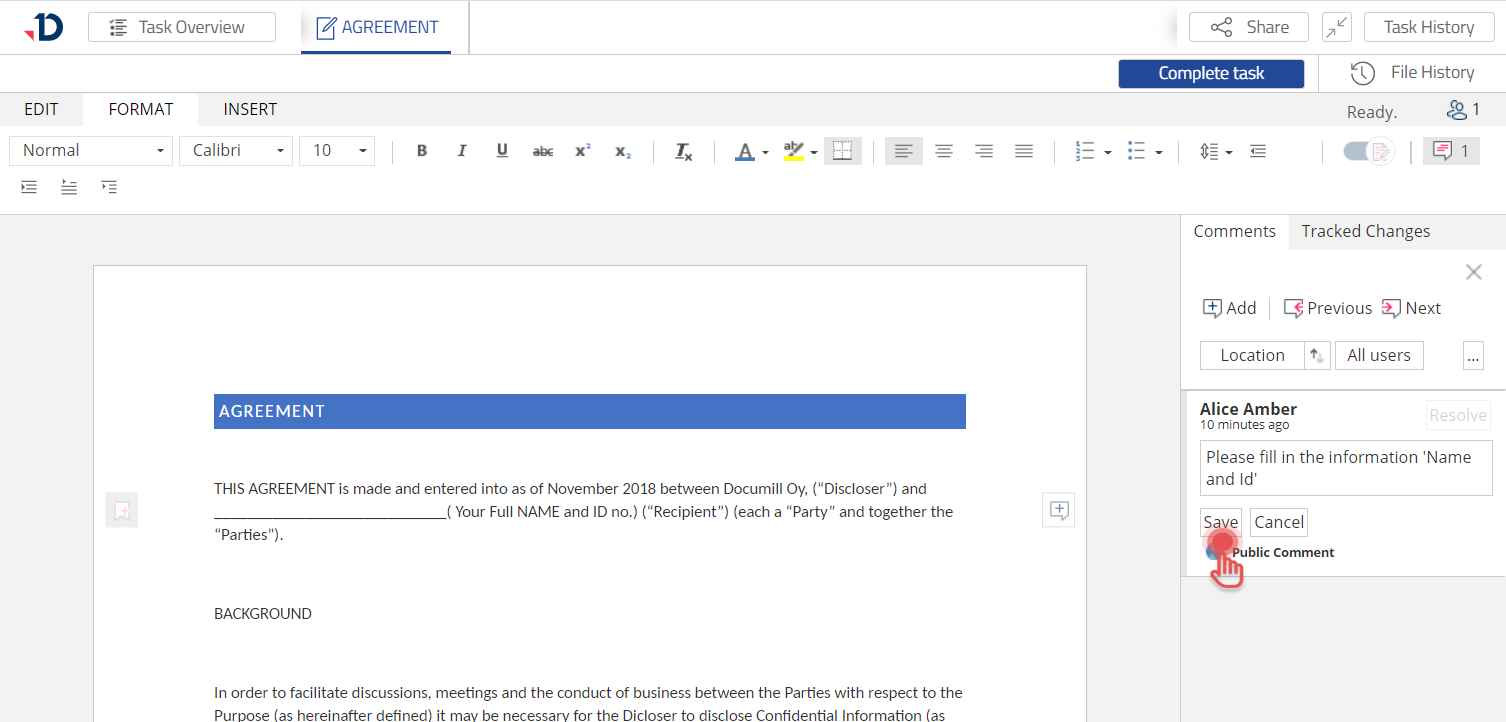
You can add a Comment in two ways:
Inside a Document
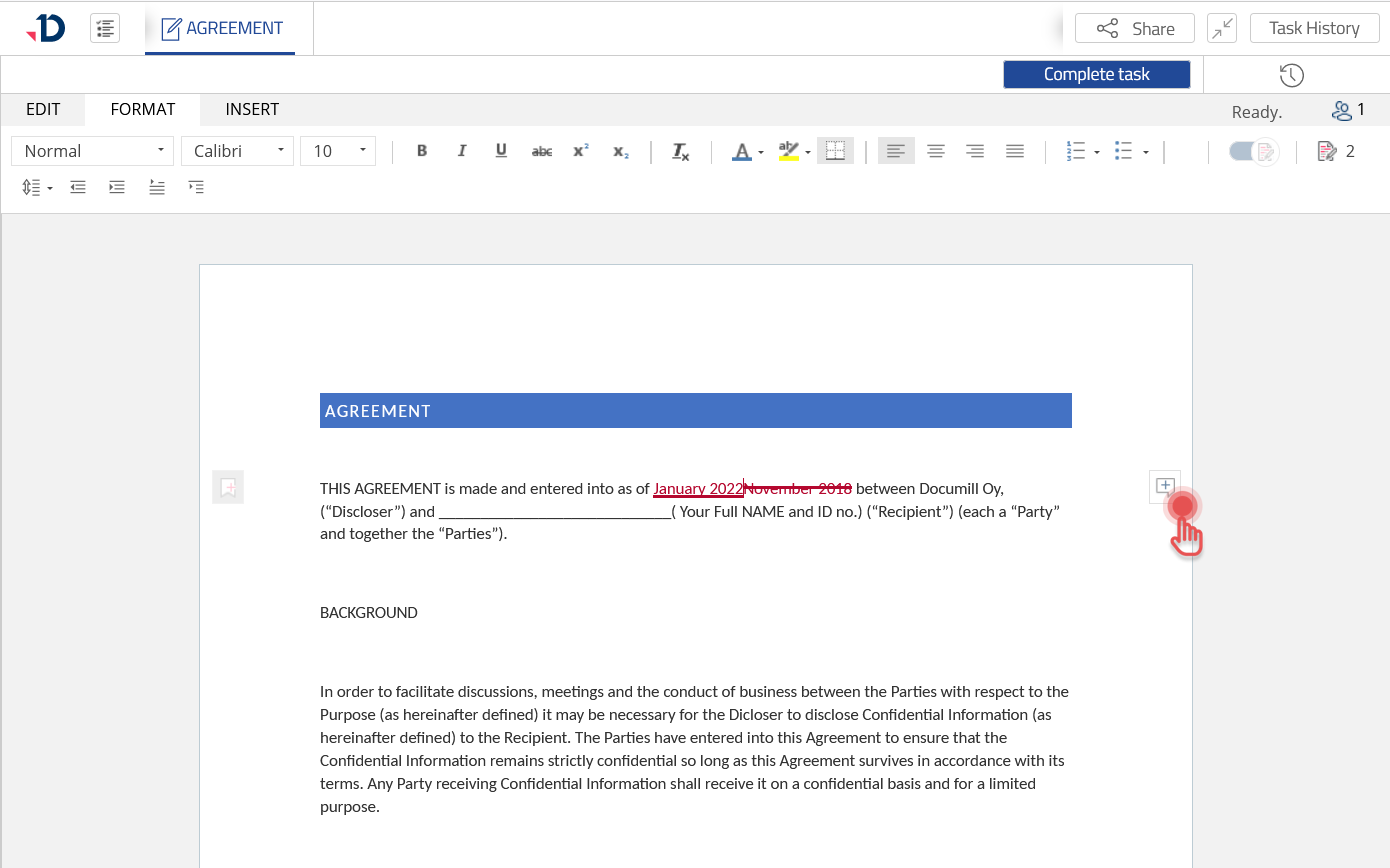
1. Place the cursor where you want to comment on in the document.
2. Click [Add comment] icon.
Preview
3. Add the Comment to the input field and click [Save] button.
Preview
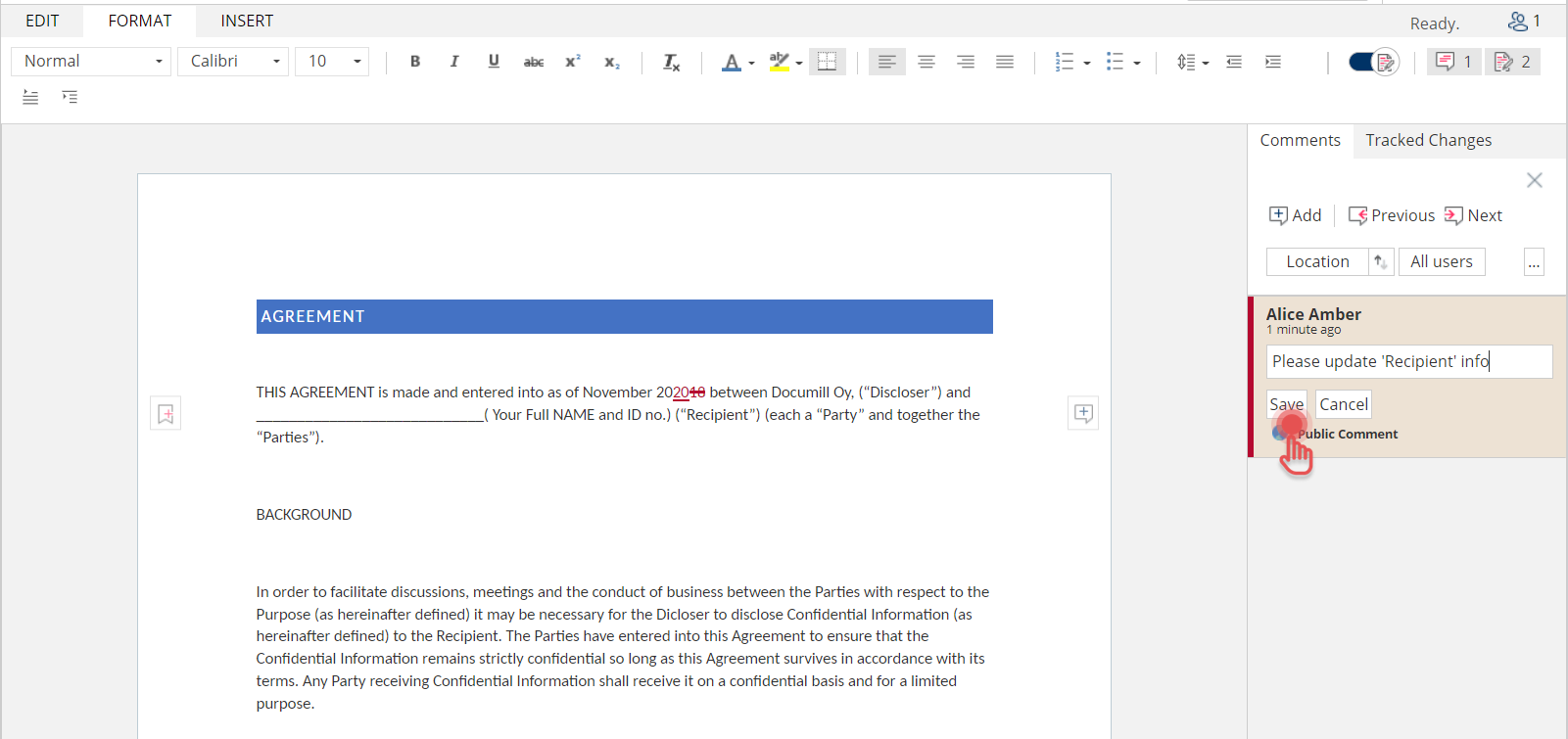
From the Side Pane
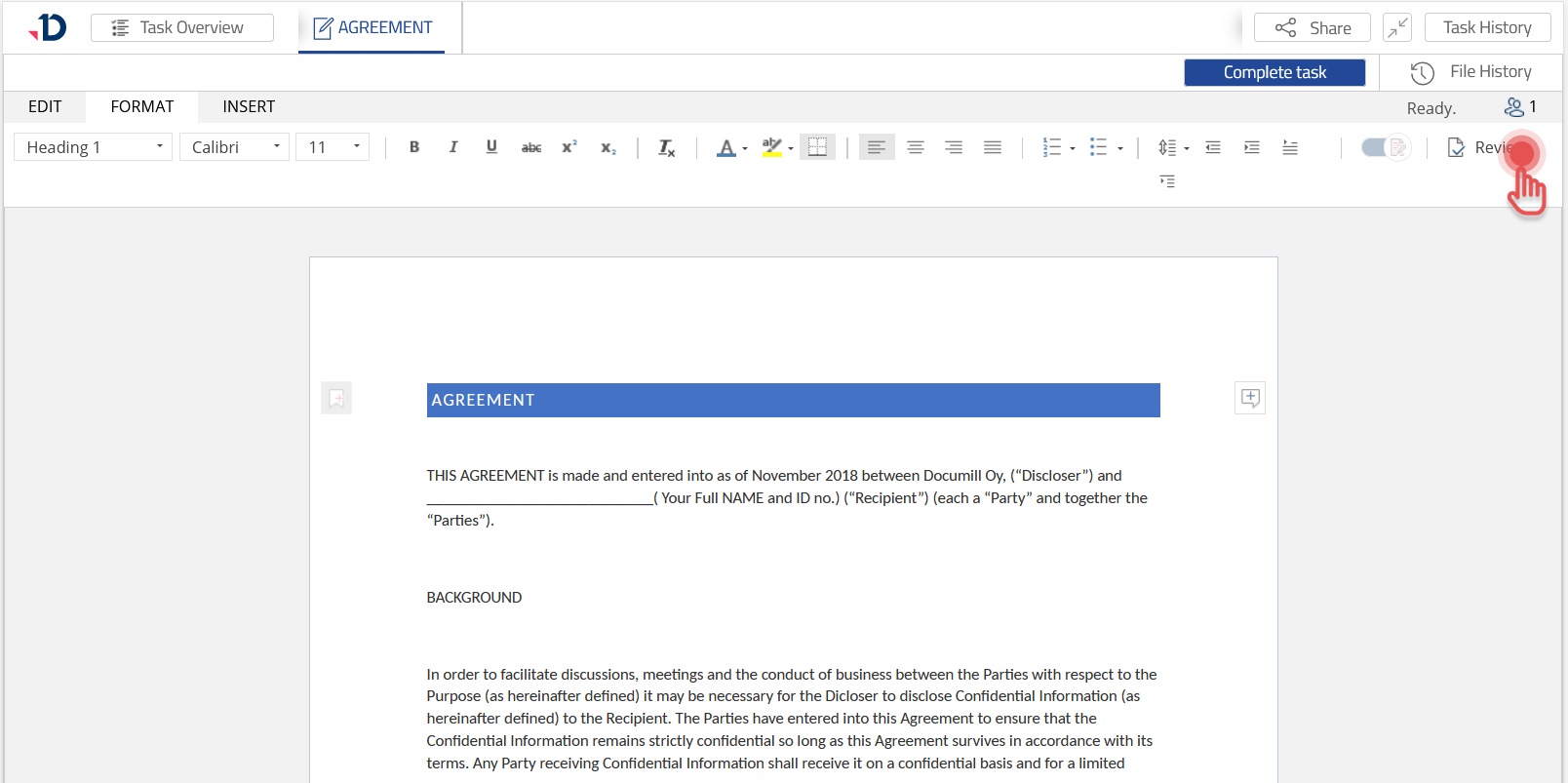
1. Open the side pane:
a. Click [Review] icon.
Preview
b. Click [Track Changes Pane] icon.
Preview
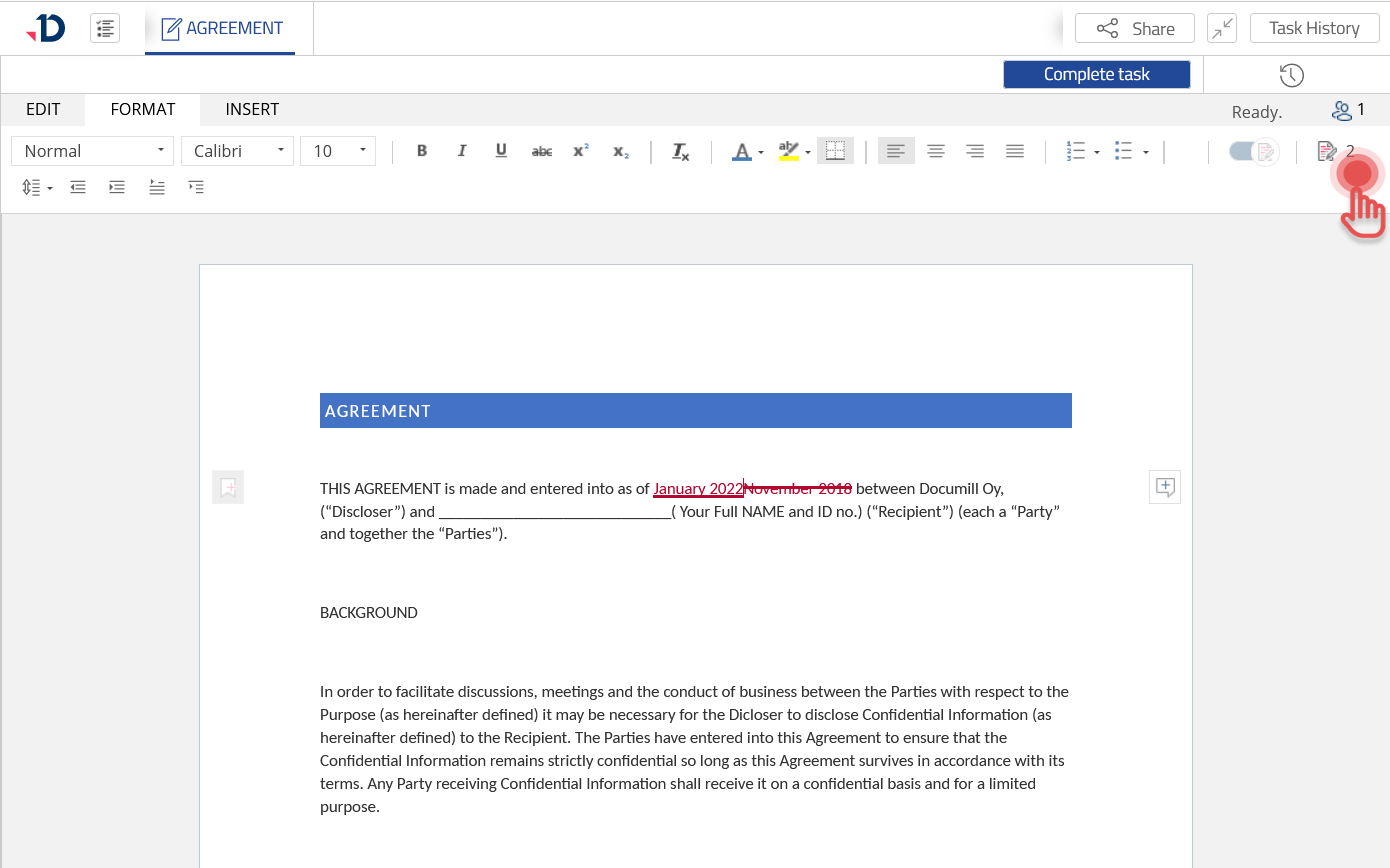
c. Click [Comments pane] icon.
Preview
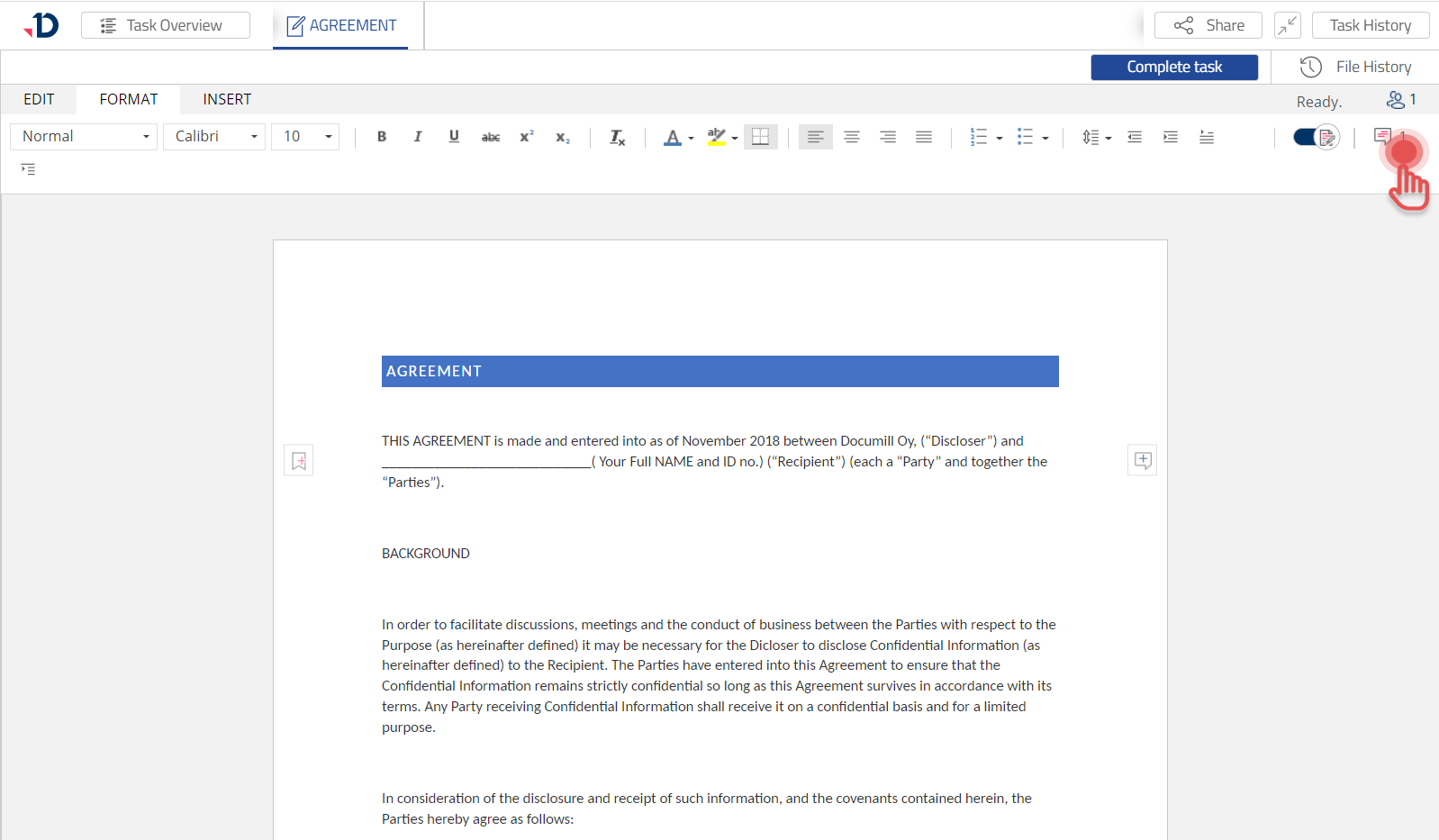
2. Select [Comments] tab.
Preview
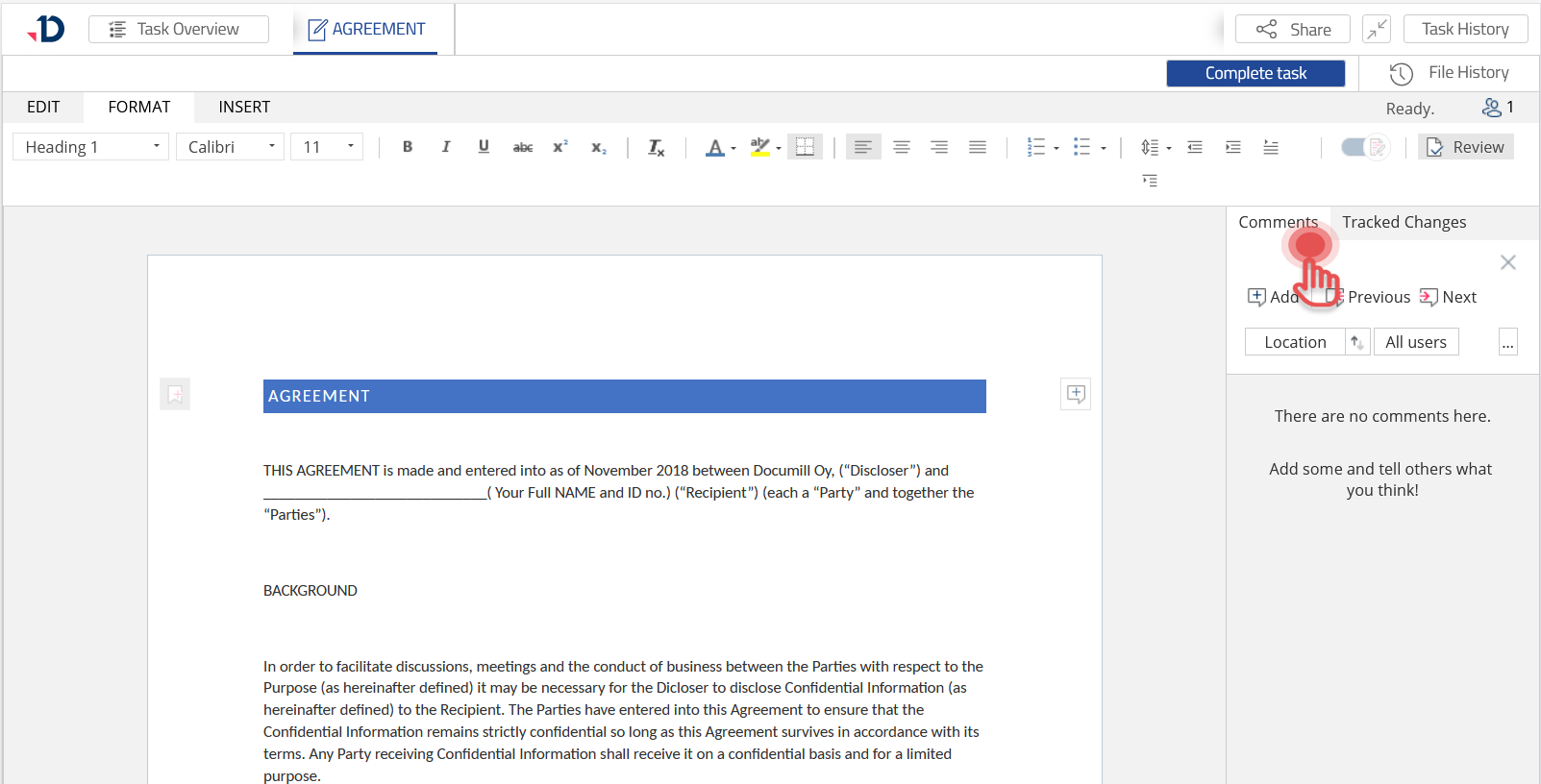
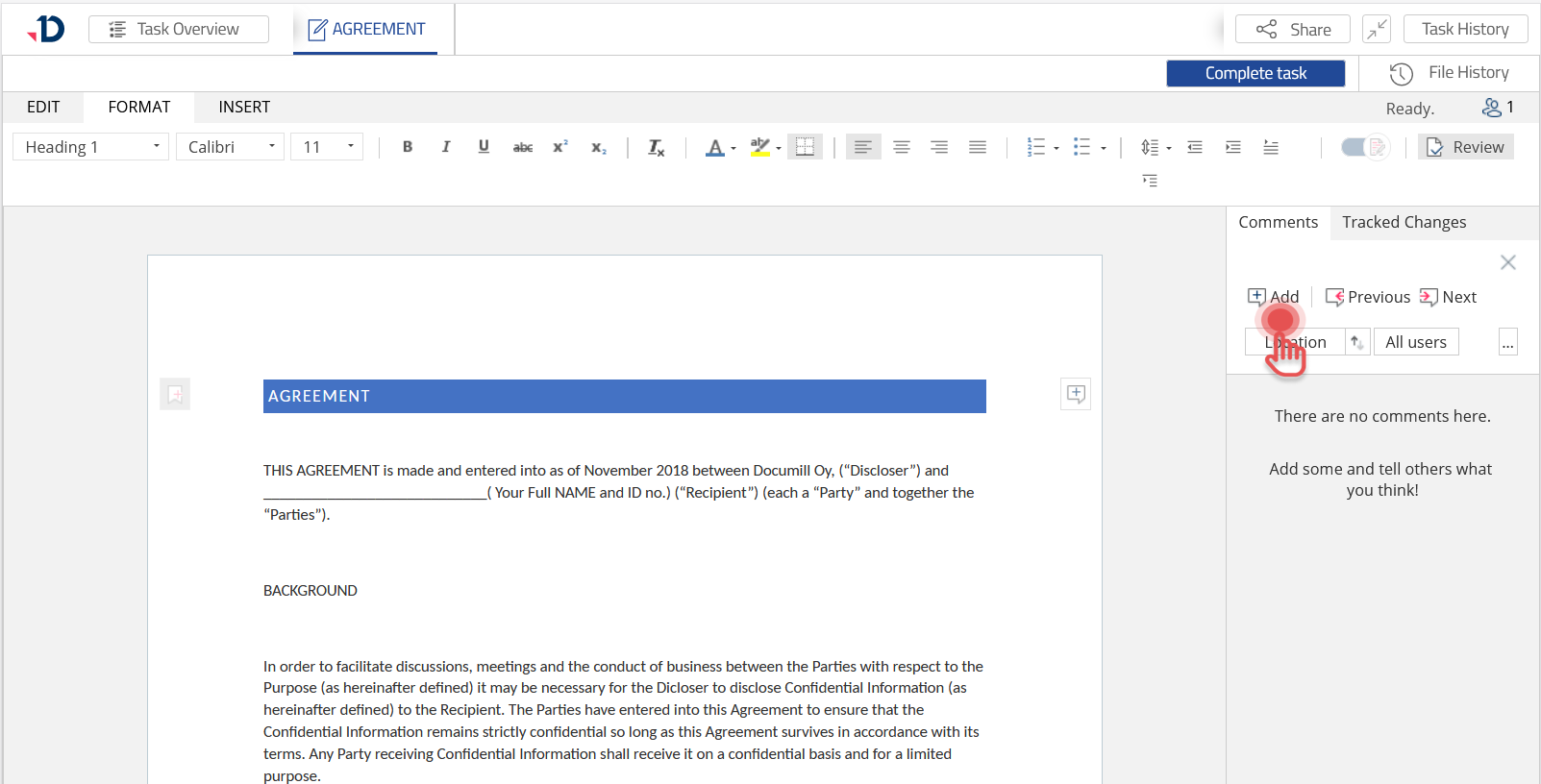
3. Place the cursor where you want to comment on in the document.
4. Click [Add] button.
Preview
5. Add a comment to the input field.
6. Click [Save] button.
Preview