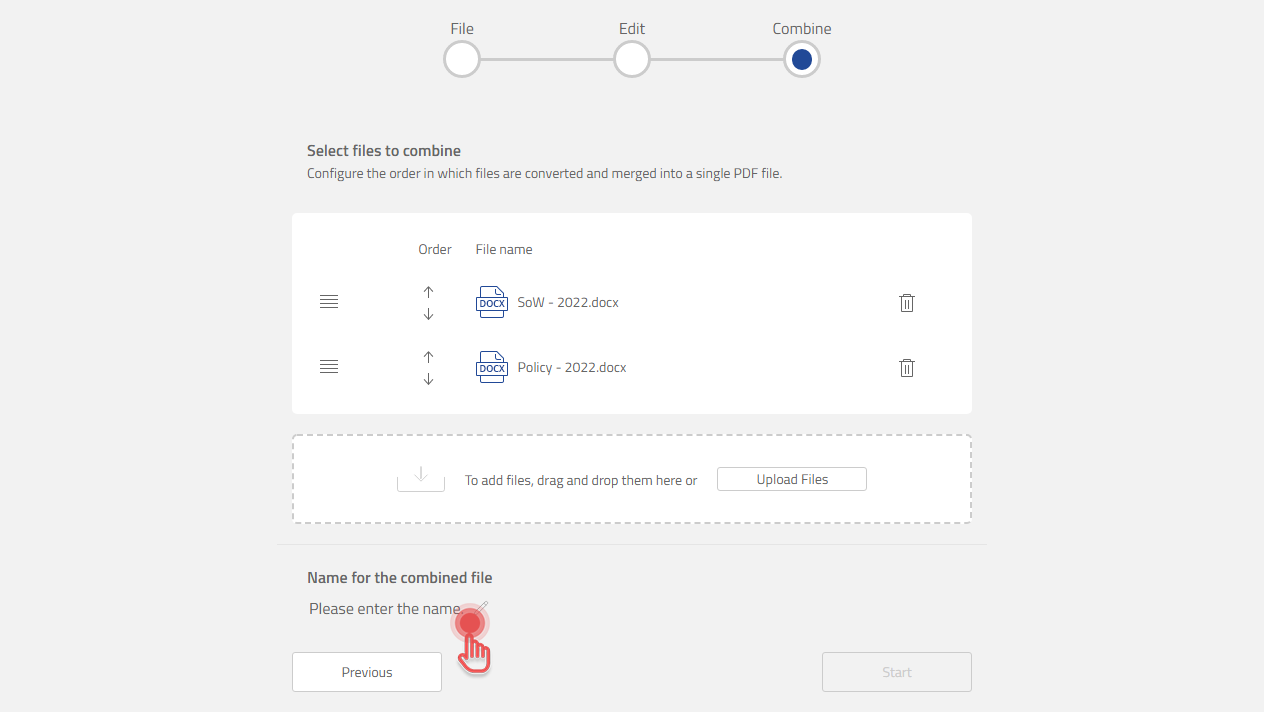
Available to Project Owner.
Combine Step allows you to merge multiple Files into a single PDF. You can also rearrange the order of how the Files will be combined.
Adding Files
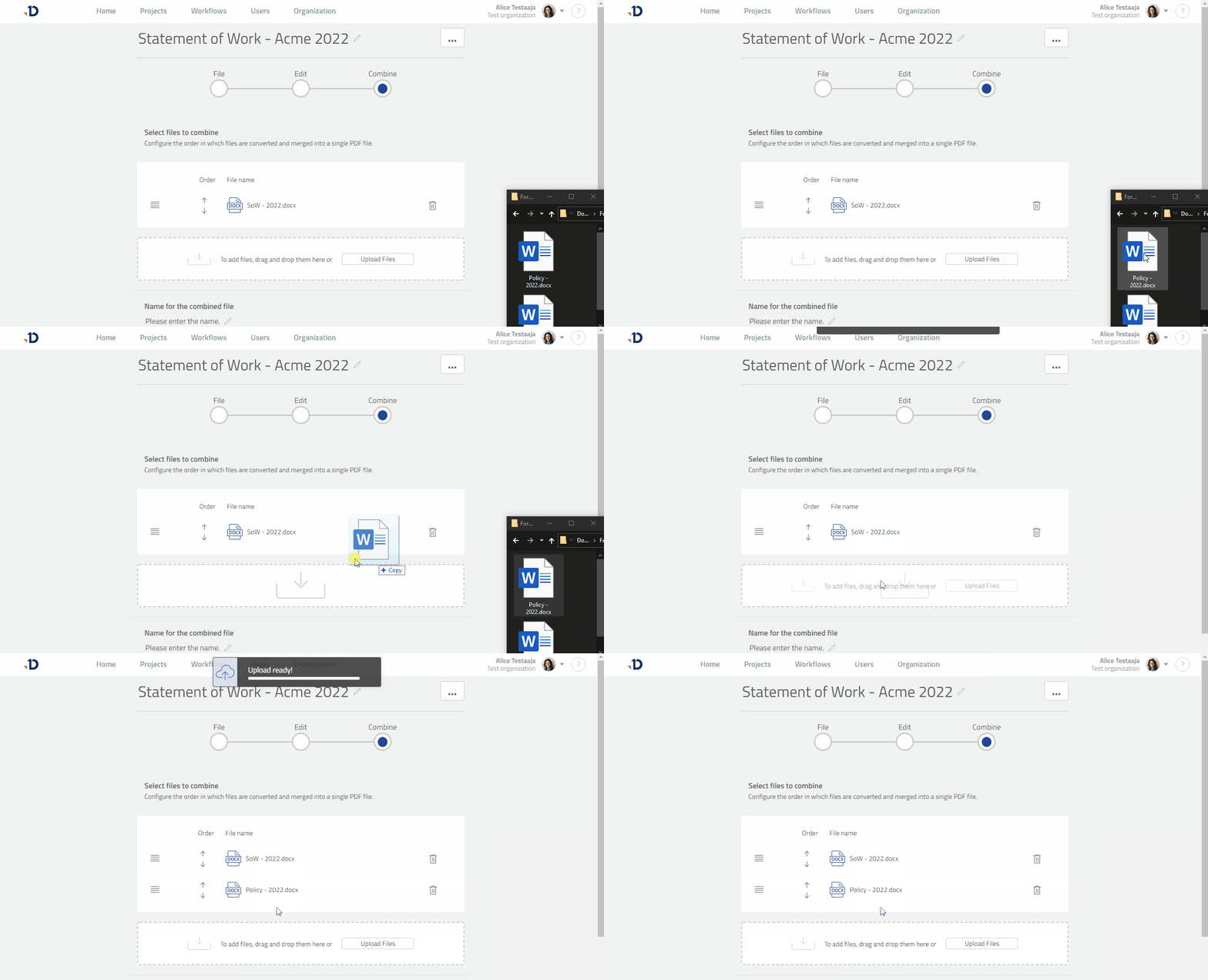
There are two ways to add Files into a Combine Step:
A. Drag and drop the Files from your computer.
Preview
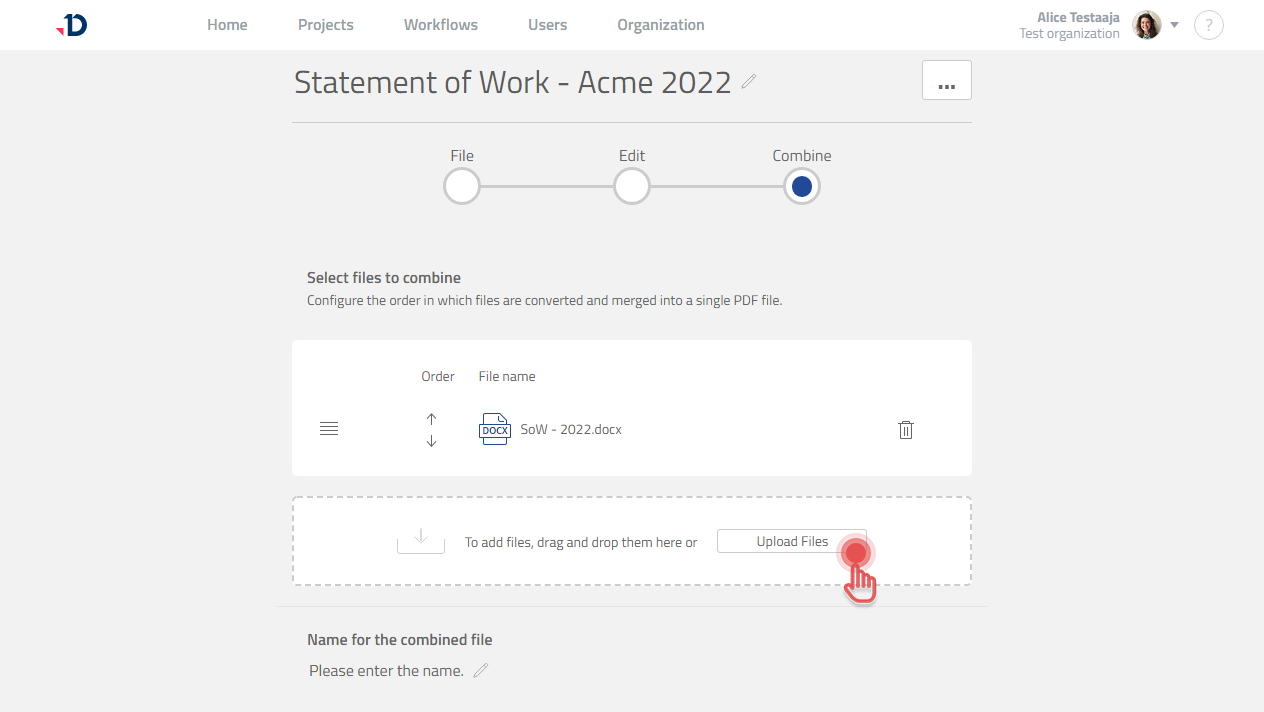
B. Click [Upload Files] button and select your Files.
Preview
Rearranging Files
To rearrange a File:
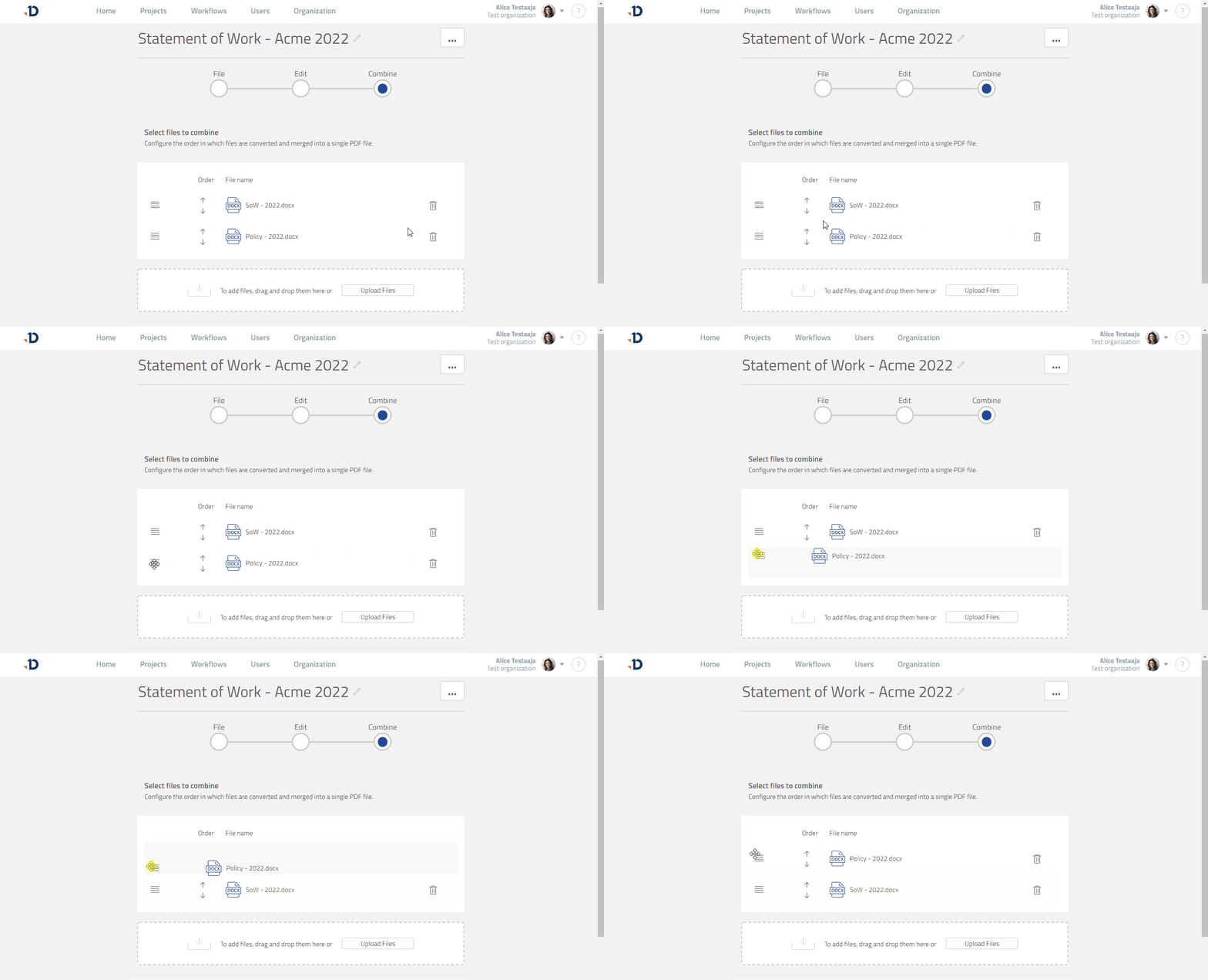
A. You can drag and drop a File to reorder it:
1. Click and hold [≡] button on the File that you want to move.
2. Drag the File and drop it to the proper position.
Preview
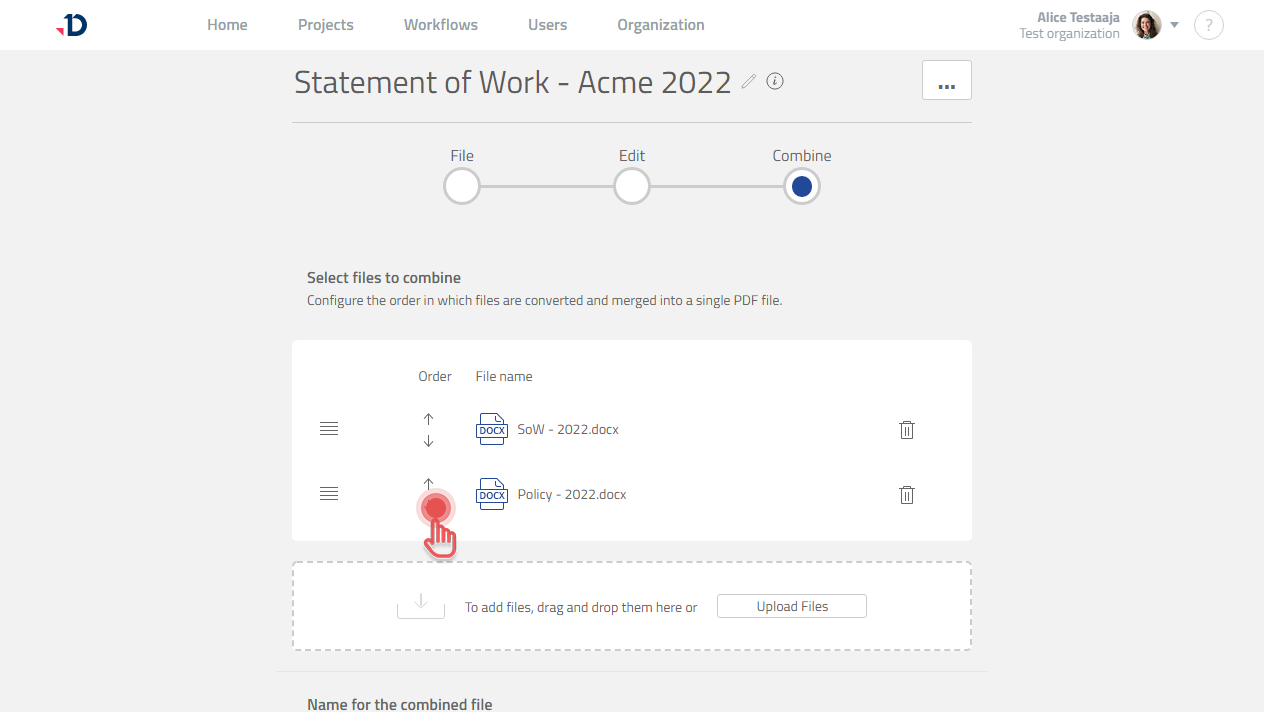
B. Alternatively, you can click [ ↑ ] or [ ↓ ] button to reorder a File.
Preview
Renaming the Combined File
By default, the name of the Combined File will be the same as the first File you attached in your Quick Start Project. If you want the name to be something else:
1. Scroll down to see the [Name for the combined file] section.
2. Click the name to write a new one.
Preview