
In this tutorial, you will learn how to open a task from a notification e-mail, make changes to a file, and complete the Editor Task that was prepared in Create your first project tutorial.
1. Open the task from task notification e-mail
-
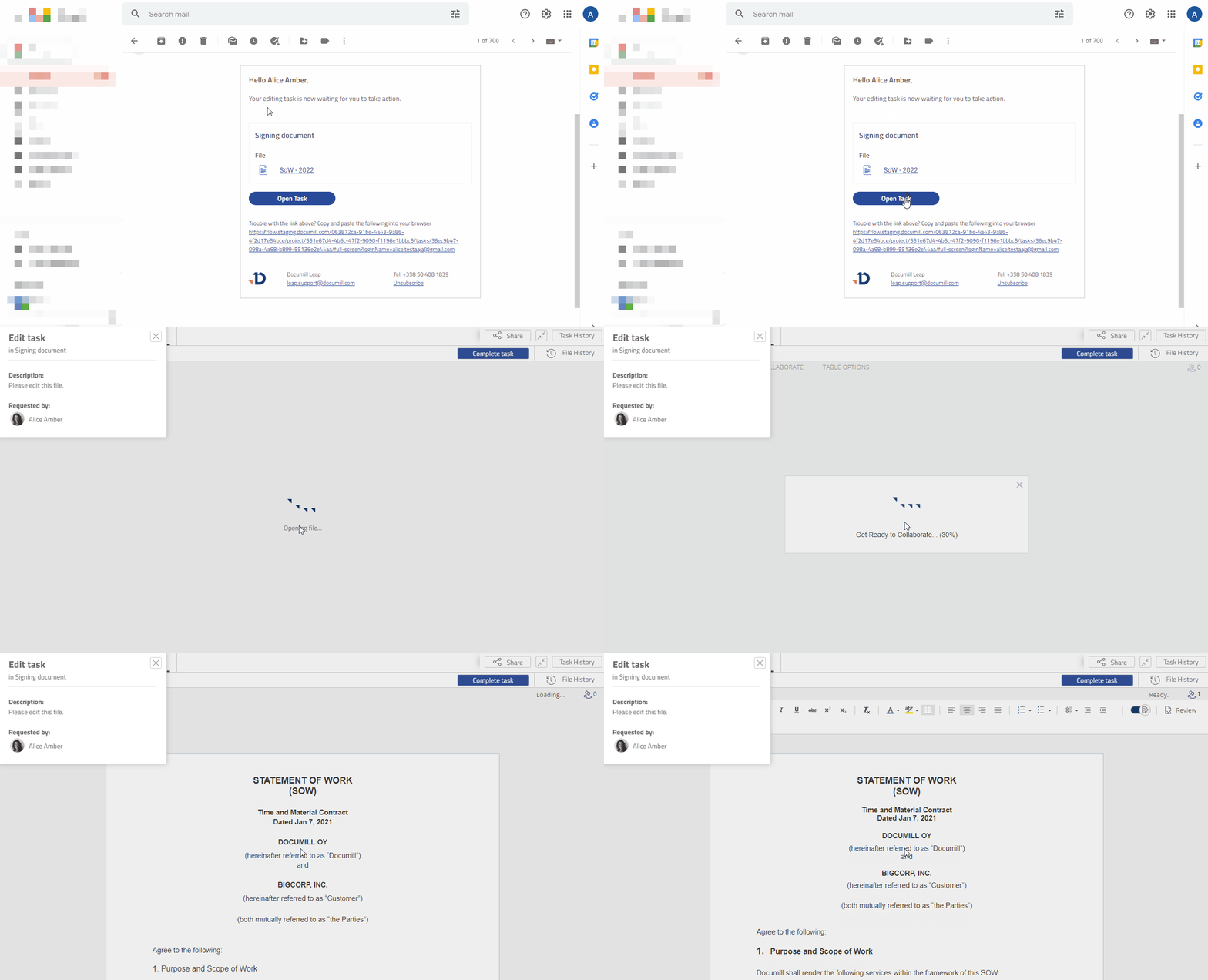
Open the task notification e-mail from your inbox.
-
Click [Open task] button.
This will open the task in full-screen mode.
Preview
2. Make changes to the file
-
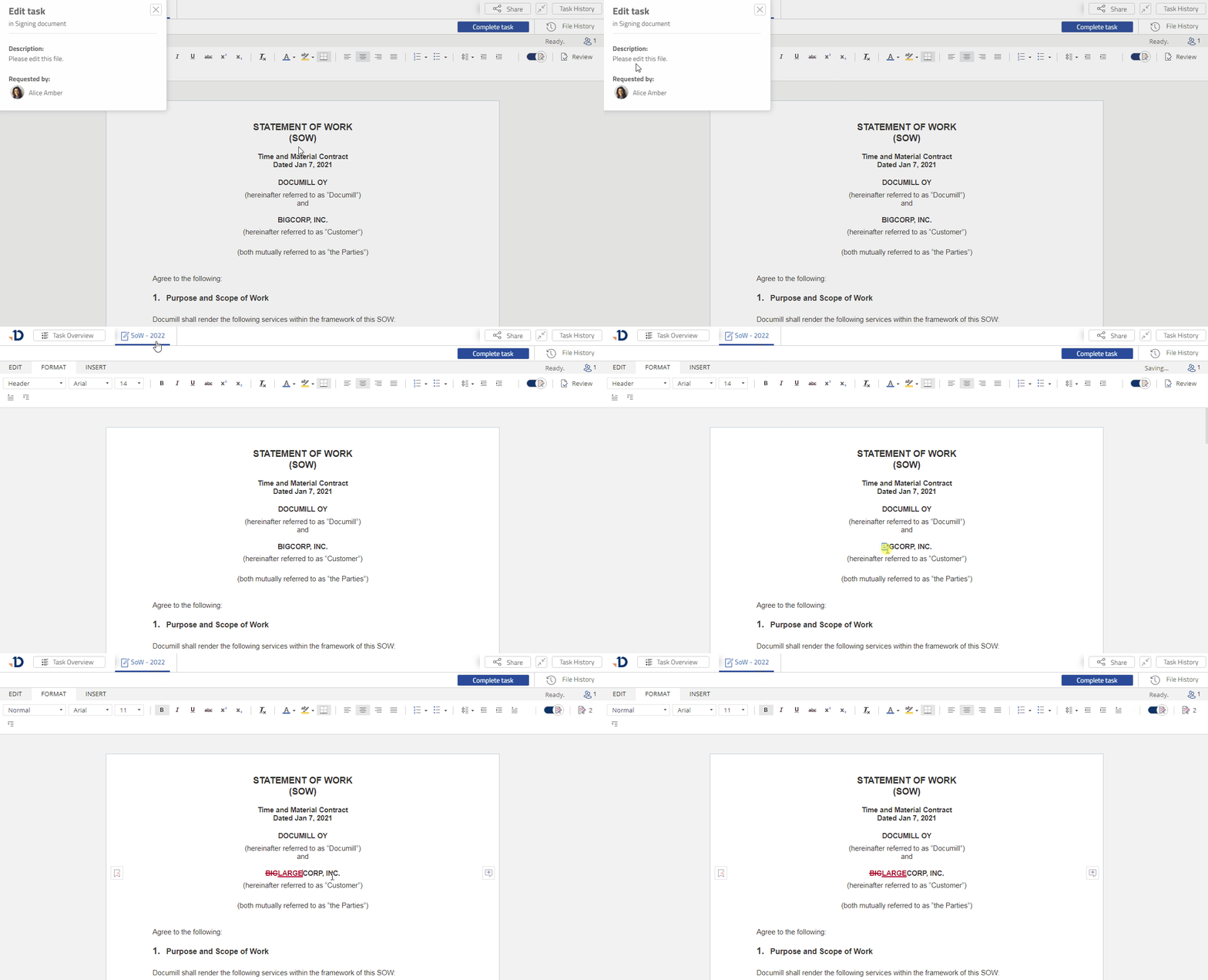
Close the Task Overview dialog.
-
Change some text in the document.
By default, changes are tracked by the text editor.
Preview
3. Complete the task
-
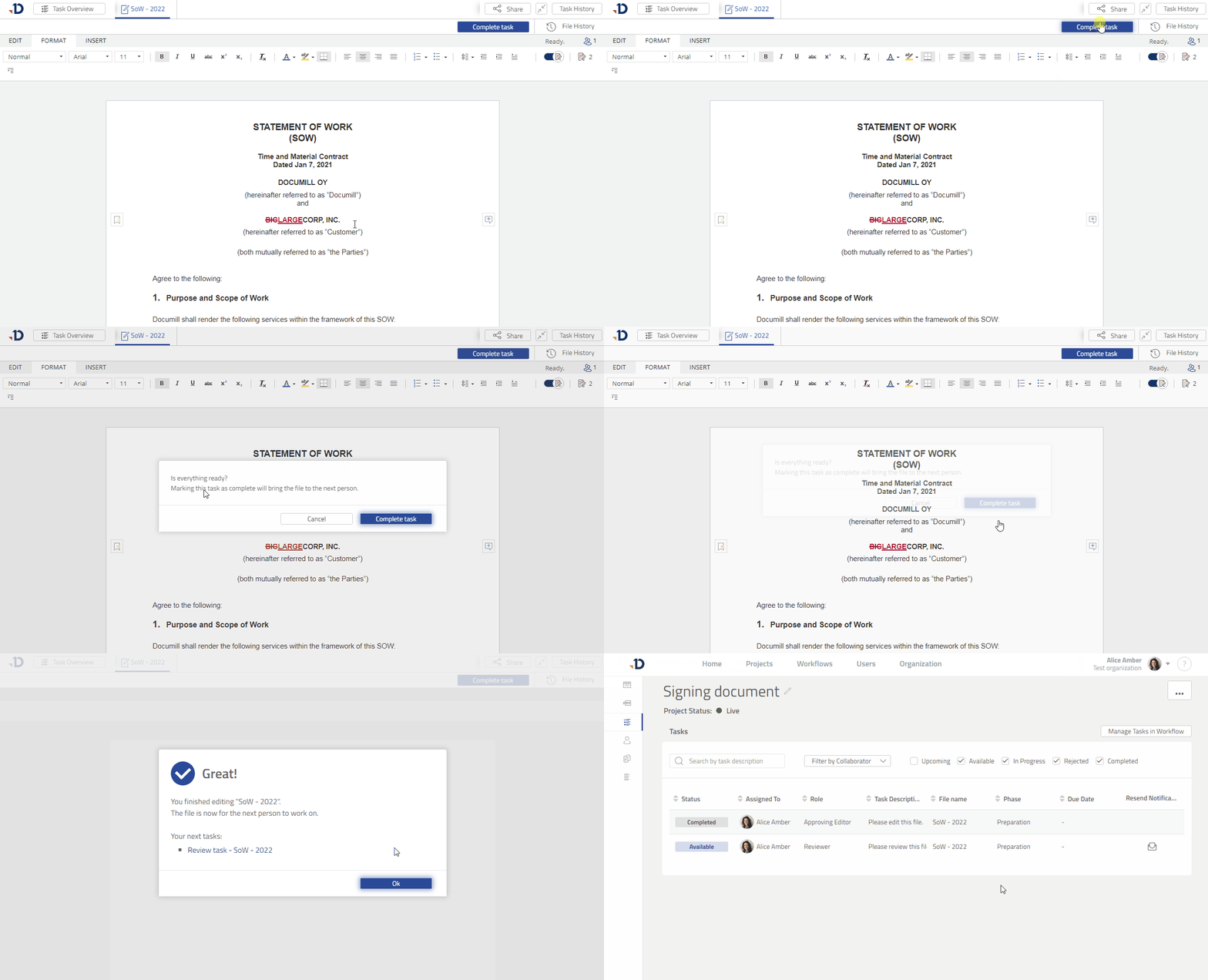
Click [Complete task] button in the top-right corner.
-
Click [Complete task] button in the confirmation dialog.
-
Click [Ok] in the Task Completed dialog.
You will then see the Tasks page. -
You have just finished editing a file and completed an Editor Task.
Preview
To conclude
In this tutorial, you have completed an Editor Task:
-
An Editor Task allows a person to make changes to the document.
-
By default, changes are tracked. Later on, the changes will have to be reviewed.
Next
To continue with the tutorial, you can start working on your Reviewer task.