
In this tutorial, you will learn how to open and work on a Reviewer Task that were prepared in Create your first project tutorial.
As a Reviewer, you are expected to review the file, accept or reject any suggested changes in the file if any, and make a decision whether to accept or reject the file.
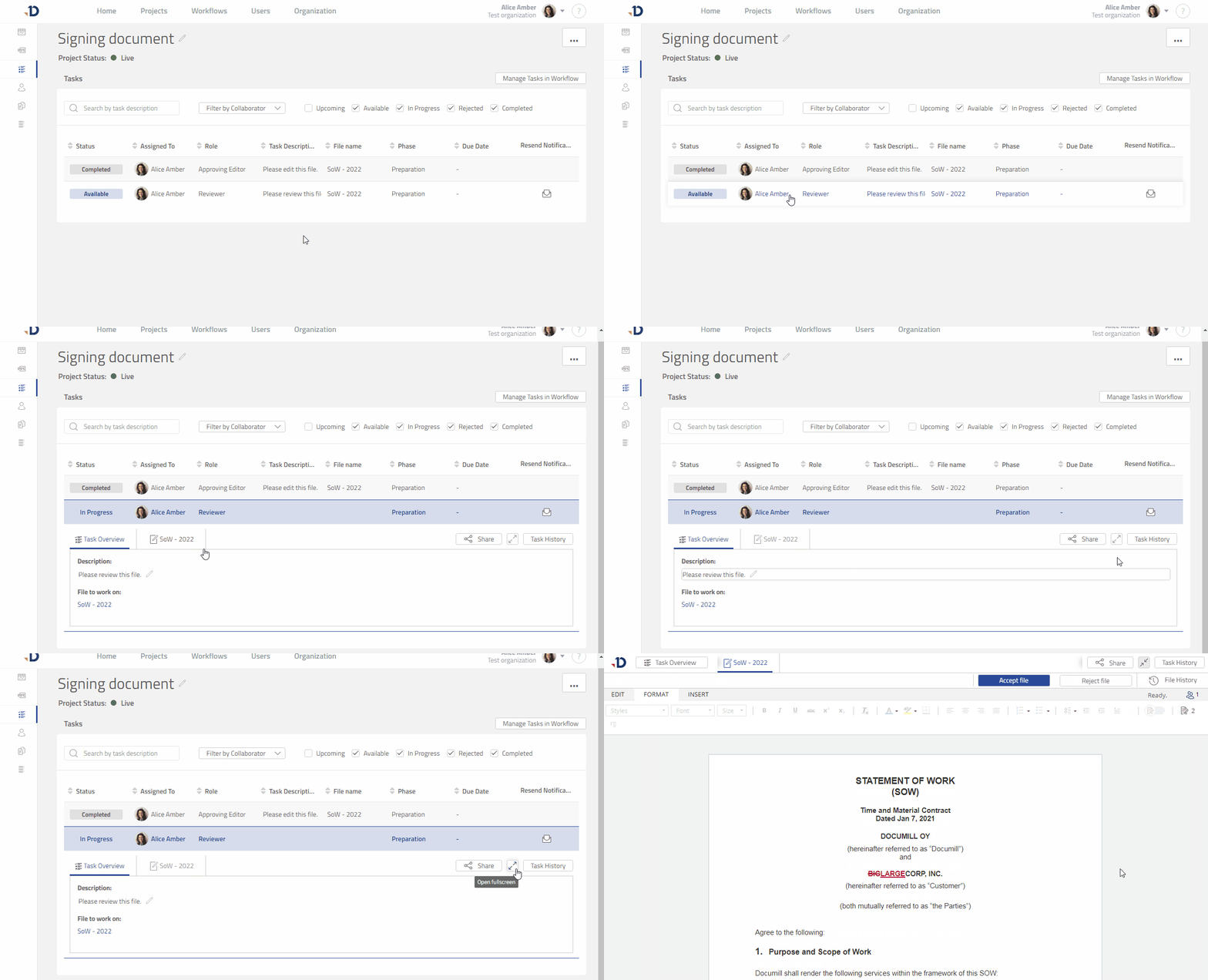
1. Open the task from Tasks page
-
Click the task to expand it.
-
Click [Open Fullscreen] button to have a better view of the task.
Click to expand...
2. Review and accept the tracked changes
-
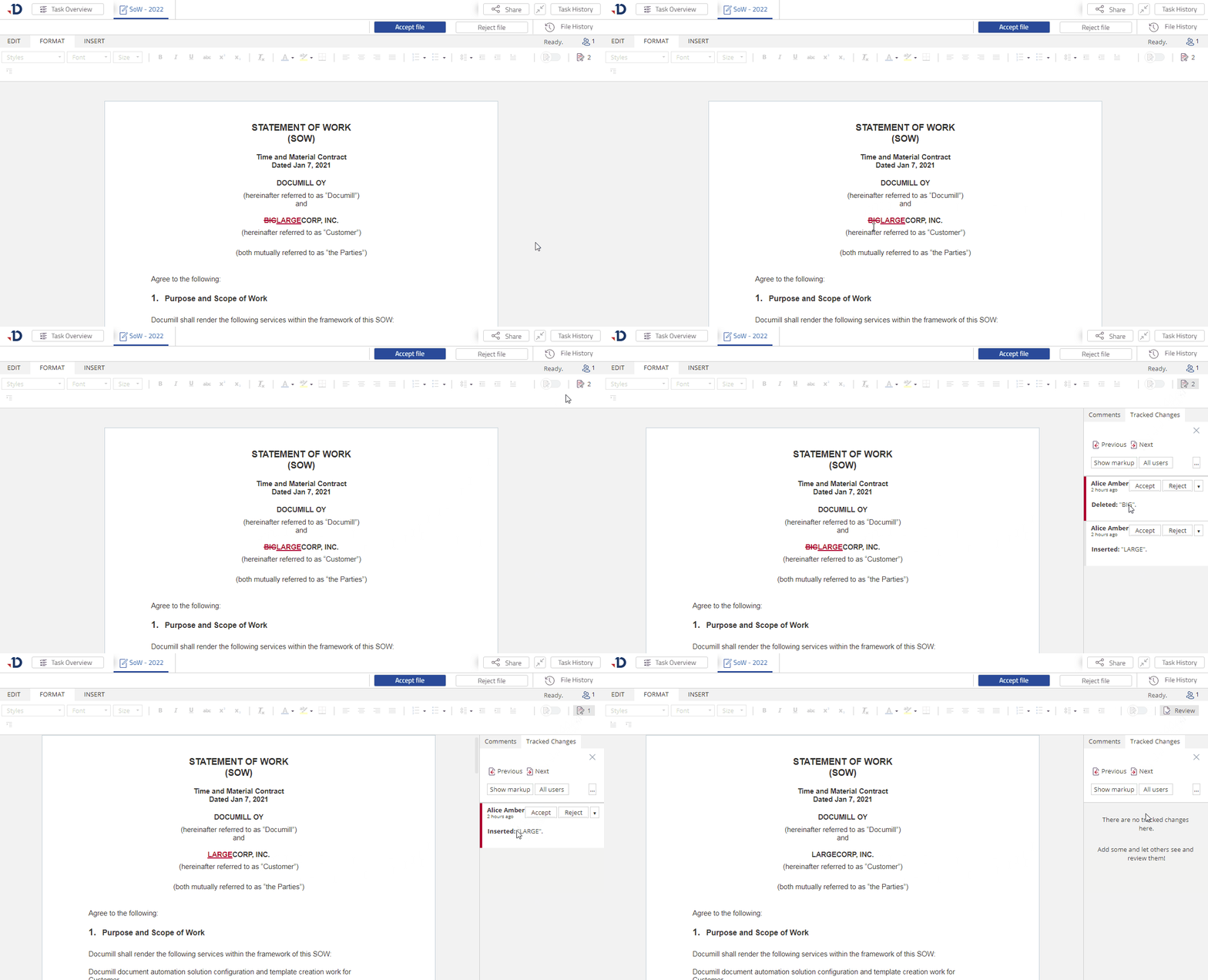
Notice the tracked changes in the document; tracked deletion is marked with strike-trough and tracked insertion is marked with underline.
-
Click [Review] button on the top-right corner.
[Review] button changes based on its content.
It shows the number of open Comment and open Tracked Changes if any.
Otherwise, it shows as [Review] button.
-
Inside Review Pane, click [Tracked Changes] tab to see the tracked changes.
-
On all tracked change boxes, click [Accept] to apply the changes into the file.
Preview
3. Make a decision to complete the task
-
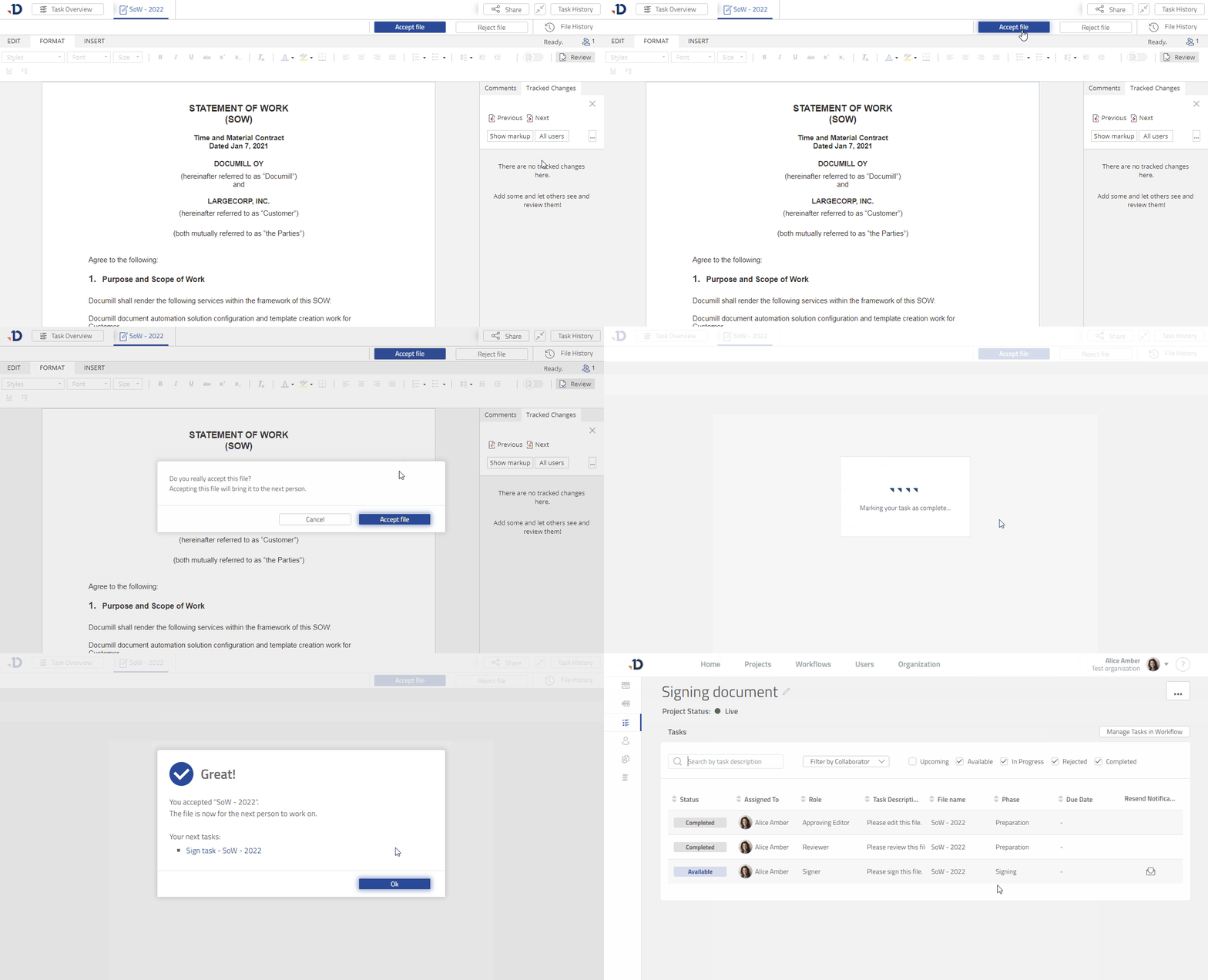
Click [Accept file] button on the top-right corner.
-
Click [Accept file] button in the confirmation dialog.
-
Click [Ok] in the Task Completed dialog.
You will then see the Tasks page.
Preview
You have just reviewed a file and completed a Reviewer Task.
To conclude
In this tutorial, you have completed a Reviewer Task which allows you to:
-
View a file.
-
Accept or reject tracked changes .
-
Accept or reject the file.
Next
To continue with the tutorial, you can start working on your Signer Task.