
Available to Project Owner.
Plan a Project
When planning a project in Documill Leap Salesforce app, most of the planning works has already been prepared in the selected Workflow Template, including:
-
The document that will be worked on.
-
What steps are required to complete the documents.
Therefore, what you need to do when planning a project is to define:
-
Who will work on the documents.
It is mandatory to assign Collaborators in every step, except automatic steps such as Collect Data, before a Project can start.
You can plan your project from Project Workflow screen.
Collect Data step
If your Leap Workflow has a Data Collection phase, the project has a Collect Data step. This step runs automatically, so you don't need to assign Collaborators to it.
The Collect Data step shows the Dynamo Template it uses. This is the Dynamo Template selected in the Documill Leap Projects component when the project was created. Read more in Configuring Leap and Dynamo .
If the Dynamo Template has been changed since the project was created, click [Refresh Dynamo Template] in the Collect Data step to take the latest version into use. You can refresh it until the Collect Data step is completed.
Open Project Workflow screen
If you are creating a new Project, you will be brought to the Project Workflow screen during the process. If you would like to continue planning an existing project, you can follow below instructions to open Project Workflow:
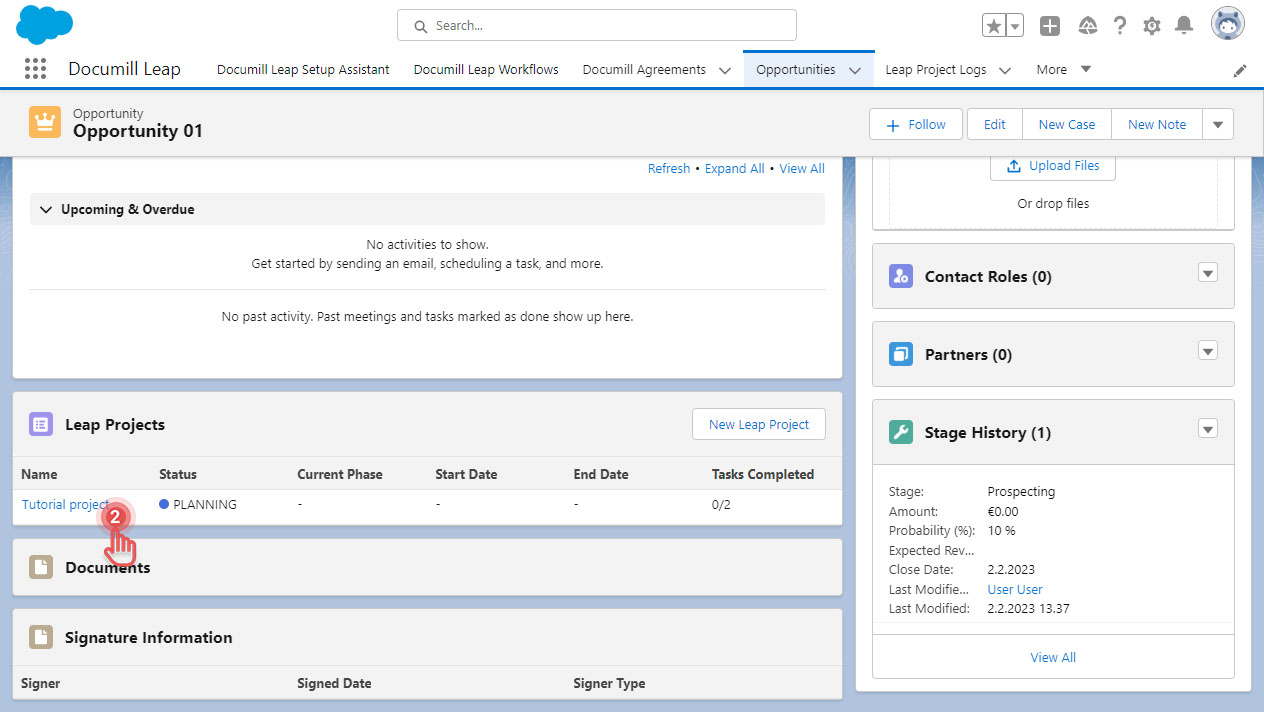
1. Go to Salesforce Record where the project was created.
2. Click your project name. This will open the Project Overview screen.
Preview
3. Click [Continue planning] button. This will open the Project Workflow screen.
Preview
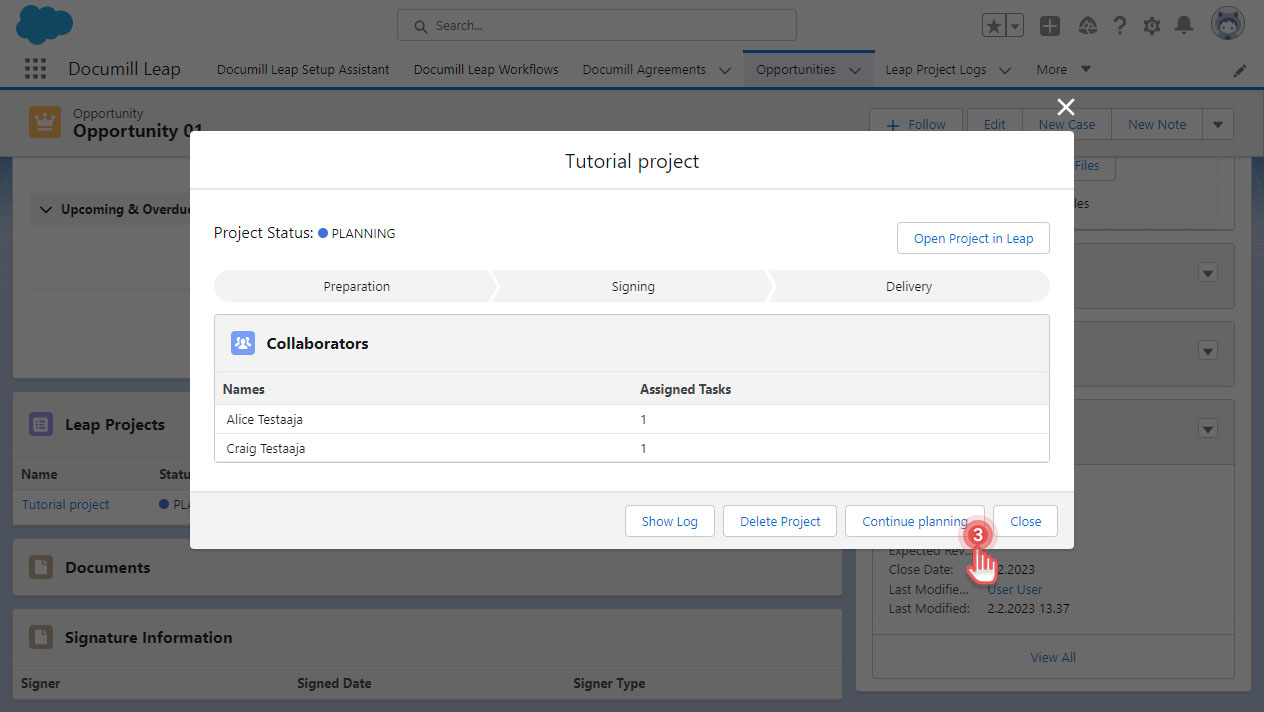
From Project Workflow screen, you can continue to assign and manage your Collaborators: Manage Collaborators
Next
After you are done with planning your project, you can set your project as Live: Start a Leap Project