
When you have both Leap and Dynamo installed in your Salesforce Organization, you can utilize both of them to help you better prepare your documents.
How Leap and Dynamo work together
Before we start to configure Leap and Dynamo, it would be good to know how they work together:
-
Dynamo can generate initial Word document, populated with data from Salesforce.
-
Dynamo can choose the appropriate Leap Workflow based on criteria you defined.
-
Once the Word document is generated, Dynamo can create a Leap Project for you using configured Leap Workflow.
Now that you know how Leap and Dynamo will work together, let’s start to configure them.
Prerequisites
-
You need to have set Leap Workflows that you want to use together with Dynamo as available in Salesforce via Documill Leap Workflows tab. See Select Leap Workflow Templates .
-
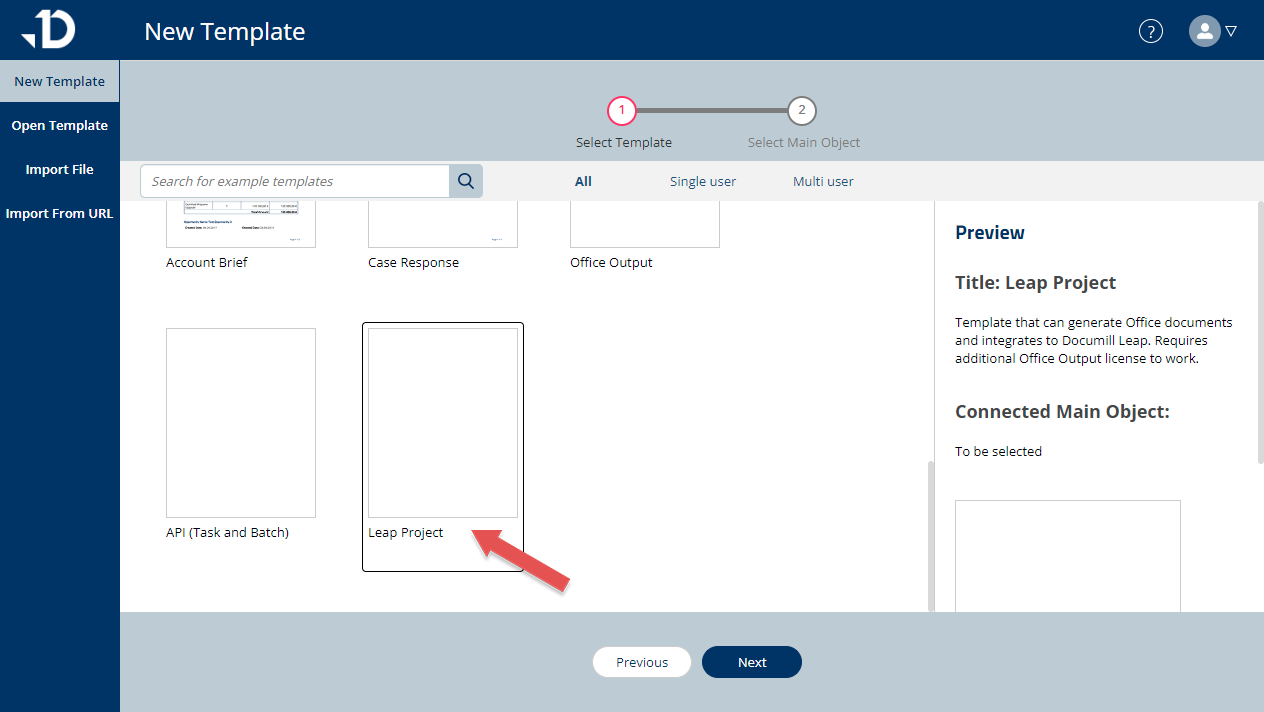
You need to have prepared the Dynamo Template that was created using the “Leap Project” master template.
Configure your Dynamo Template to choose Leap Workflow
1. Open Dynamo Template Builder.
2. Open your existing Dynamo Template or create a new one.
Please make sure that your Dynamo Template was created using the “Leap Project” master template.
Preview
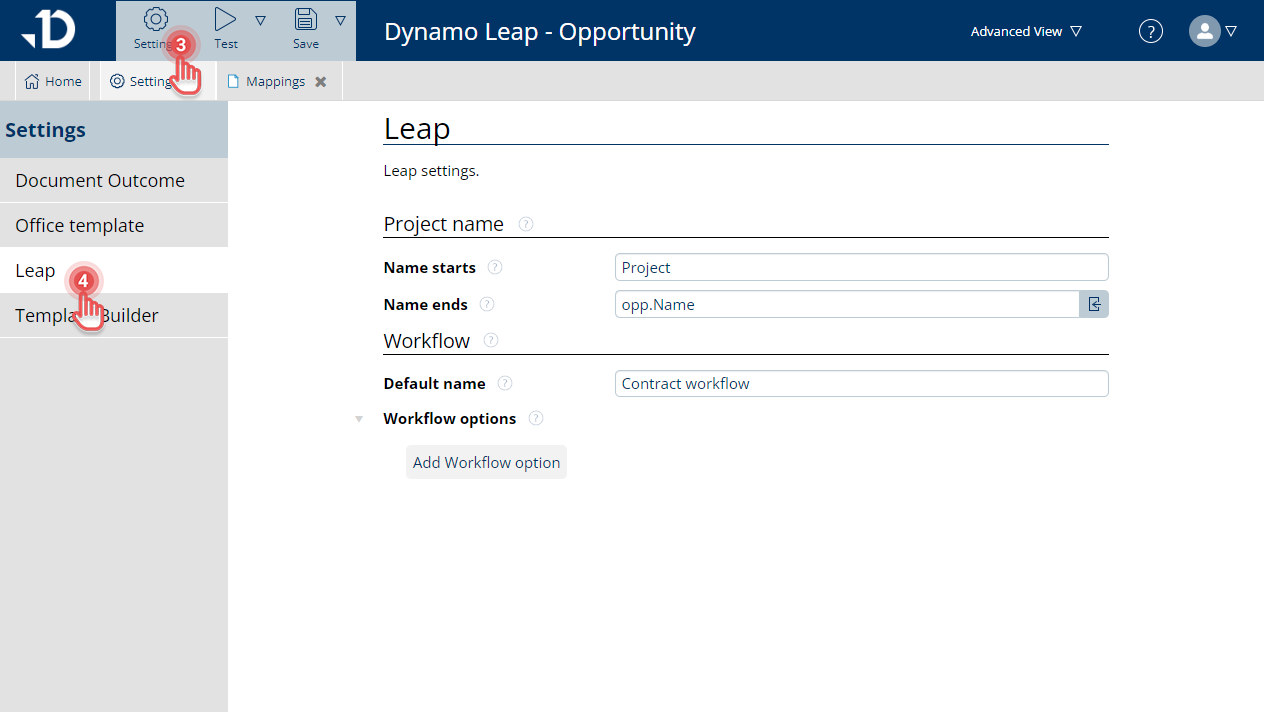
3. Click [Settings] button.
4. In Settings, click [Leap] button.
Preview
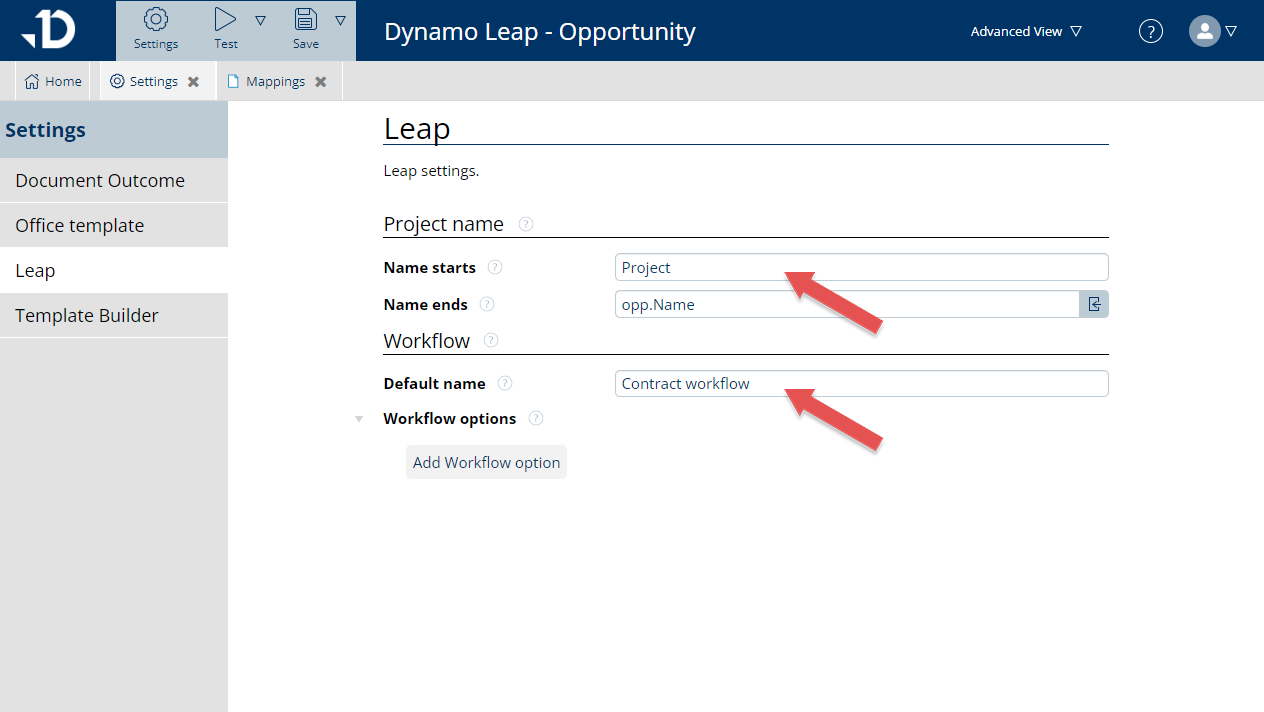
5. Under Project Name section, define how the Leap Project will be named.
6. Under Workflow section, type the name of the Leap Workflow that will be used by default.
Preview
7. Optionally, you can define extra conditions that would use different Leap Workflow.
Preview
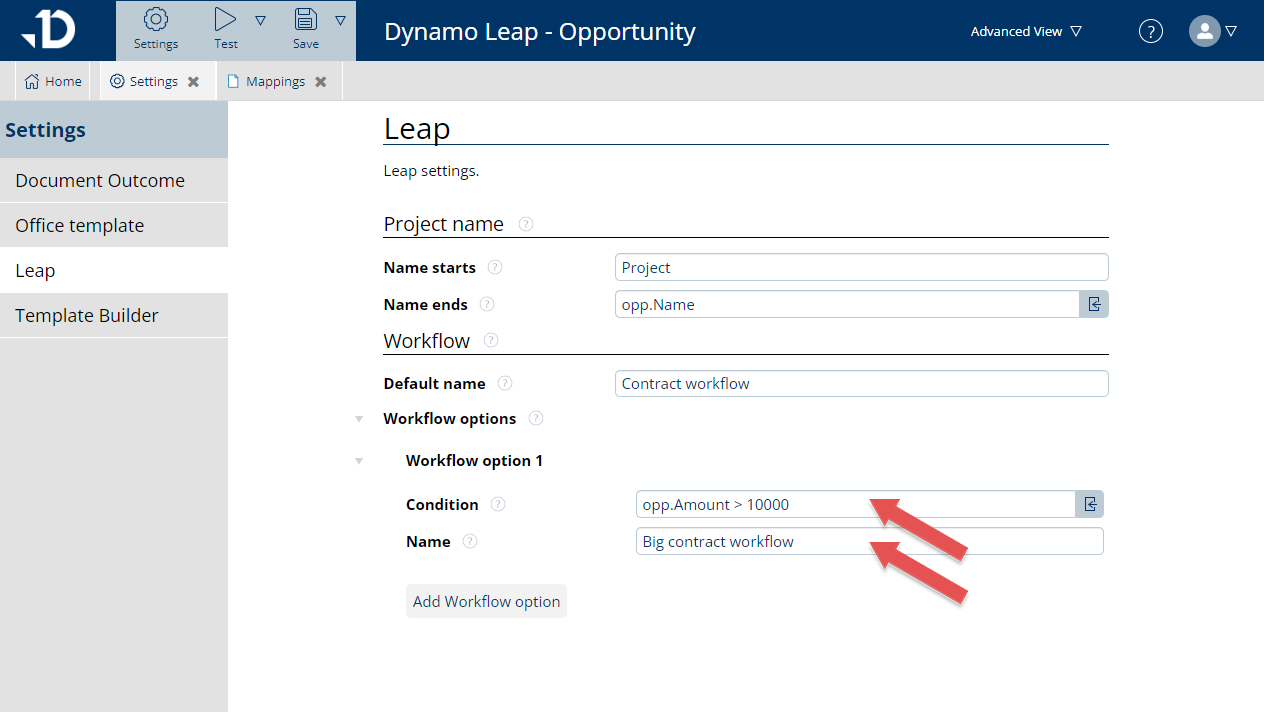
This Dynamo Template is now ready to create Leap Project based on selected Leap Workflow upon finish generating the document.
Configure Leap custom component to use Dynamo Template
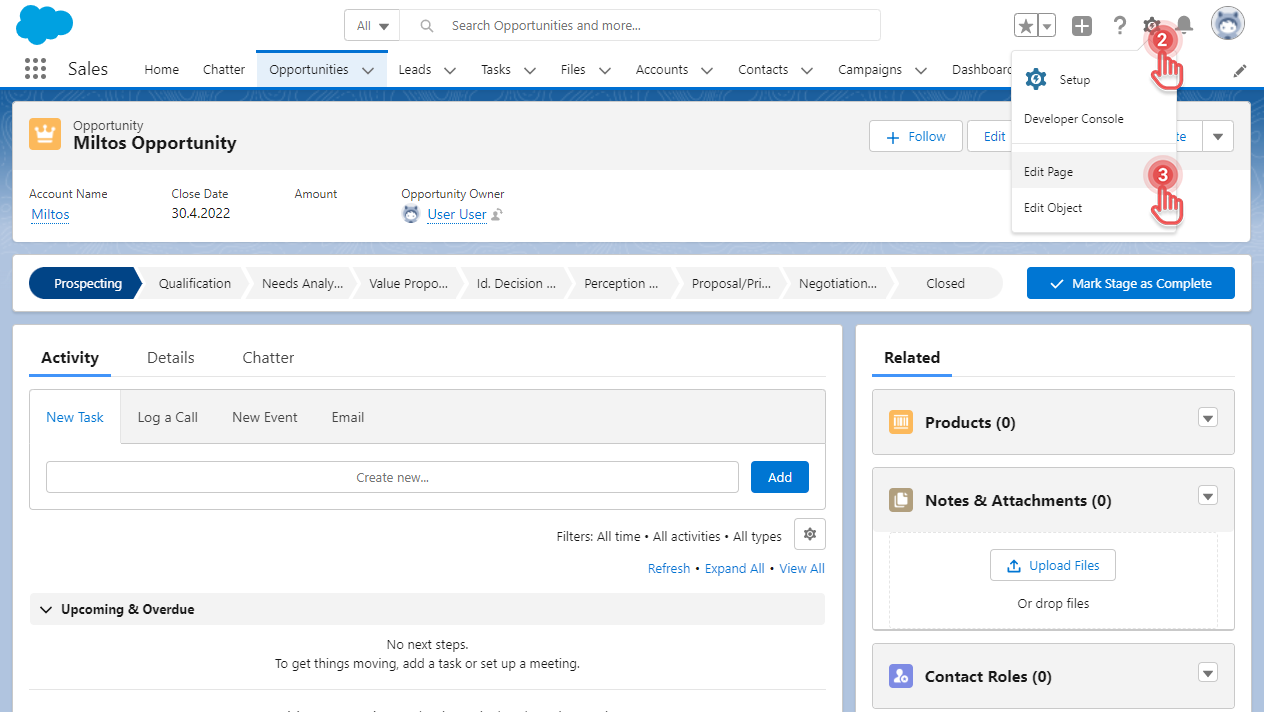
1. Open a record where you added Leap custom component.
2. Go to Setup (gear icon).
3. Click [Edit Page]
Preview
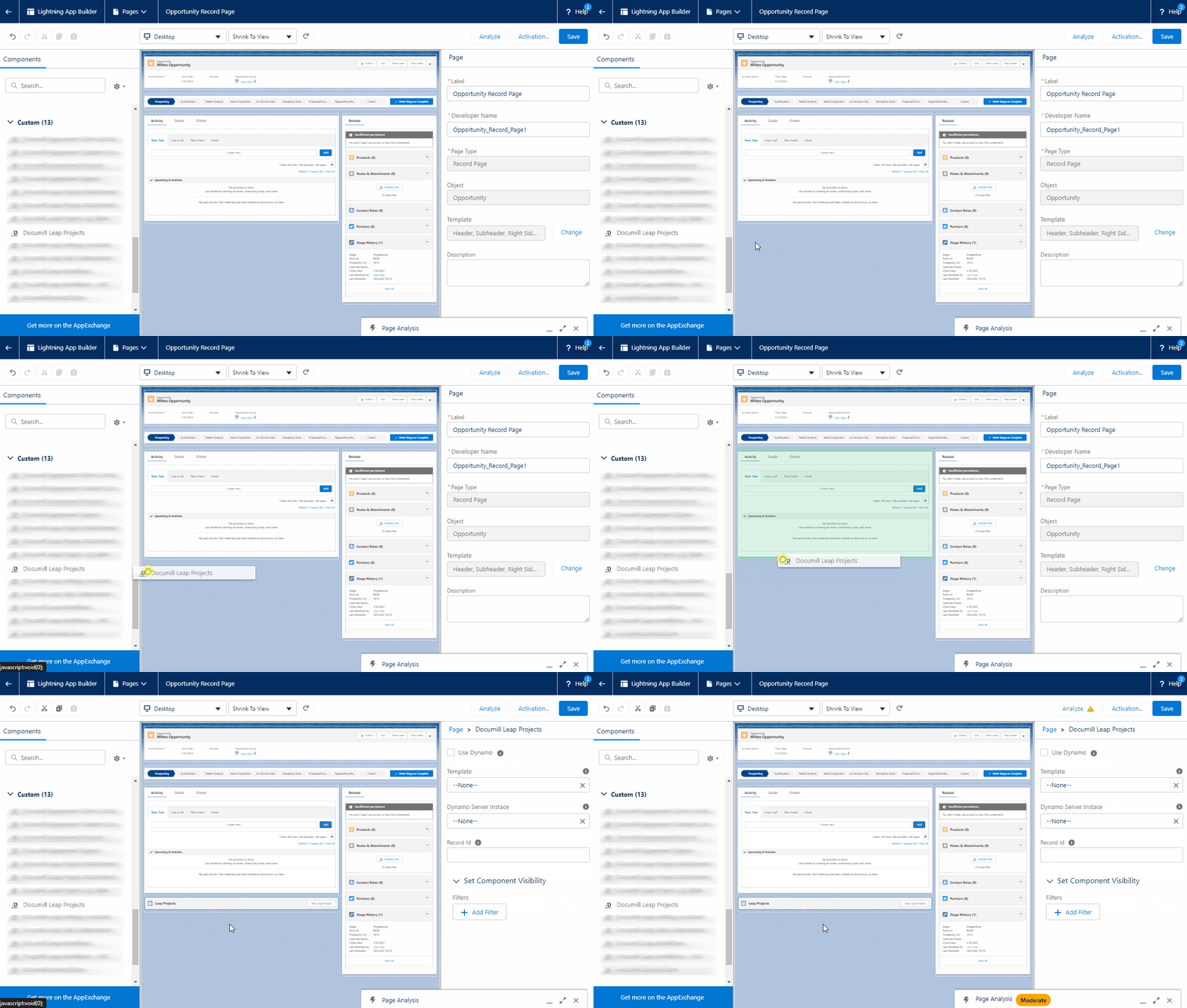
4. If Documill Leap Projects component is not yet in the page layout, drag it from the left side bar.
Alternatively, select the Documill Leap Projects component in the page layout.
Preview
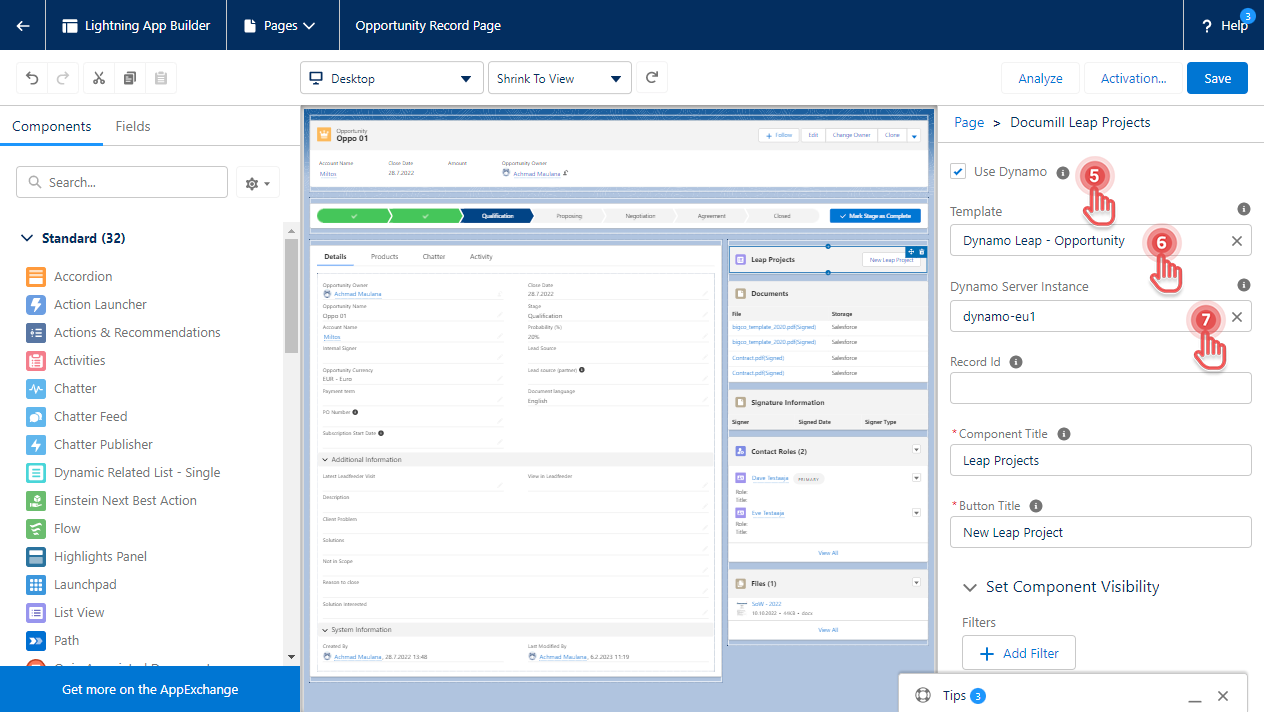
5. On the right side bar, enable the [Use Dynamo] option.
6. Under Template field, select the Dynamo Template you have prepared.
7. Under Dynamo Server Instance, select the ‘dynamo-eu1’.
Preview
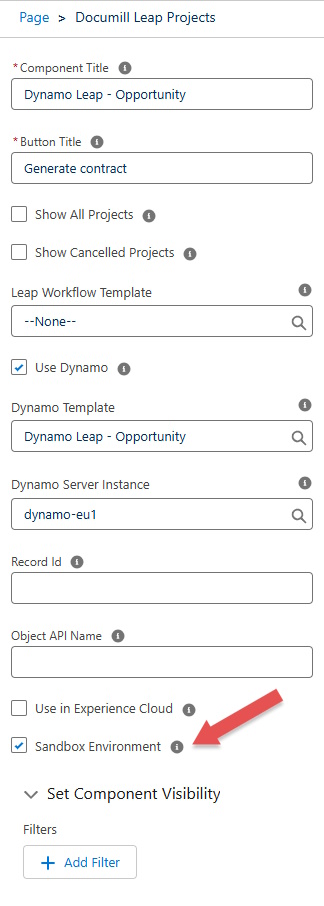
8. If you are in a Sandbox environment, enable the [Sandbox Environment] checkbox.
Preview
9. Save the page layout
Preview
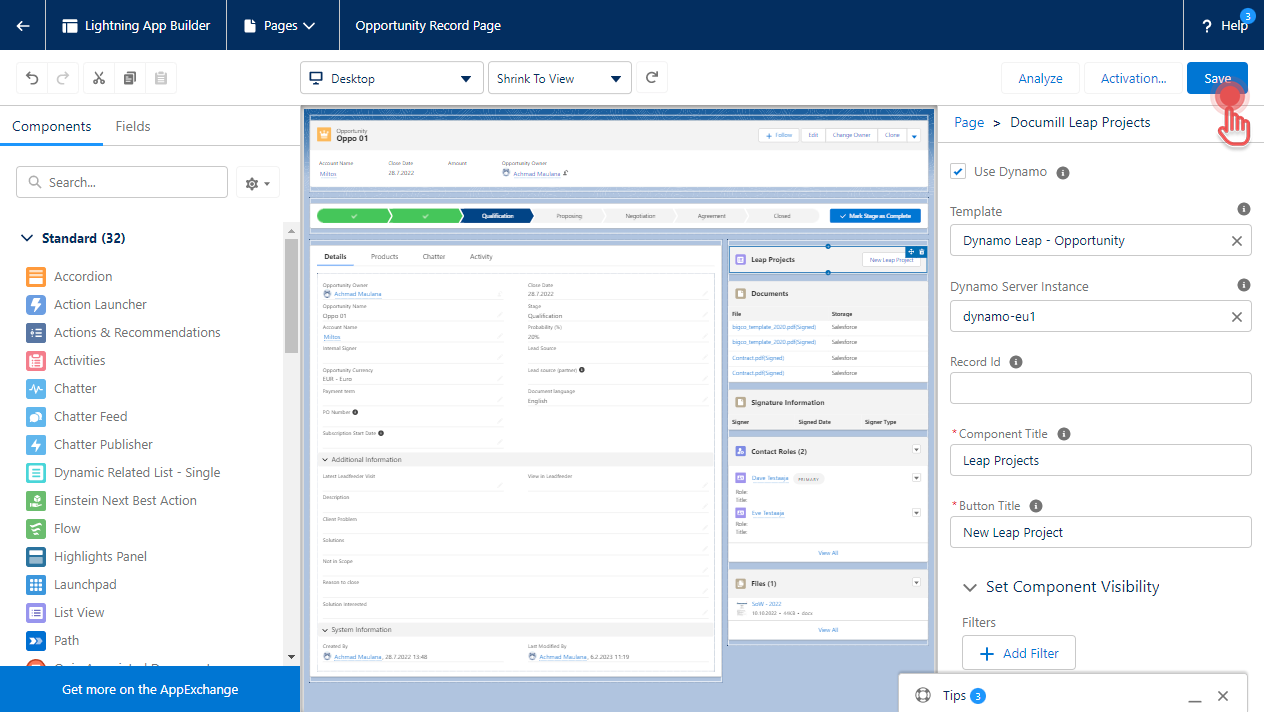
The Documill Leap Projects component is now ready to use Dynamo Template that you have prepared.
Using Dynamo Template for Data Collection
If your Leap Workflow has a Data Collection phase, its Collect Data step uses the same Dynamo Template you selected in the Documill Leap Projects component. When Dynamo creates the Leap Project, this Dynamo Template and the Salesforce record the project was created from are set to the Collect Data step automatically.
To save values back to Salesforce, make sure that:
-
the Dynamo Template uses a DOCX and keep the populated fields as content controls, and update commands that write their values to Salesforce. Read more in Updating Salesforce Record with Flow .
-
Dynamo Integration is configured in your Leap Organization. Read more in Managing Dynamo Integration .
If you change the Dynamo Template later, existing projects keep using the earlier version until you refresh it with [Refresh Dynamo Template]. Read more in Plan a Leap Project .