
Available to Salesforce Admin.
Some Leap features need to read or write data in your Salesforce org on their own, outside a Salesforce user's session. For this, Leap connects to Salesforce as a Salesforce user you choose: the Connected User.
Setting up this connection would give you access to:
-
Clauses in Leap Projects. See Enabling the Clause Library.
-
API Action
Before you start
Make sure the Documill Leap Salesforce app is connected to your Leap organization. See Connecting to a Leap Organization.
Choosing the Connected User
Leap acts in Salesforce with the Connected User's permissions, and changes Leap makes are recorded under this user. We recommend a dedicated integration user rather than a personal account, so the connection keeps working if an employee leaves or their permissions change.
Giving access
-
Sign in to Salesforce as the Connected User (user that you want to connect).
-
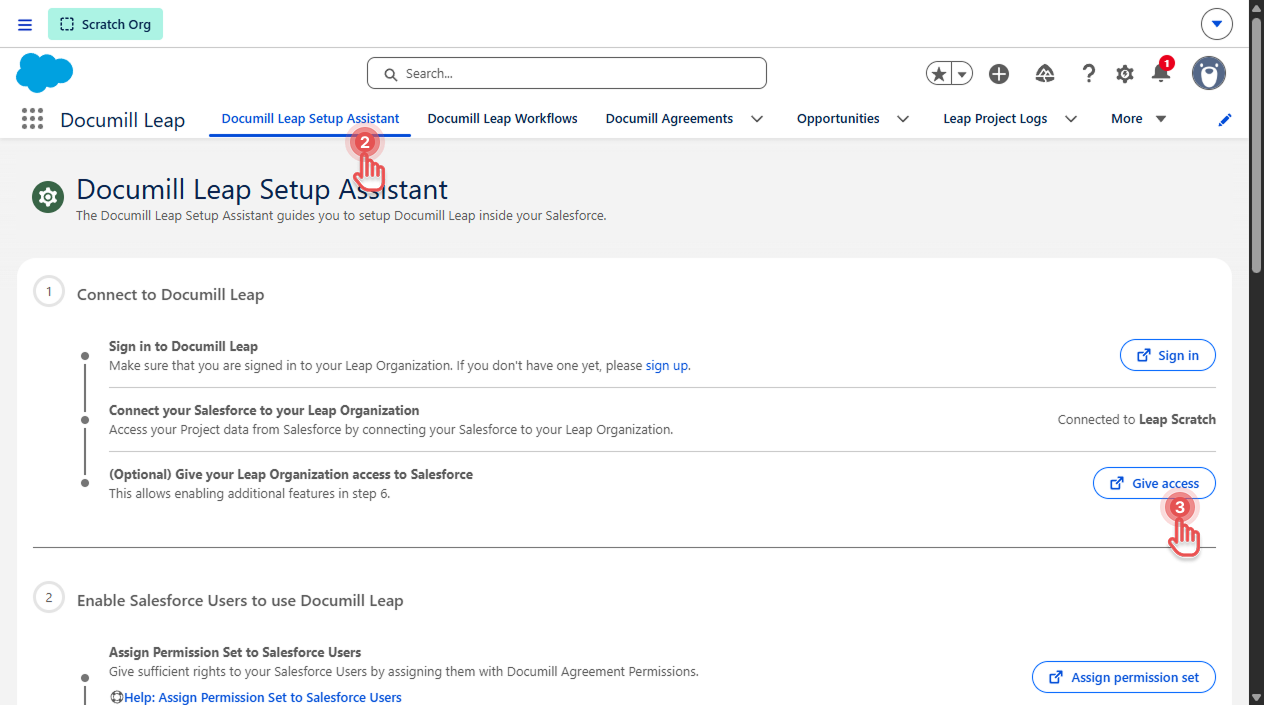
Open Documill Leap Setup Assistant.
-
In “(Optional) Give your Leap Organization access to Salesforce”, click [Give access].
-
Sign in and allow access in the window that opens.
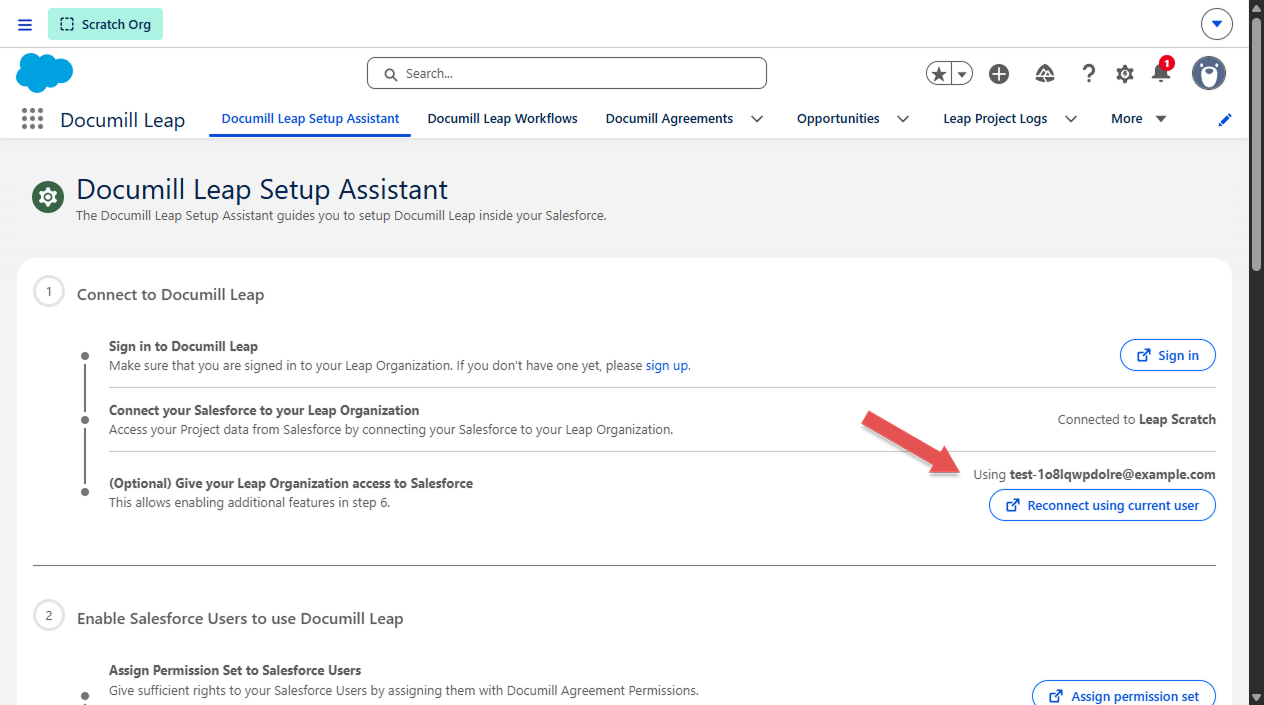
The step now shows Using <connected user>.
Giving the connected user the right permissions
Each feature needs its own permission set for the connected user. See Assigning Permission Set to Salesforce User. The feature pages list which permission set to use.
Changing the Connected User
-
Sign in to Salesforce as the new Connected User.
-
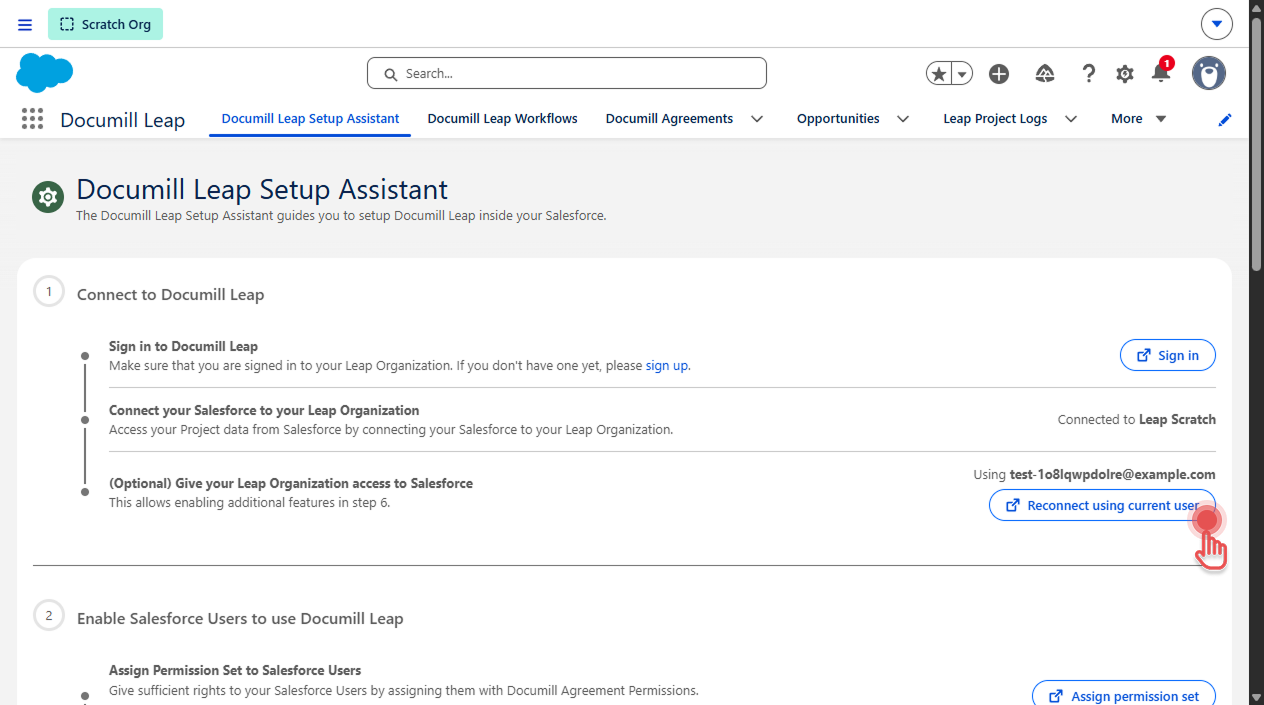
In the same Setup Assistant step, select [Reconnect using current user].
-
Give the new user the permission sets the features need.