
Available to Salesforce Admin.
The Documill Leap Salesforce app includes three permission sets. Assign each user the ones they need. A user can have more than one.
|
Permission Sets |
Description |
|---|---|
|
Documill Leap Admin |
For administrators who configure the Documill Leap Salesforce app and also work on Leap Projects.
|
|
Documill Leap User |
For users who work on Leap Projects.
|
|
Documill Leap Clause Admin |
For users who manage the Clause Library: adding, editing and deleting clauses, changing their status (for example, making them Live), and managing clause categories and groups. It's also needed by the connected user that Leap uses to access Salesforce. Users with this permission set must also be members of the “Documill Clause Library” library. See Enabling Clause Library .
|
To assign a permission set to a user, follow below instructions:
1. Click [⚙] button on the top right corner.
2. Click [Setup] option.
Preview
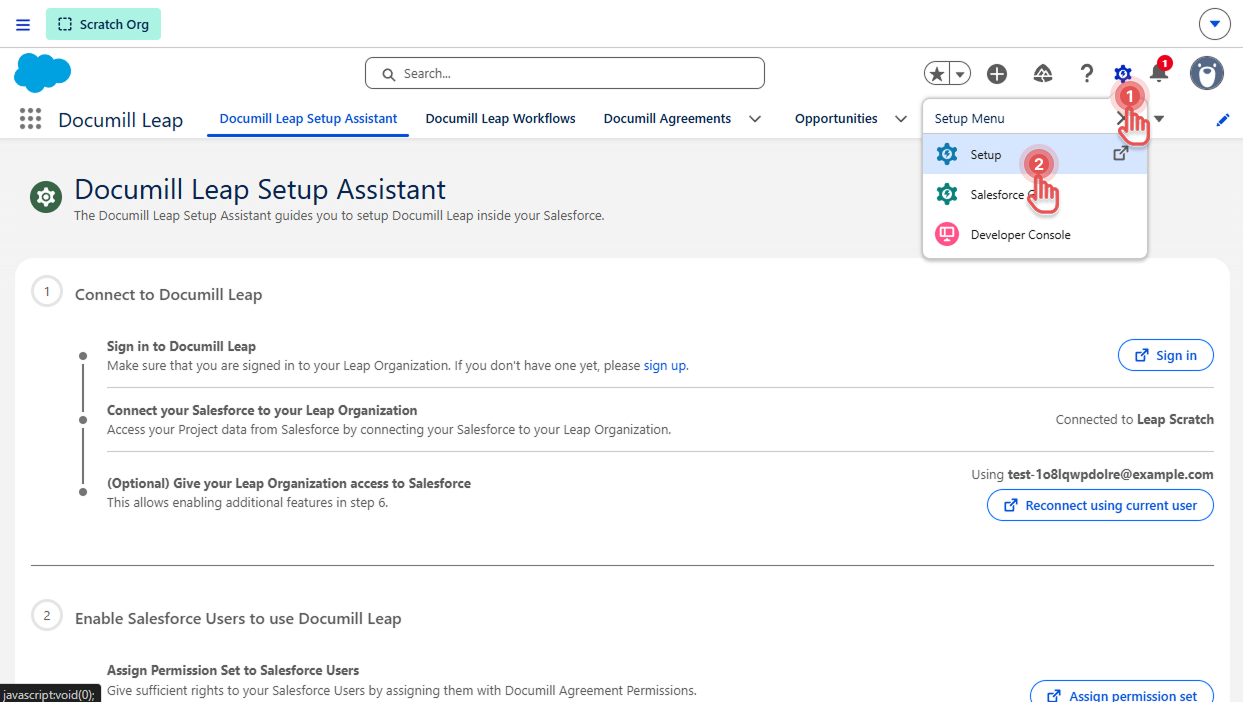
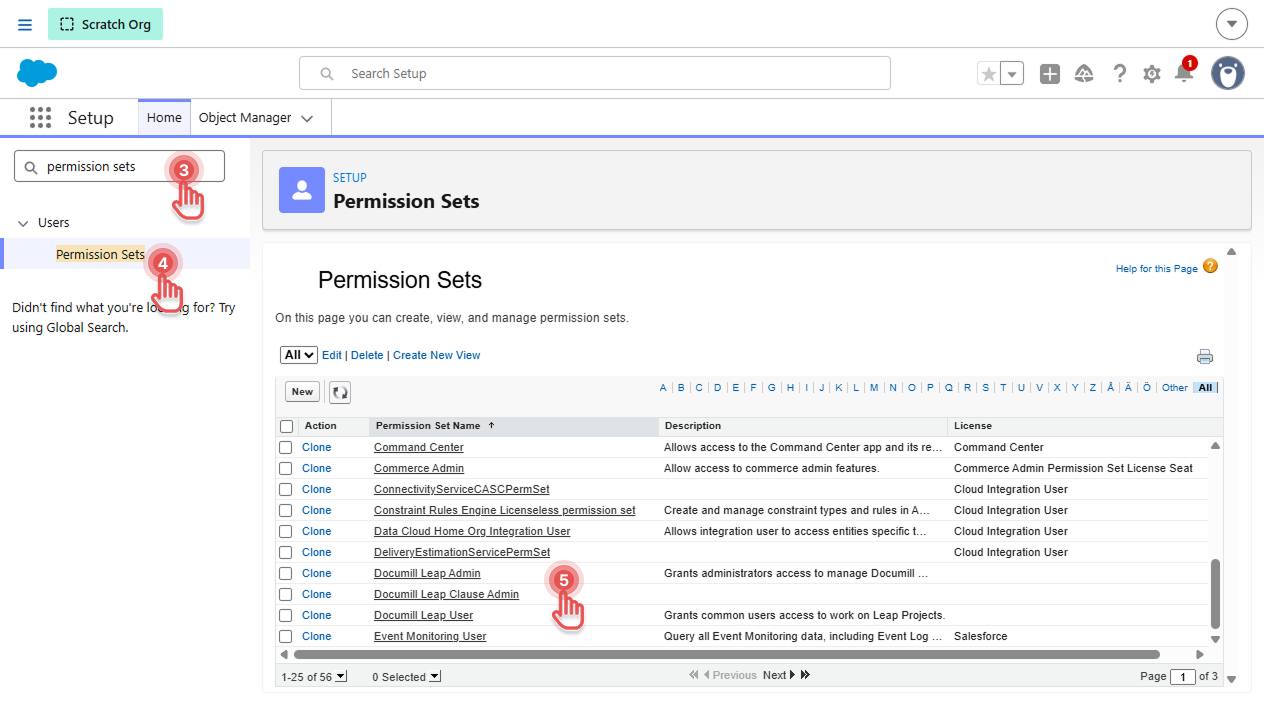
3. In Setup page, search for “permission sets”
4. Click the Permission Sets entry.
5. In Permission Sets, click the permission set you would like to assign.
Preview
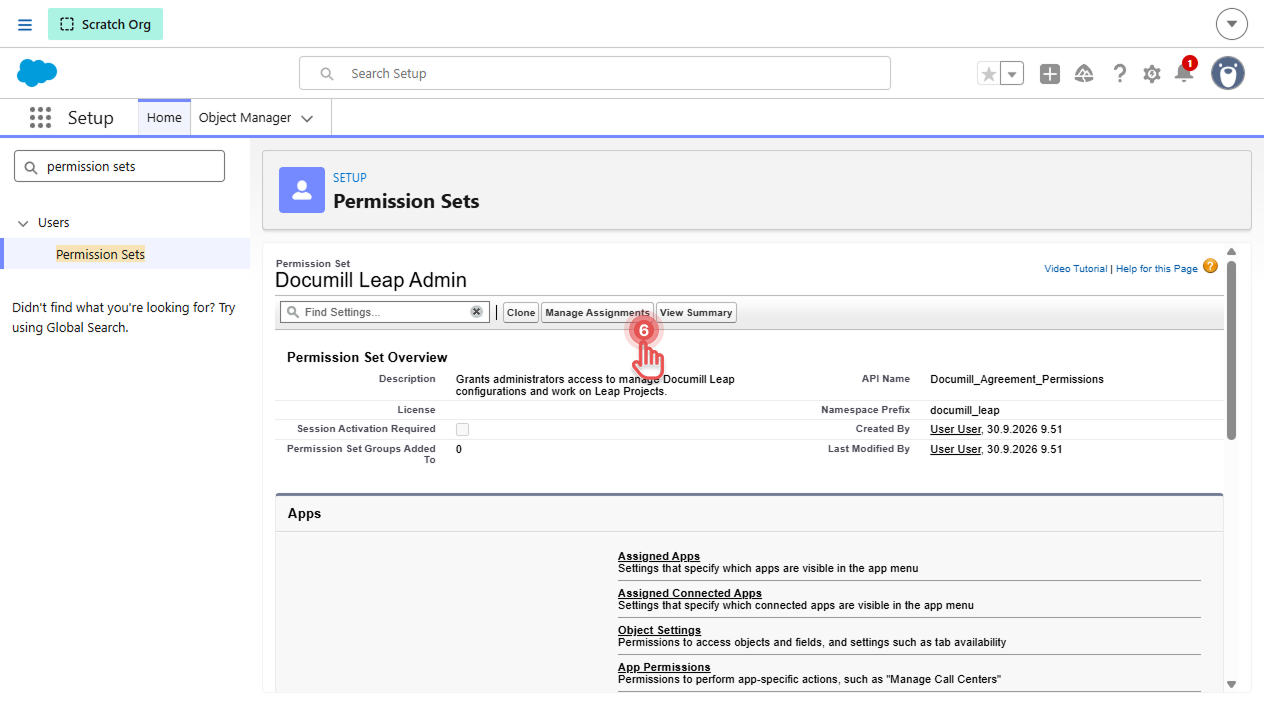
6. In the selected permission set, click [Manage Assignments] button.
Preview
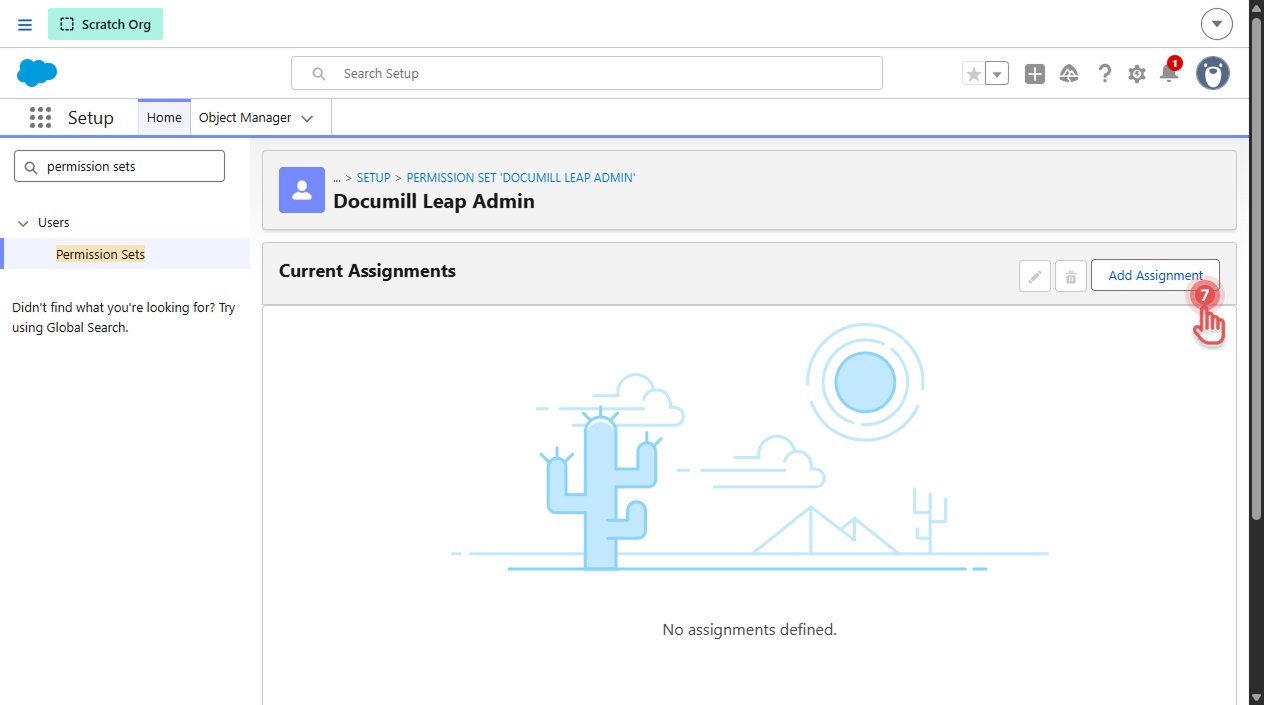
7. Click [Add Assignment] button.
Preview
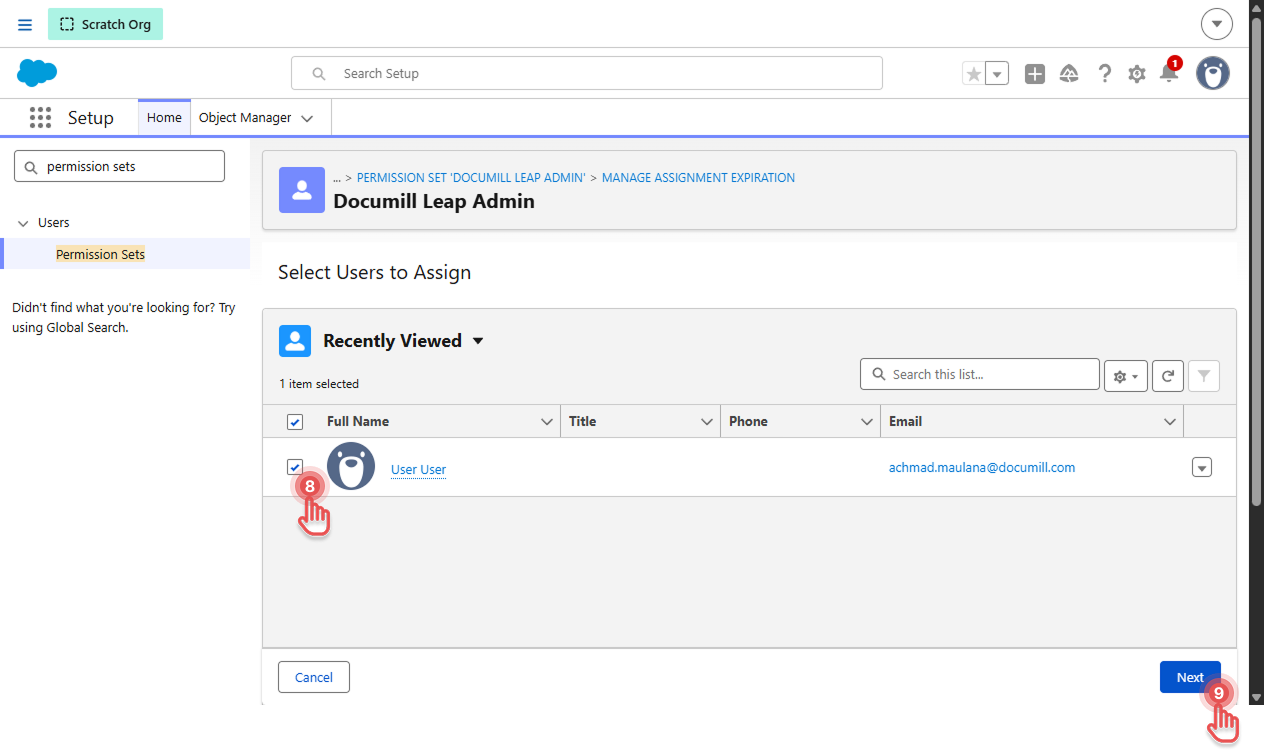
8. Select Salesforce Users who need the selected permission set.
9. Click [Next] button.
Preview
10. Click [Assign] button.
Preview
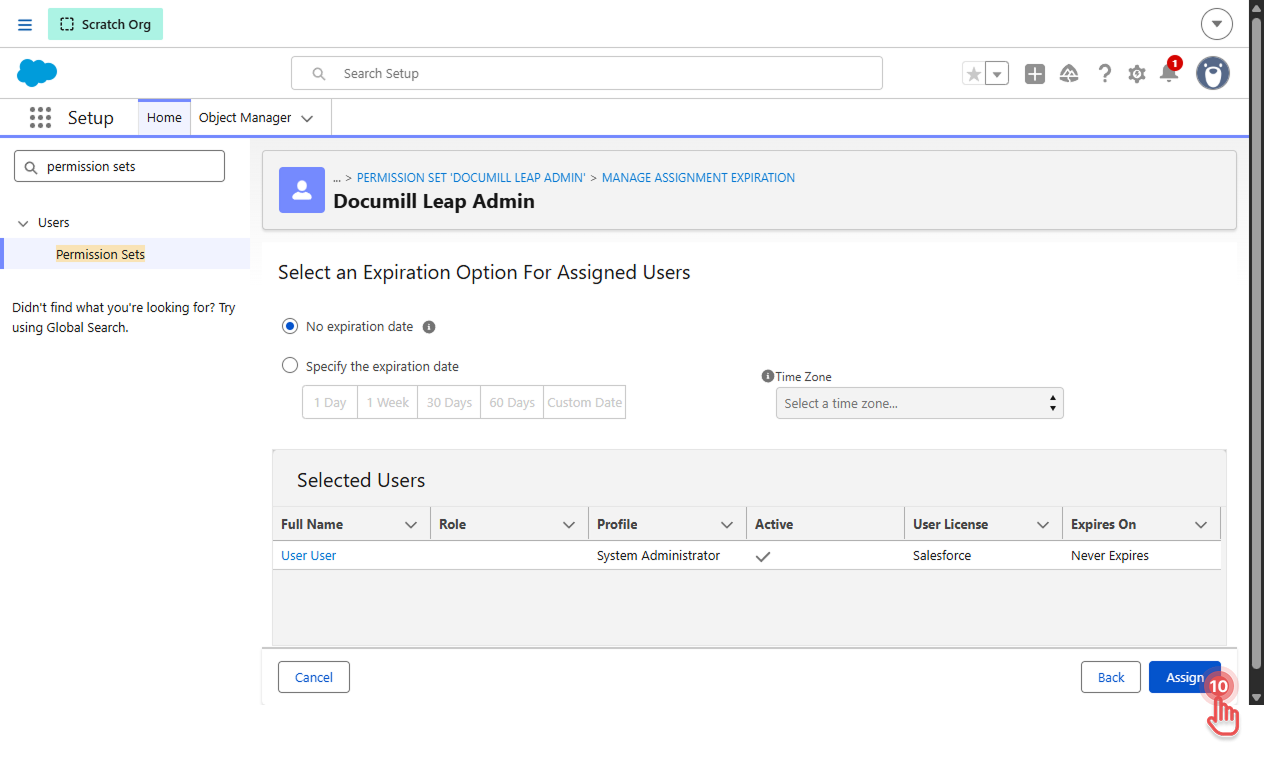
The selected Salesforce Users now have the necessary permissions to use Documill Leap Salesforce app.