
Available to Administrator.
Dynamo Integration connects your Leap Organization to Documill Dynamo. The Data Collection feature needs it. A Collect Data step in a project sends the workflow document to Dynamo, and Dynamo writes the agreed values back to Salesforce.
Data Collection only applies to projects created from Salesforce using Dynamo. Read more in Data Collection .
Before you start
Dynamo Integration uses the same Salesforce setup as Dynamo's API: an External Client App with the Client Credentials Flow enabled. If your organization hasn't set one up yet, follow the section 1. Create External Client App of No-code API setup for Salesforce Flows .
You don't need the other sections of that page (Named and External Credential, Permission set, External service). Those are only needed to call Dynamo from a Salesforce Flow.
Make sure you have the following information ready:
|
Field |
What it is |
Where to find it |
|---|---|---|
|
Tenant ID |
Your Salesforce Organization ID, in its 18-character form |
See Tenant ID in No-code API setup for Salesforce Flows, or contact support@documill.com |
|
Salesforce server URL |
The SOAP endpoint address of your Salesforce Organization. |
It has the following format:
For example:
The Salesforce server URL must be an https address on a |
|
API key |
Your Dynamo API token |
From the License Manager, or contact support@documill.com |
|
Client ID |
The |
External Client App > Settings tab > OAuth Settings |
|
Client secret |
The |
External Client App > Settings tab > OAuth Settings |
Configure Dynamo Integration
-
Go to Organization page.
-
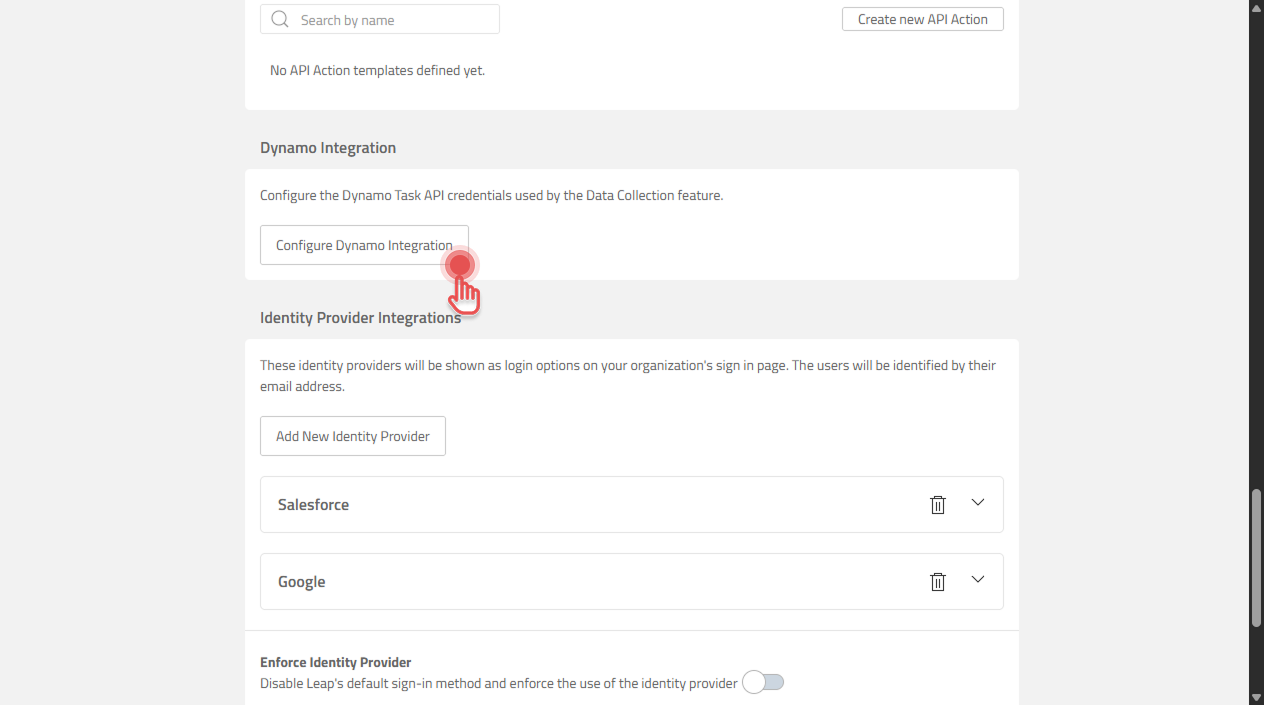
Scroll down to Dynamo Integration panel.
-
Click [Configure Dynamo Integration] button.
Preview...
-
Fill in Tenant ID, Salesforce server URL, API key, Client ID and Client secret. All fields are required.
-
Click [Save] button.
Preview...
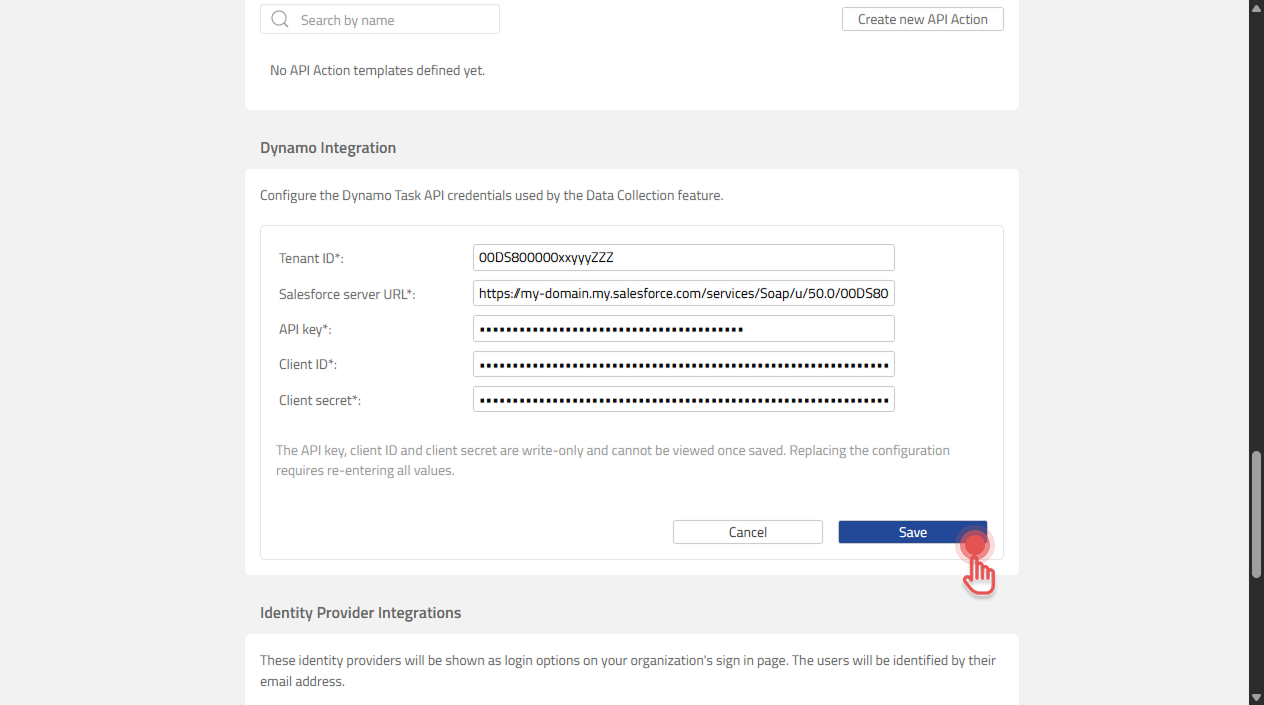
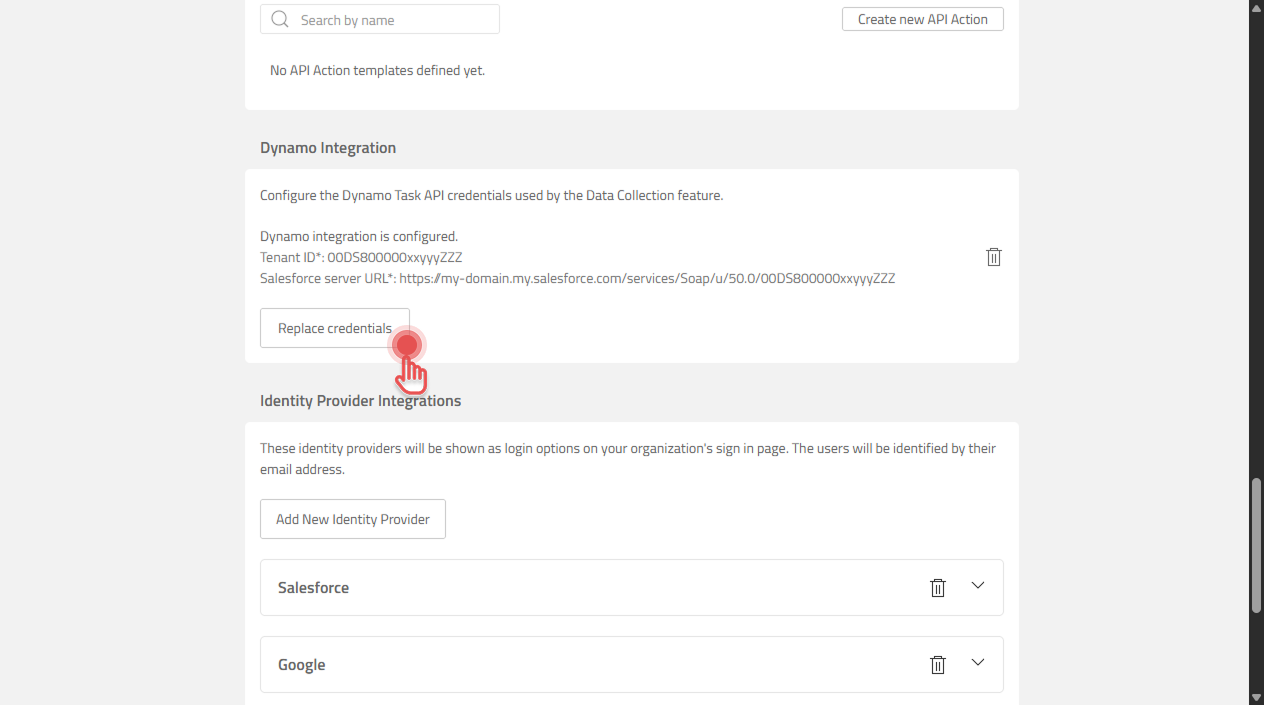
When the configuration is saved, the panel shows "Dynamo integration is configured." together with the Tenant ID and the Salesforce server URL.
For security, the API key, Client ID, and Client secret can't be viewed once saved.
Replace Dynamo Integration credentials
For example, do this when the Consumer Secret of the External Client App has changed or the API key has been renewed.
-
Go to Organization page.
-
Scroll down to Dynamo Integration panel.
-
Click [Replace credentials] button.
Preview...
-
Tenant ID and Salesforce server URL are pre-filled. Enter API key, Client ID and Client secret again.
-
Click [Save] button.
Delete Dynamo Integration
-
Go to Organization page.
-
Scroll down to Dynamo Integration panel.
-
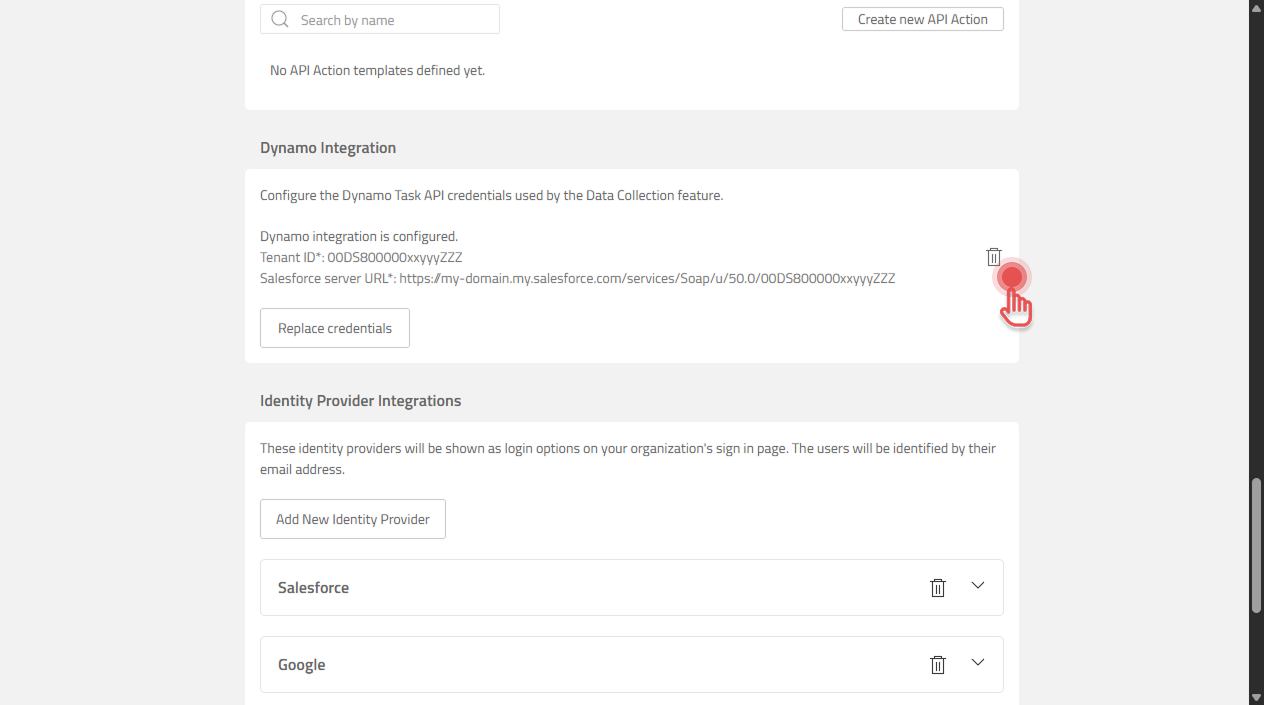
Click the [Trash] button.
Click to expand...
-
In the confirmation dialog, click [Delete] button.
Collect Data steps can't run until Dynamo Integration is configured again. When a Collect Data step is reached without it, its task is rejected, and the Project Owner can resolve it once the integration is back.
Read more in Resolving Request for Changes Task: https://support.documill.com/documill-leap/resolving-rejection-task.