
-
Step 1, 2 are available to Organization Admin.
-
Step 3 is available to Organization Admin and Manager.
-
Step 4 is available to Project Owner.
This example posts a message to your team's #sales channel in Slack as soon as a contract is signed in Documill Leap. Everyone sees the won deal right away, without anyone having to announce it.
When the Sign phase is completed, the #sales channel shows a message like this:

Setting it up takes about 15 minutes and has three parts: a webhook in Slack, an API Action Template in Documill Leap, and an API Action Step in your workflow.
Before you start
You need:
-
A Slack workspace where you can add apps. If your workspace requires approval for apps, a Slack workspace admin must approve it.
-
Membership of the channel you want to post to, for example
#sales. -
A Workflow Template or Project with a Sign phase.
Step 1: Create a Slack incoming webhook
A Slack incoming webhook is an address that posts everything it receives to one channel. You create it once in Slack.
-
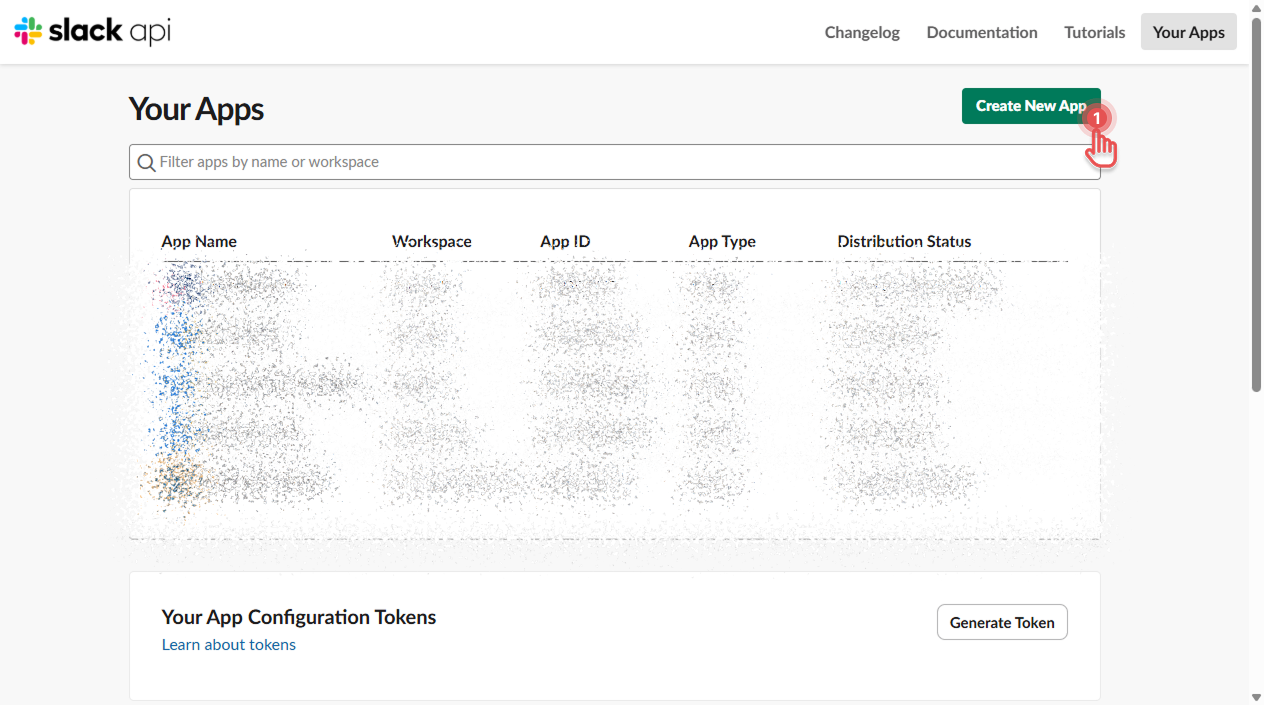
Go to api.slack.com/apps and click [Create New App].
Preview
-
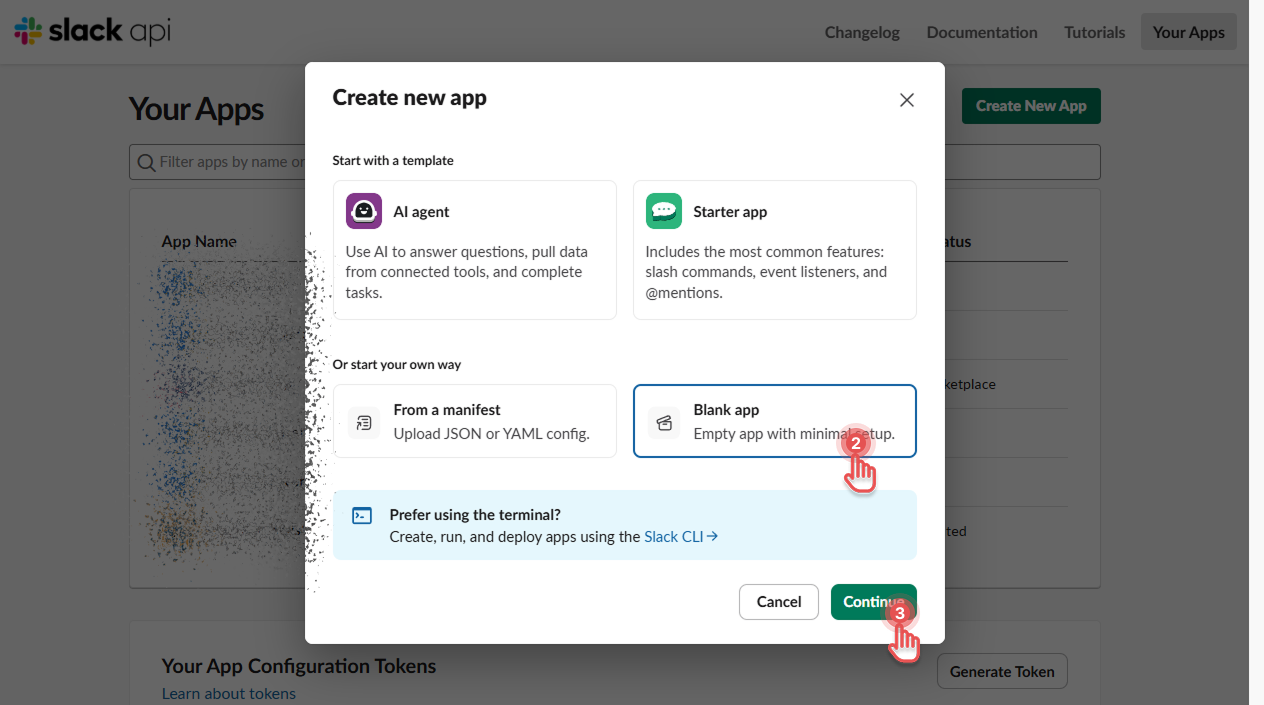
Click [Blank app].
-
Click [Continue].
Preview
-
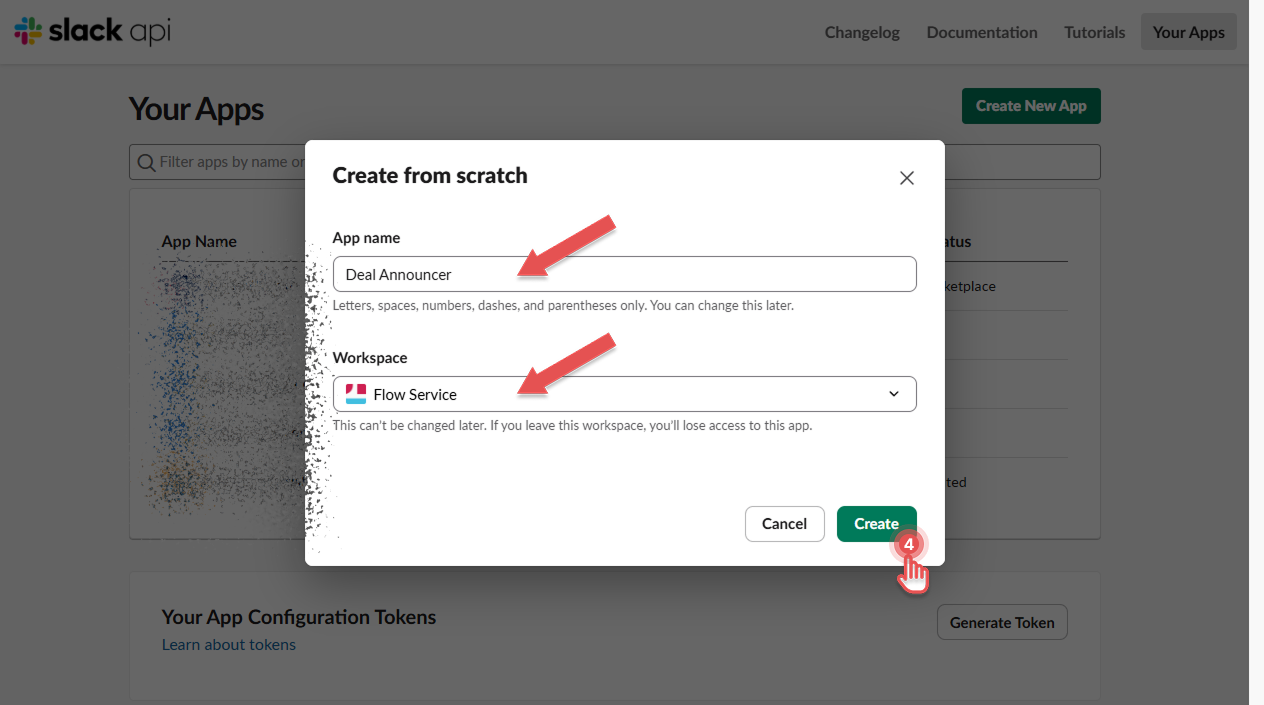
Enter an app name, for example “Deal Announcer”, choose your workspace and click [Create].
Preview
-
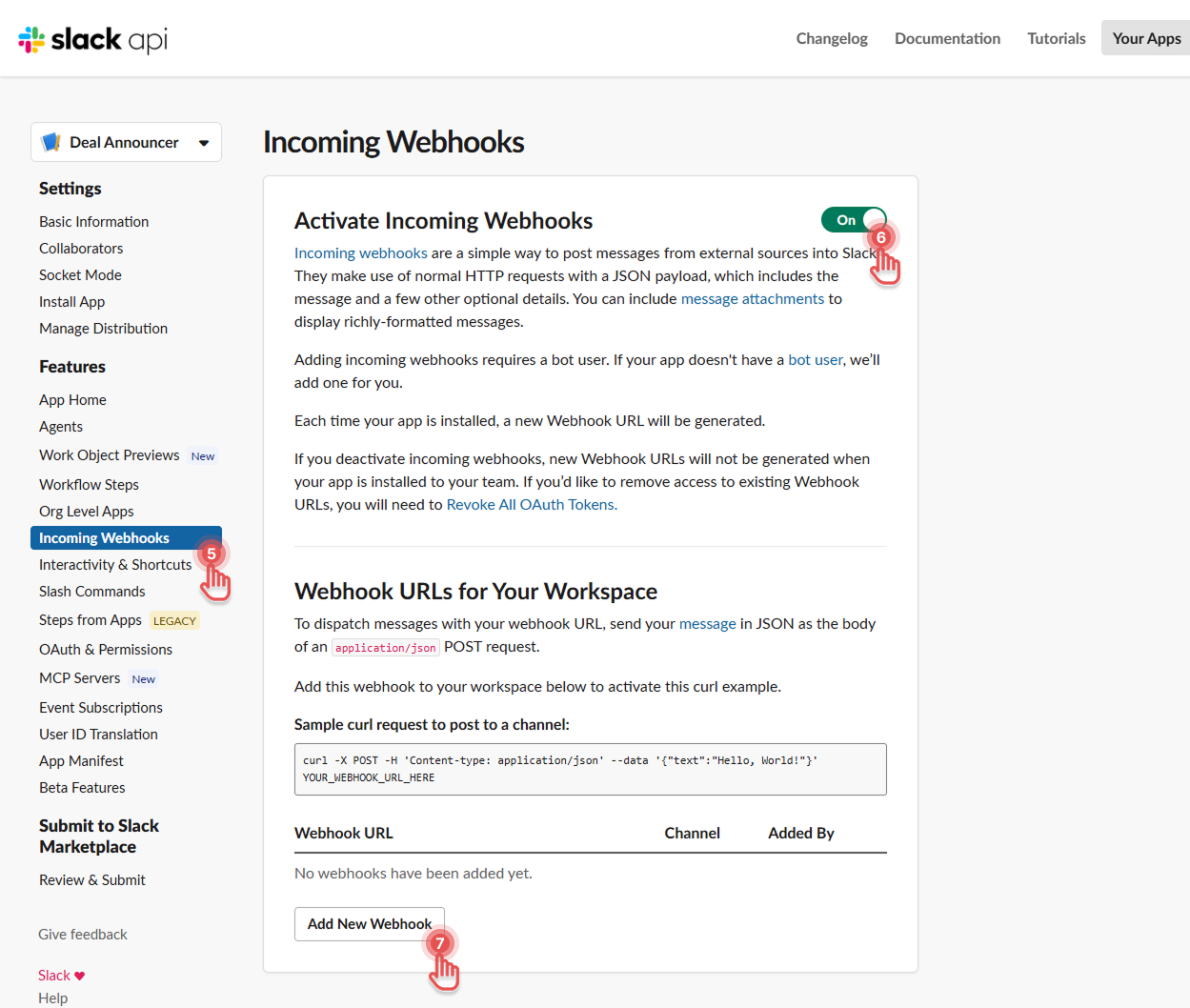
In the left menu, under Features, click [Incoming Webhooks]
-
Switch [Activate Incoming Webhooks] on.
-
At the bottom of the page, click [Add New Webhook].
Preview
-
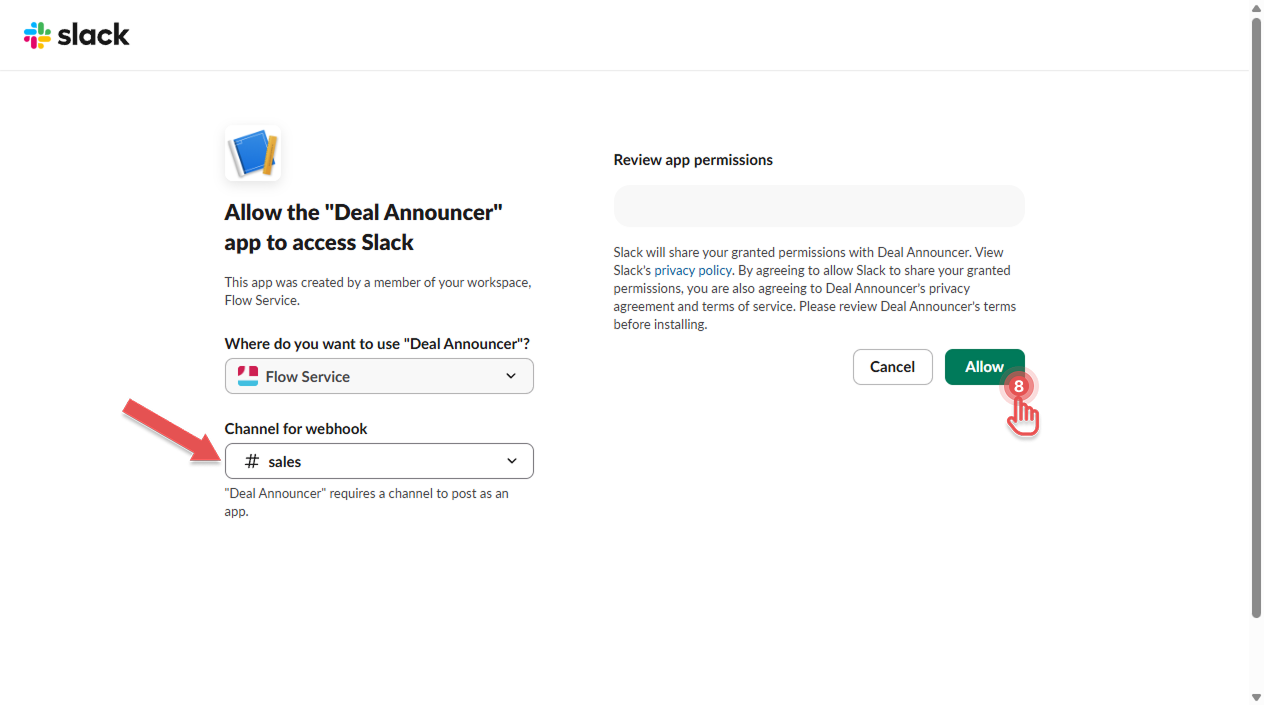
Choose the channel, for example #sales, and click [Allow].
Preview
-
Copy the Webhook URL.
It looks likehttps://hooks.slack.com/services/T000/B000/XXXX. -
Optional: under Basic Information, add an app icon and description. Messages are shown with this name and icon.
Good to know:
-
Keep the webhook URL secret. Anyone who has it can post to the channel. Share it only with the admins who create the template.
-
One webhook posts to one channel. To post to two channels, create two webhooks and two API Action Templates.
-
To stop the messages, delete the webhook in Slack. The URL stops working immediately.
Step 2: Create the API Action Template
-
In Documill Leap, open the Organization page and scroll to “API Action Templates” section.
-
Click [Create new API Action] and fill in the options below.
-
Click [Save].
|
Option |
Value |
|---|---|
|
Name |
Announce won deal in #sales |
|
Description |
Posts a "deal won" message to the #sales Slack channel. |
|
Authorization type |
Custom |
|
Authorization |
Leave empty. The webhook URL itself gives access. |
|
HTTP method |
POST |
|
Url |
The webhook URL you copied in Step 1 |
|
Content type |
application/json |
|
Replace workflow file |
Not selected |
|
Error handler |
Ignore and continue the project |
Under Request Body, click Add body and enter this content:
{ "text": ":tada: Deal won! *${customerName}* signed the contract (${dealValue}). Great work, ${salesRep}!" }
Then add three parameters. The default value is used if the Project owner leaves a value empty:
|
Parameter name |
Default value |
|---|---|
|
customerName |
a new customer |
|
dealValue |
value not given |
|
salesRep |
team |
Preview
.png?cb=48265a9ca4e678d2873f69c843140d89)
We recommend Ignore and continue the project for announcements. If Slack cannot be reached, the signed contract still moves on through the workflow.
In Slack messages, *text* is shown in bold and :tada: as an emoji. Slack's message formatting guide lists more options.
Step 3: Add the API Action Step to your workflow
-
Open the Project, or the Workflow Template your sales team uses.
-
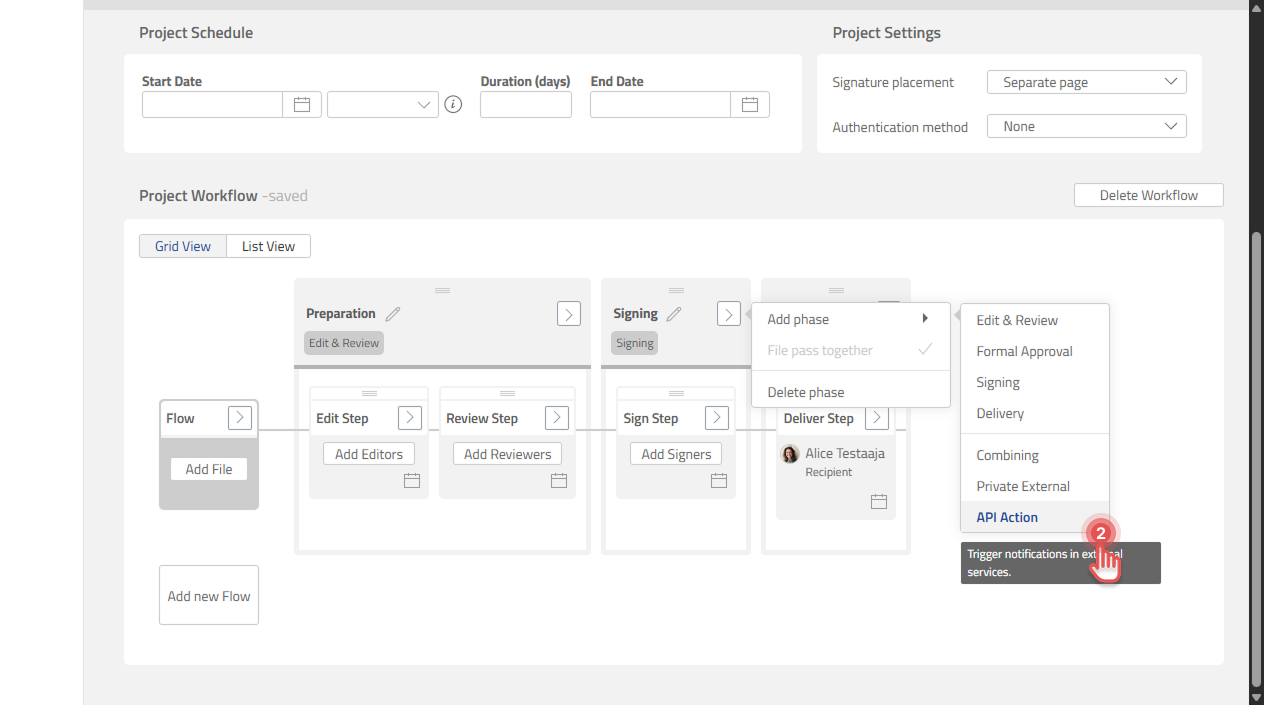
Add an API Action phase right after the Sign phase.
Preview
-
In the API Action Step, click Configure.
-
Find Announce won deal in #sales in the list and click Select.
Preview
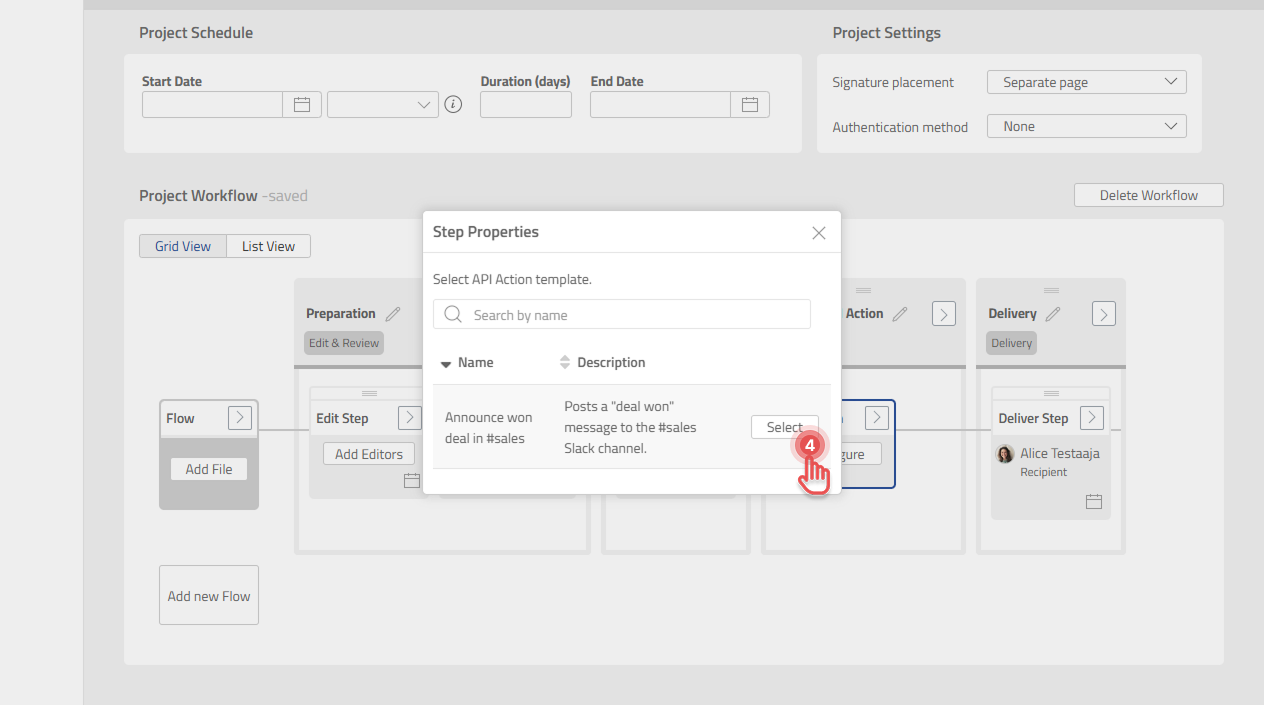
The step now shows the template name. For details, see API Action Step options.
Step 4: Fill in the deal details and run the Project
-
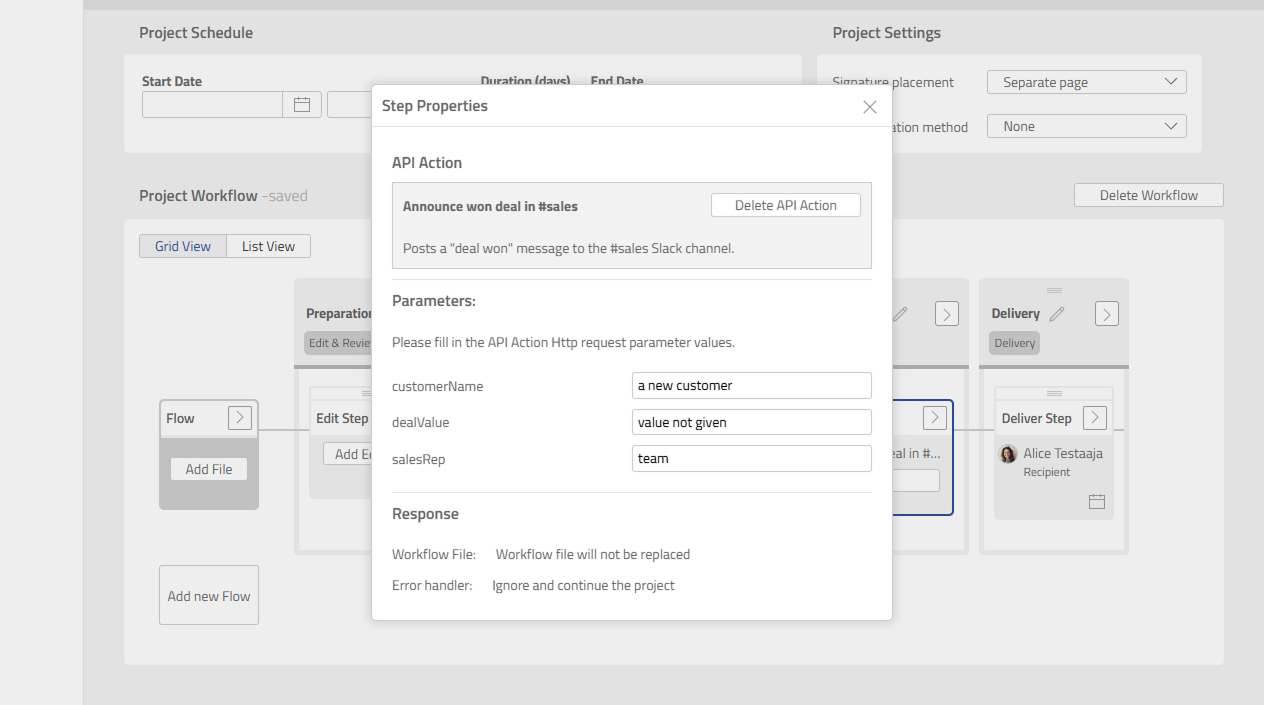
In the Project, click Configure in the API Action Step.
-
Under Parameters, enter the values for this deal, for example:
-
customerName: Acme Corporation
-
dealValue: EUR 48,000
-
salesRep: Maria
-
Preview
-
Start the Project, or let it continue, as usual.
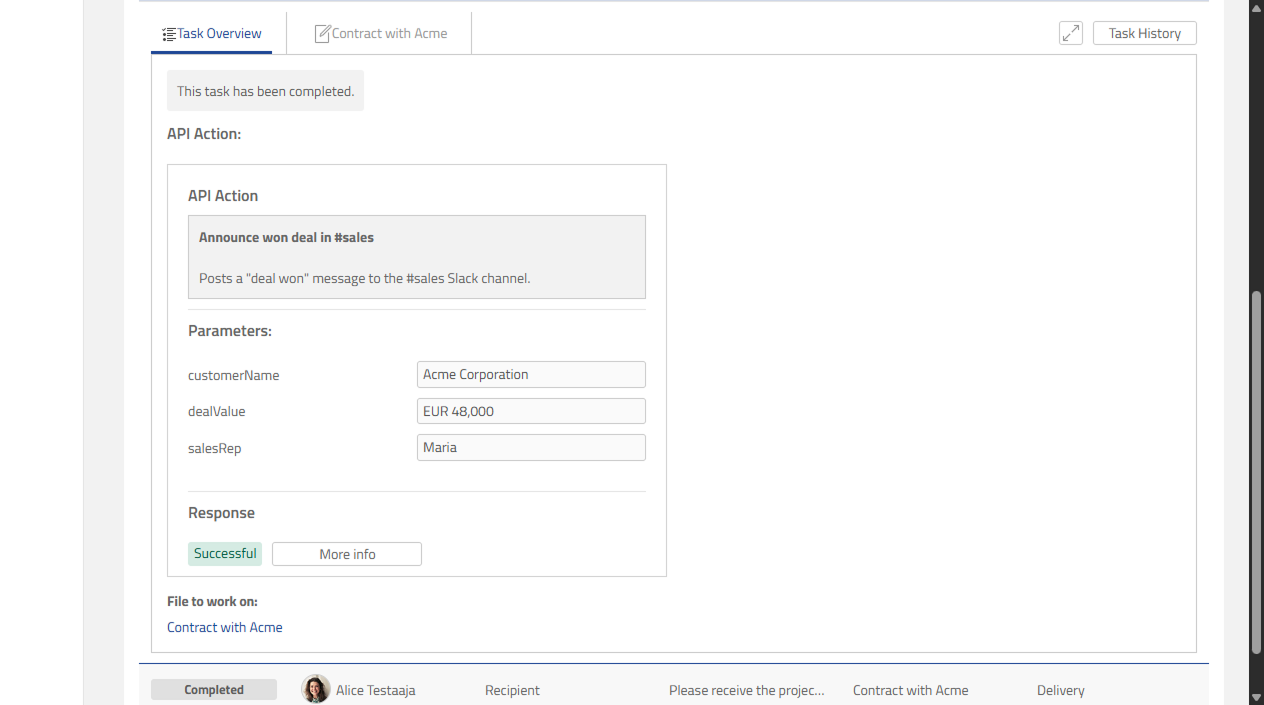
When the Sign phase is completed, Documill Leap sends the message and the API Action task is marked Completed. The message appears in #sales within seconds.
Preview
To see what Slack answered, open the task details. API Action shows Successful, and under Response, More info shows the response from Slack. For a working webhook, the response content is ok.
Preview
Tip: try the setup with a test channel and a test Project before you use it with real deals.
Troubleshooting
If no message appears, open the API Action task details and check More info. The Response status code and Response content tell you what went wrong.
|
Response |
Cause |
What to do |
|---|---|---|
|
|
The request body is not what Slack expects. |
Check that the body is valid JSON with a |
|
|
The webhook was deleted or the app was removed. |
Create a new webhook and update the Url in the template. |
|
|
A Slack admin has restricted the app or channel. |
Ask your Slack workspace admin. |
|
No response, the call timed out |
Slack did not answer within 5 seconds. |
Try again later. If it keeps happening, check that your network allows outgoing connections to |
|
The message shows the default values |
The Project Owner did not fill in the parameters. |
Fill in the values in the API Action Step before the Sign phase is completed. |