
Available to Organization Admin.
Create an API Action Template
Create an API Action Template to define a request that Project Owners can add to their workflows as an API Action Step.
-
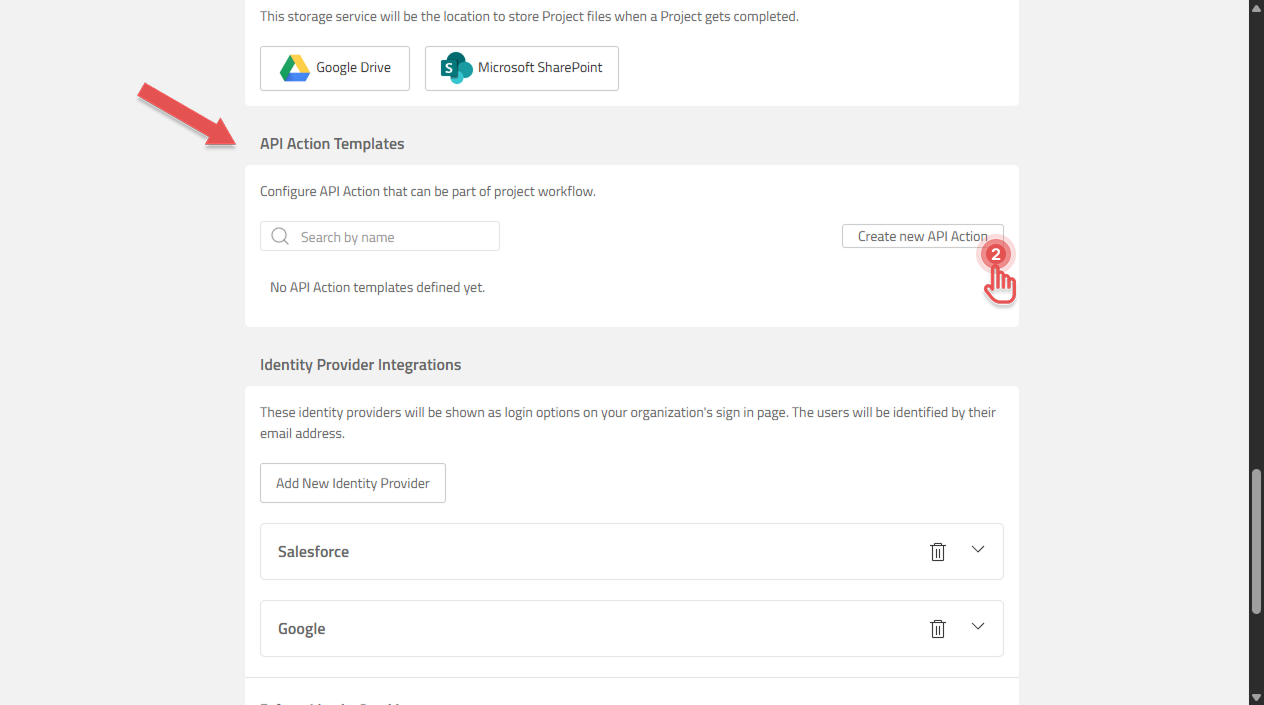
Open the Organization page and scroll to “API Action Templates” section.
-
Click [Create new API Action].
Preview
-
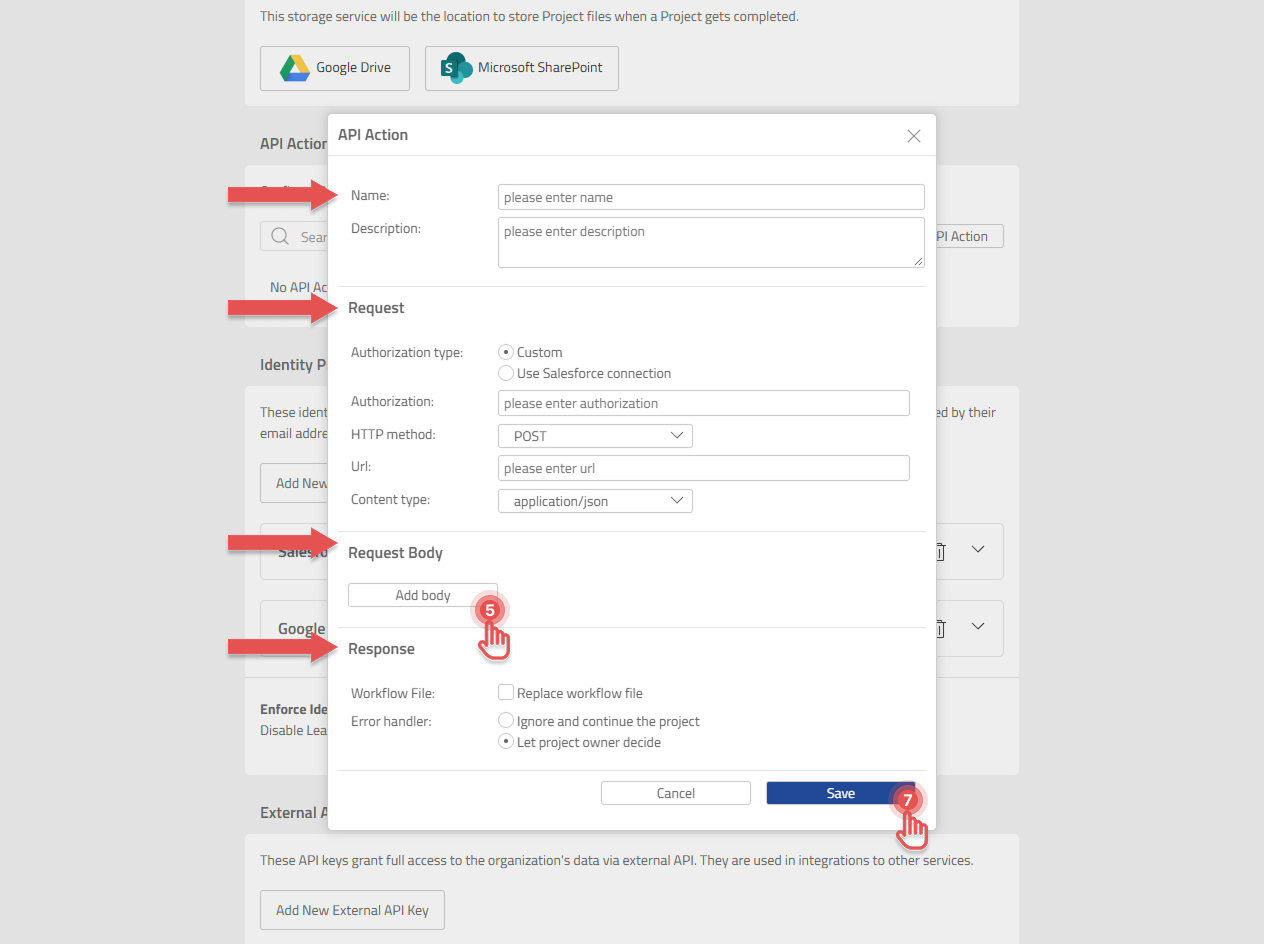
Enter a Name and a Description. Project owners see these when they choose a template, so describe what the template does, for example Posts a "deal won" message to #sales.
-
Under Request, choose the Authorization type and fill in Authorization, HTTP method, Url and Content type.
-
Under Request Body, click Add body (or Add part for
multipart/form-data) and enter the content. Add a parameter for every${name}placeholder you use. -
Under Response, choose whether to Replace workflow file and pick the Error handler.
-
Click [Save].
Preview
API Action Template options
Name and Description
|
Option |
Description |
|---|---|
|
Name |
Required. Up to 100 characters. Shown to Project owners when they choose a template. |
|
Description |
Optional. Up to 100 characters. Use it to say what the template does and where it sends data. |
Request
|
Option |
Description |
|---|---|
|
Authorization type |
|
|
Authorization |
Only with Custom. Sent as the |
|
HTTP method |
|
|
Url |
With Custom: the full address, starting with |
|
Salesforce URI |
With Use Salesforce connection: the path after your Salesforce domain, starting with |
|
Content type |
Shown for |
Request Body
The request body is not available for GET. For application/json and text/plain, the request has one body. For multipart/form-data, you can add several parts, for example a JSON part with details and a part that carries the workflow file.
|
Option |
Description |
|---|---|
|
Name |
Only for |
|
Workflow file |
Select Include workflow file to send the Project's workflow file in this part instead of text content. |
|
Content type |
Only for |
|
Content |
The text sent in the body or part. JSON content must be valid JSON. Insert parameters as |
Parameters
Parameters let Project owners fill in values that change from Project to Project, such as a customer name. Write a parameter in the content as ${parameterName} and add it to the parameter list below the content.
|
Option |
Description |
|---|---|
|
Name |
The name used inside |
|
Default value |
Used when the Project owner does not enter a value. Project owners can change it in the API Action Step. |
Example content with two parameters:
{ "text": "Deal won! ${customerName} signed the contract (${dealValue})." }
Response
|
Option |
Description |
|---|---|
|
Replace workflow file |
When selected, the file returned by the receiving system becomes a new version of the workflow file. If the response has no file name, the current file name is kept. Select this option only when the service returns a file. |
|
Error handler |
What happens when the call fails. Ignore and continue the project: the Project moves on. Let project owner decide: the Project owner is asked how to continue. |
Messages when saving
If a required detail is missing, the template is not saved and a message tells you what to fix. The same checks apply when you edit a template.
|
Message |
How to fix it |
|---|---|
|
API Action name is required. |
Enter a Name. |
|
API Action url is required. |
Enter a Url. |
|
The Salesforce endpoint URI should start with '/' |
With Use Salesforce connection, enter a relative path such as |
|
Selected Http method 'POST' requires request body. |
Add a request body. |
|
Request parameter names must be defined. |
Give every parameter a name. |
|
Parameter names must be unique. |
Rename parameters that share a name. |
|
Some of the parameters are not defined. |
Add a parameter for each |
|
Invalid request body content: ... |
Fix the JSON in the request body content. |
|
Saving failed with message: Given ApiAction url is not considered valid. |
Use a full URL that starts with |