
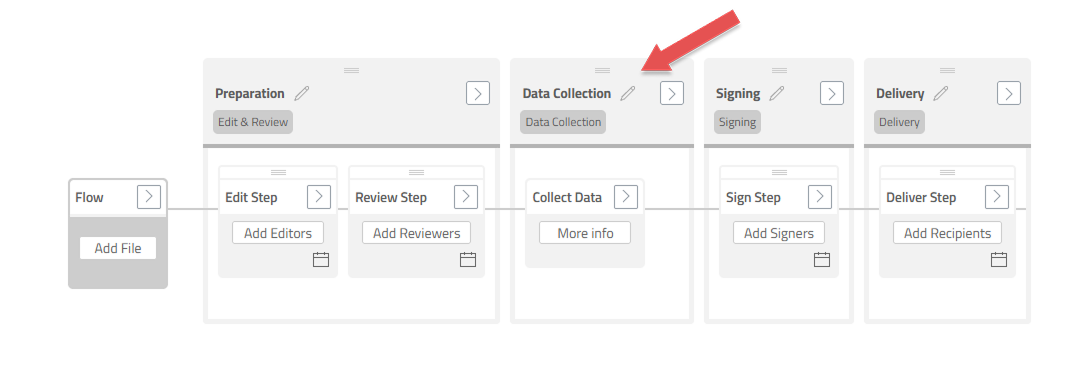
Data Collection saves the outcome of your negotiation back to Salesforce automatically. When a project reaches a Data Collection phase, its Collect Data step sends the workflow document to Documill Dynamo. Dynamo then writes the agreed values to the relevant Salesforce records.
Data Collection only applies to projects created from Salesforce using Dynamo.
How it works
-
A project is created from a Salesforce record using a Dynamo Template. Dynamo generates the document, with content controls for the values that may change during negotiation, for example the price, the contract term, or the start date.
-
Collaborators edit and review the document as usual. The content controls are updated along the way.
-
When the previous phase is completed, the Collect Data step starts automatically. Leap checks the content controls and sends the latest version of the document to Dynamo.
-
Dynamo writes those values to Salesforce, as defined in the Dynamo Template.
The values are written to Salesforce with the Dynamo Template's update commands. Read more in Updating Salesforce Record with Flow
-
A project can't go live while its Collect Data step has no Dynamo Template.
-
The project uses the Dynamo Template as it was when the project was created. If the template is changed in Salesforce afterwards, refresh it in the project. See Plan a Leap Project
About the workflow document
Data Collection reads the values from content controls in a Word (DOCX) document. These content controls are updated by Dynamo when the document is generated, and each one is linked to a value in the Dynamo Template.
-
Collaborators can change the value inside a content control, but shouldn't delete the content control itself. If a content control is removed, the Collect Data task is rejected.
-
The document must still be in DOCX format when the Collect Data step runs. Place the Data Collection phase before any phase that turns the document into a PDF, such as Signing.
How the values are read
|
In the document |
What happens |
|---|---|
|
The content control has a value |
The value is written to Salesforce. |
|
An optional content control is empty |
The Salesforce field is emptied. The task shows the value as “(empty)”. |
|
A required content control is empty |
The task is rejected, and nothing is written to Salesforce. |
|
A content control was removed from the document |
The task is rejected, and nothing is written to Salesforce. |
|
A content control shows its placeholder text, e.g. "Click or tap here to enter text." or "Choose item" |
The field is treated as empty. |
Salesforce validation rules are not checked beforehand. If a value breaks a validation rule, Dynamo reports it as a failure.
Following the result
The Collect Data task is completed as soon as the values are sent to Dynamo, and the workflow continues. Dynamo writes the values in the background, so the task shows the status of the data collection:
|
Status |
Shown in the task |
Values in the task overview |
|---|---|---|
|
Processing |
"This task has been completed. The data is still being collected." |
Writes to Salesforce: the records and fields the step writes |
|
Completed |
"This task has been completed. All data was collected successfully." |
Values written to Salesforce |
|
Failed |
"Data collection failed. Some or all of the values may not have been saved to Salesforce." |
Values from the document, with a [Copy] link for each value |
The task overview shows:
-
the Dynamo Template
-
the target record
-
the fields the step writes (Writes to Salesforce)
-
once completed, the values written (Values written to Salesforce).
The outcome is also recorded in the Project Log as a Data Collection event:
-
"All values have been saved to Salesforce."
-
"Some or all values may not have been saved to Salesforce."
To see Dynamo's own report of a failure, click [Show Error] in the log.
When Data Collection doesn't succeed
There are two different situations:
The task is rejected
Leap stopped before sending anything to Dynamo, for example because a required value is empty or Dynamo Integration isn't configured. The Project Owner gets a request to resolve the task, and can:
-
select a new file or a previous step, for example to fix the document;
-
[Retry data collection] once the cause is fixed;
-
[Continue Workflow anyway] without saving any values to Salesforce.
Read more in Resolving Request for Changes Task .
The data collection failed
Dynamo received the values, but some or all of them may not have been saved, for example because of a Salesforce validation rule. The workflow has already continued, and the data collection can't be run again. The task shows the values under Values from the document. Use [Copy] to enter any missing values in Salesforce manually.
Setting up and using Data Collection
Read more about how to set up Data Collection from these pages:
-
Allow your Leap Organization to call Dynamo:
Managing Dynamo Integration -
Set up creating a Leap Project from Dynamo:
Configuring Leap and Dynamo -
Prepare a Dynamo Template that can collect data to Salesforce:
Updating Salesforce Record with Flow