
Available to Organization Admin.
Open the editor from Organization → Branding → Signature Page Template → Customize, then adjust the layout and fields below. Click Save when you are done.
Choose a layout
Two columns fits more signers onto a page, which helps when documents are signed by several people or when you show many signer fields.
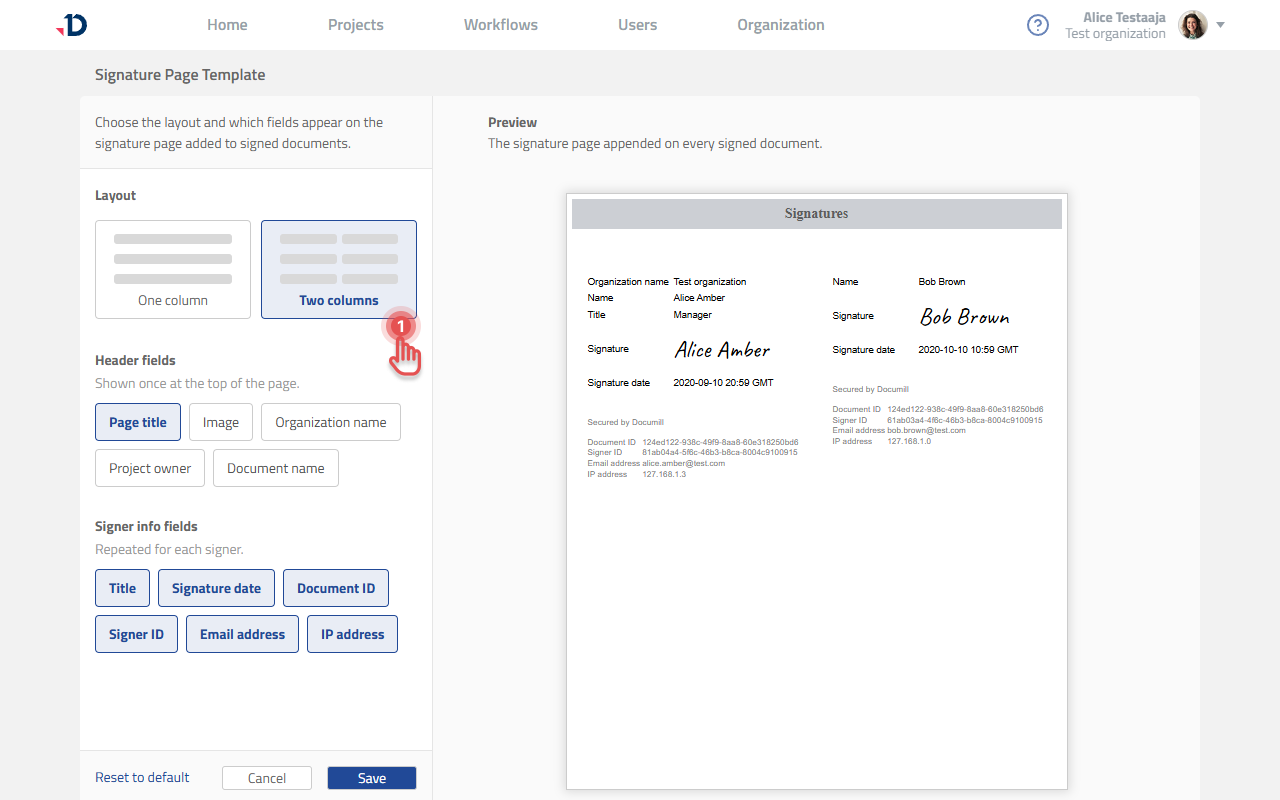
One column gives each signer more horizontal room and reads more like a conventional document.
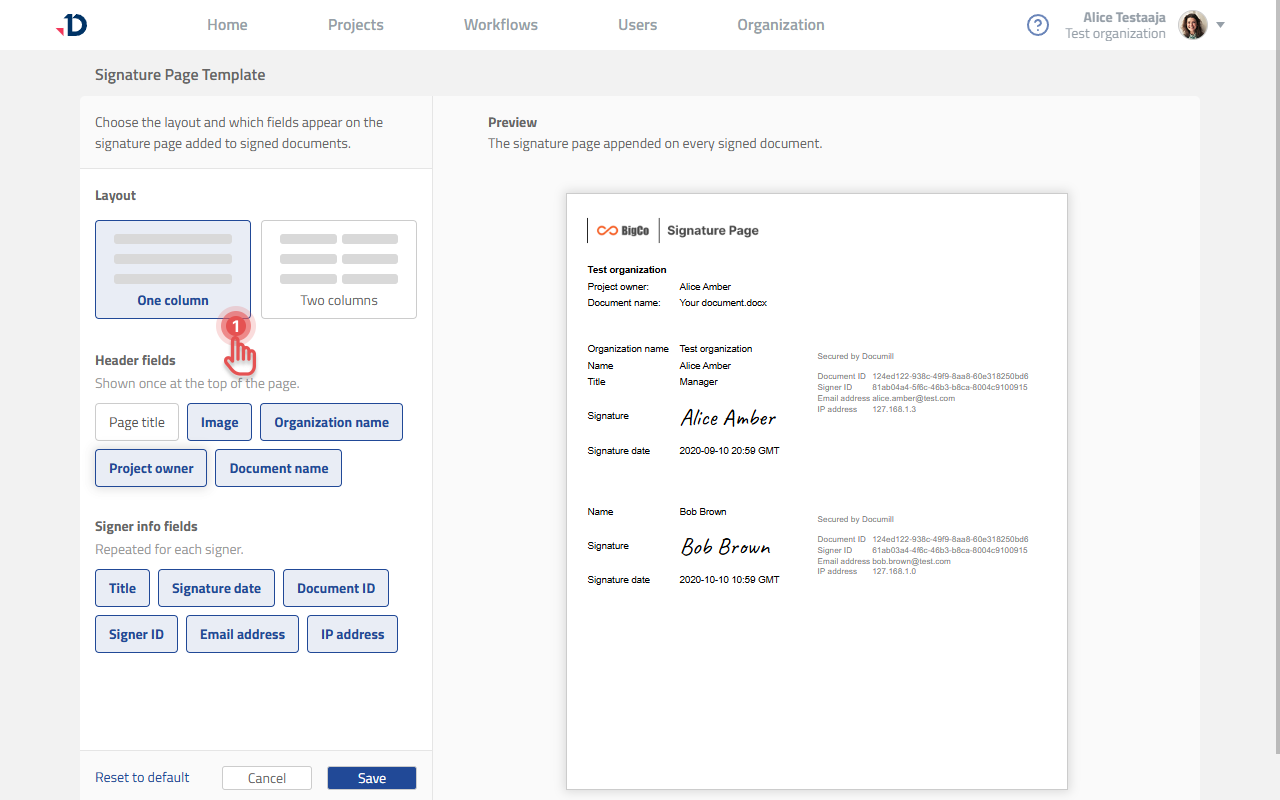
Header fields
These appear once, at the top of the signature page.
|
Field |
What it shows |
|---|---|
|
Page title |
A heading on the signature page. |
|
Image |
Your own image in the header. See Add an image to the header below. |
|
Organization name |
The name of your Leap organization. |
|
Project owner |
Who owns the project the document belongs to. |
|
Document name |
The filename of the signed document. |
Add an image to the header
You can put your own image at the top of the signature page, typically a logo. It appears once in the header.
-
Under Header fields, click Image to switch it on. A dropzone appears at the top of the preview.
-
Either drag an image onto the dropzone, or click Upload image and choose a file.
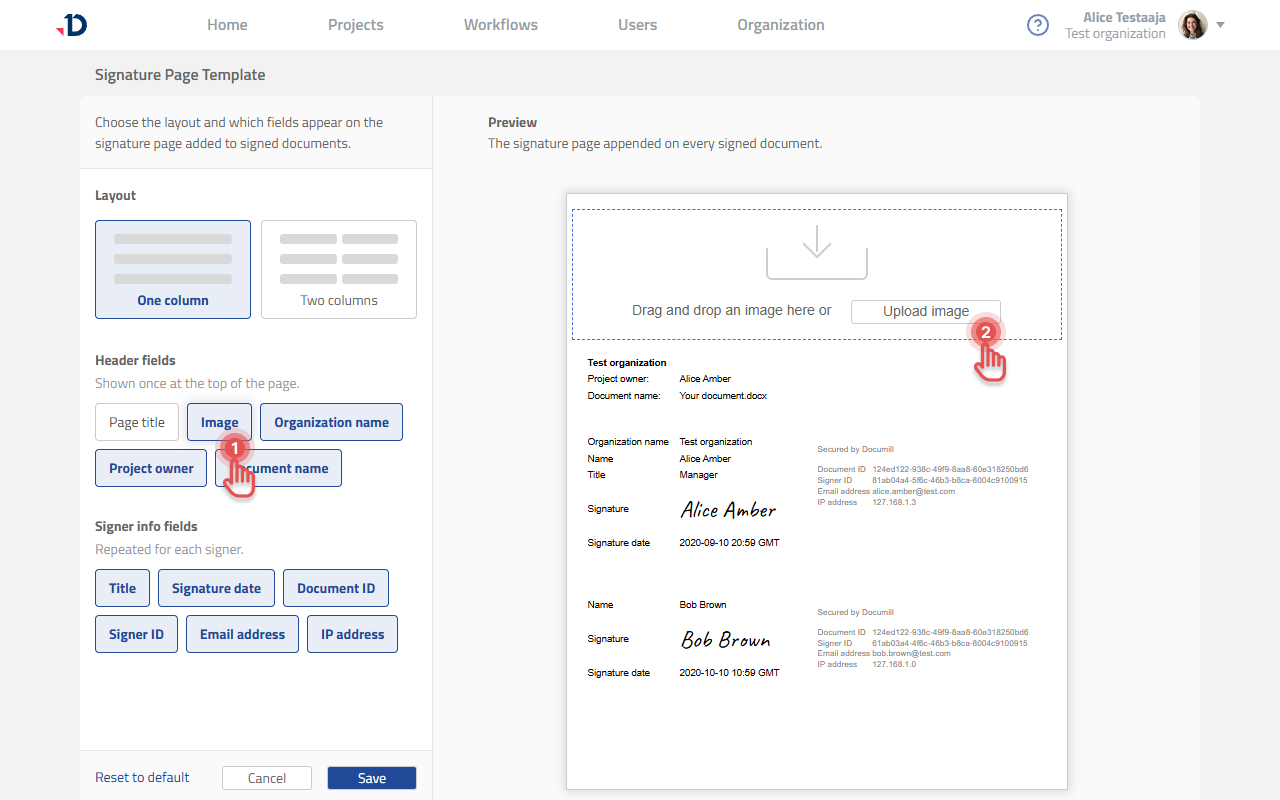
The image then appears in the signature page header on every document signed after you save.
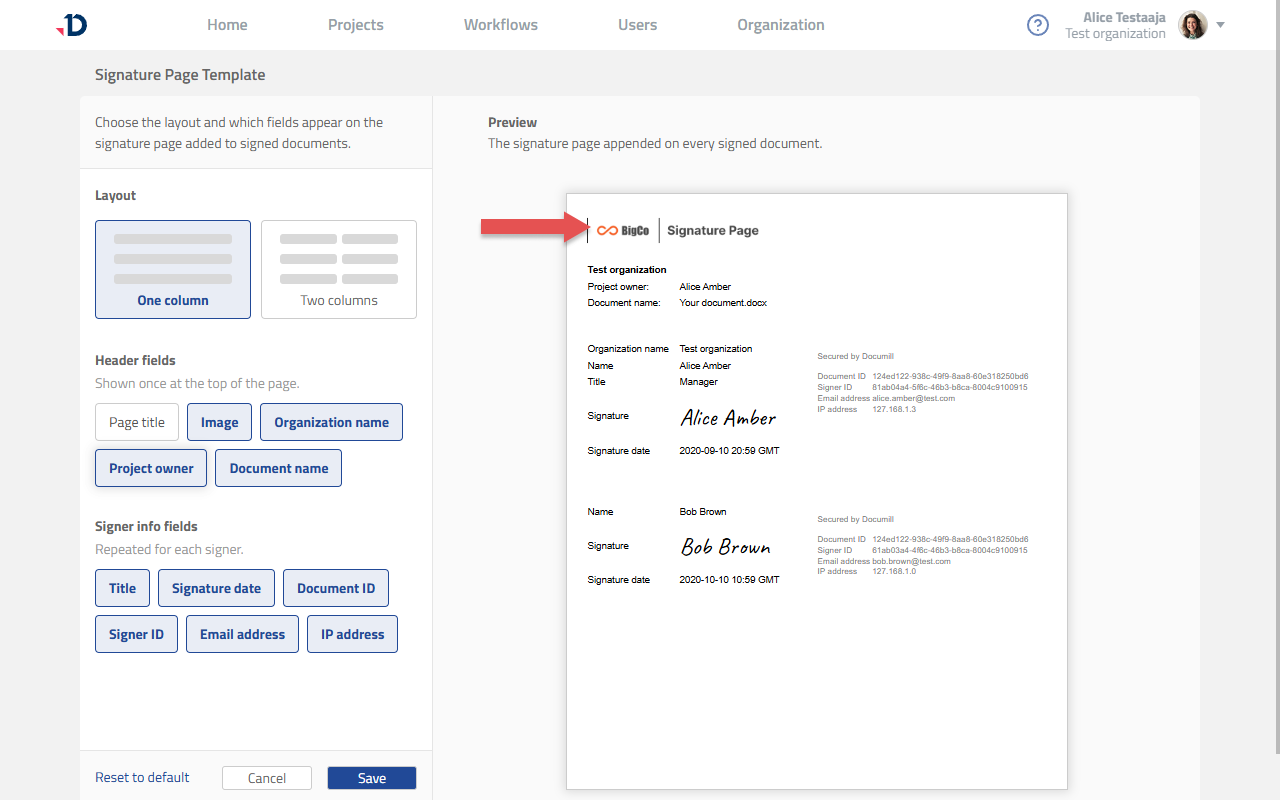
This image is a separate asset from your organization logo. Changing one does not change the other, so an organization can use Documill default branding in the app while still putting its own logo on signed documents. If you want the two to match, upload the same file in both places (see Adding Your Organization Logo).
Signer info fields
These repeat for every signer on the document.
|
Field |
What it shows |
|---|---|
|
Title |
The signer’s job title. |
|
Signature date |
When the signature was made, in GMT. |
|
Document ID |
The identifier of the signed document. |
|
Signer ID |
The identifier of the individual signature. |
|
Email address |
The address the signer was invited at. |
|
IP address |
The address the signature was made from. |
Signature date, Document ID, Signer ID and IP address are what make a signature traceable after the fact. Turning them off makes for a cleaner page but a weaker audit trail. Worth checking against your own compliance requirements before you do.
When changes take effect
The new template applies to documents signed after you save. Documents already signed keep the signature page they were issued with.