Available to Organization Admin.
Appearance is a single set of branding applied everywhere. You set a logo, a primary color, a header background color and your e-mail footer details once, and Leap applies them to the app, to the Sign-Only signing experience and to notification e-mails.
Open the Appearance editor
-
Go to the Organization page.
-
Scroll to the Branding section.
-
In the Appearance panel, click Customize.
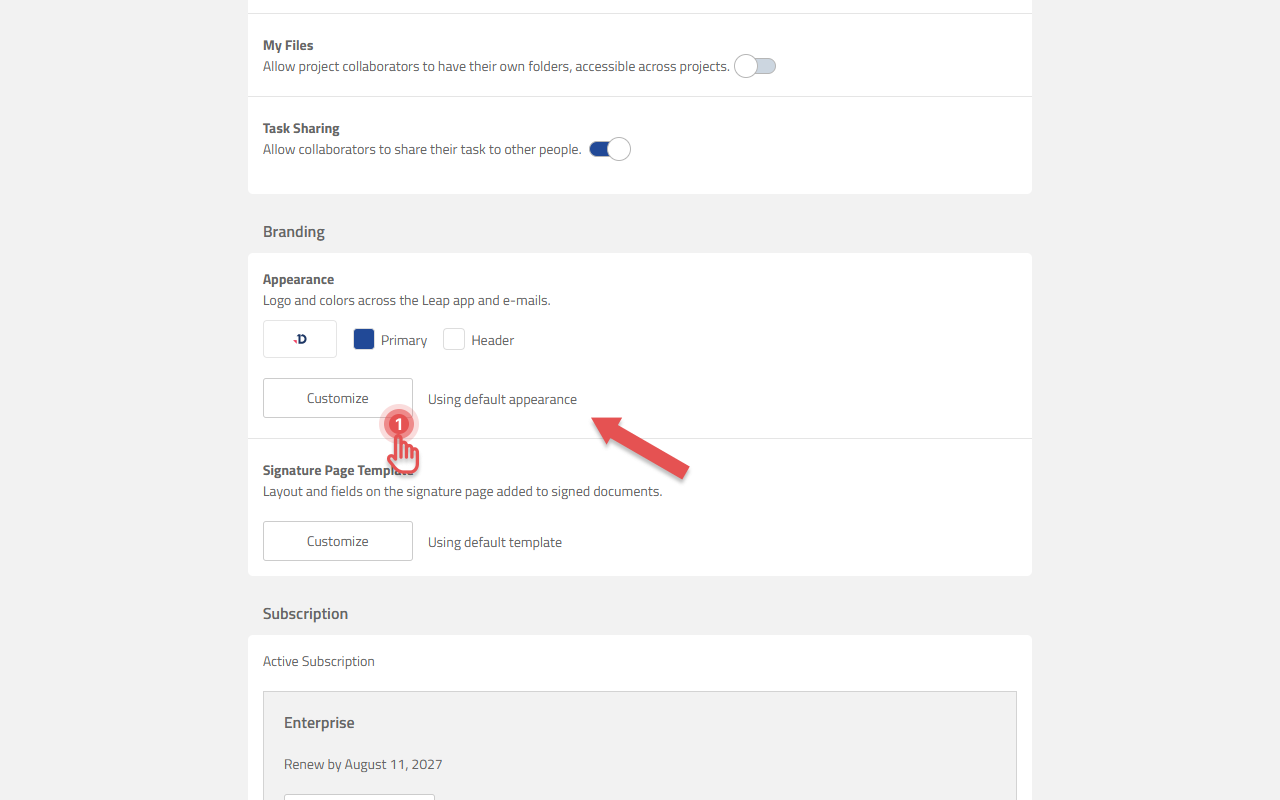
The text beside the button tells you the current state: Using default appearance or Using customized appearance. The panel also previews your logo and the two color swatches.
The editor
Settings are on the left, with a live preview on the right. The preview has one tab per surface, so you can check every place your branding lands before you save.
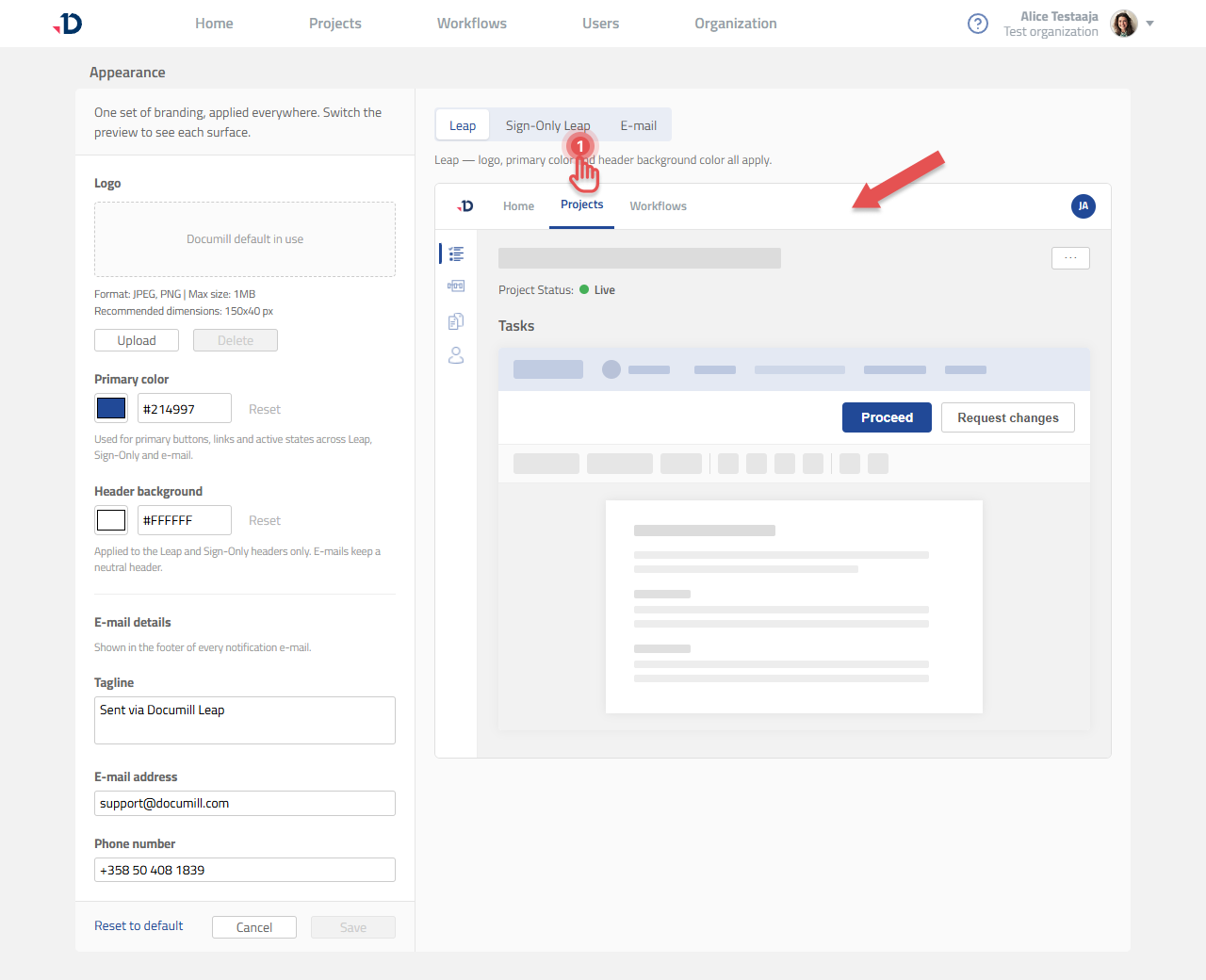
Leap
The logo, primary color and header background color all apply.
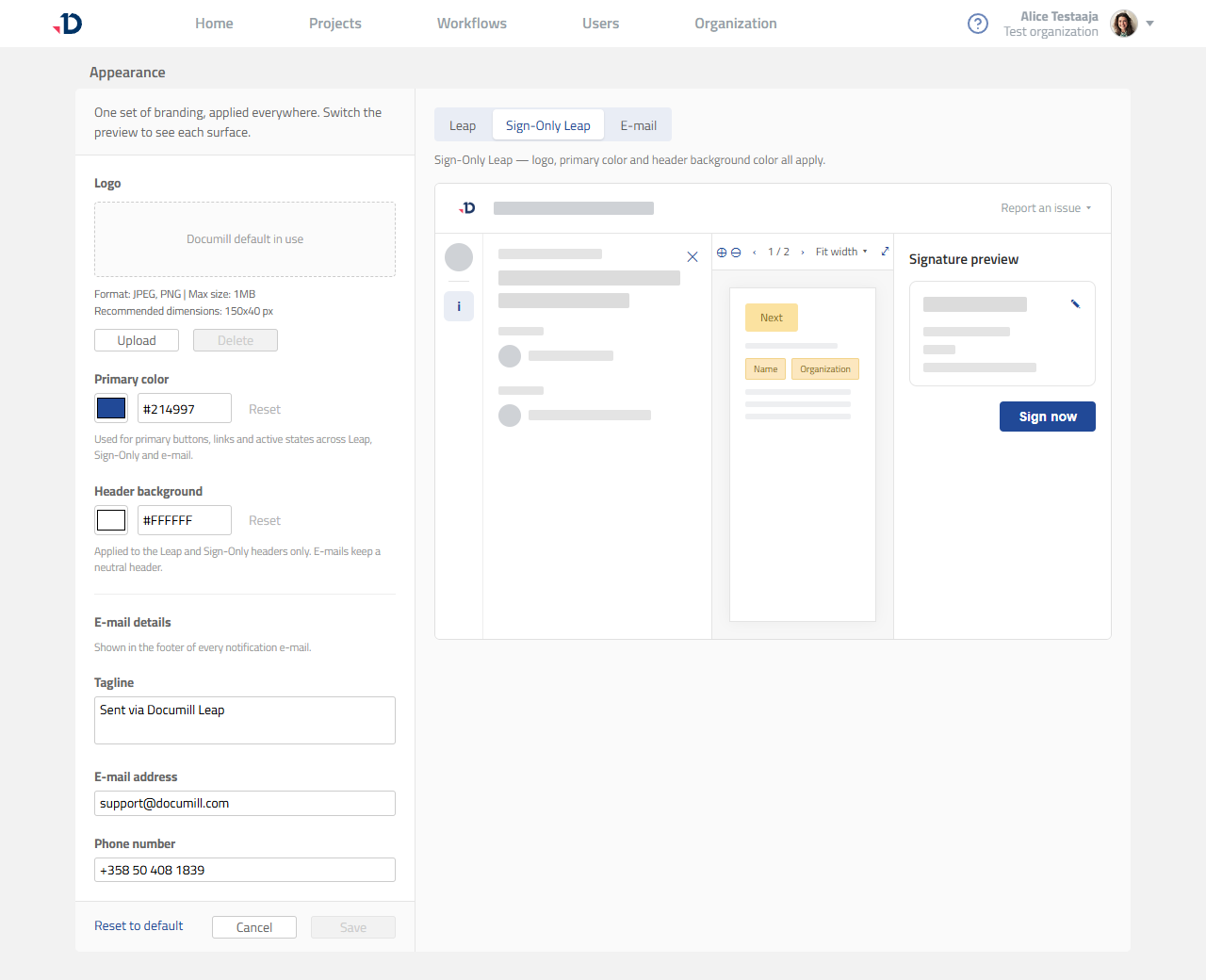
Sign-Only Leap
This is what people who only sign documents see. The logo, primary color and header background color all apply here too.
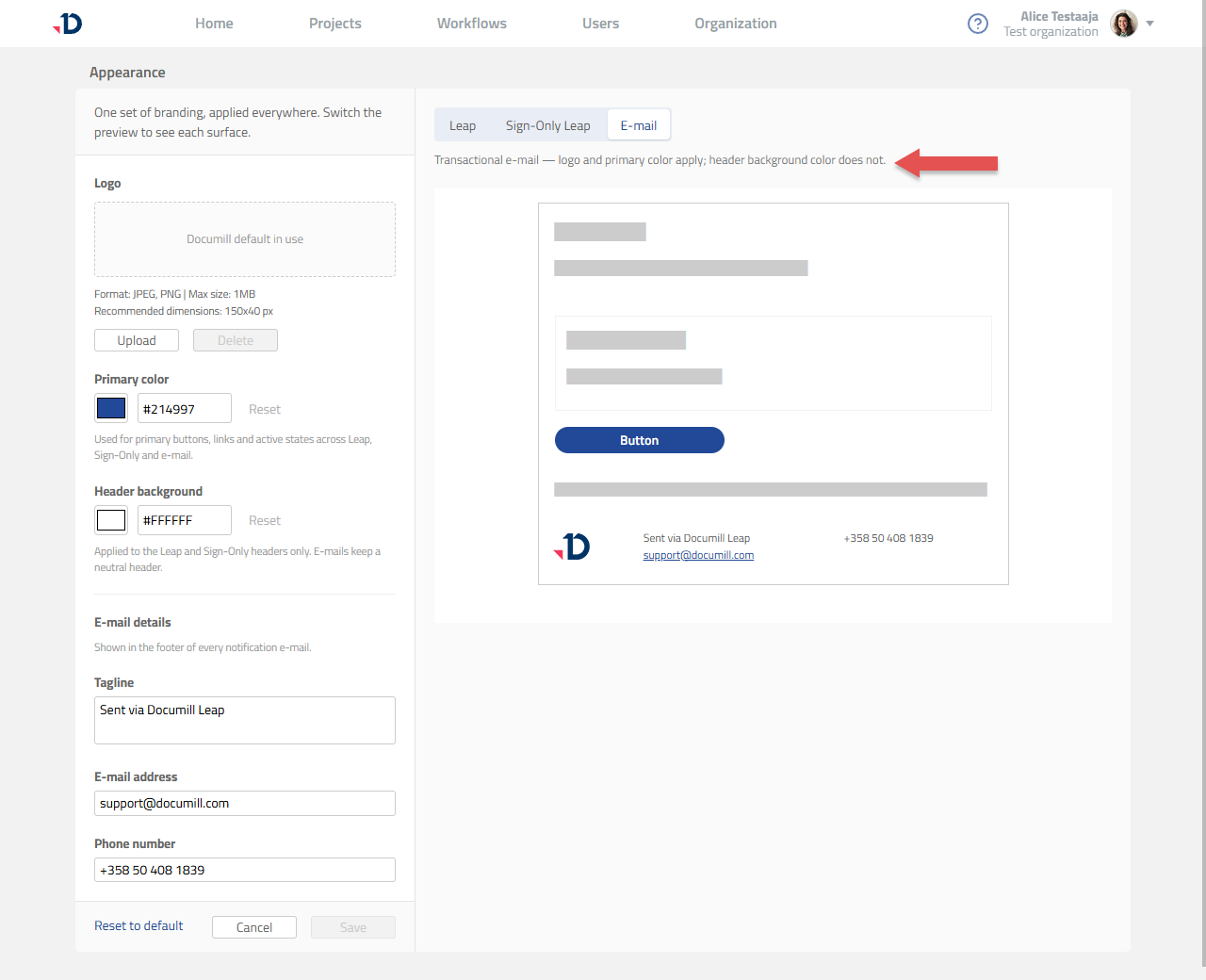
E-mail
The logo and primary color apply. The header background color does affect notification e-mails, so they stay readable in every mail client.