By default, your Recipient Task does not require any actions. Thus, the Task will be completed automatically and the File will be emailed to you.
However, if the Project is configured so that you need to manually retrieve the File, you can complete your Task in the following ways:
Download the File
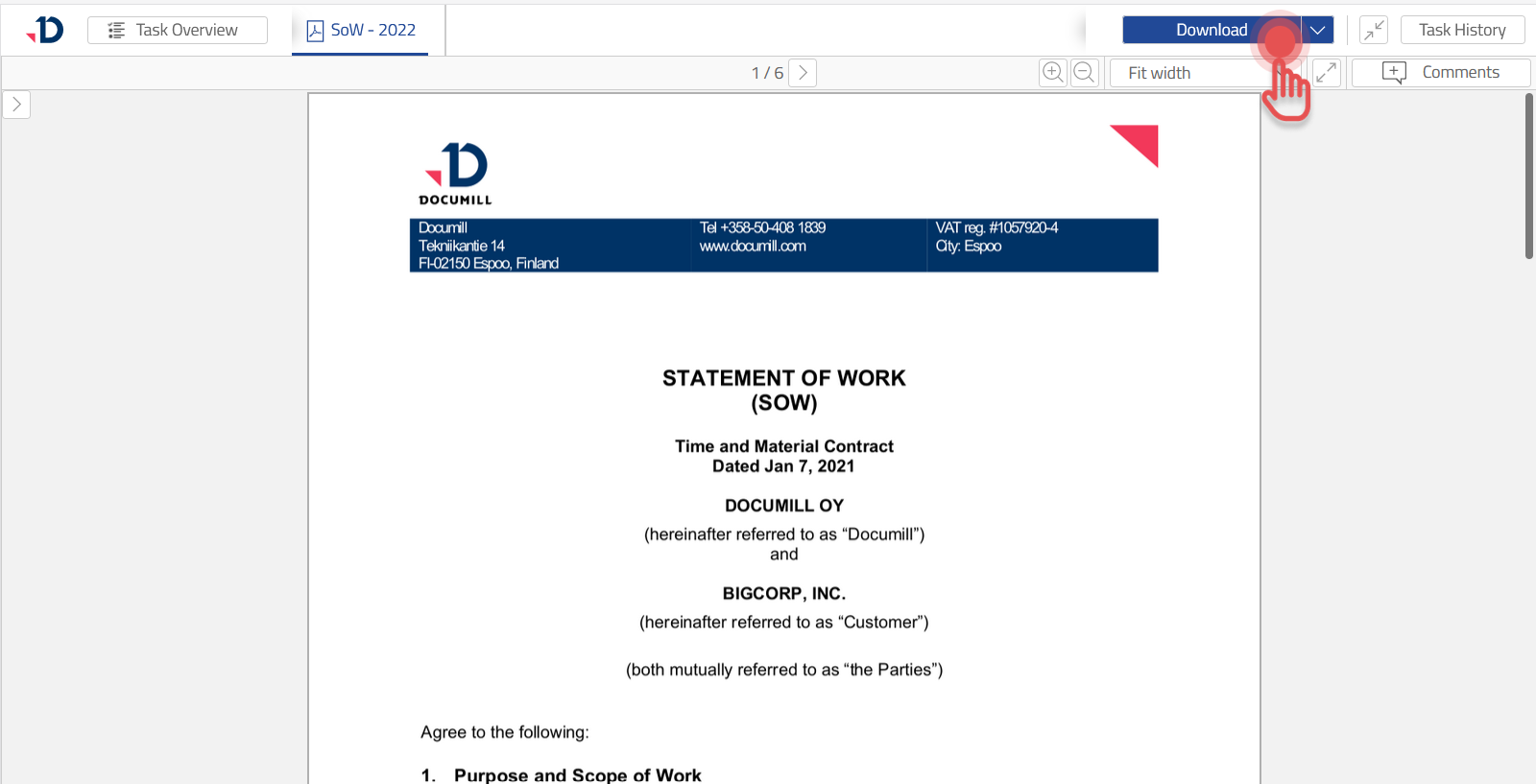
Click [Download] button to save the File to your computer.
Preview
Download All Files
You may also receive multiple Files in your Recipient Task. To download all the Files as a .zip archive, follow these steps:
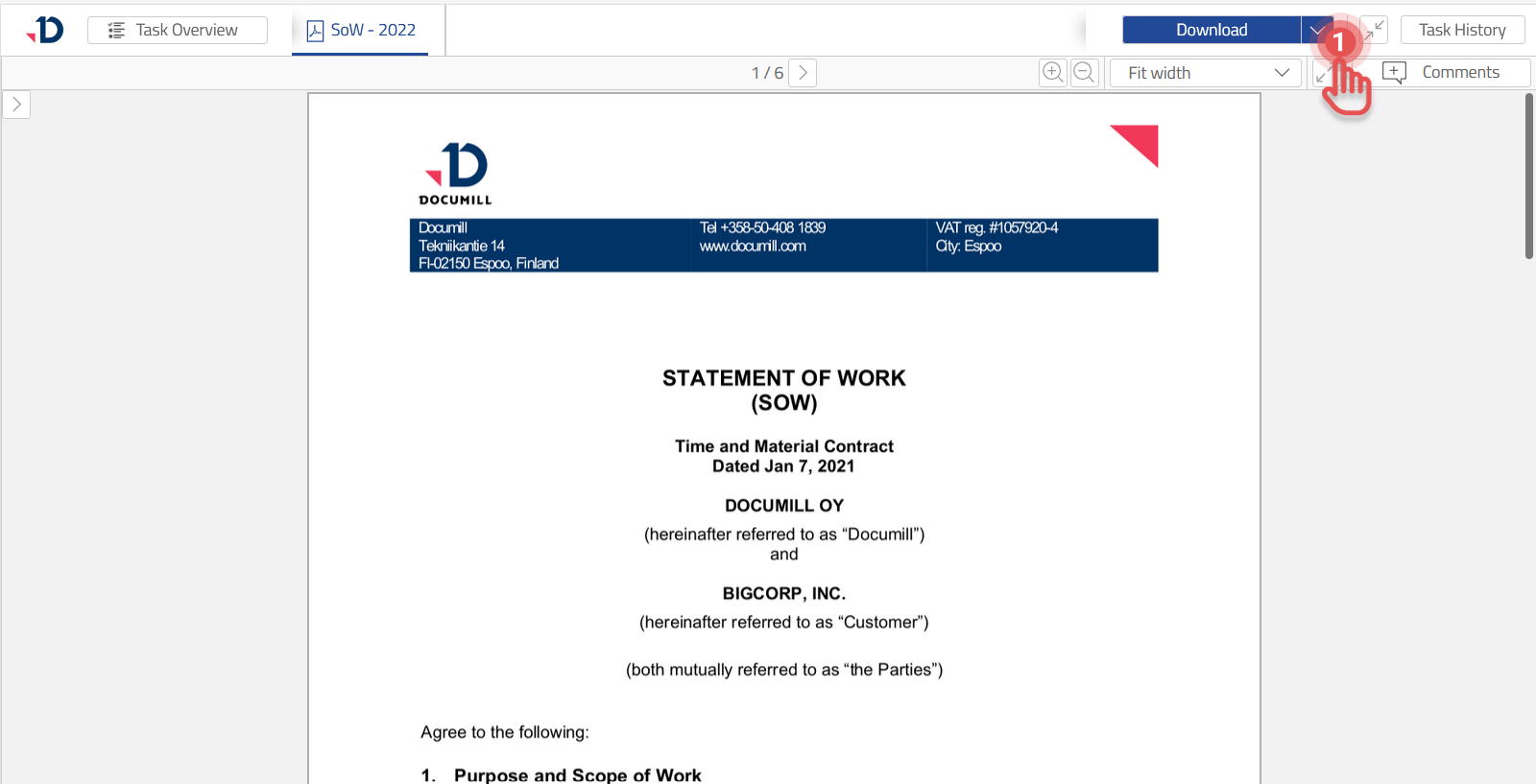
1. Expand the menu.
Preview
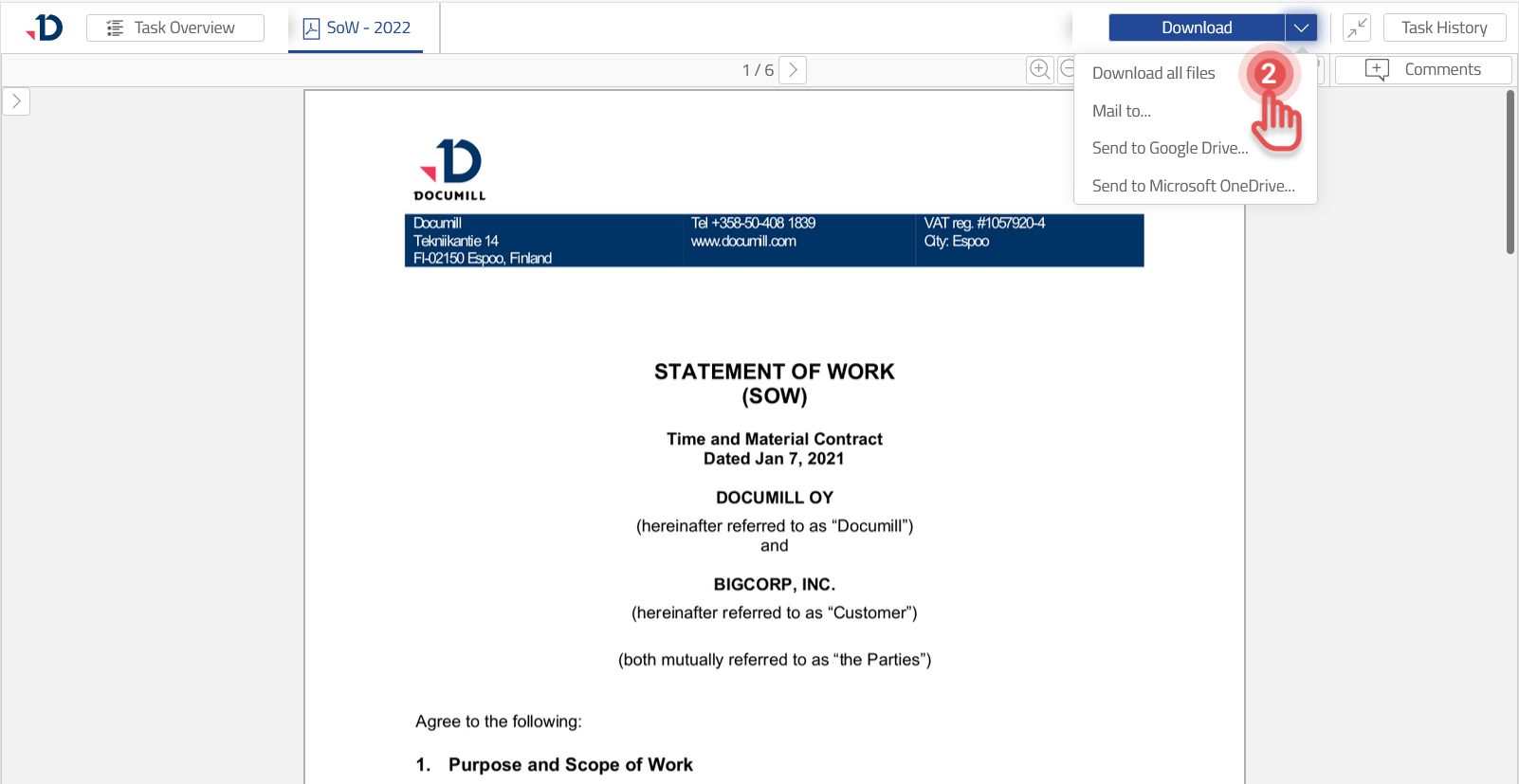
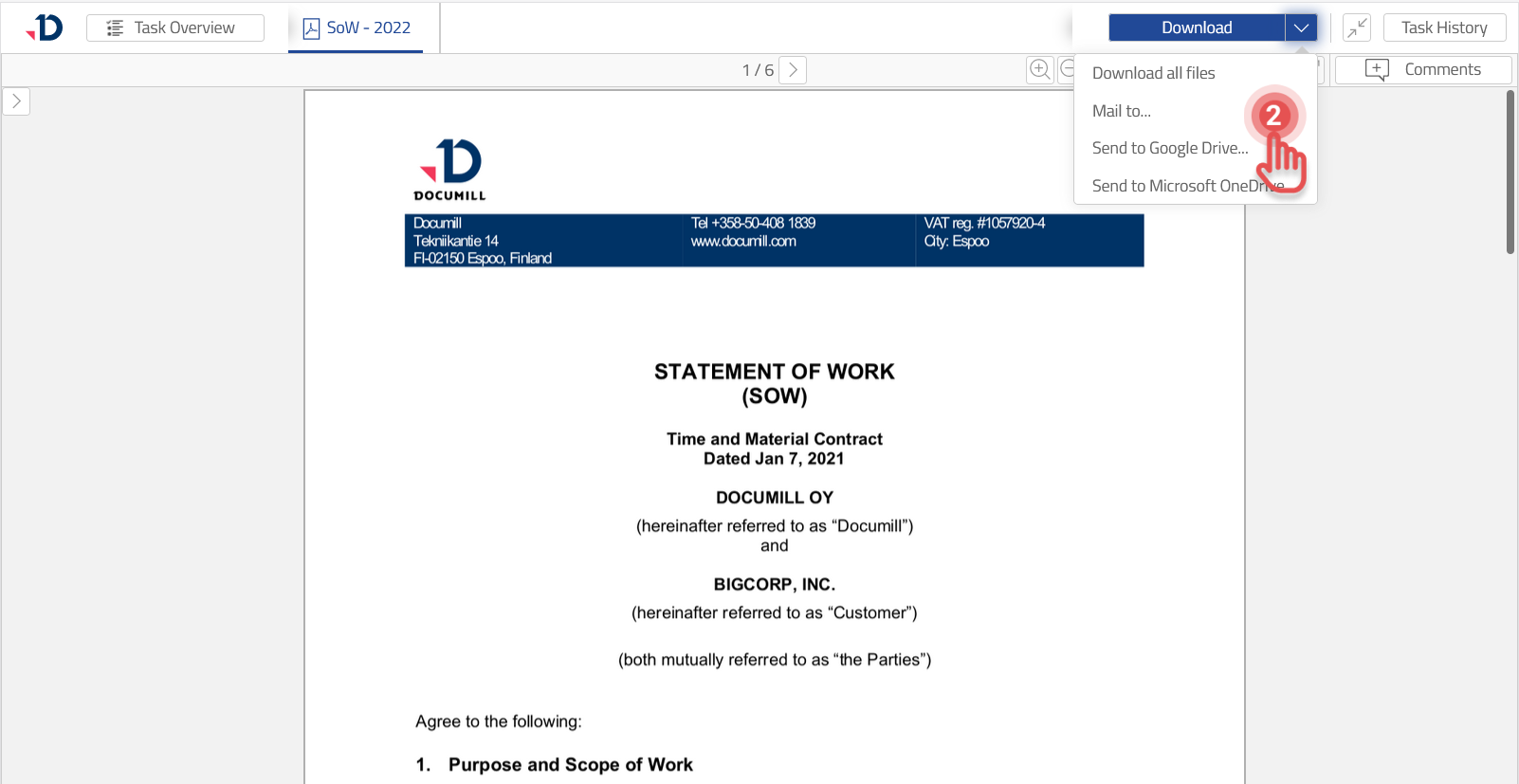
2. Select [Download all files] option.
Preview
Send the File by Email
If you would like to send the File to another e-mail address, follow below steps:
1. Expand the menu.
Preview
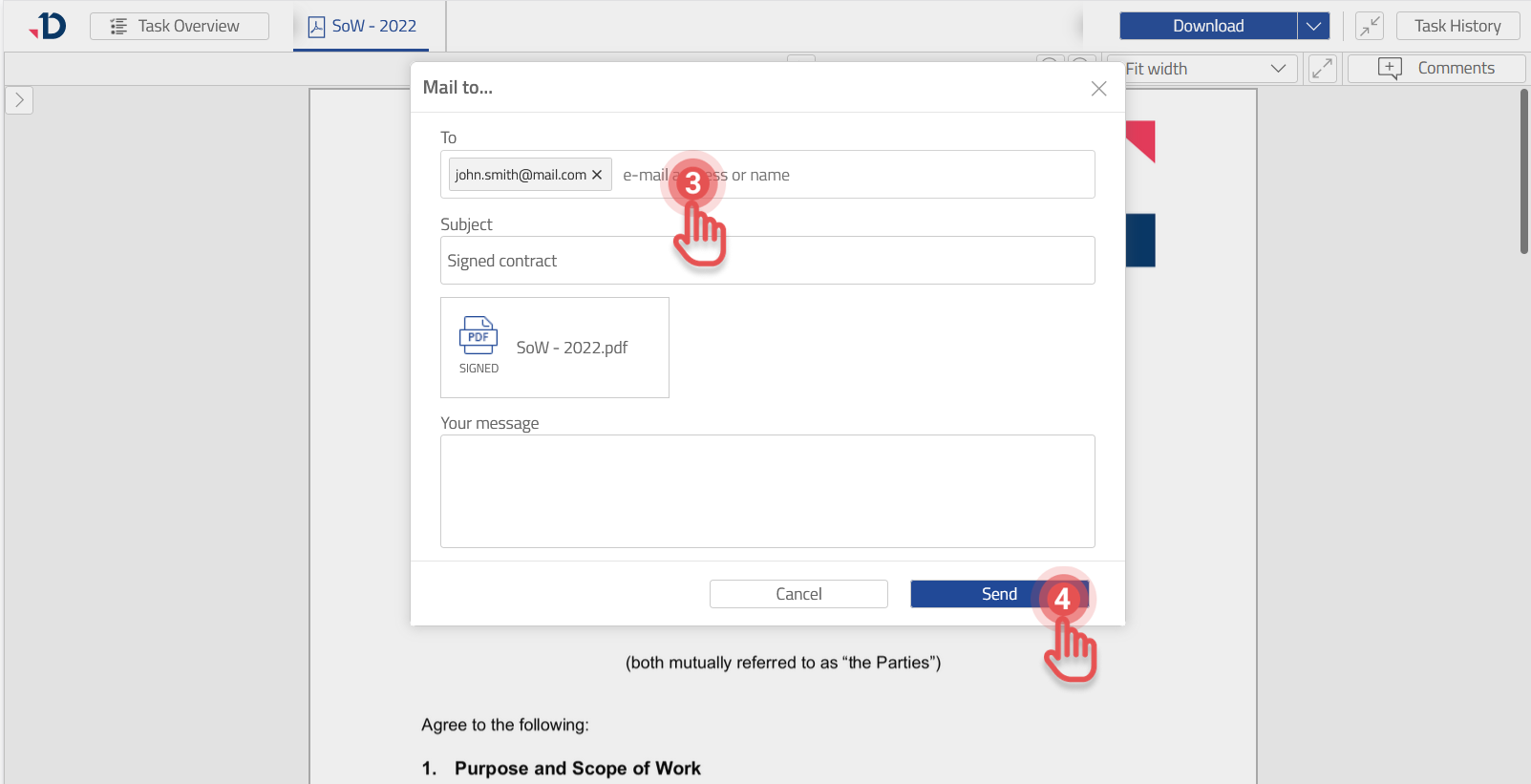
2. Select [Mail to…] option.
Preview
3. Fill [Mail to…] form.
4. Click [Send] button.
Preview
Send the File to Google Drive
It is an option to send the file directly to your personal Google Drive folder:
1. Expand the menu.
Preview
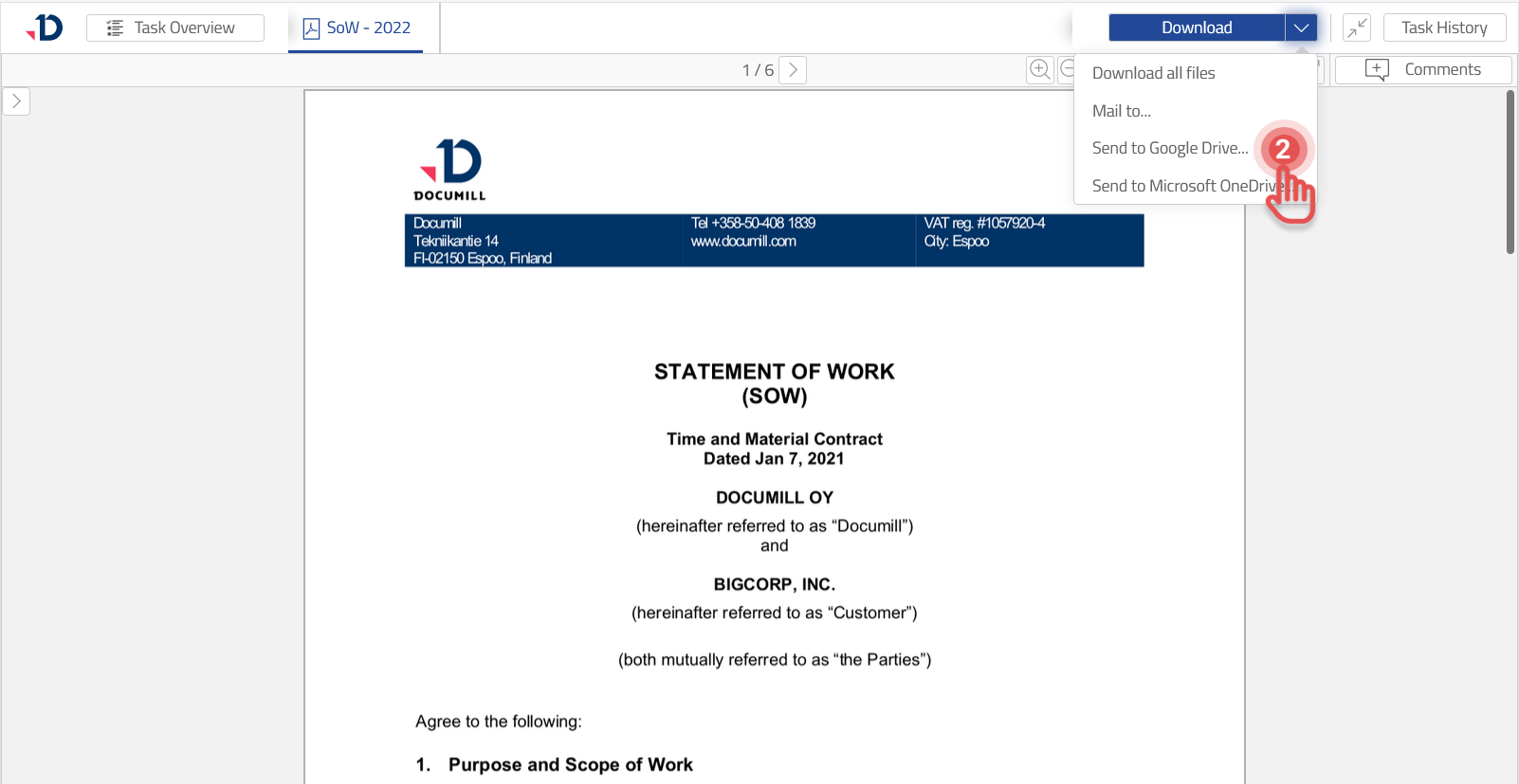
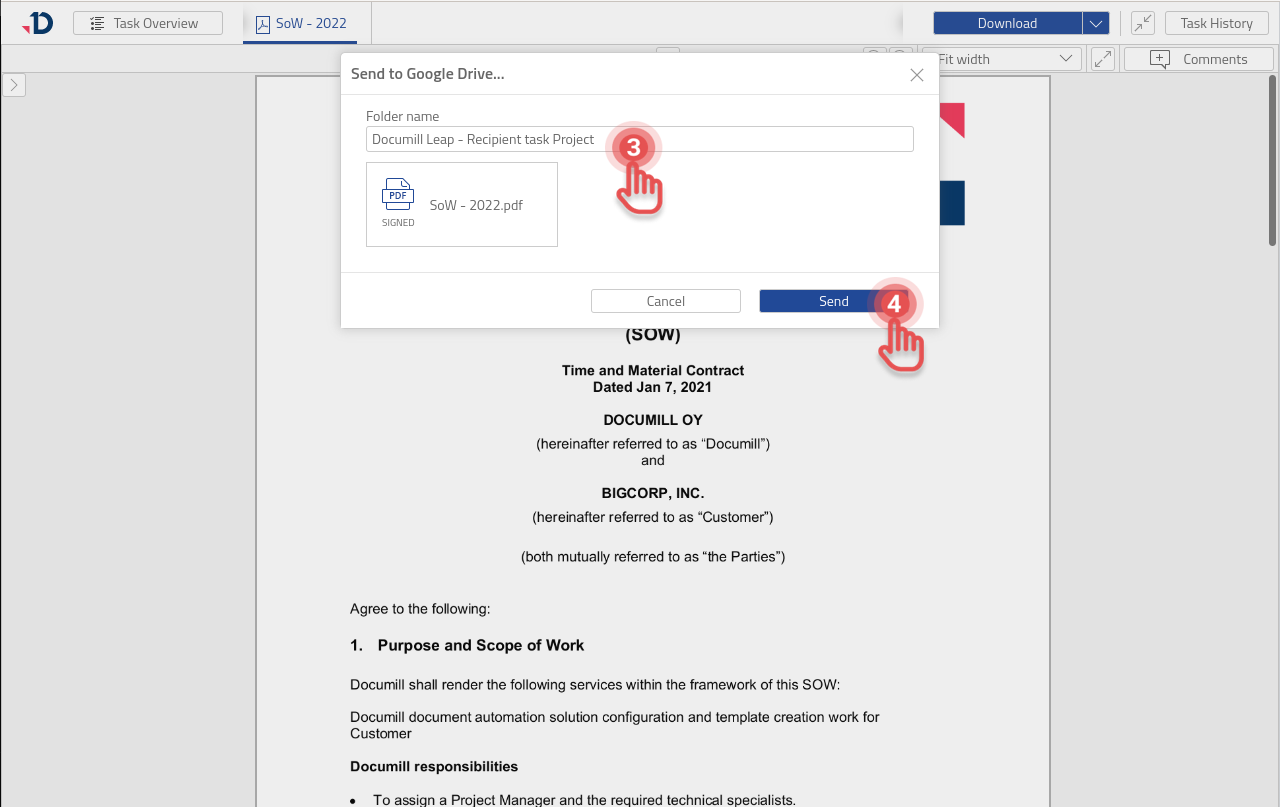
2. Select [Send to Google Drive…] option.
Preview
3. Define a folder name.
4. Click [Send] button.
Preview
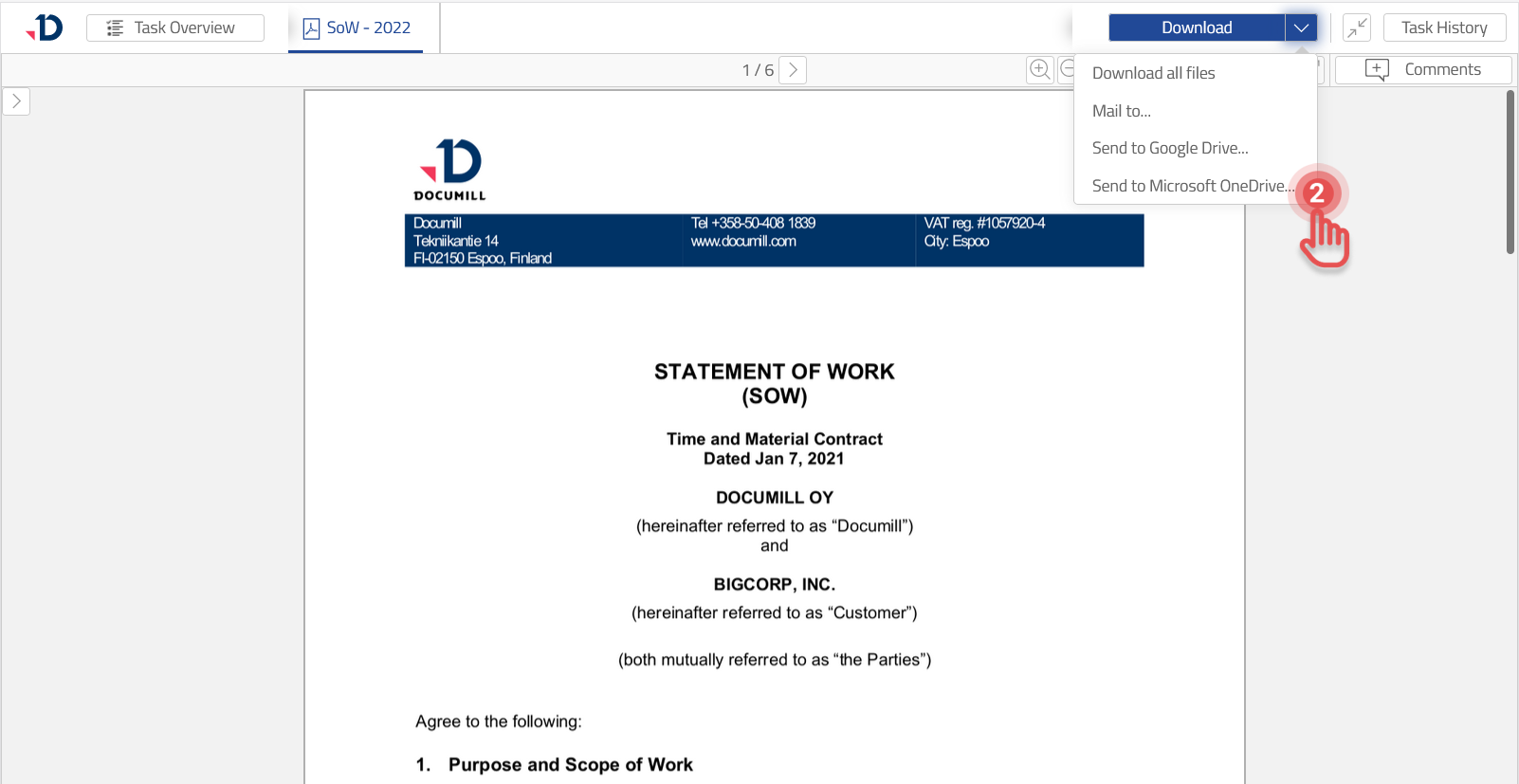
Send the File to Microsoft OneDrive
It is an option to send the File directly to your personal Microsoft OneDrive folder:
1. Expand the menu.
Preview
2. Select [Send to Microsoft OneDrive…] option.
Preview
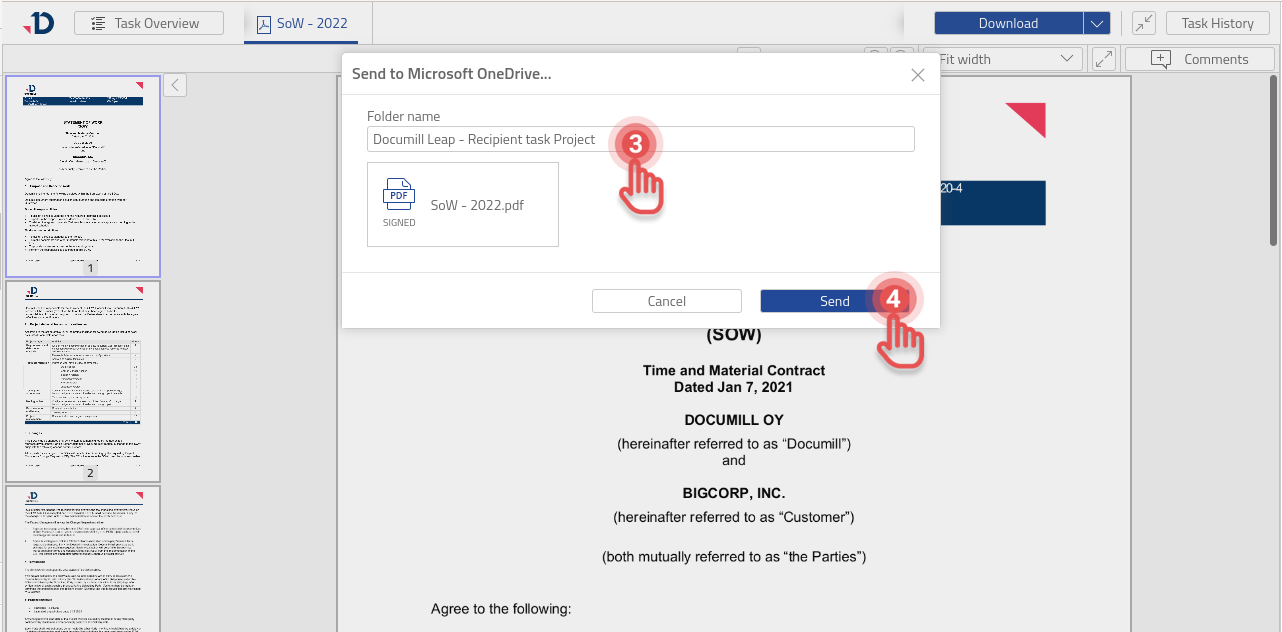
3. Define a folder name.
4. Click [Send] button.
Preview