
Using Azure App with client credentials enables secure way to interact with SharePoint. Client credentials grant flow uses delegated permissions and enables more granular access control; customers registers the Azure app themselves and configures API permissions. OAuth 2.0 authorization is then used by Dynamo to ultimately receive access token for later SharePoint interactions.
With current user the credentials come from the user that is running the flow. When using this method, the Azure app needs to be configured to the tenant’s Azure organization. App’s clientId, clientSecret and Azure app id (tenant id) need to be provided through the dynamo-users site. After this the user can be authenticated against the tenant’s app and access token fetched in the back-end.
How to configure
Microsoft Azure app
Open Azure portal (https://portal.azure.com/ ) and navigate to App registrations -> new registration.
-
Enter name for the App (can be changed later)
-
Select supported account types as Accounts in this organizational directory only (<company> only - Single tenant).

-
For the redirect URI, select type as Web and URI as ‘https://dynamo-integrations.documill.com/auth/microsoft’ and Register.

-
Now that Azure App is registered, API permissions needs to be added. Open it, navigate to Manage -> API permissions.
-
Add new Permission
-
Select Microsoft Graph
-
Choose Delegated permissions as type
-
From the permissions list, choose the following: offline_access, Sites.ReadWrite.All and User.Read
-
Click Add permissions
-
-
After permissions has been selected, admin consent must be granted. For this part Microsoft Azure administrator privileges are needed. Click Grant admin consent for <company> and grant consent for these permissions.

-
API permissions are now set and ready. Before app can be used by Dynamo, client credentials needs to be set and collected. To do that, navigate to Overview menu and notice the Application (client) ID and Directory (tenant) ID values that are needed later on. Client secret value is also needed but must be set separately
-
Click Add a certificate or secret
-
Click New client secret
-
Enter a description and secret expiration time
-
Click Add
-
Client secret values cannot be viewed, except for immediately after creation. Be sure to save the secret when created before leaving the page.
Write down these three values as they are needed in the next section.
Dynamo users
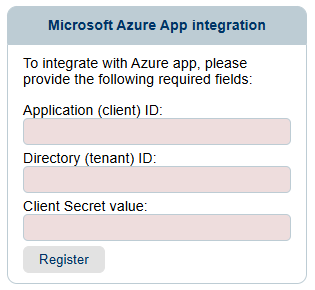
When Azure app has been registered, Application ID, Directory ID and Client secret must be set for Dynamo to use. Navigate to https://dynamo-users.documill.com/ and login with your tenant administrator. Register these three credentials in Integrations tab.
How to use in template
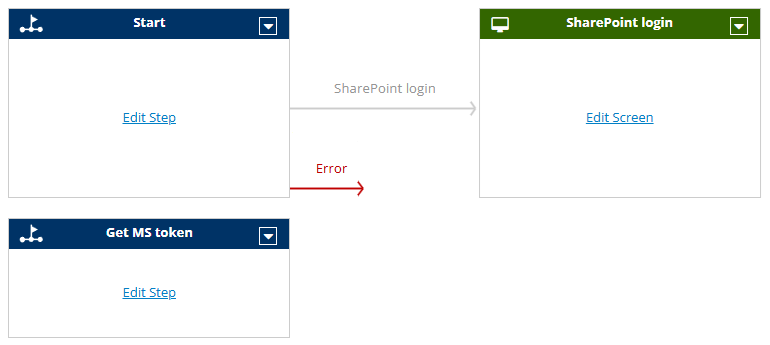
The logic of using Azure integration app as authentication method for current running user is implemented in Office master template. The implementation is rather simple and requires three Steps to fulfill. After these three steps, access token for SharePoint interactions is received and commands like saveToSharePoint can be used.
-
First step sets up the redirection to Microsoft login screen. It is done by first defining loginToMicrosoft command. Required ‘nextStep’ attribute tells where to restart the Flow after upcoming screen step. Optional ‘prompt’ attribute defines whether to automatically login with currently signed in Office365 user or should login screen prompt an account selection view. Immediately after the command, step should connect to a Screen step.

-
Second step is a Screen step that acts as a login screen for Microsoft.
-
After login, Flow is being restarted from the Step defined in loginToMicrosoft command. In here the access token is finally received using getMicrosoft command. Now this token is used for later SharePoint interactions.