
Perform SMS Authentication
As a signer, you might be required to authenticate yourself using a one-time code sent via SMS to the phone number defined by the sender.
1. Open you Sign Task, you will be redirected to perform SMS Authentication.
2. Click [Send SMS] button.
Preview
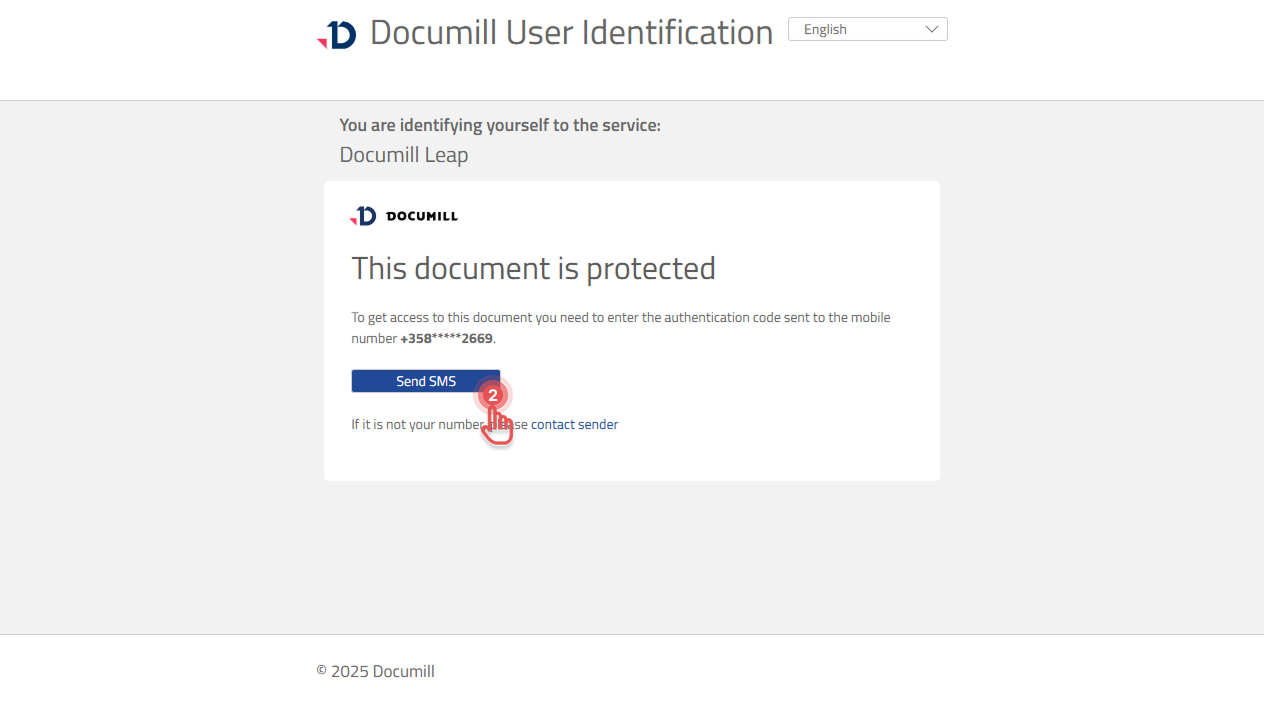
3. A one-time code will be sent to the phone number defined by the sender.
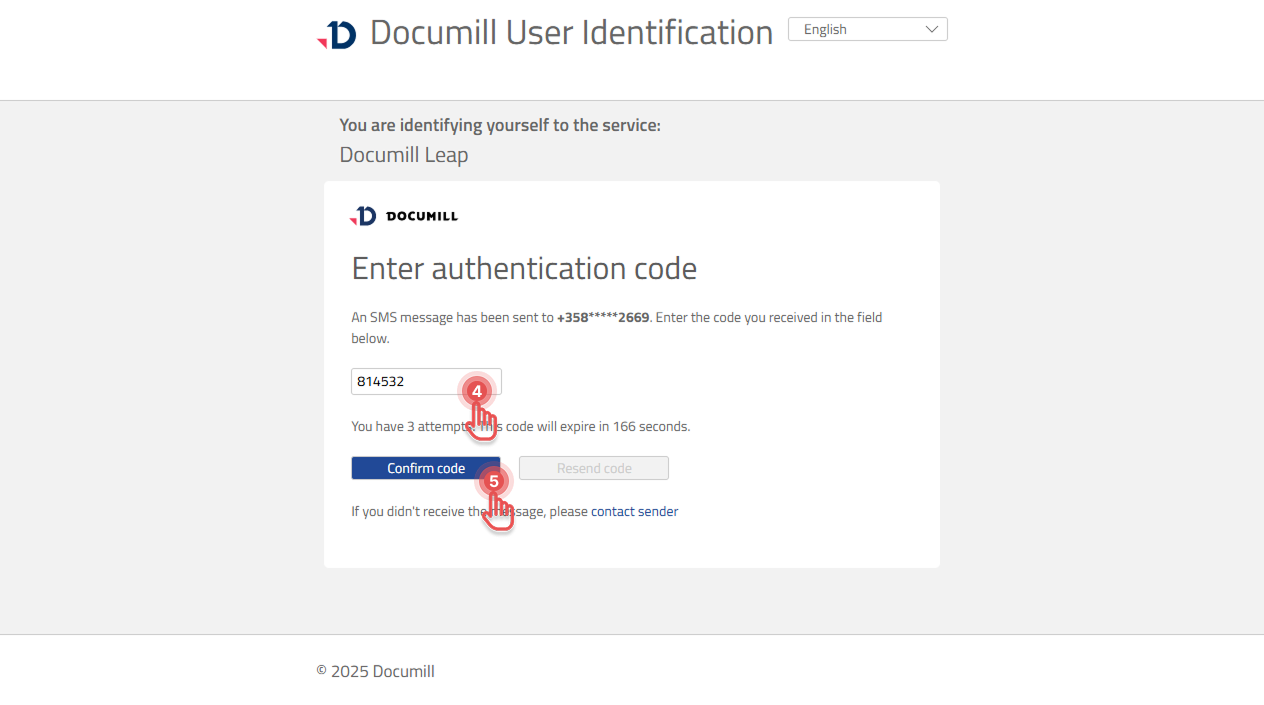
4. Enter the one-time code.
5. Click [Confirm code].
Preview
-
A one-time code is valid for 3 minutes.
-
If needed, you can resend a new code to the same phone number once every 20 seconds, up to 4 times.
Handle issues
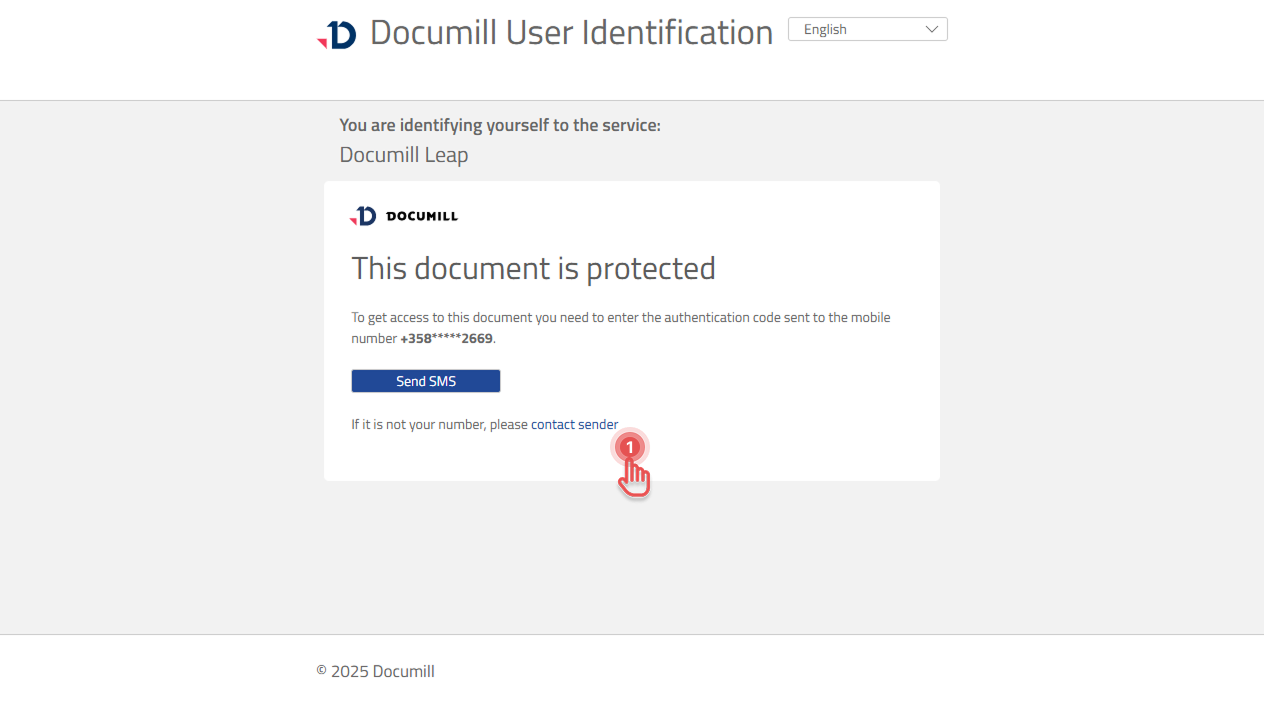
If you are unable to perform SMS Authentication, you can inform the person who requested you to sign the document.
1. Click [Contact sender].
Preview
2. A dialog will appear where you can provide another phone number for the sender to approve.
3. Click [Confirm].
Preview
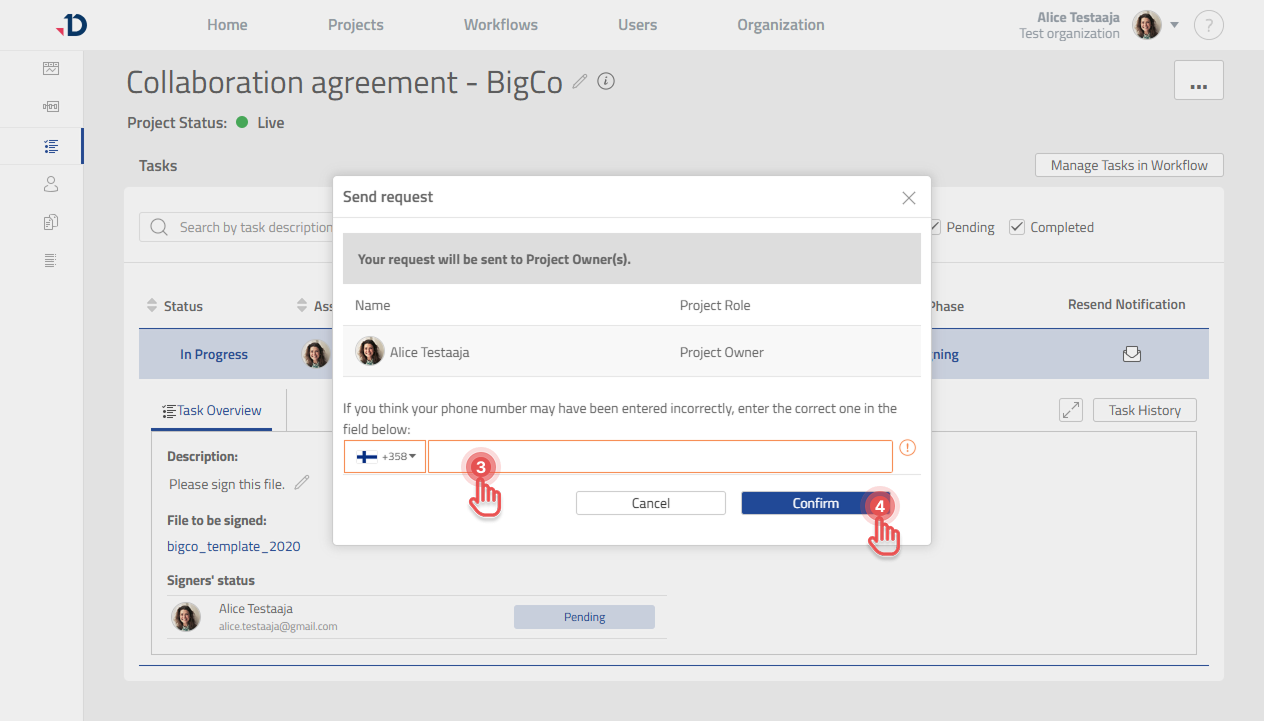
4. You have reported the issue and need to wait for the sender to resolve it.