
The Combine Step allows you to merge multiple files into a PDF file. You can select which Files to be combined and in which order.
The file types that can be combined are:
-
DOCX
-
PDF
-
Image files: BMP, GIF, JPG, JPEG, PNG, TIFF
The output of a Combine Step is a File that will be used in the next Steps.
Open Step Properties dialog
There are two ways to open the Step Properties dialog:
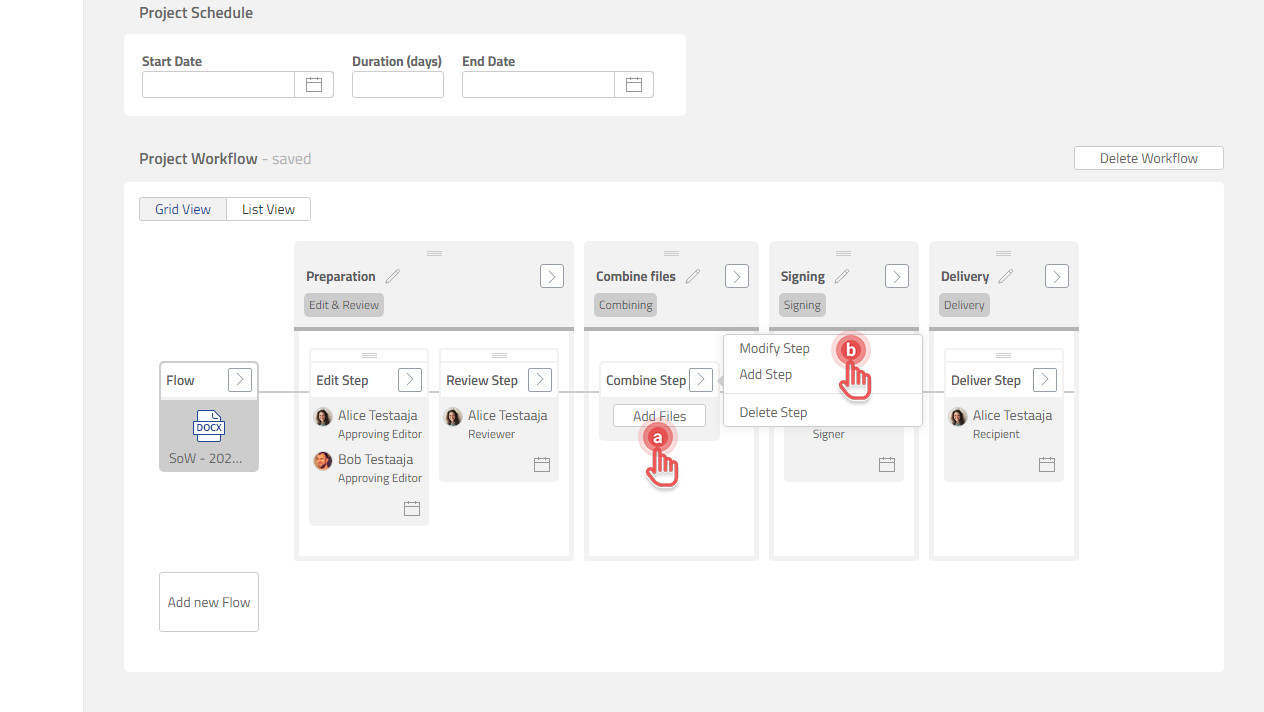
a. Click a Step box.
b. Click [>] button on a Step box and then [Modify Step] option.
Preview
Attach a File
1. Open Combine Step Properties dialog.
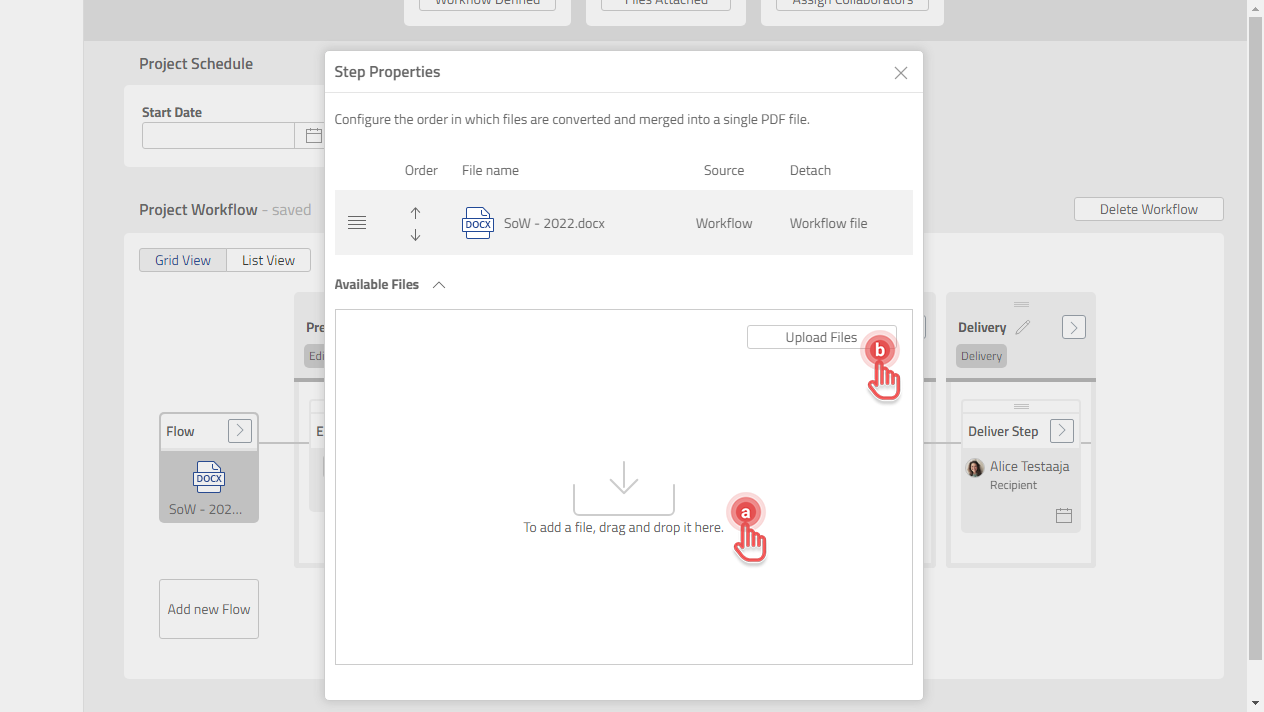
2. Add Files if needed.
a. Drag and drop extra File in [Step Properties] dialog.
b. Click [Upload Files] button.
Preview
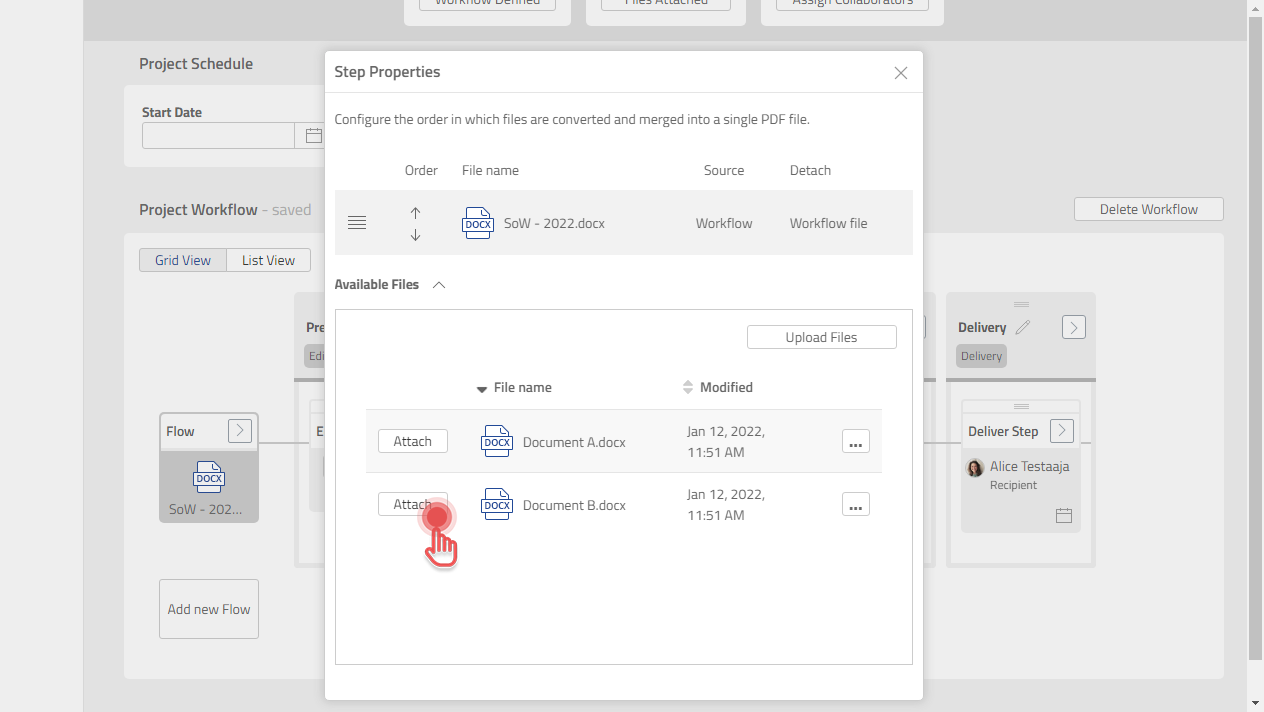
3. Click [Attach] button on the Files that you want to combine.
Preview
Rearrange a File
1. Open Combine Step Properties dialog.
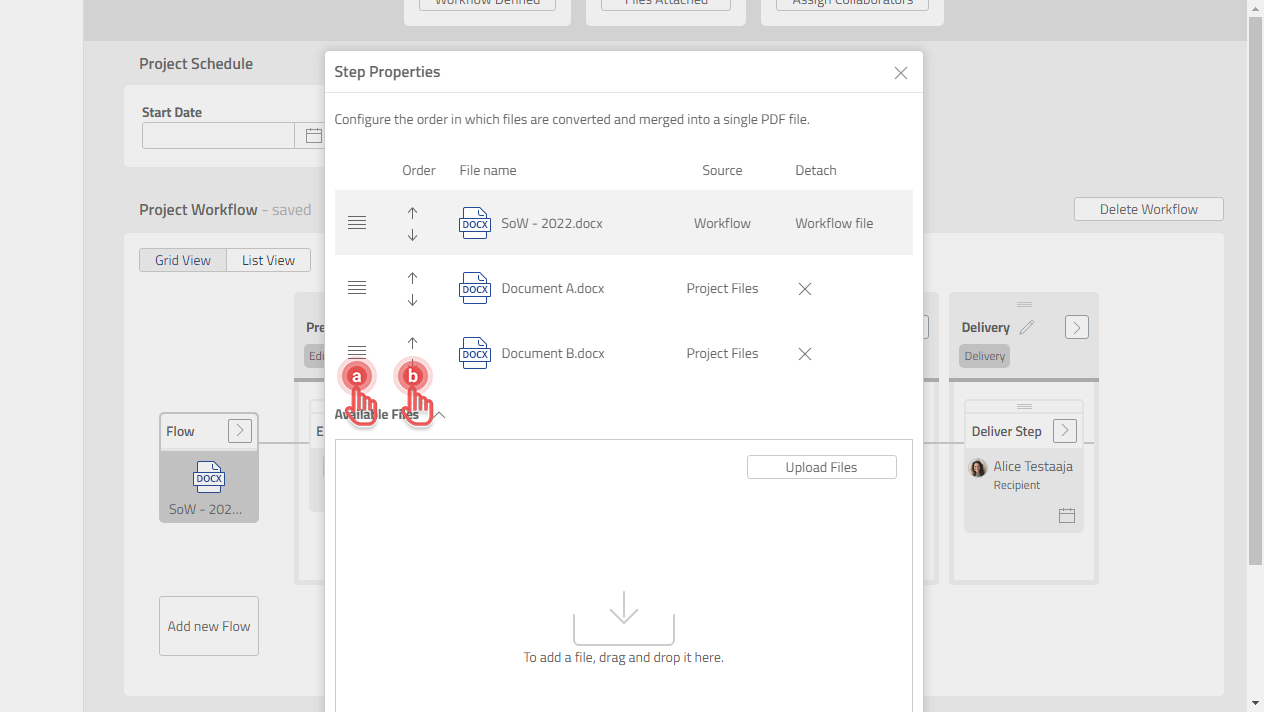
2. Rearrange the files in one of the following ways:
a. Drag and drop [≡] button to arrange a File.
b. Click [ ↑ ] or [ ↓ ] button to arrange a File.
Preview
Detach a File
1. Open Combine Step Properties dialog.
2. Click [ X ] button under [Detach] column to detach a File.
Preview
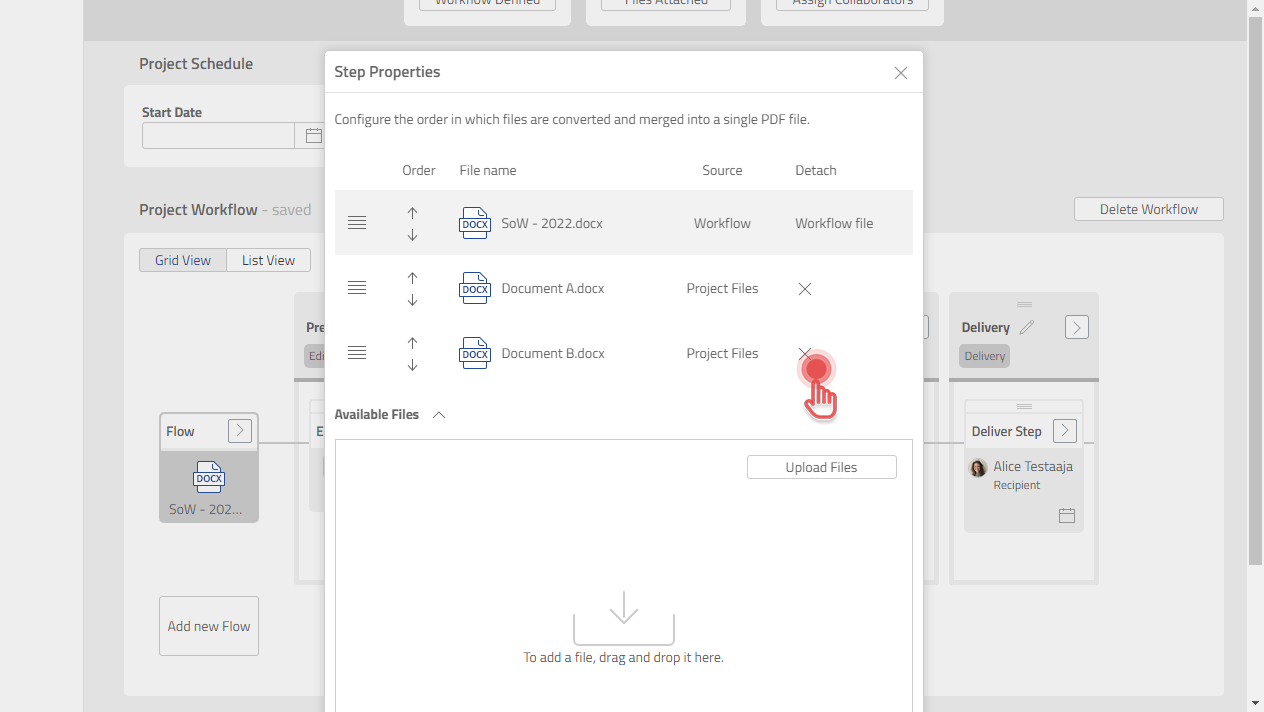
A File that is attached to a Flow cannot be detached from the Combine Step.