
Available to Project Owner.
Each Step sends a Task Notification e-mail to the Collaborators assigned to it, and by default Leap writes that message for you. You can replace the subject, the greeting and the body with your own text for an individual Step. This would be useful when the people in that Step need context the standard wording cannot give them.
The custom message goes to every Collaborator in that Step. It is set per Step, so different Steps in the same Workflow can carry different messages.
Customize Notification Email
-
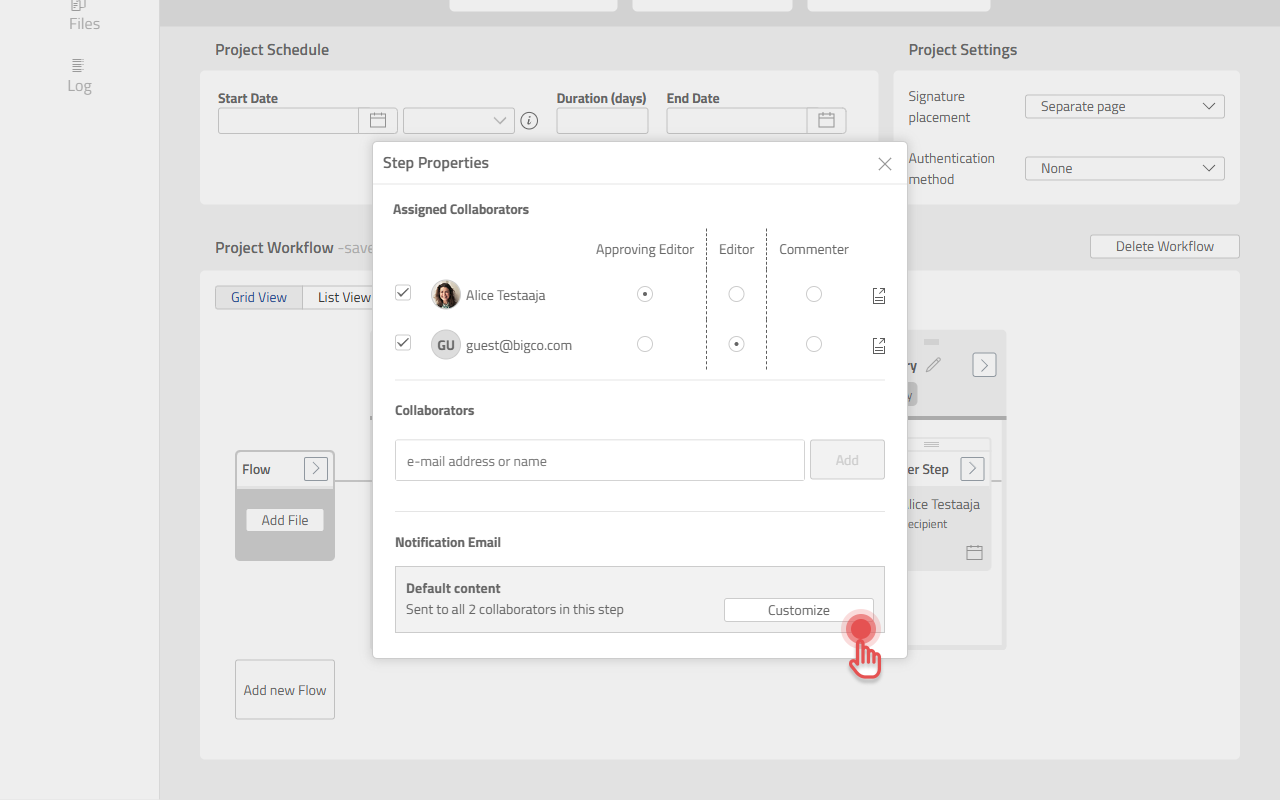
Open the Step Properties dialog. Either click a Step box, or click the [>] button on a Step box and then the Modify Step option.
-
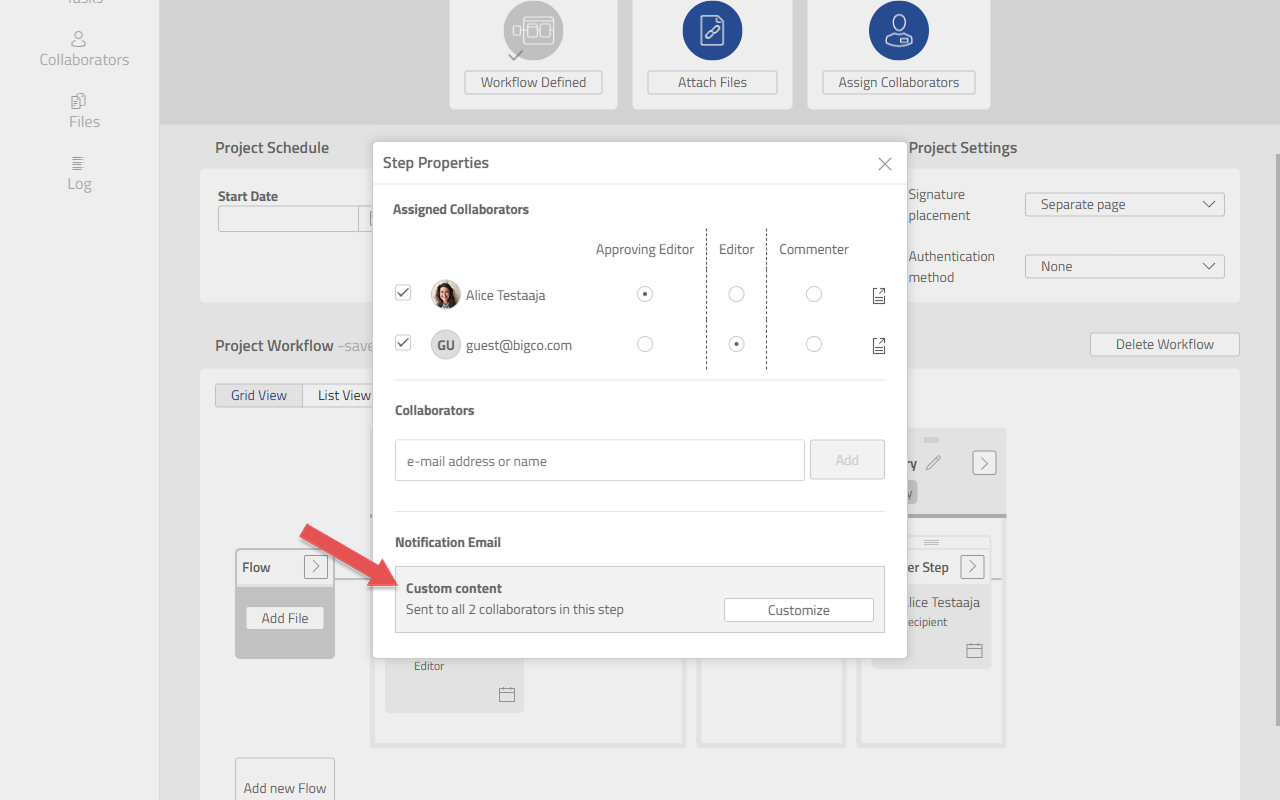
Find the Notification Email section. It shows whether the Step is currently using Default content or Custom content.
-
Click [Customize] button.
-
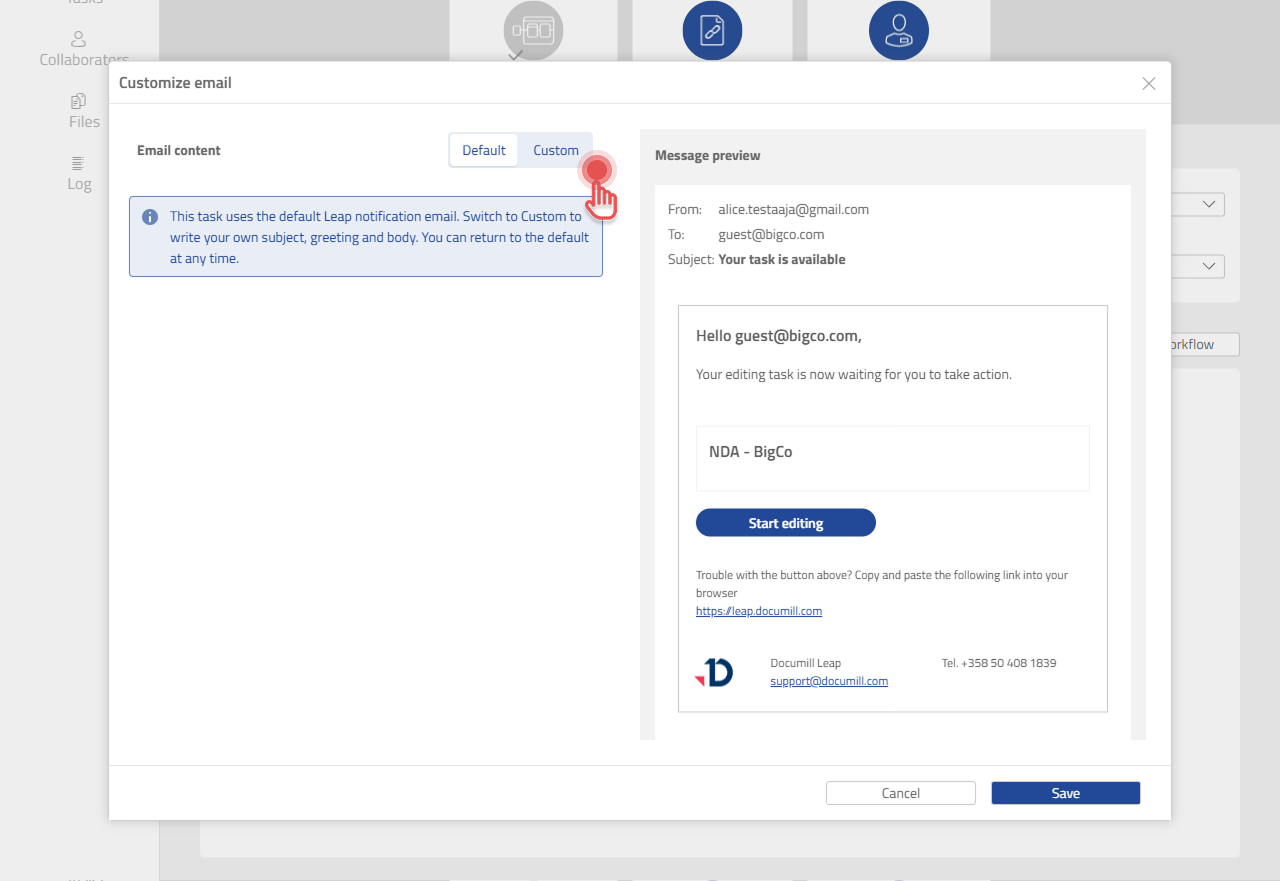
In the Customize email dialog, click Custom.
Write the message
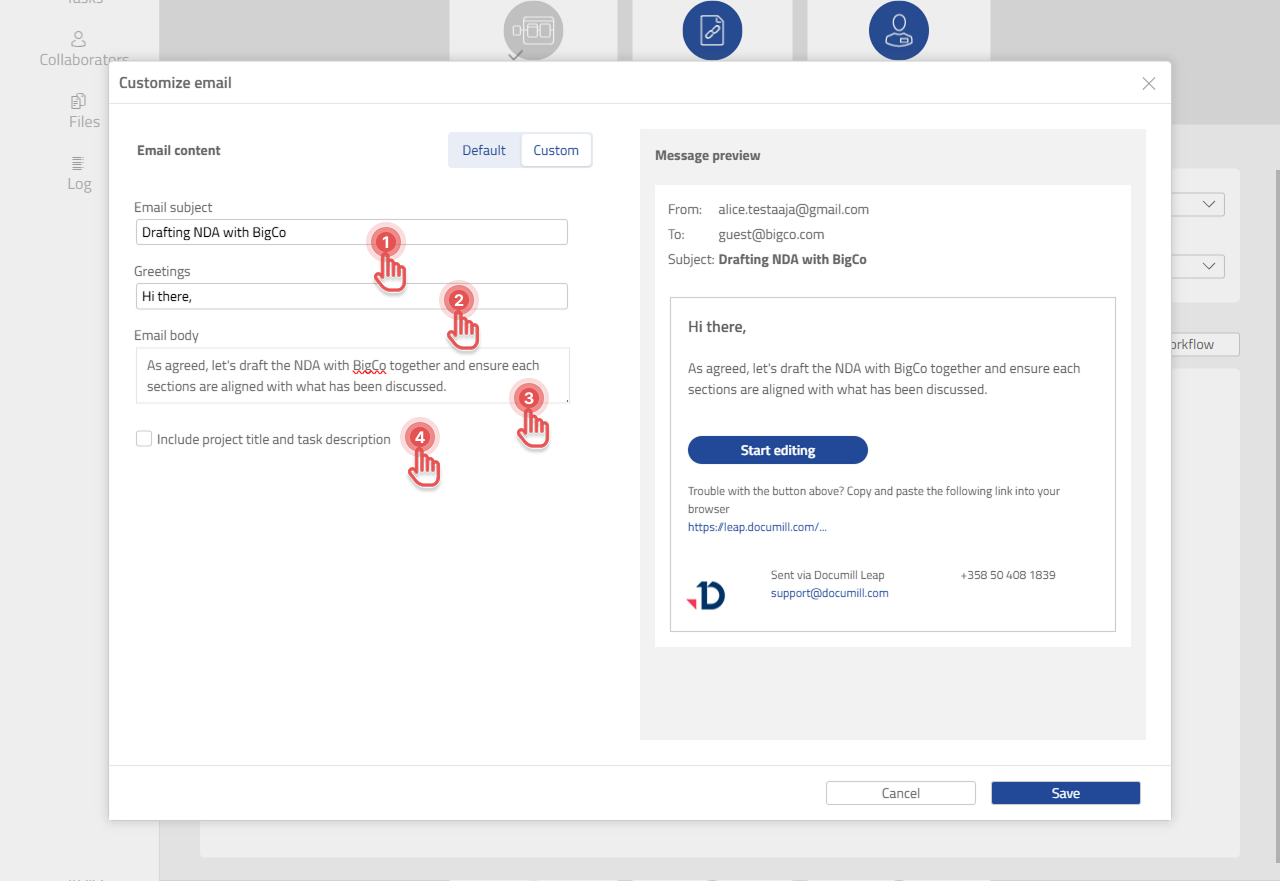
The Message preview on the right updates as you type, so you can see what recipients will receive before you save.
-
Email subject — the subject line of the e-mail.
-
Greetings — the opening line, in place of Leap’s default greeting.
-
Email body — your message to the Collaborators in this Step.
-
Optionally tick Include project title and task description to show the Project title and the Task description underneath your text, as the default e-mail does.
Click [Save] when you are done.
Only the subject, greeting and body are yours to write. The action button, the fallback link and the e-mail footer stay as they are.
Inserting variables in the message
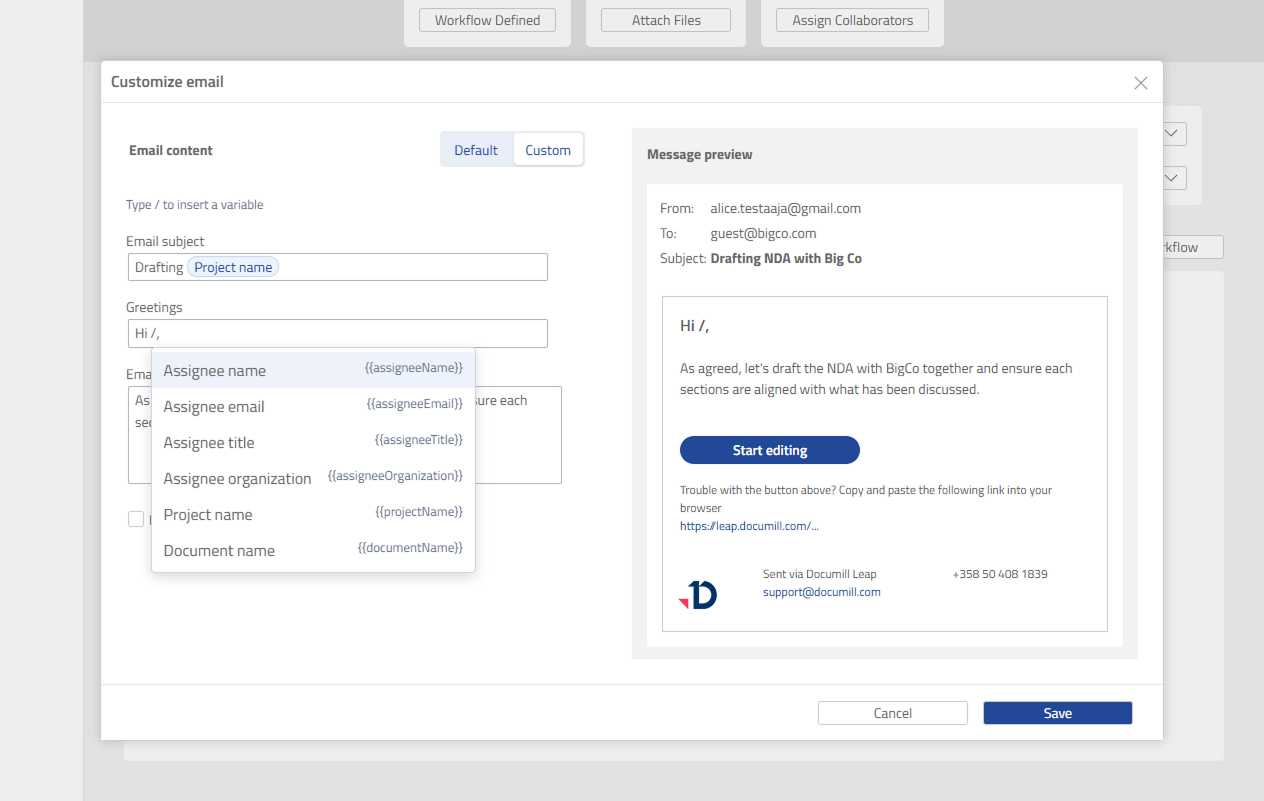
There are also variables that you can use to personalize the message for each Collaborator. Because the same message goes to everyone in the Step, variables let each recipient see their own details, such as their name in the greeting. You can type / to open a list of variables. You can use variables in the Email subject, Greetings and Email body fields.
|
Variable |
Replaced with |
|---|---|
|
Assignee name |
The name of the Collaborator the task is assigned to |
|
Assignee email |
Their e-mail address |
|
Assignee title |
Their title |
|
Assignee organization |
Their organization |
|
Project name |
The name of the Project |
|
Document name |
The file name of the Step’s document |
For example, a greeting of Hi (Assignee name), arrives as Hi Jane Doe,.
-
If a variable has no value, for example because the Collaborator has no title, the e-mail is sent with that part left empty.
-
Leap also adds an unread entry to the Project’s activity log listing which variables were empty.
-
The assignee’s name, title, and organization come from their signer details.
-
If Guest assignees have no name in their signer details,
Assignee namefalls back to their e-mail address.
After saving
The Notification Email section now reads Custom content, so you can tell at a glance which Steps have been personalized.
Return to the default message
-
Open the Customize email dialog again.
-
Click Default.
-
Click [Save].
The Step goes back to Leap’s standard notification.
Custom messages and Guest Collaborator language
A custom message is sent exactly as you wrote it, in the language you wrote it in. Therefore, it overrides the language set for a Guest Collaborator.
If the people in a Step need the message in their own languages, leave that Step on Default content and set each guest’s language instead (see Changing Guest Collaborator Language). Use a custom message when the wording matters more than the language.