
You can manage Collaborator(s) in a Step through the Step Properties dialog.
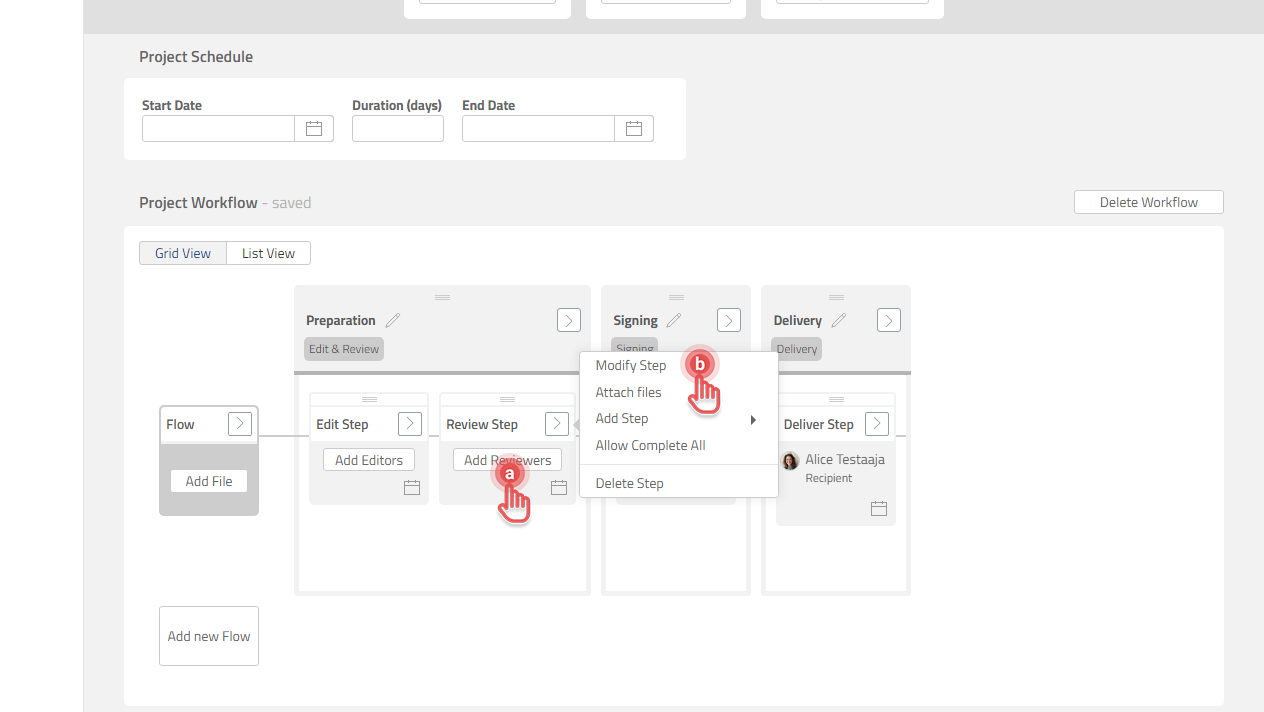
Open Step Properties dialog
There are two ways to open the Step Properties dialog:
a. Click a Step box.
b. Click [>] button on a Step box and then [Modify Step] option.
Preview
Assign Collaborator to a Step
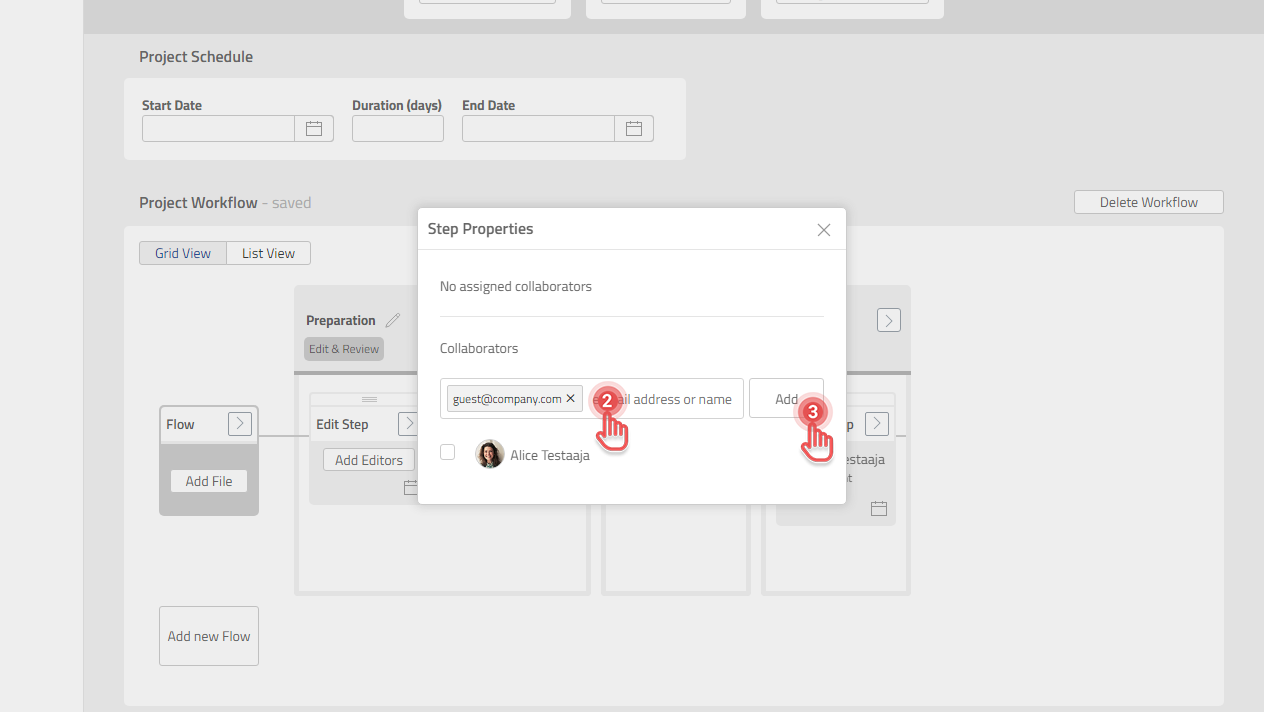
Add new Collaborator
1. Open Step Properties dialog.
2. Type Collaborator’s e-mail address.
3. Click [Add] button.
Preview
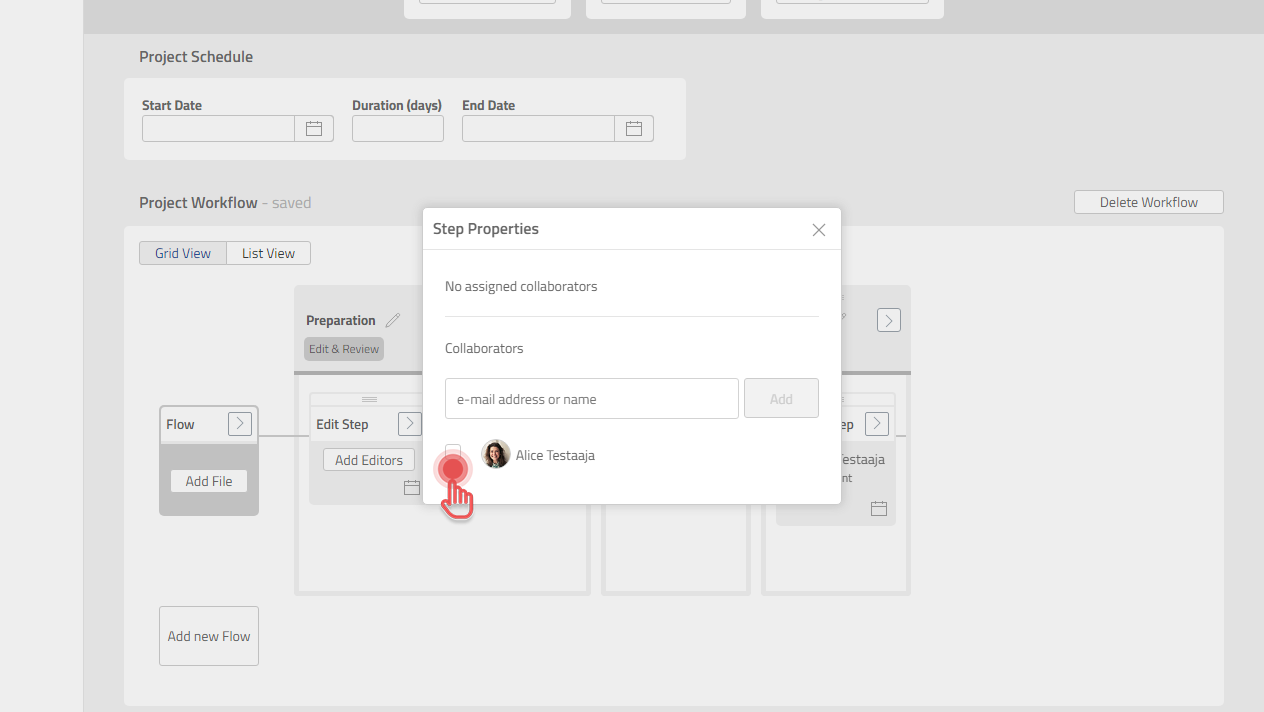
Add existing Collaborator in a Project
1. Open the Step Properties dialog.
2. Under [Collaborators] section, click the Collaborator that you want to add.
Preview
Assigning a Collaborator to a Step also creates a corresponding Task.
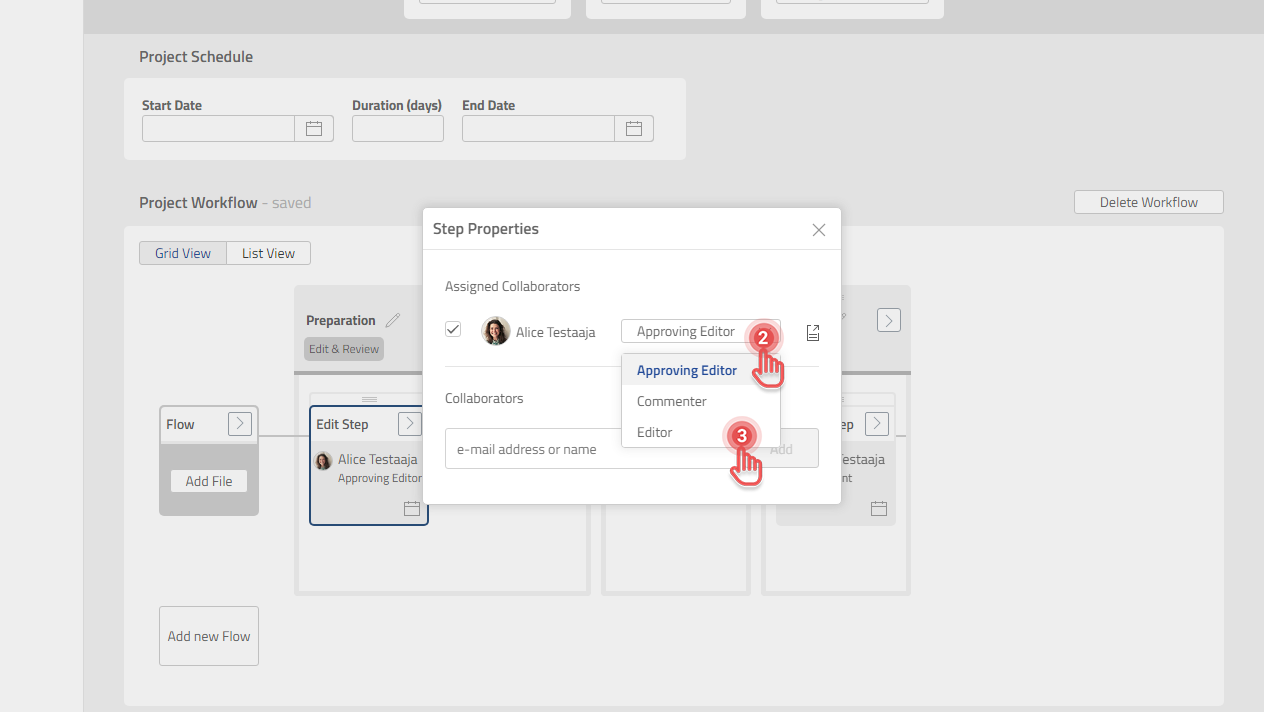
Edit Collaborator’s Task Role in a Step
-
Available only in Edit Step.
-
Task Roles in other Steps are fixed.
1. Open the Step Properties dialog.
2. Click the Task Role dropdown to other Task Roles.
3. Click the new Task Role.
Preview
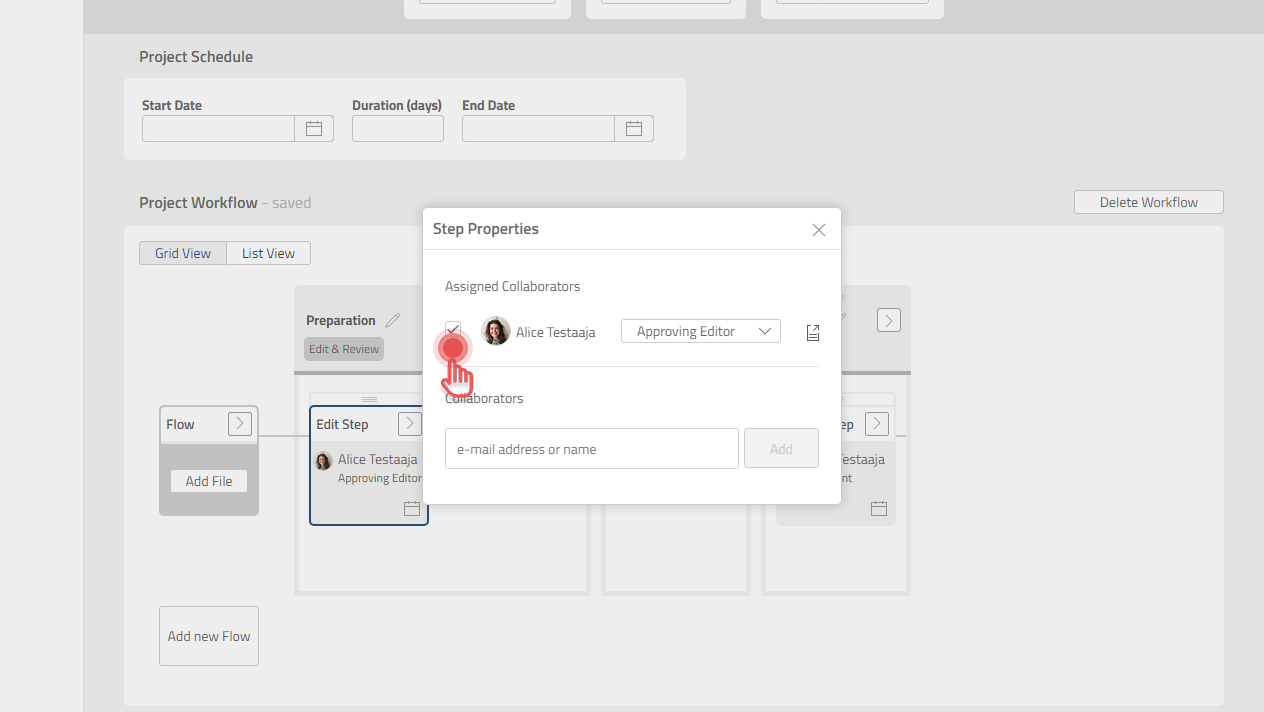
Remove Collaborator from a Step
1. Open the Step Properties dialog.
2. Under [Assigned Collaborator] section, click the Collaborator you want to remove.
Preview
-
Removing a Collaborator from a Step also removes the corresponding Task.
-
Removing a Collaborator from a Step does not remove the Collaborator from a Project.