
To help your Collaborators to work on their Tasks, you can add additional Files as Step Attachment. The attached Files will be visible inside all the Tasks located in the Step.
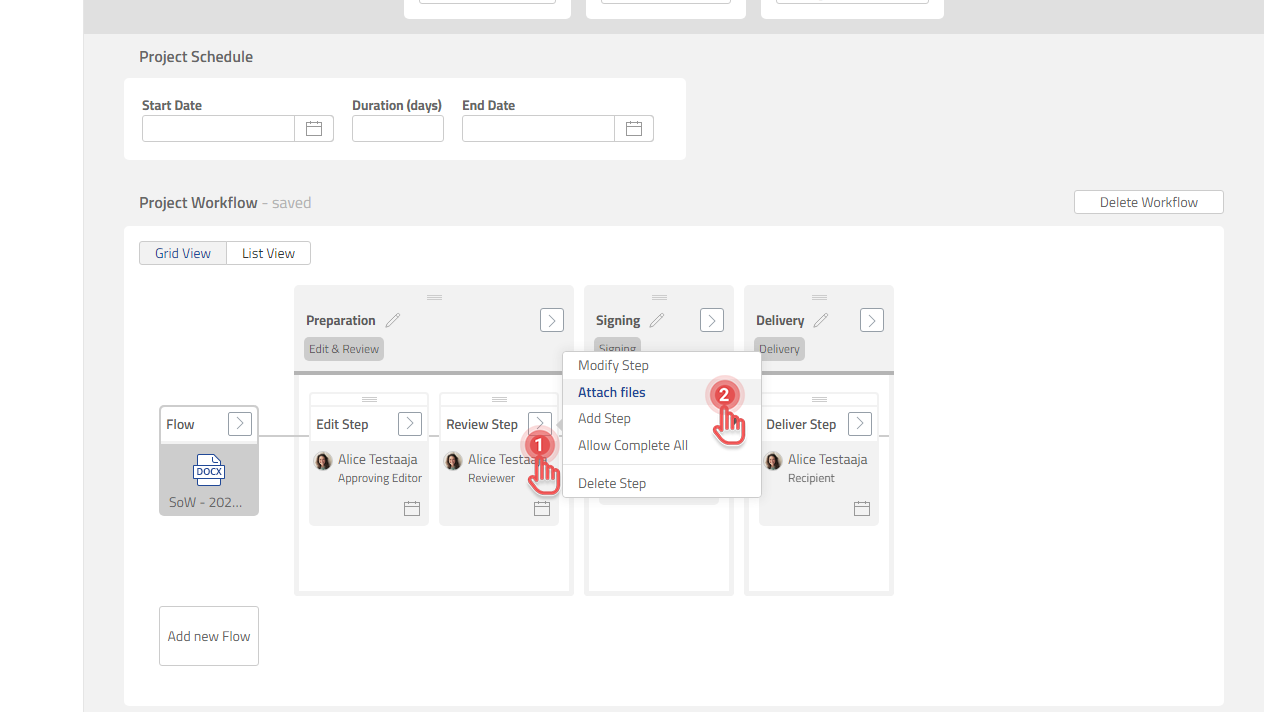
Open Step Attachment dialog
1. Click [>] button on a Step box.
2. Click [Attach files] option.
Preview
Attach a File as Step Attachment
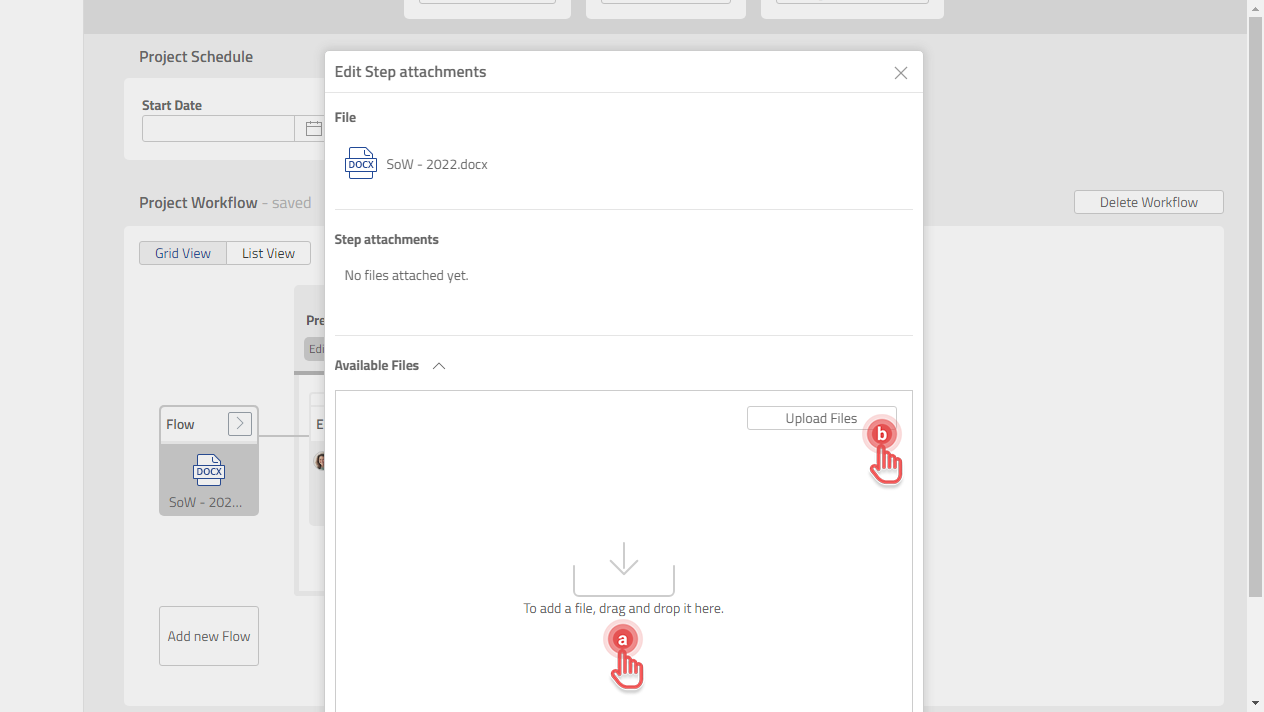
1. Open Step Attachment dialog.
2. Upload the Files to the Project if needed.
a. Drag and drop the File.
b. Click [Upload Files] button.
Preview
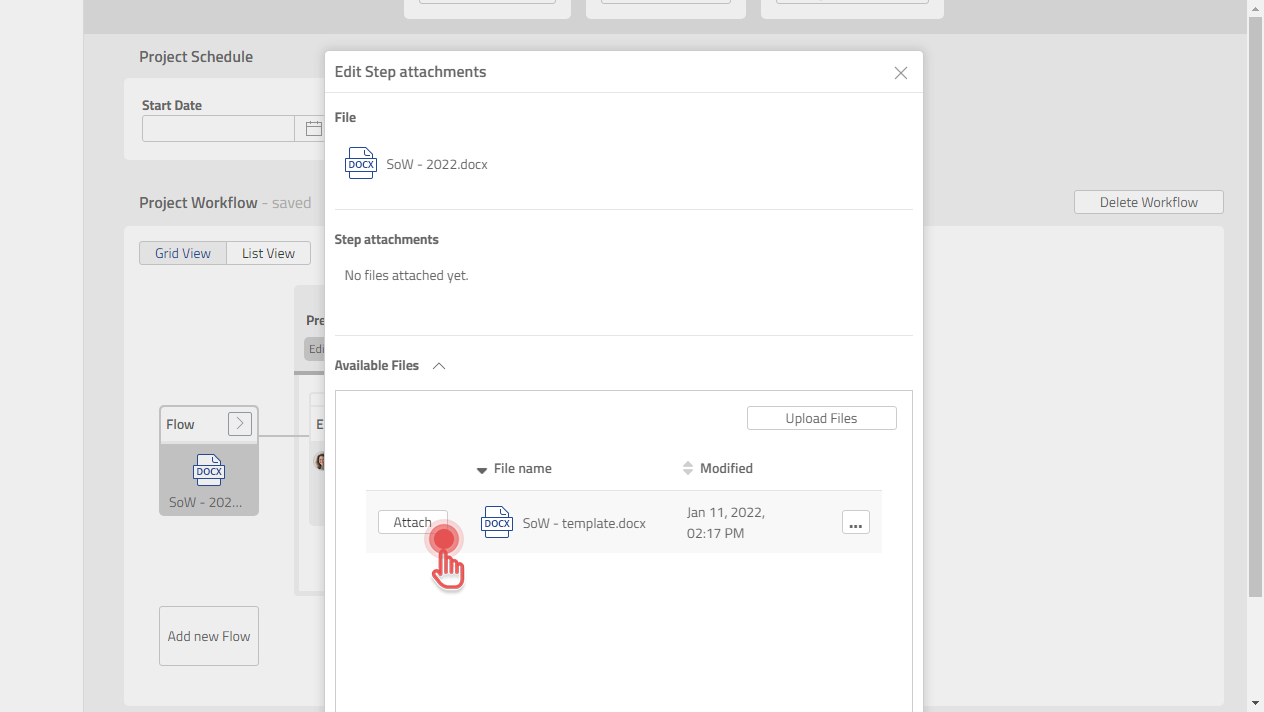
3. Click [Attach] button.
Preview
Detach a File from Step Attachment
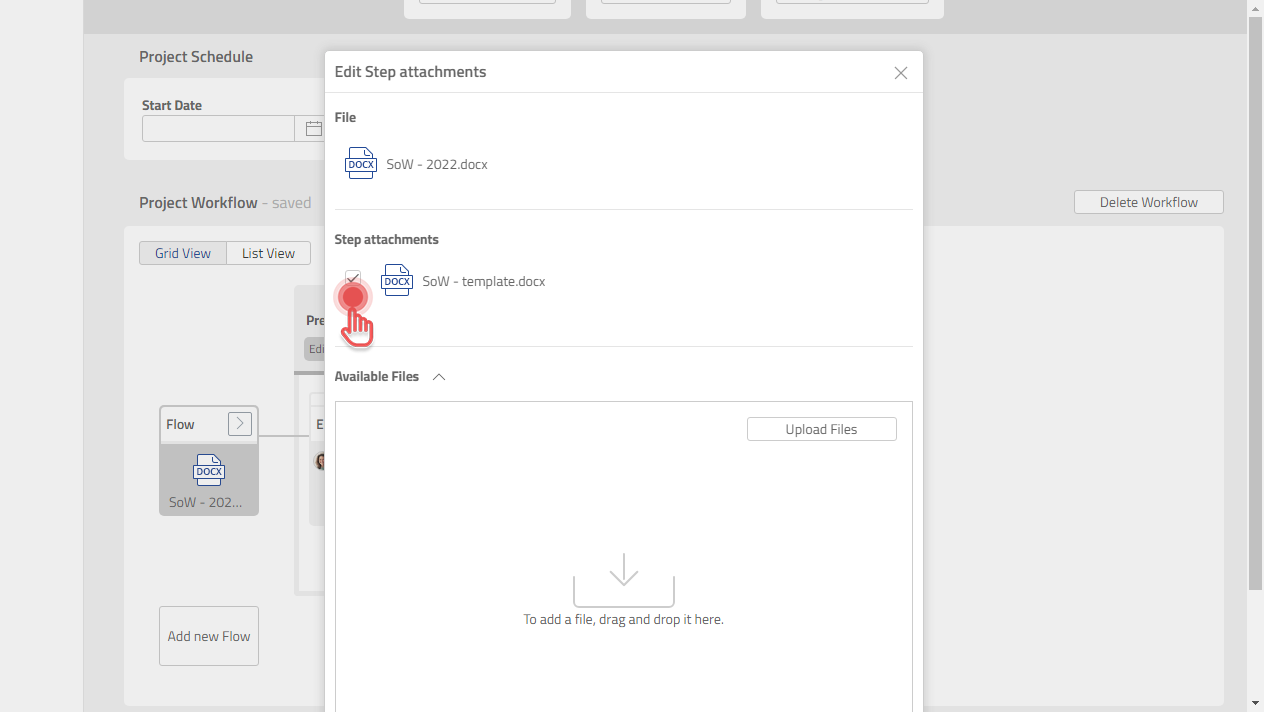
1. Open Step Attachment dialog.
2. Click the File that you want to detach.
Preview
Read more about Step Attachment here: Step Attachment