
Available to users with Documill Leap Clause Admin permission set.
There are three ways to add clauses:
-
Upload or pick existing Word files in your Salesforce.
-
Start from a blank document.
-
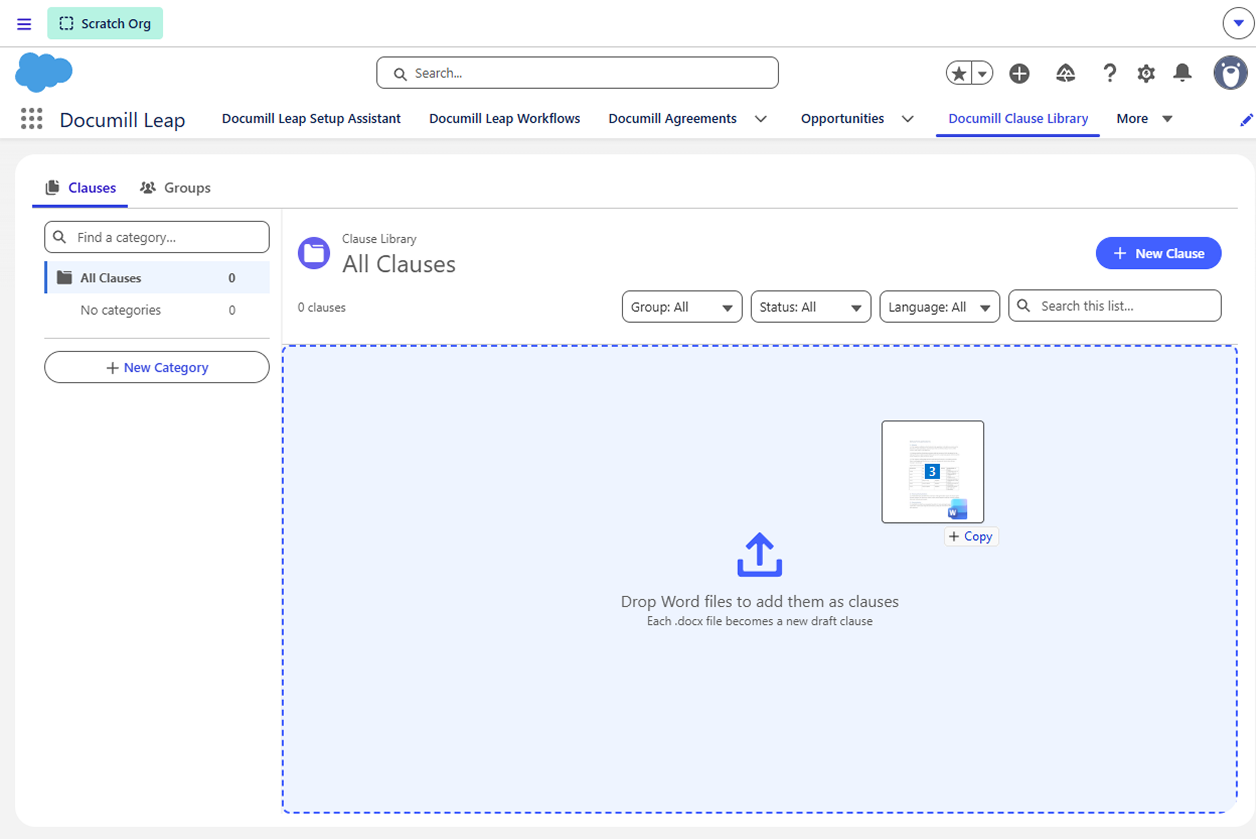
Drag and drop Word files onto the Clause Library.
New clauses always start as Draft, with the language set to “Any”. If a category is selected in the category panel, new clauses are added to that category.
Clauses must be Word .docx files under 25 MB. Other file formats such as .pdf and .doc files aren't supported.
Adding clauses from Word files
-
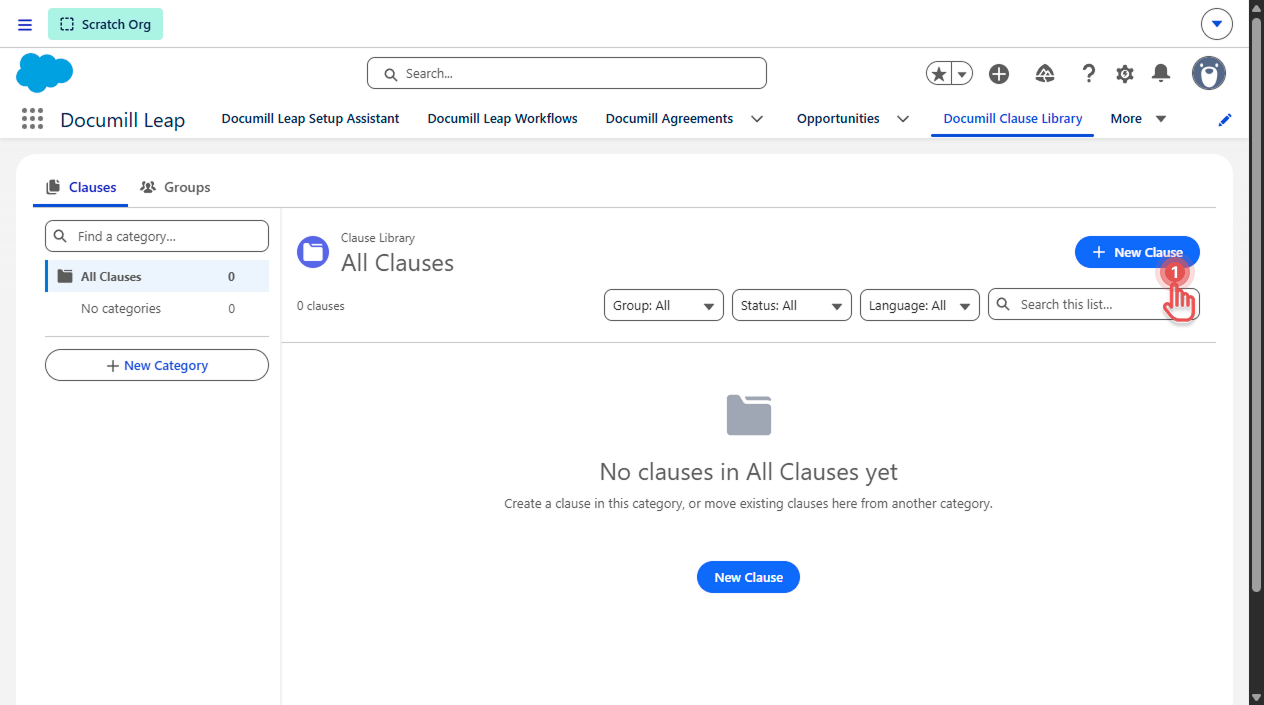
On the Documill Clause Library tab, click [New Clause].
Preview
-
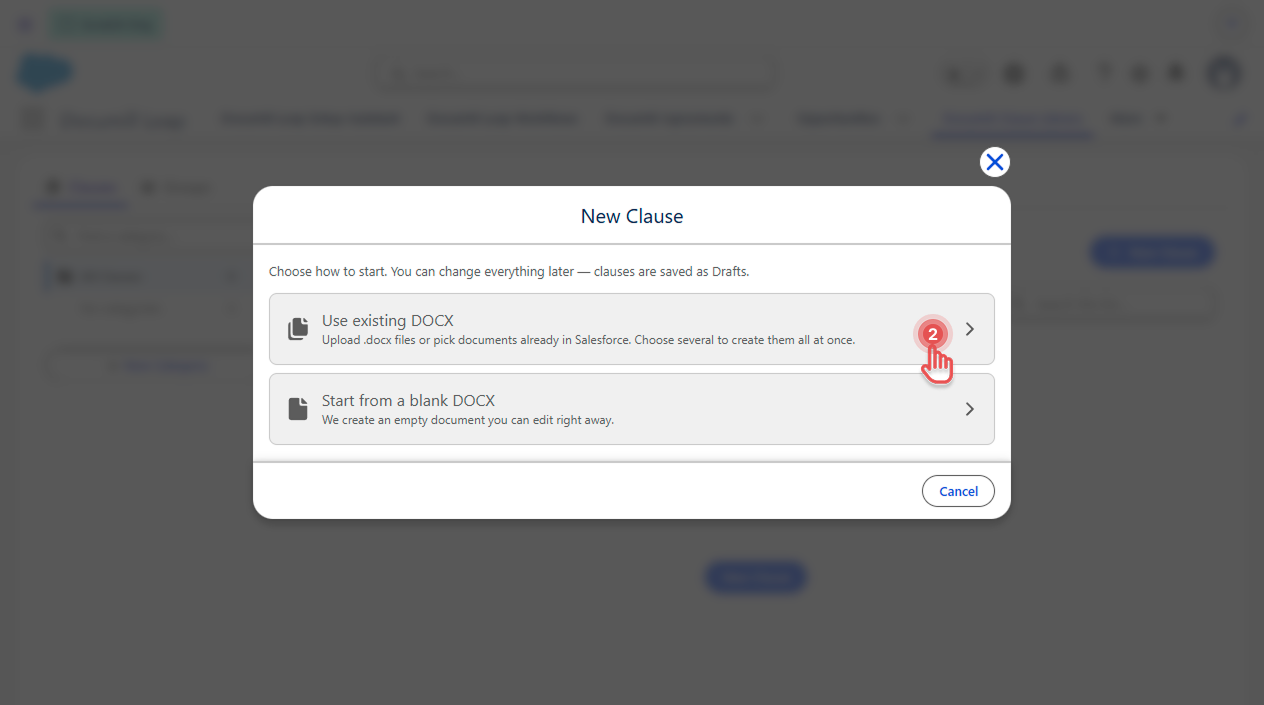
Click [Use existing DOCX].
Preview
-
Choose the files:
-
To upload files from your computer, click [Upload Files].
-
To use files already in Salesforce, browse Owned by me, Shared with me, Recent or Libraries, or search, and then select the files.
You can choose several files. Each file becomes its own clause.
-
-
Click [Create].
Preview
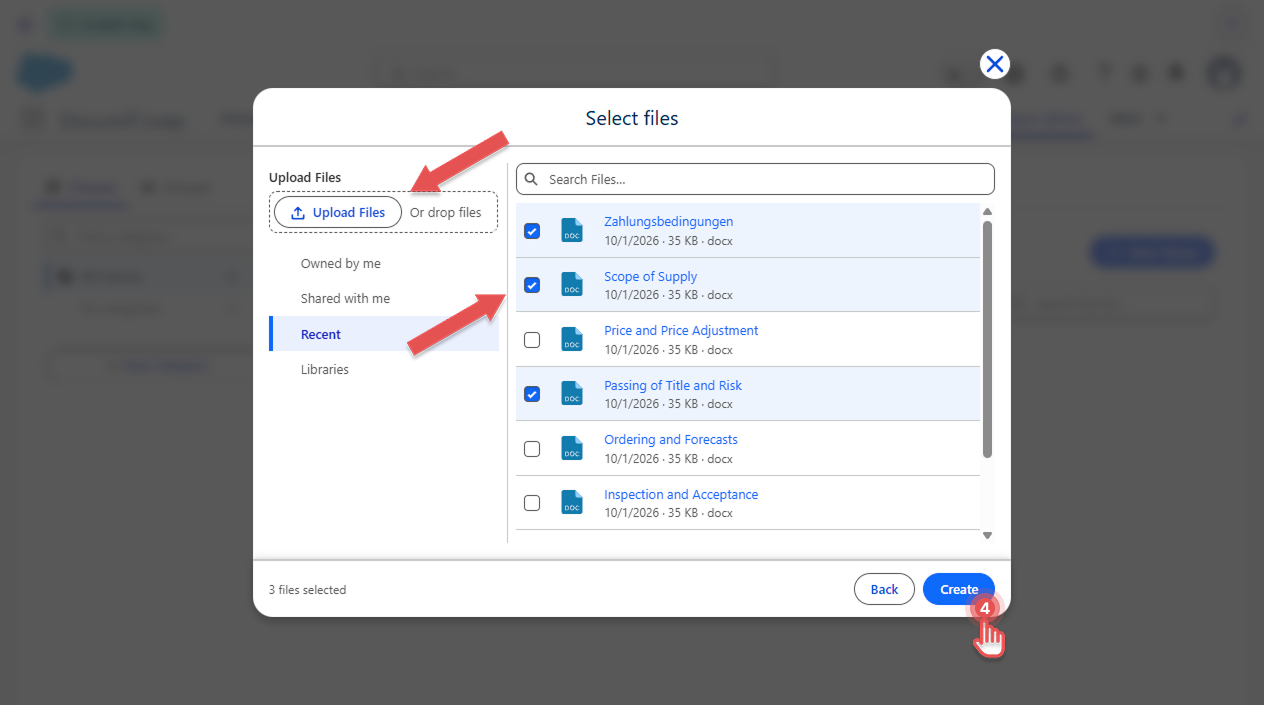
Each clause is named after its file name, without the extension. Files you pick from Salesforce are copied, so the originals stay where they were. Files that are already clauses aren't shown.
If you added one clause, its page opens. If you added several, the list is refreshed, and a message tells you how many were created and which files were skipped, and why.
Starting from a blank document
-
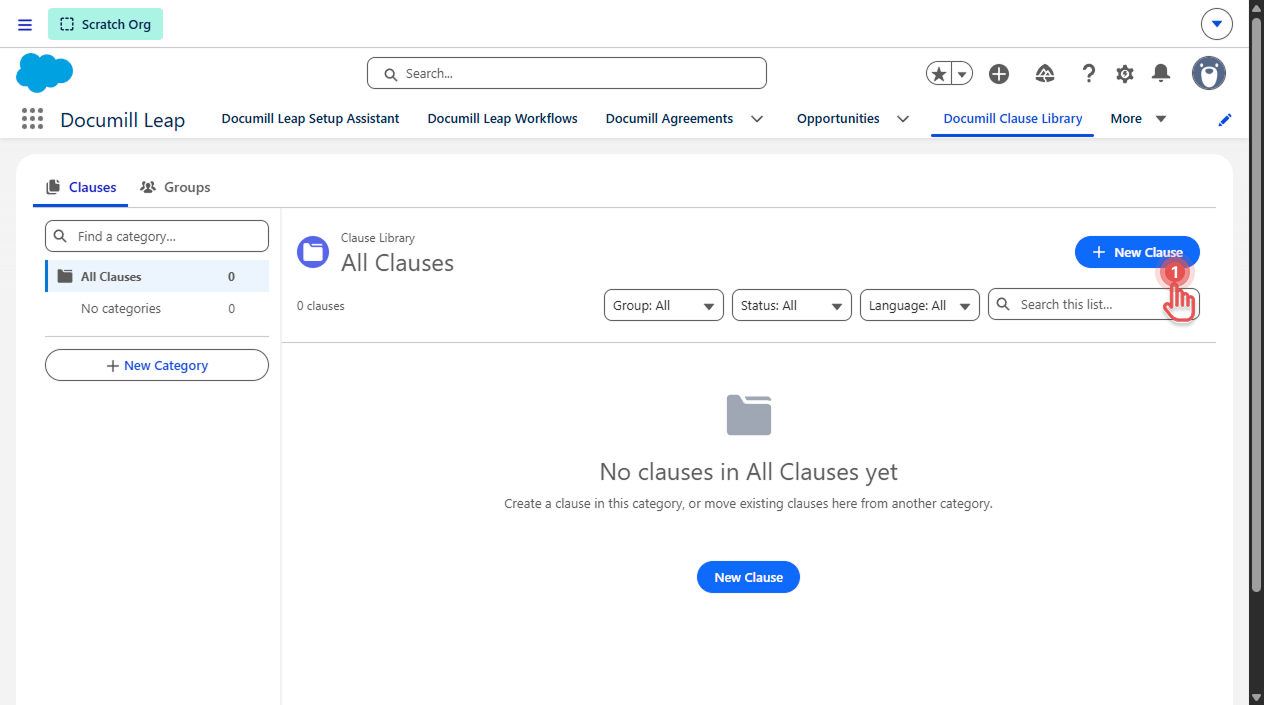
Click [New Clause].
Preview
-
Click [Start from a blank DOCX].
Preview
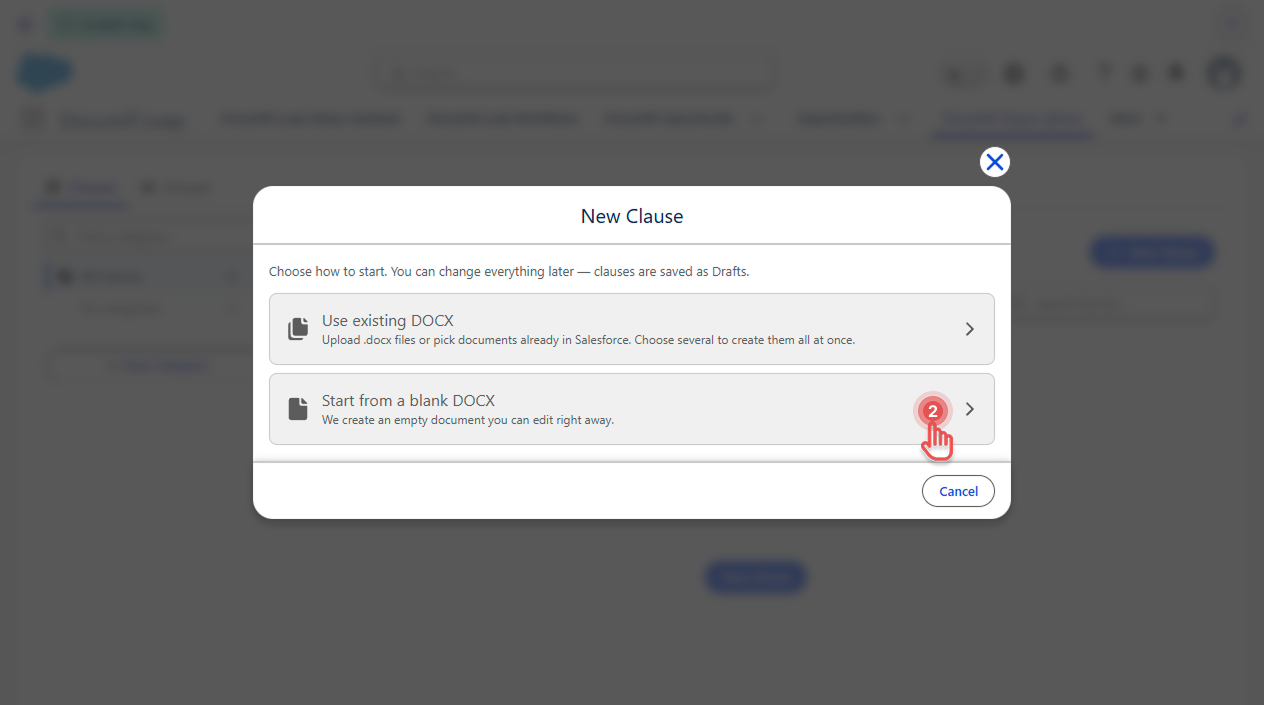
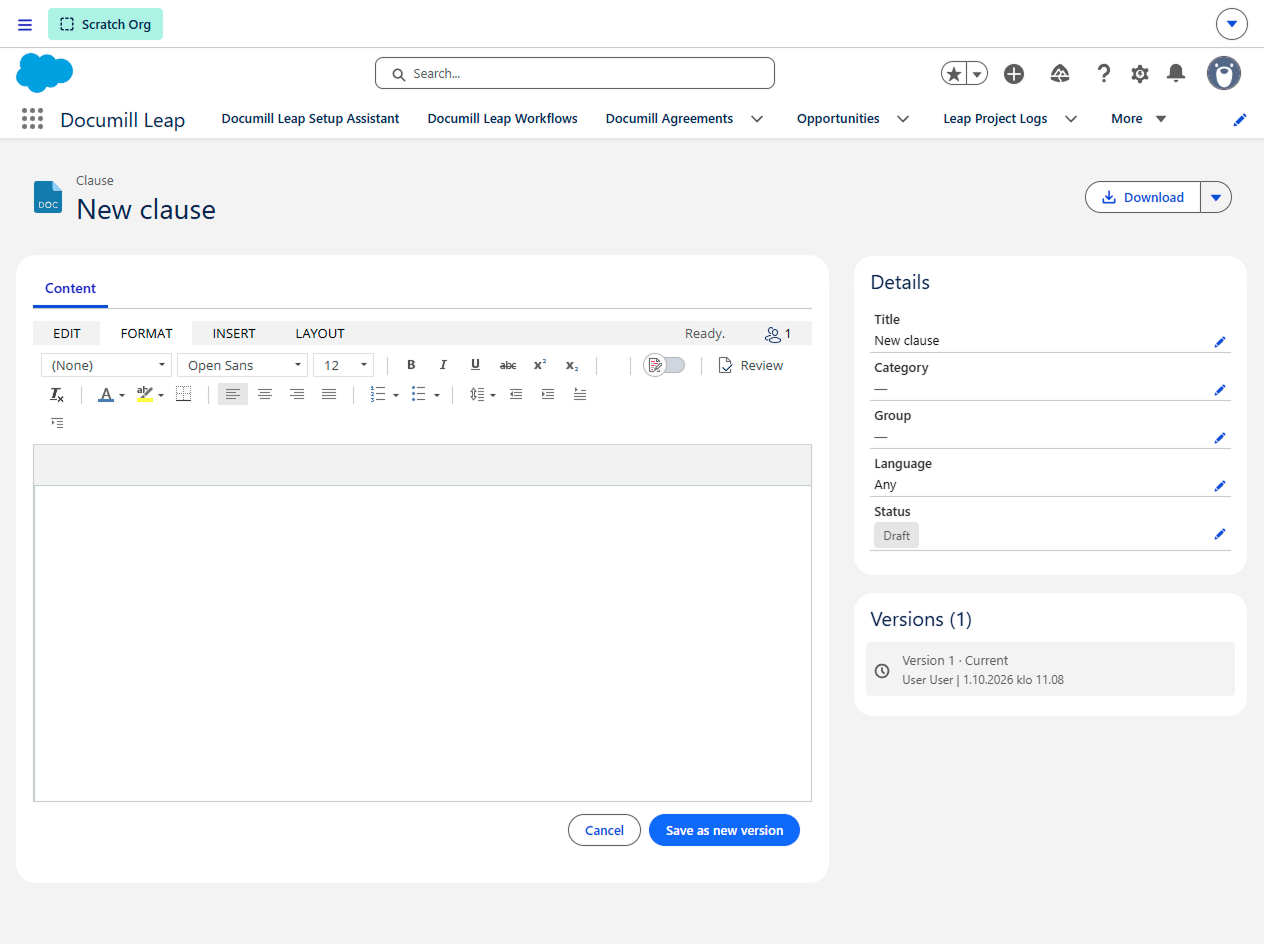
A clause called New clause is created, and its content opens in the editor so you can start writing straight away. Give it a proper title on the clause page. See Editing a Clause .
Preview
Dragging and dropping files
-
Optional: in the category panel, select the category the clauses should go into.
-
Drag .docx files from your computer and drop them onto the clause list.
Preview
-
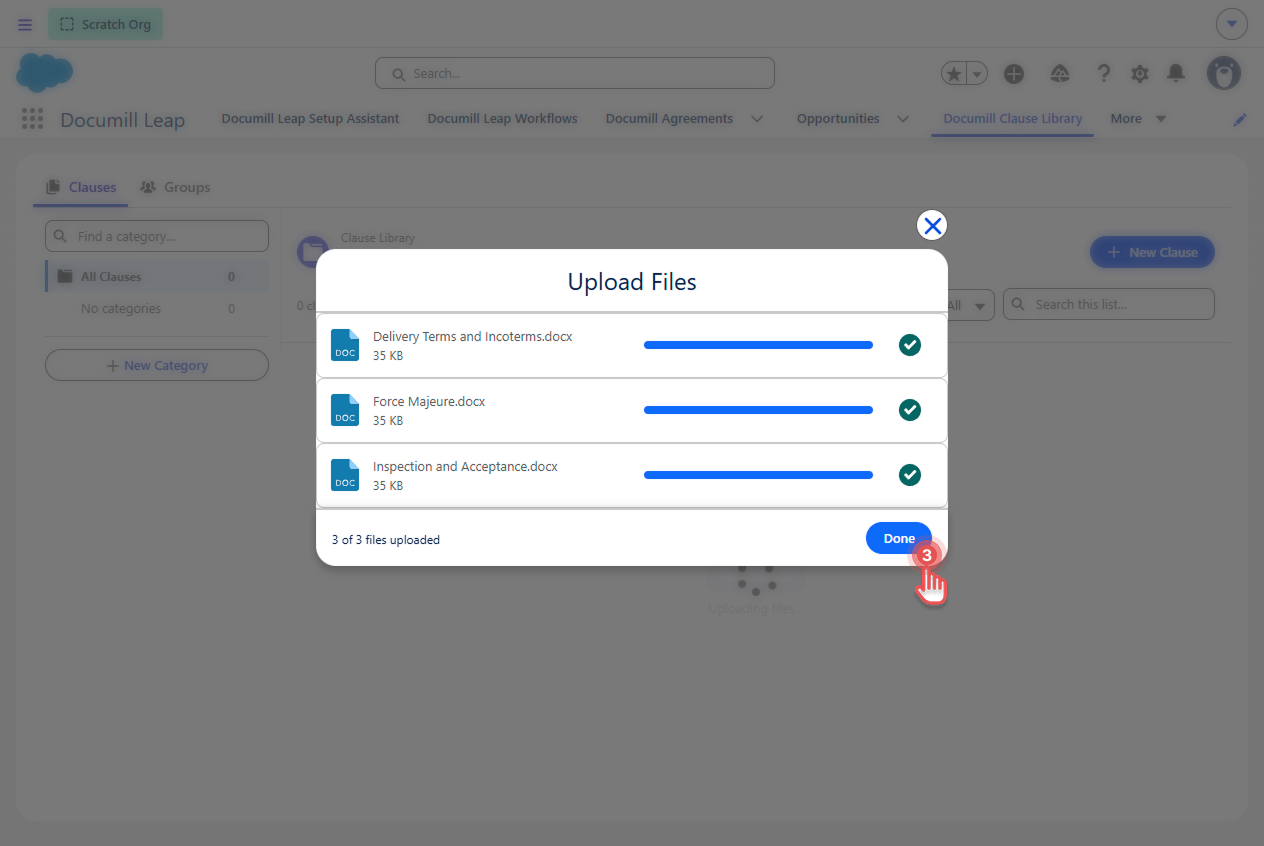
Once all files are uploaded, click [Create].
Preview
-
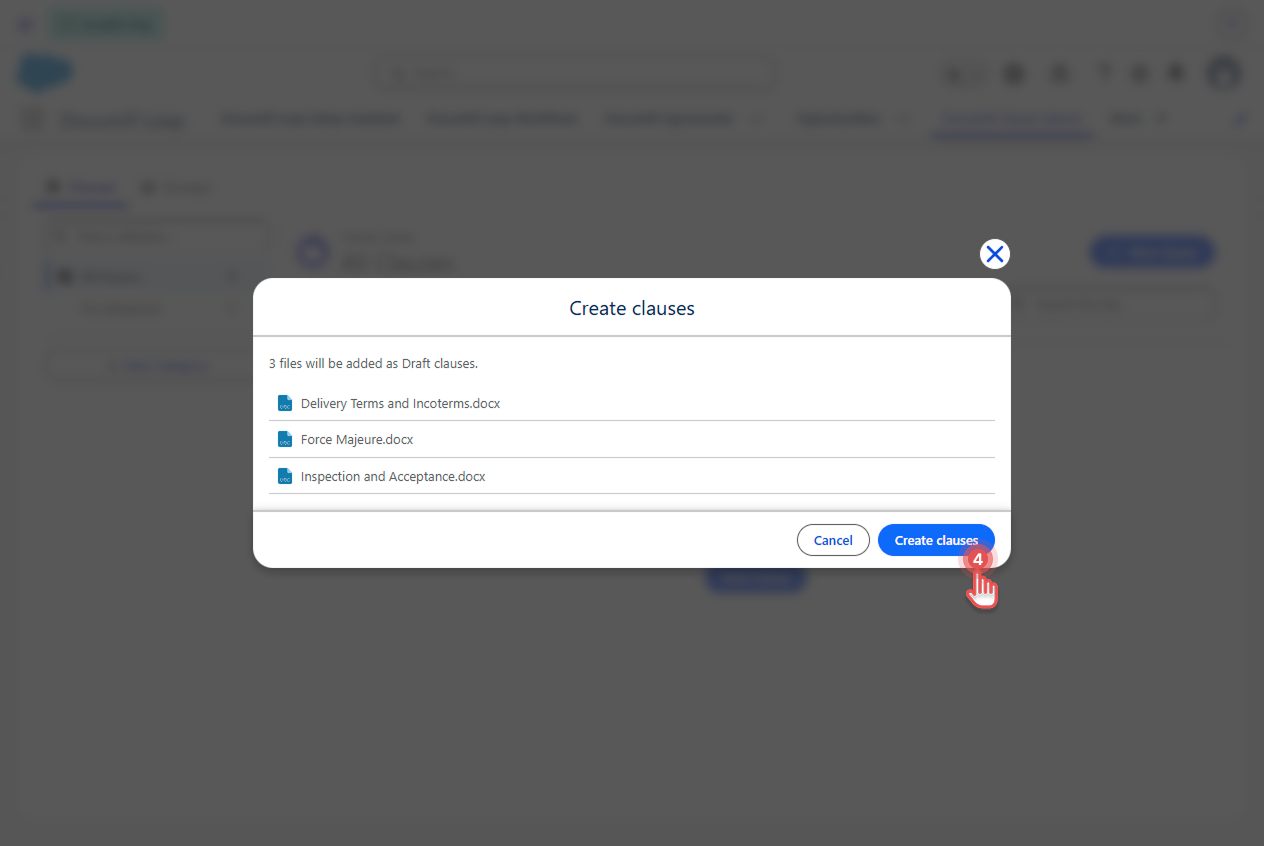
Check the list of files in the Create clauses window, and then click [Create clauses].
Preview
You can drop up to 10 files at a time. If a drop includes files that aren't .docx, those files are ignored.