
Available to users with Documill Leap Clause Admin permission set.
To open a clause, select its title in the clause list on the “Documill Clause Library” tab. The clause page has three parts:
-
Content: a preview of the clause, and the tools to edit it.
-
Details: the title, categories, groups, language and status.
-
Versions: every saved version of the content.
Editing details
-
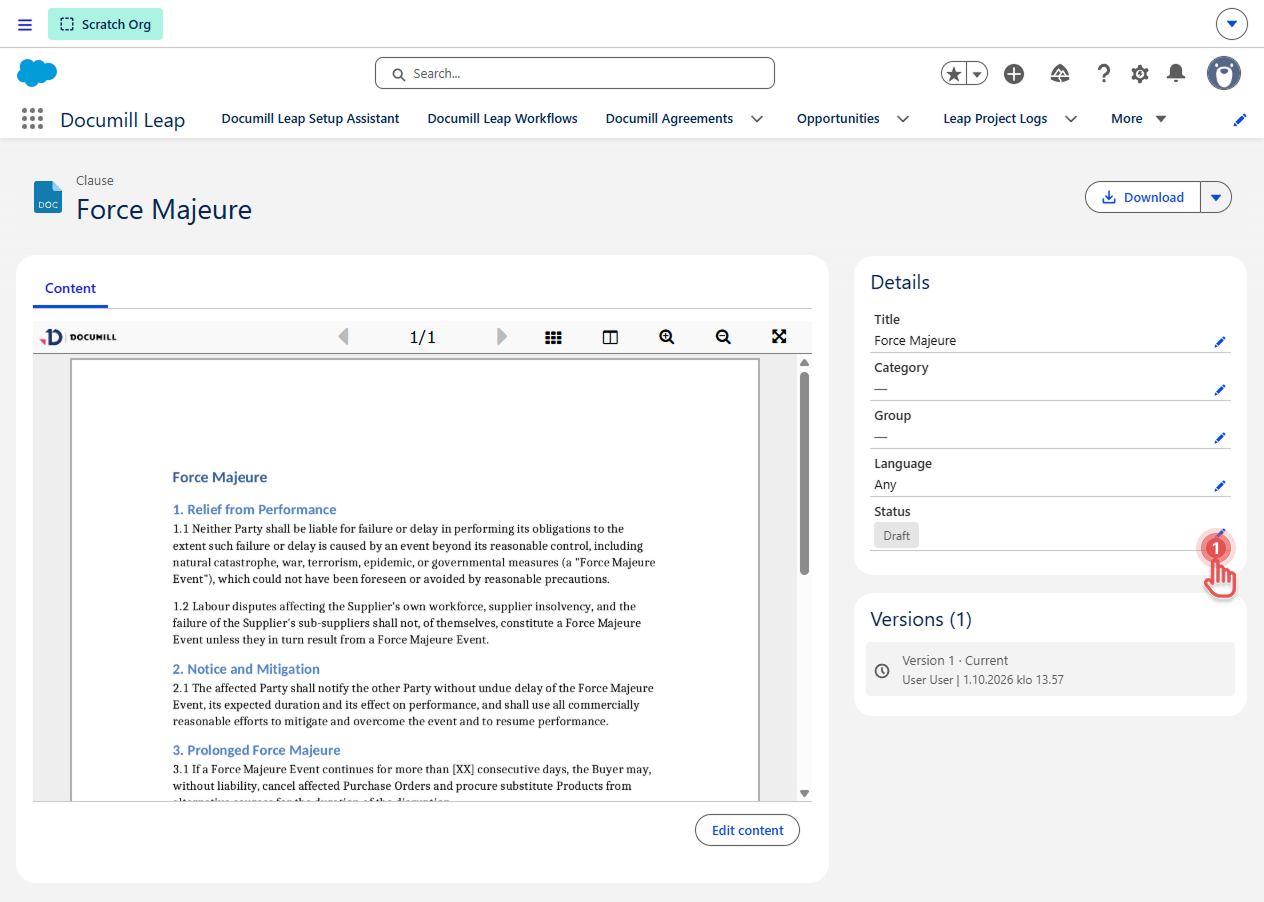
In Details, click one of the [Pencil] buttons.
Preview
-
Change any of these:
-
Title: the clause name shown in the library and in Leap Projects.
-
Category: one or more categories.
-
Group: one or more groups.
-
Language: start typing to search languages that aren't in the preferred list. See Configuring Clause
languages. -
Status: see Clause status below.
-
-
Select Save.
Preview
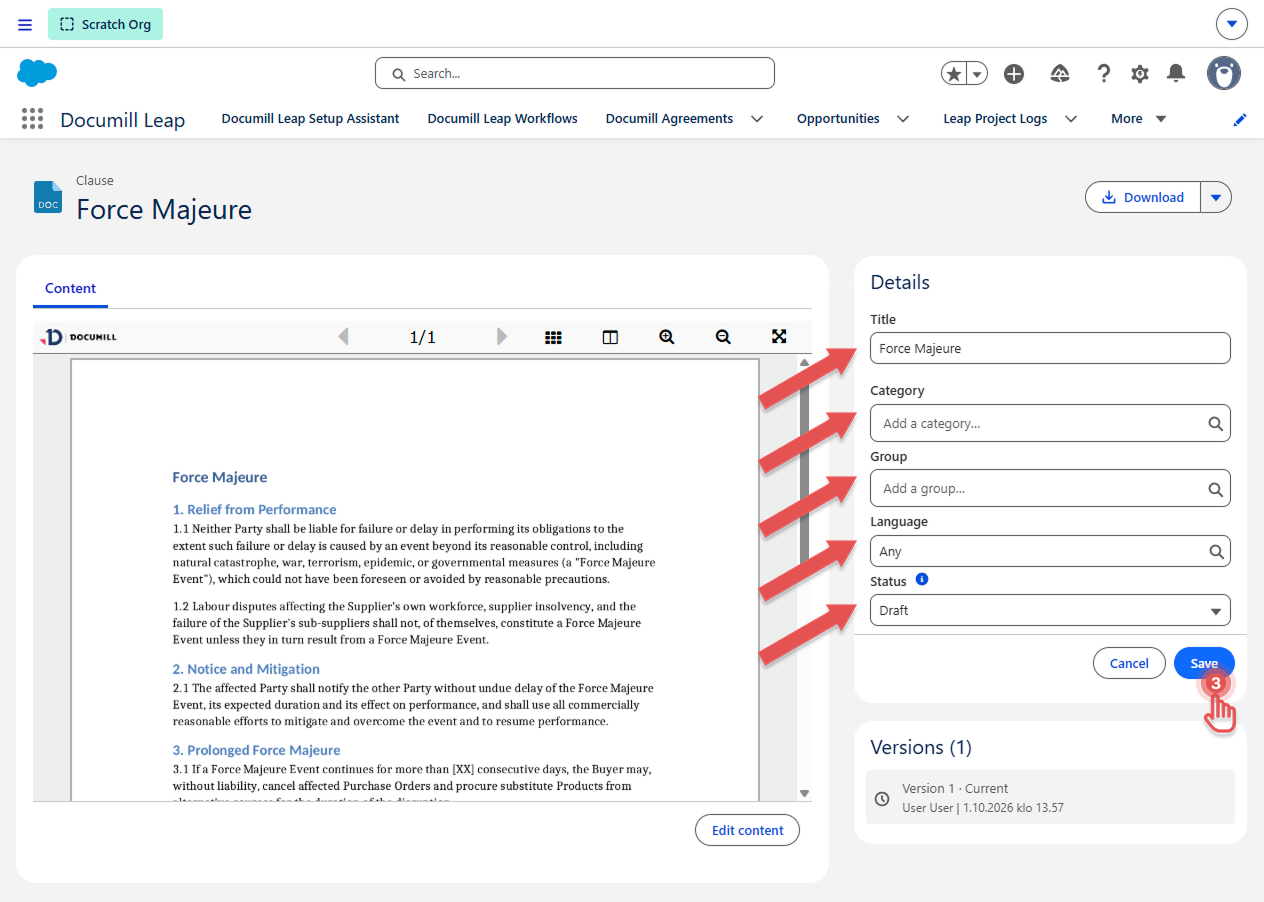
Changing details doesn't create a new version.
Clause status
|
Status |
Description |
|---|---|
|
Draft |
Work in progress. New clauses start as Draft. |
|
Suggested |
Waiting for review. |
|
Live |
Approved for use. Only Live clauses are shown in Leap Projects. |
|
Archived |
No longer in use. The clause is kept for reference but isn't shown in Leap Projects. |
Editing content
-
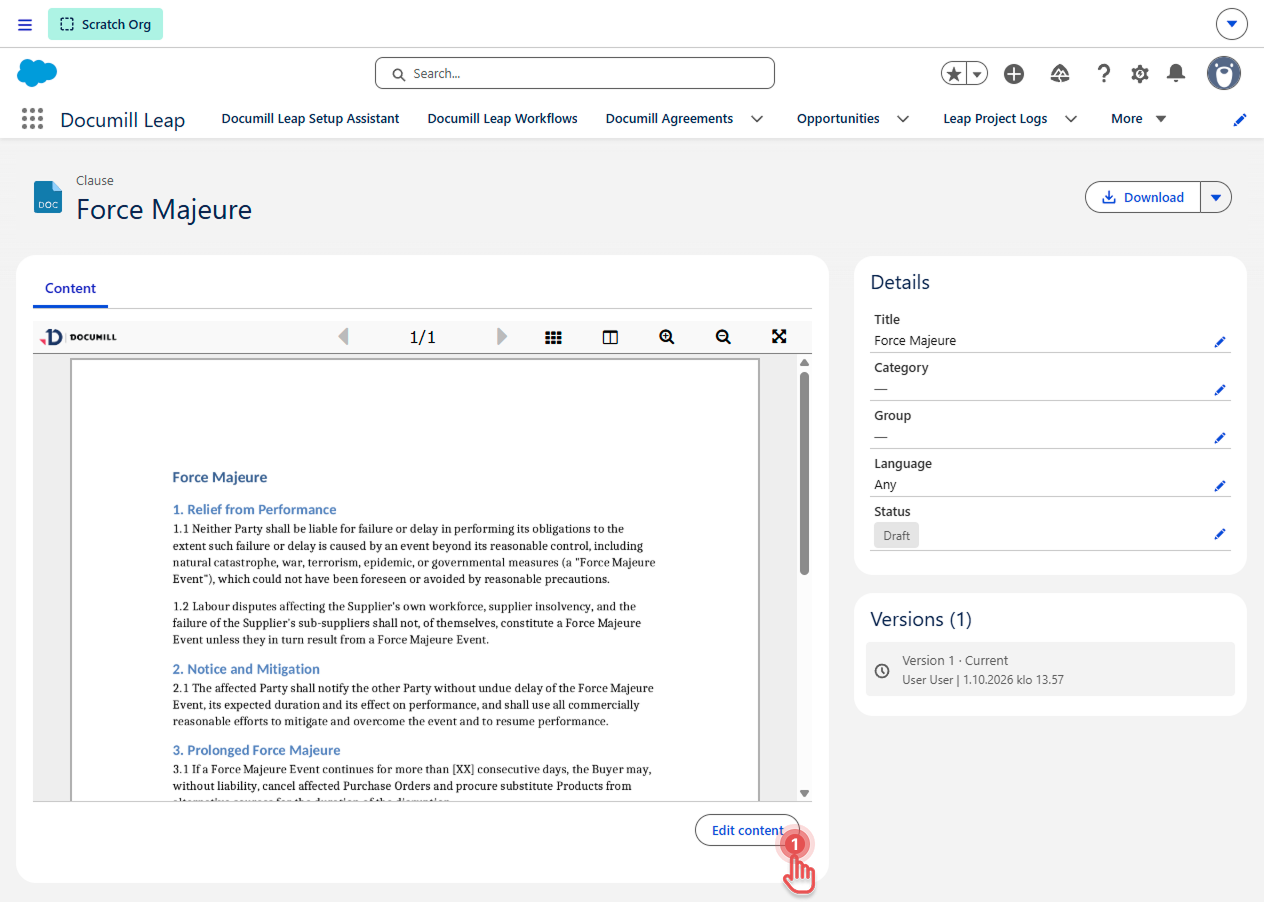
On the Content tab, select Edit content. The clause opens in the online editor.
Preview
-
Make your changes.
-
Select Save as new version. To discard your changes, select Cancel.
Preview
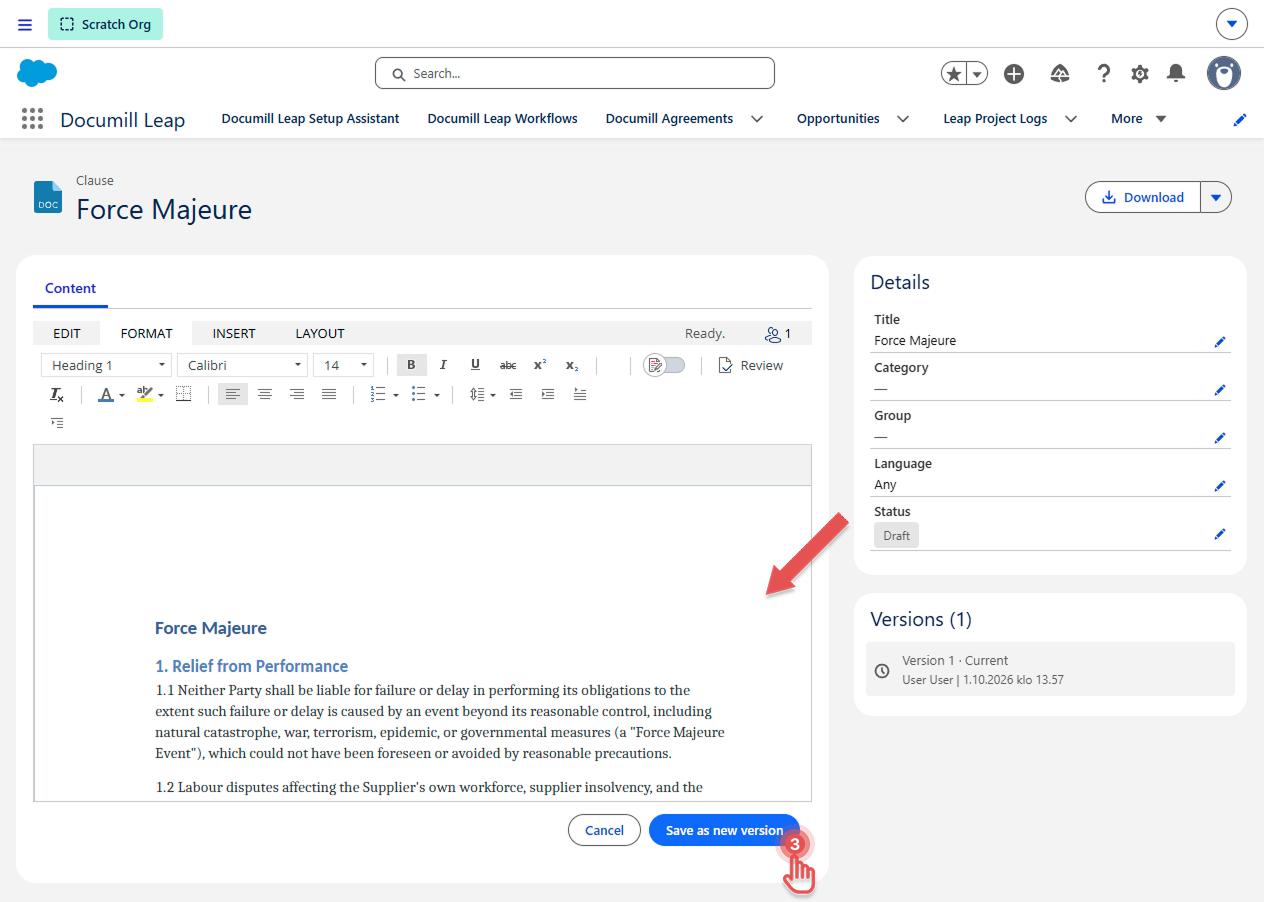
Saving always adds a new version; earlier versions are never overwritten. The new version keeps the clause's current status.
If the clause is Live, your changes are available in Leap Projects as soon as you save. To prepare bigger changes without affecting Leap Projects, first change the status to Draft. When you're done, set it back to Live.
Viewing and restoring earlier versions
The Versions list shows each version with its number, author and date. The newest is marked Current.
-
Select a version to preview it.
-
To make it current again, click [Restore this version].
Preview
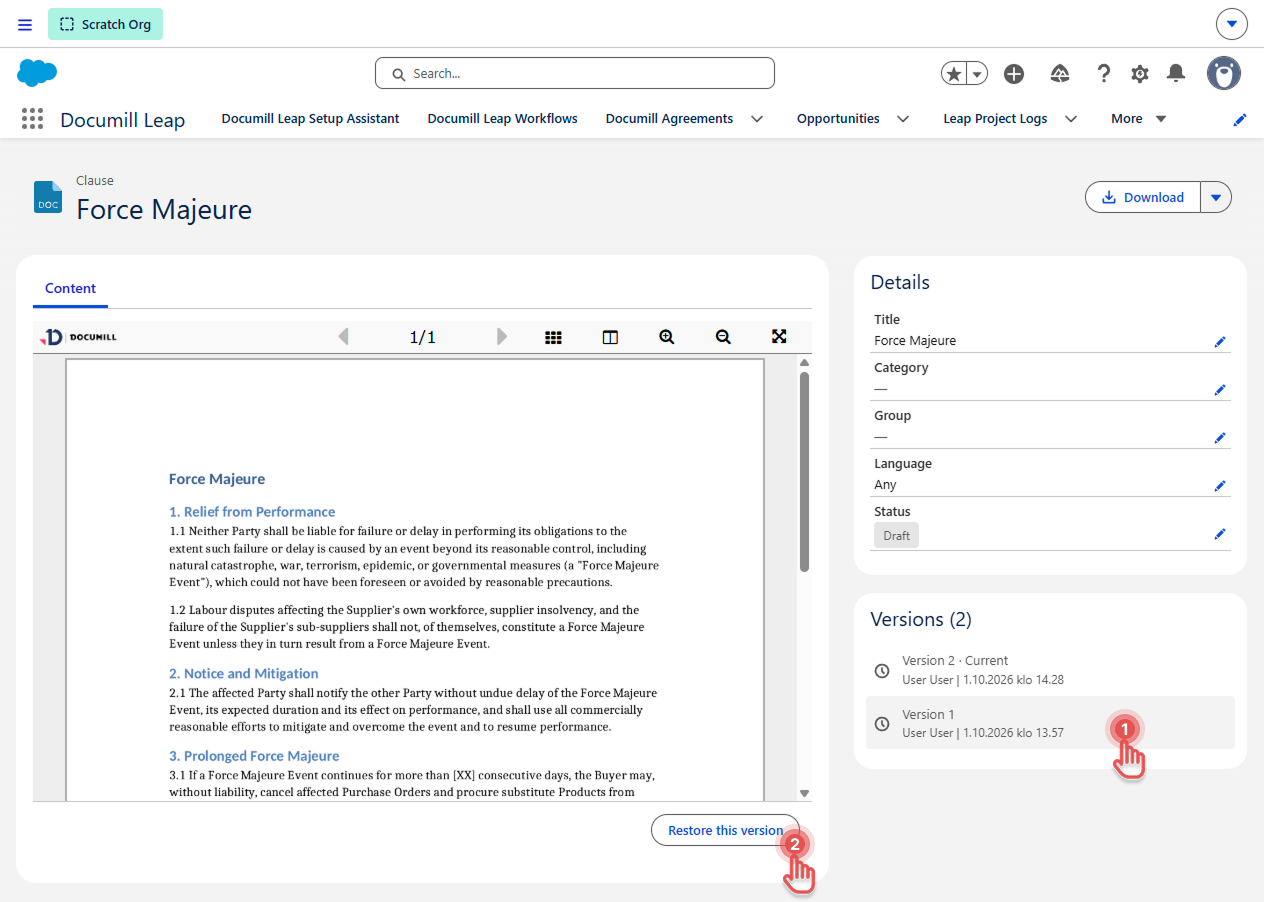
Restoring doesn't delete anything. It copies the selected version's content into a new current version, so you can always go back.
Downloading a clause
-
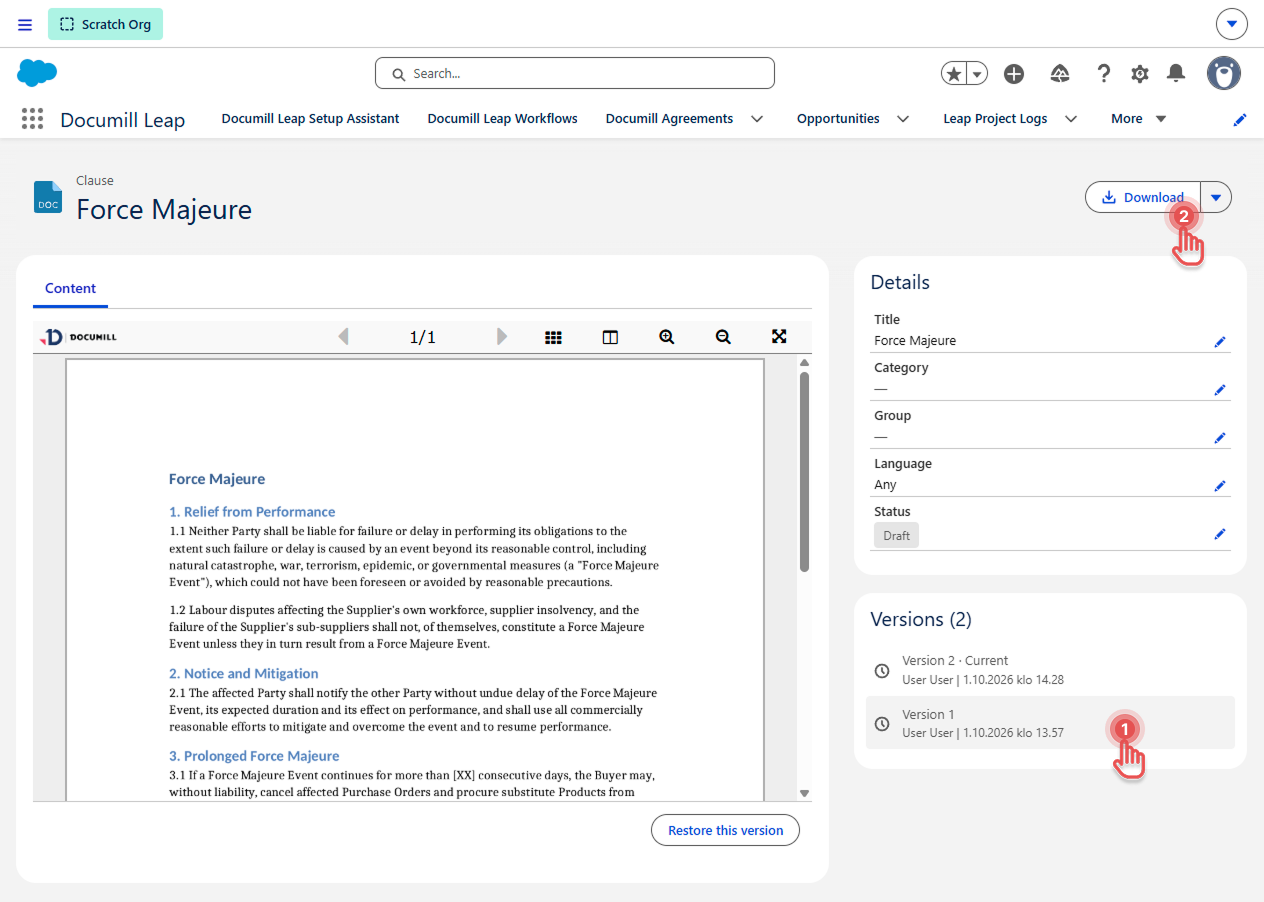
Select a version in Versions. The current version is selected by default.
-
Select Download at the top of the page to get it as a Word file.
Preview
Deleting a clause
Select Delete at the top of the page. See Deleting Clauses .