
Available to users with Documill Leap Clause Admin permission set.
Deleting a clause removes the clause and all its versions. It's also removed from its categories and groups.
Deleting can't be undone.
To stop a clause from being used without losing it, set its status to Archived instead. See Editing a Clause
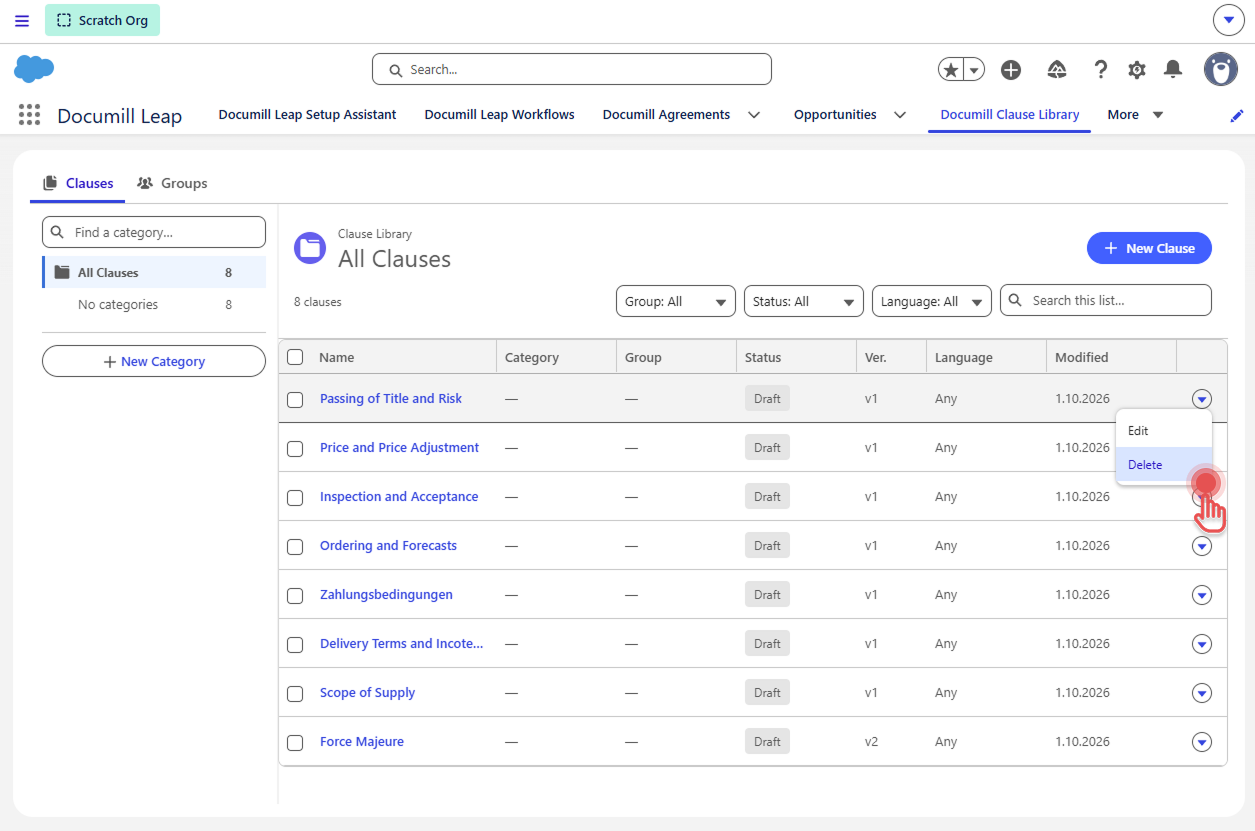
Deleting one clause
Do one of the following:
-
In the clause list, open the row menu (▾) of the clause and click [Delete].
Preview
-
On the clause page, click [Delete] at the top.
Preview
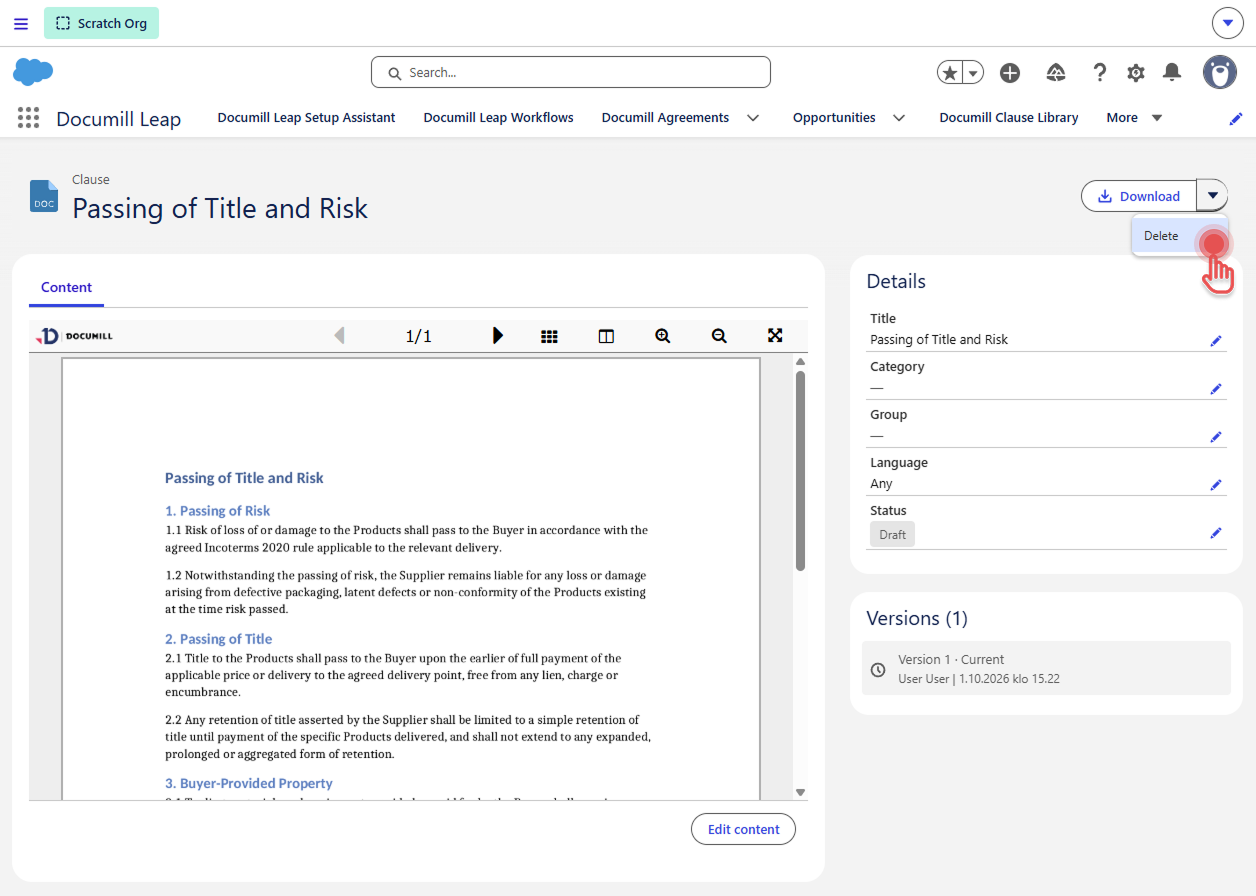
Then confirm by clicking [Delete].
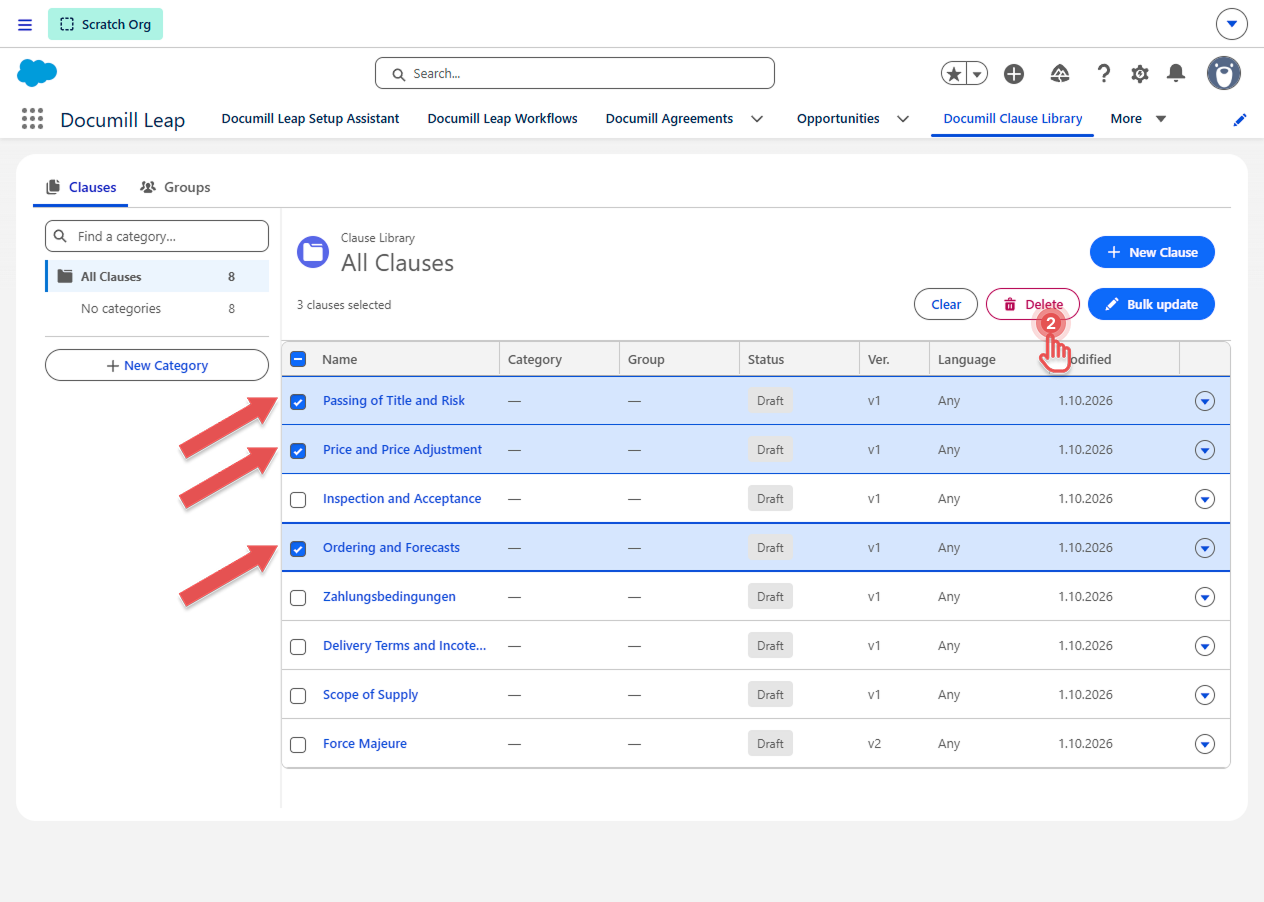
Deleting several clauses
-
In the clause list, select the checkboxes of the clauses you want to delete.
-
Click [Delete] above the list.
Preview
-
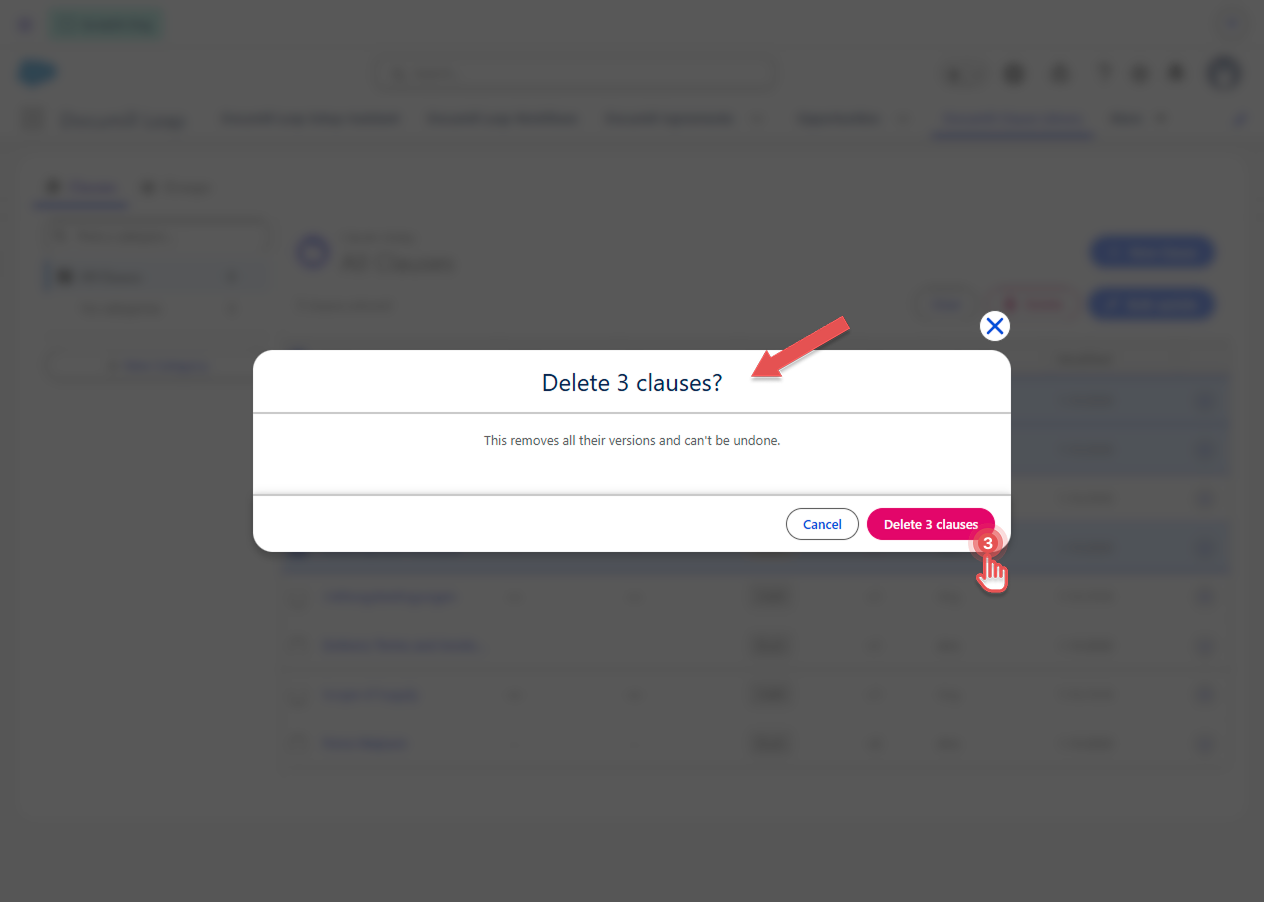
Check the number of clauses in the confirmation window, and then confirm.
Preview
You can select clauses on the current page only. To delete more than one page's worth, delete page by page. To fit more on a page, choose a larger page size (up to 100) at the bottom of the list.
If some clauses can't be deleted, for example because you don't have access to their files, a message lists them with the reason. The other clauses are still deleted.
Who can delete clauses
The Delete options are shown only to users who are allowed to delete clauses. See Enabling Clause Library .