
Available to users with Documill Leap Clause Admin permission set.
You can change the categories, groups, language and status of several clauses at once.
-
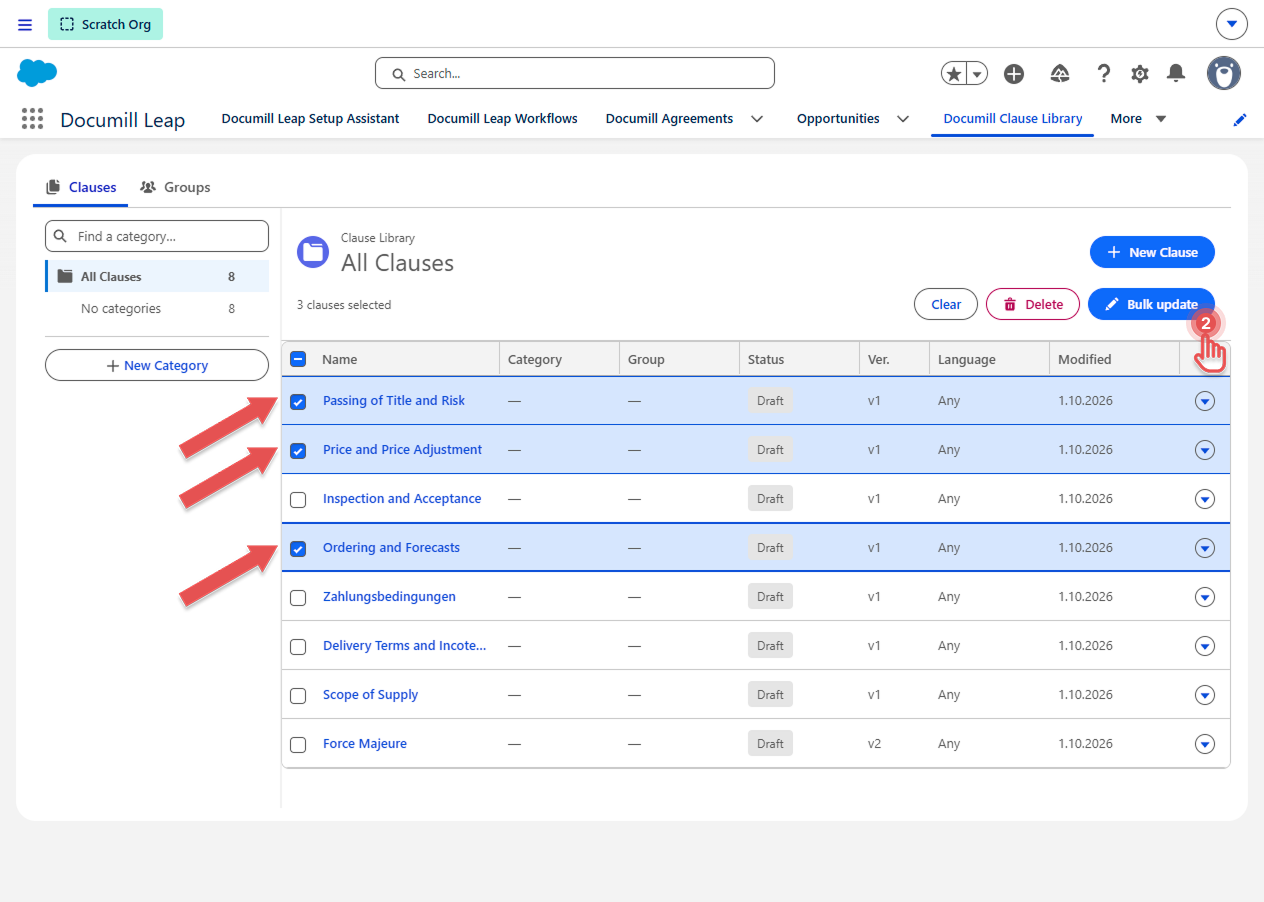
In the clause list, select the checkboxes of the clauses you want to change.
-
Click [Bulk update] above the list.
Preview
-
In the Update <n> clauses window, change only the fields you need. Fields left at “No change” keep each clause's current value.
-
Click [Update].
Preview
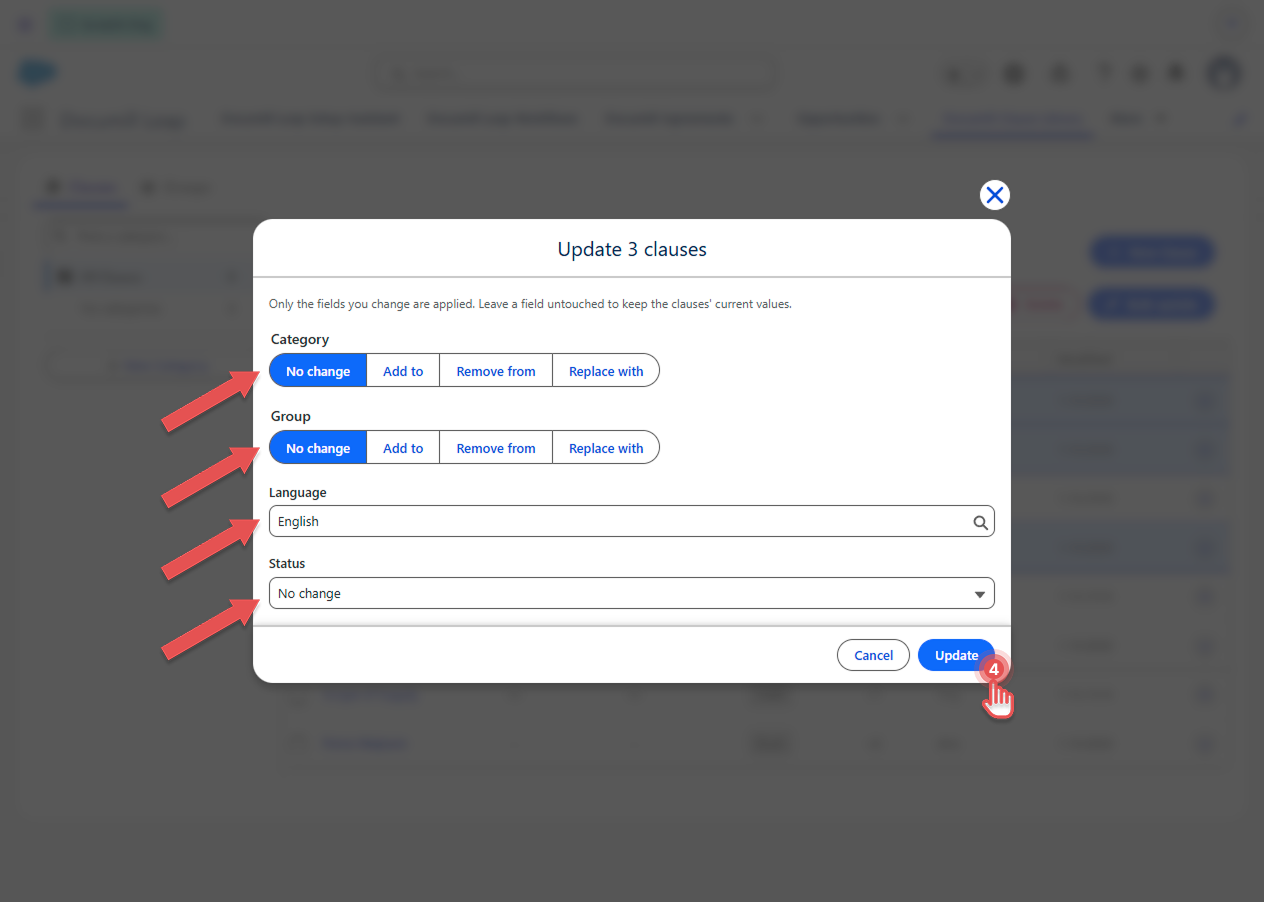
A message tells you how many clauses were updated. If some couldn't be updated, it lists them with the reason, and the others are still updated.
You can select clauses on the current page only. To update more at once, choose a larger page size (up to 100) at the bottom of the list.
Categories and groups
For Category and Group, first choose what to do, then choose the categories or groups:
|
Option |
What happens |
|---|---|
|
Add to |
Adds the clauses to the chosen categories and groups. Their existing ones are kept. |
|
Remove from |
Removes the clauses from the chose categories or groups. Their other ones are kept. |
|
Replace with |
Removes the clauses from all their current categories and groups and adds them to the chosen ones. |
Tip: To take the selected clauses out of all categories or groups, choose Replace with and leave the list empty.
Language and status
-
Language: sets the same language on all selected clauses. Start typing to search languages that aren't in the preferred list. See Configuring Clause Languages .
-
Status: sets the same status on all selected clauses. See Editing a Clause for what each status means.