
When building Salesforce Flow to use Leap via API, it will require the use of Leap External API Key. Our recommendation is to store this information in a Named Credential.
First, get the Leap External API Key of your Leap Organization: Managing External API Keys . Make sure to store the Leap External API Key in a safe place, as it will only be visible once after creation.
And then, let’s prepare a Named Credential to store it.
How to prepare Named Credential for Documill Leap API
-
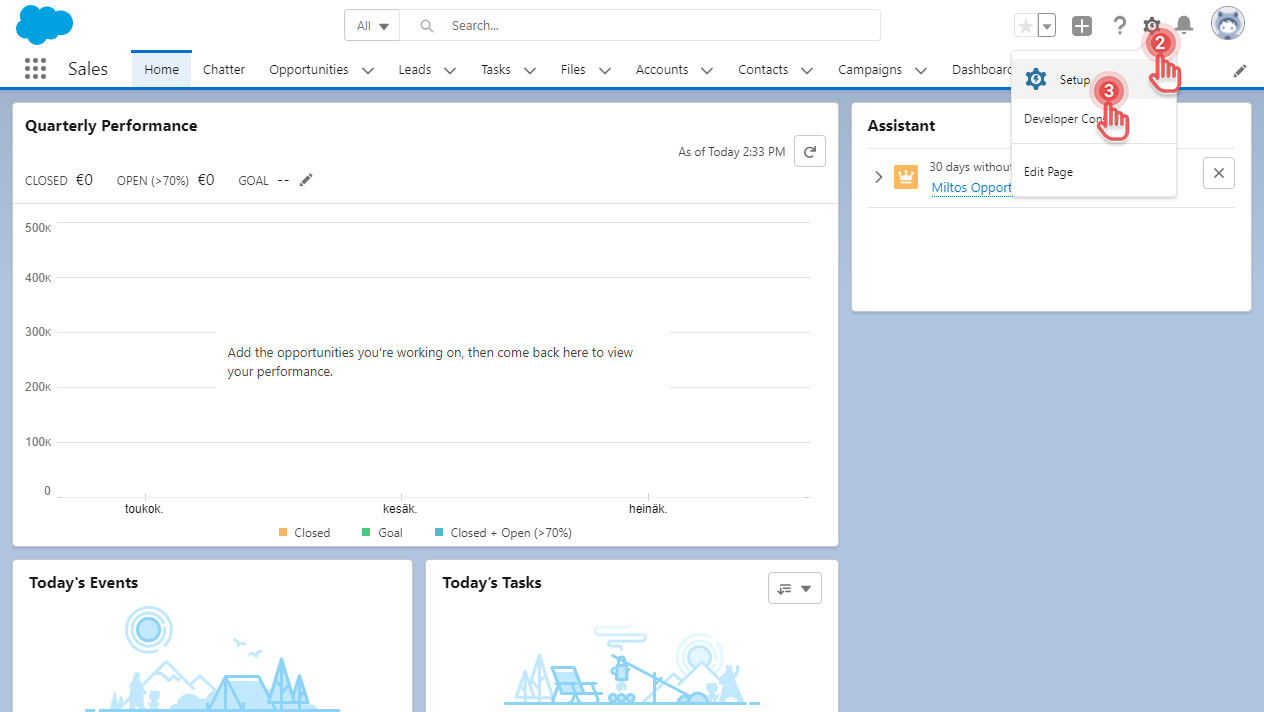
Open your Salesforce organization.
-
Click [⚙] button on the top right corner.
-
Click [Setup] option.
Preview...
-
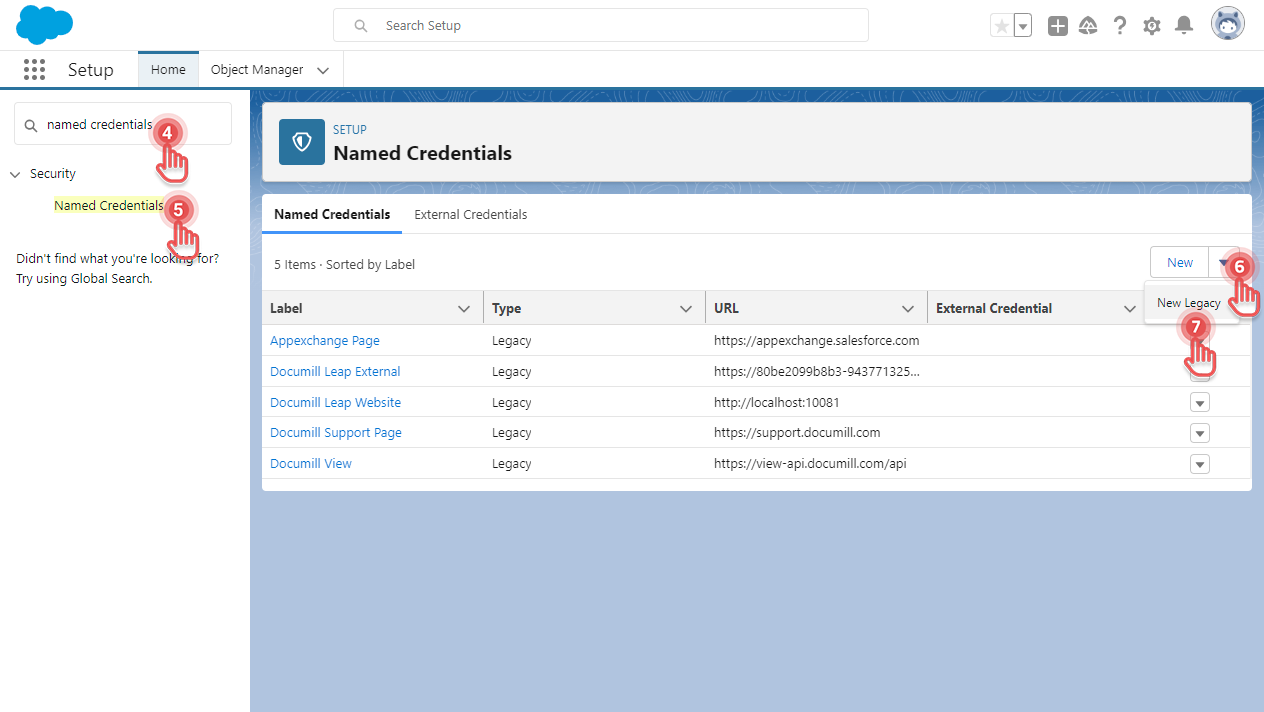
In Setup page, search for “named credentials”.
-
Click the Named Credentials entry.
-
In Named Credentials page, click [▼] button
-
Click [New Legacy] option.
Preview...
-
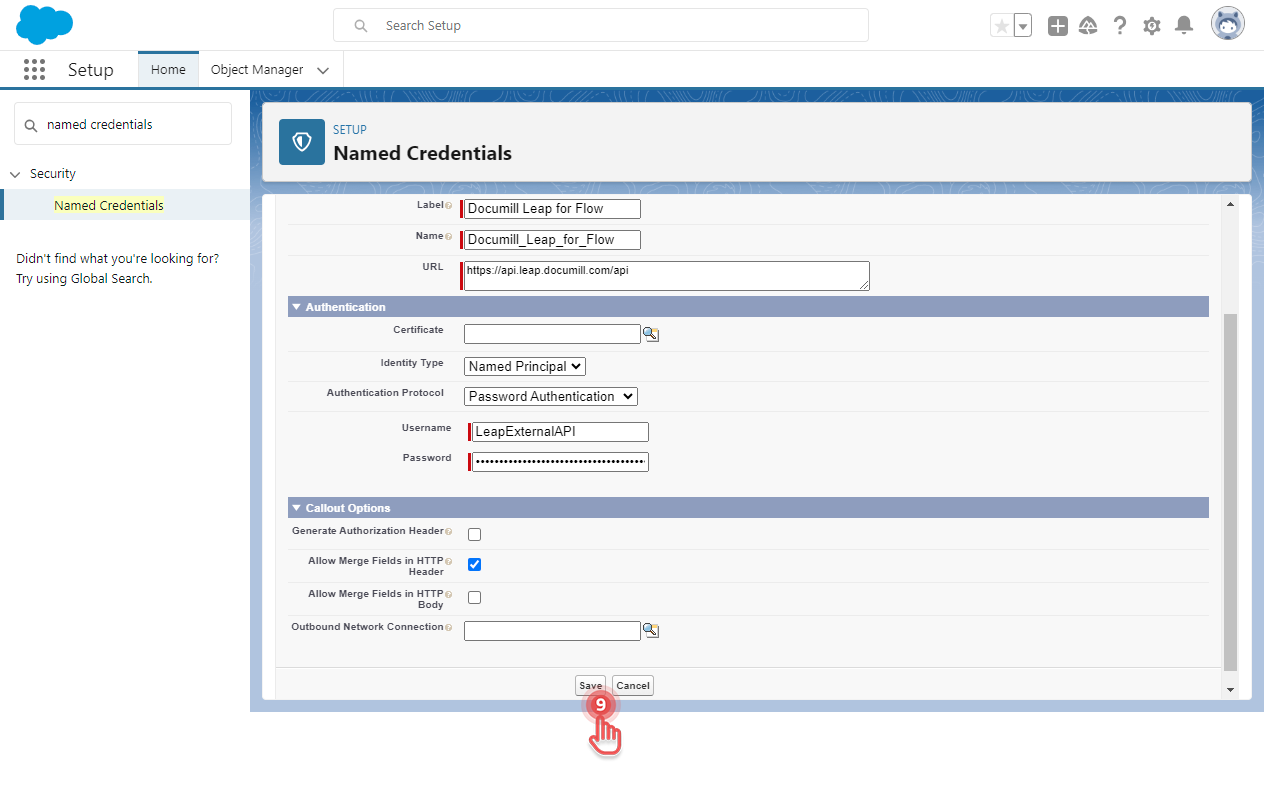
Complete the details of the new Named Credential as follow:
|
Fields |
Values |
Explanations |
|---|---|---|
|
Label |
Documill Leap for Flow |
This value can be adjusted as needed. |
|
Name |
Documill_Leap_for_Flow |
This value can be adjusted as needed. Use this value in other tutorials that involve calling Documill Leap’s API. |
|
URL |
https://api.leap.documill.com/api |
|
|
Identity Type |
Named Principal |
|
|
Authentication Protocol |
Password Authentication |
|
|
Username |
LeapExternalAPI |
|
|
Password |
<Leap External API key> |
Put the Leap External API Key in this field. |
|
Generate Authorization Header |
OFF |
|
|
Allow Merge Fields in HTTP Header |
ON |
|
-
Click [Save] button.
Preview...
Using the Named Credential
Now that the Leap External API Key is stored safely in a Named Credential, it can be used in Apex code. For example, when calling Leap External API to create a new Project:
...
HttpRequest request = new HttpRequest();

request.setEndpoint('callout:Documill_Leap_for_Flow/v1/external/projects/new');
request.setMethod('POST');
request.setHeader('Authorization', '{!$Credential.Password}');
request.setHeader('Accept', 'application/json');
request.setHeader('Content-Type', 'application/json');
...