
Since Salesforce data may not be visible to e-signing recipients after the first signer, an additional step is required to ensure that all signers can properly view the included Salesforce data.
This step is required if the workflow includes more than one signer or if forwarding is enabled in the settings.
Follow this step-by-step guide to ensure that the relevant Salesforce data is included in every email notification.
-
Identify the needed Salesforce data
First, identify which Salesforce fields are being used in the Signature Request Email (e.g., Opportunity Annual Total Price).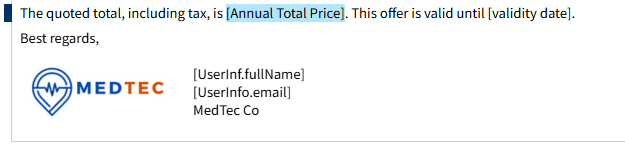
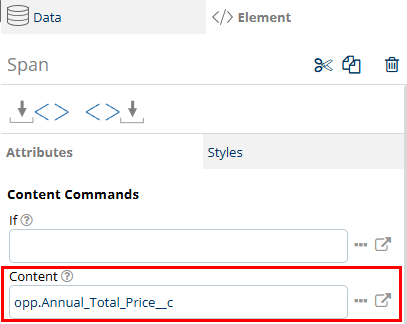
These fields are sourced from the Opportunity record, as shown in the Element tab.
-
-
Save the data into the document’s metadata.
Open your document and go to the Data tab, then navigate to Record declaration.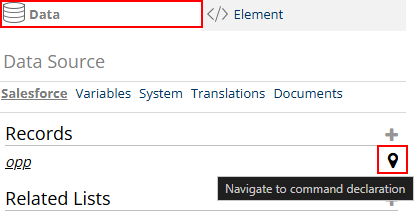
This opens the background template logic where all Salesforce data is queried.
In the command search box on the left side of the screen, search for the command addMapEntry.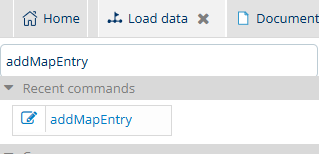
Drag the addMapEntry command and place it directly beneath the query that retrieves the relevant Salesforce field (e.g., the query pulling Opportunity.Annual_Total_Price__c).
Click the addMapEntry command you just added; this will open the command configuration panel on the right side of the screen.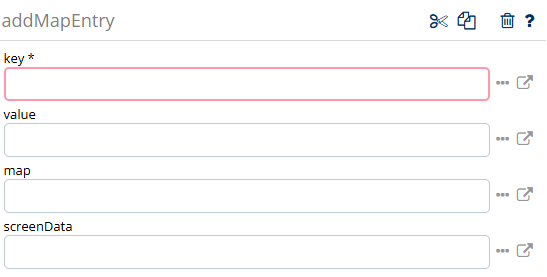
key: This is the name you will use to reference the Salesforce field in the email template in the next step. It is required and can be any string you choose (e.g., TotalPrice). Do not use spaces in the key.
value: This is the actual Salesforce field value you want to store for later use. Example: ${opp.Annual_Total_Price__c}.
map: This specifies where the key-value pair will be stored. In nearly all cases, use: ${dynFields}.
The final addMapEntry configuration should look like this: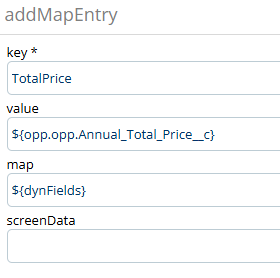
Repeat this process for every Salesforce field referenced in the signature request email template.
-
Add the stored fields to the email template
Now that the required Salesforce data has been stored in the dynFields map, you can make it available again in the email template.
Return to the Signature Request Email template and locate each Salesforce merge field already present in the email and click it.
In the Element tab, update the Content field to reference the value stored in dynFields using the key you defined earlier.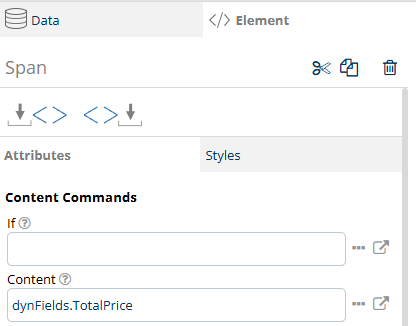
Repeat this process for every Salesforce field used in the email template.
For templates created before June 2024, use conf instead of dynFields.
Note: This modification is only required for data pulled from Salesforce. Standard fields such as recipient name, document name, or user information do not need to be changed.